
How to Change a Squarespace Template Without Losing Content
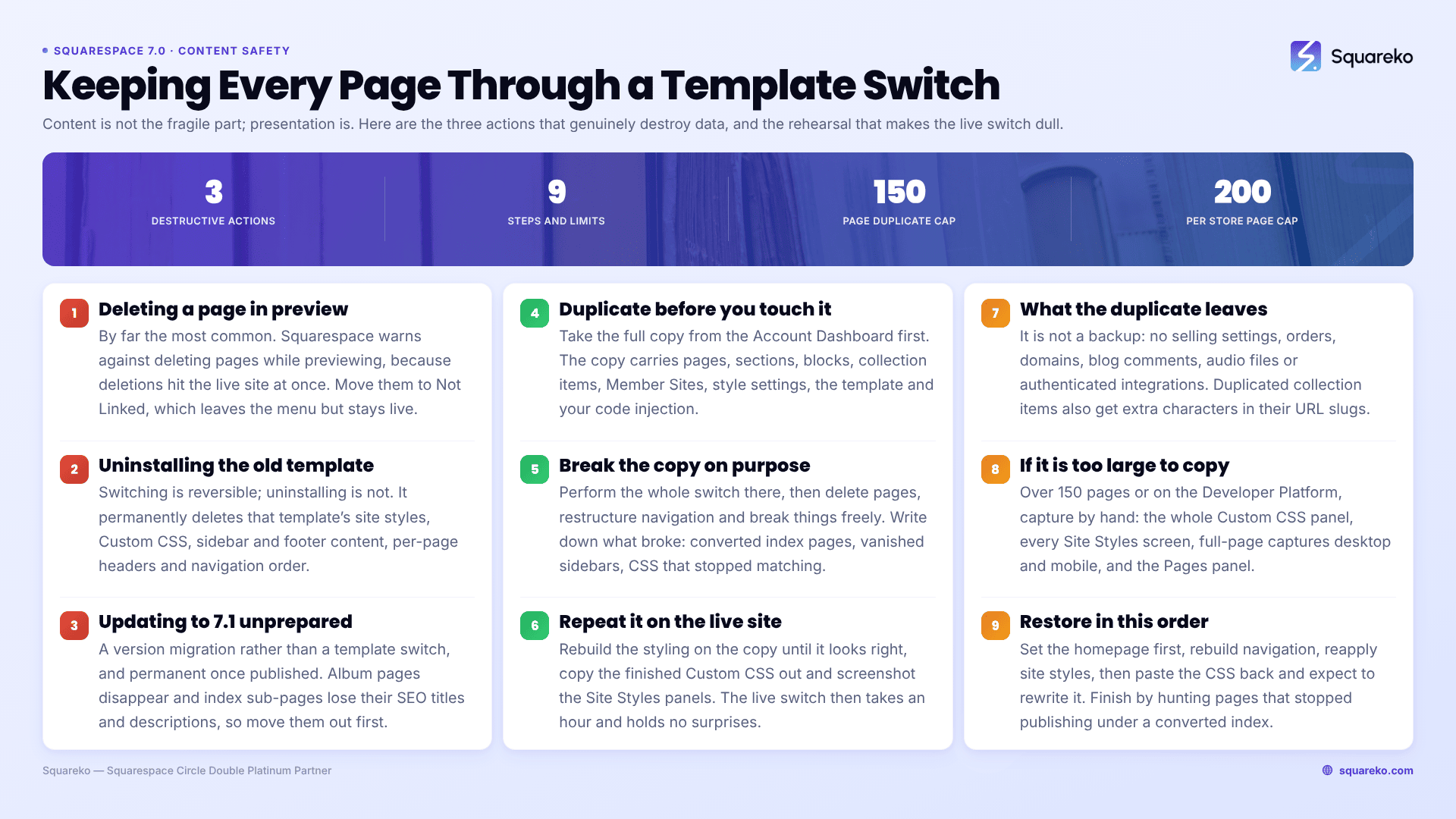
Changing a Squarespace 7.0 template does not delete content. It never has. Pages, blog posts, products, events, gallery images, blocks, page settings and SEO titles are stored against your site, not against your template, so they survive every switch. What resets is presentation — site styles, Custom CSS, sidebars, footers, per-page headers. Content is only ever lost by three specific actions people take during a switch, and all three are avoidable.
Here is what falls into which column, and the rehearsal method that removes the risk entirely.
Survives, resets, or genuinely at risk
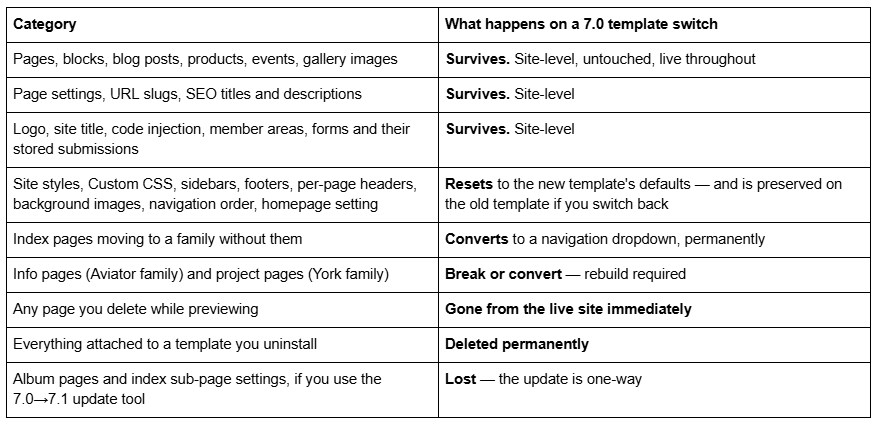
The split that decides everything: content versus presentation
Squarespace divides your site into two categories, and every question about losing content in a template switch is really a question about which side something sits on.
Template-specific items are stored against each individual template. Install a new template and they start blank; switch back and the originals return exactly as you left them. This is the whole styling layer: site styles, Custom CSS, sidebar content, footer content, per-page headers and footers, background images, navigation link order, the homepage setting and any template demo content.
Not template-specific items belong to the site. They follow you to every template you ever install, and — critically — they are not protected by preview mode. Pages, blocks, blog posts, gallery images, products, events, album tracks, page settings, logo, site title, SEO titles, code injection and page deletions all live here.
That second half is the whole game. Preview mode protects design. It does not protect content. If you delete a page while previewing a new template, that page leaves your live site the instant you click delete, and visitors see the 404 immediately.
What survives a Squarespace 7.0 template switch, by content type
Nothing in this list requires action from you. It carries over automatically.
Blog posts — every post, its body content, its categories and tags, its author, its publish date and its URL slug. The blog layout changes because layout is a style option; the posts do not.
Products and orders — the entire store, its products, variants, inventory counts, orders and customer records. Store page styling resets; commerce data does not move.
Gallery images — every image stays in the gallery. The display style, which is template-specific, resets to the new template's default gallery layout.
Events — event pages, individual events, dates and locations.
Forms and form submissions — form blocks stay in place and stored submissions are untouched, because they are held in Form & Pop-Up Storage rather than in the template.
Member areas and member content — memberships, paywalled pages and member records.
Page settings — including SEO title, SEO description, page URL slug, thumbnail image and navigation title. This is why a template switch is not, on its own, an SEO event.
Code injection — site-wide header and footer injection, and per-page injection.
The per-type detail, including the awkward cases like code blocks and navigation, is in changing templates in Squarespace: what happens to your content.
The three actions that genuinely destroy content
Every real case of lost content in a Squarespace template switch traces to one of these three.
1. Deleting pages while in preview mode. This is by far the most common. You install a new template, preview it, see the demo pages and the pages that no longer fit, and start tidying. Squarespace's own warning is unambiguous: do not delete pages while previewing, because deletions affect your live site. Move them to the Not Linked section of the Pages panel instead. Not Linked pages stay published at their URL but leave the navigation — reversible, invisible to visitors browsing your menu, and it costs you nothing.
2. Uninstalling the old template. Switching is reversible; uninstalling is not. Uninstalling permanently deletes every template-specific setting attached to that template — site styles, Custom CSS, sidebar and footer content, per-page headers, navigation order. And if the template is one of the 35-plus discontinued version 7.0 templates, you cannot reinstall it at all. Squarespace's guidance is exact: you can switch back to a discontinued template as long as you don't uninstall it. There is no benefit to uninstalling. Leave every template installed.
3. Running the 7.0→7.1 update tool without preparing. This is not a template switch, it is a version migration, and it is permanent — once published, there is no route back to 7.0. Two things are lost outright: album pages do not exist in version 7.1 and disappear, so save the audio and text locally first; and sub-pages inside index pages lose their page settings, including SEO titles and descriptions, so move them out of the index before you start. The tool also has a 150-page limit and a 200-product per store page limit. Squarespace confirms SEO settings, orders, sales, customer data, members, domains and URL mappings survive the move.
The duplicate-site rehearsal: switch templates without touching the live site
If you want a genuinely zero-risk template switch, do not perform it on your live site at all. Perform it on a copy first.
Account Dashboard → click … on the site → Duplicate Website.
The duplicate arrives as a new trial site at the top of your dashboard. It carries pages, sections, layouts, blocks, collection items, Member Sites, site title, logo, language settings, style settings, the template itself and your code injection. That is enough to make it a faithful rehearsal environment.
The procedure:
Duplicate the live site and give the copy an obvious name — clientname-template-test, not Untitled.
Perform the entire switch on the copy. Install the new template, preview it, set it live on the copy. Nothing you do here touches the real site or its visitors.
Delete freely. This is the point of the rehearsal. On the copy you can delete pages, restructure navigation and break things, because deletions here are deletions on a throwaway trial.
Write down what broke. Index pages that became dropdowns, sidebars that vanished, sections that need rebuilding, CSS rules that stopped matching. This list is your real project plan.
Rebuild the styling on the copy until it looks right, then copy the finished Custom CSS out to a text file and screenshot the finished Site Styles panels.
Repeat the switch on the live site, pasting in the CSS and reapplying the style settings you already know work. The live switch now takes an hour instead of a weekend and holds no surprises.
Cancel the trial when you are done, or keep it as a staging site if you want somewhere to test future changes.
The rehearsal costs you a trial period and about an hour. It is the single highest-value habit in this entire cluster.
What the duplicate does not carry — read this before relying on it
A duplicated Squarespace site is a design rehearsal environment, not a backup. Squarespace does not copy:
Selling settings, orders, discounts and subscriptions — the store's products come across, the commerce data does not
Domains and Email Campaigns
Blog comments
Audio files and files attached through link editors
Stock images and unused Asset Library files
Third-party integrations that require authentication — they need reconnecting
Billing and analytics history
One detail catches people out: duplicated collection items get extra characters added to their URL slugs. Blog post and product URLs on the copy will not match the originals. That is harmless for a design rehearsal and fatal if you were planning to promote the duplicate to production, so do not plan to.
Duplication is also not available for sites over 150 pages, Developer Platform sites, parking pages, discontinued Cover Page plans or Acuity Scheduling client pages.
If you cannot duplicate: the manual capture checklist
On a site too large to duplicate, or a Developer Platform site, capture the template-specific layer by hand before you install anything. It takes ten minutes.
Copy the entire Custom CSS panel into a plain text file. Squarespace opens the CSS Editor blank on a new template, and there is no undo.
Screenshot every Site Styles panel, scrolled fully. Hex codes and font names are faster to retype than to re-derive.
Take full-page captures of the live site, desktop and mobile, on every page type you have — home, blog list, blog post, product, gallery, contact.
Export a copy of your writing. Open the Import & Export content panel, click Export, then the WordPress icon. The .xml file covers layout pages, one blog page and all its posts, text and image blocks, and gallery pages on version 7.0. It excludes store pages, album pages, index pages, info pages, cover pages, event pages, additional blogs, headers, footers, styles and Custom CSS — and Squarespace states it is "not possible to export content from one Squarespace site and import it into another." Treat it as an off-platform copy of your writing, not a backup.
Screenshot the Pages panel, including the Not Linked section, so you can rebuild navigation order.
List your index pages and which sub-pages sit inside each one.
Note your homepage, because the homepage setting is template-specific and resets.
Restoring after the switch, in the order that saves time
Once the new template is live, work in this sequence. Doing it out of order means redoing work.
Set the homepage first. Until you do, the previewed or newly live template may show "We couldn't find the page you were looking for."
Rebuild navigation — link order and Not Linked placement are template-specific and will have reverted.
Reapply site styles — fonts, colours, spacing — before you touch CSS, so you are not writing CSS to fight defaults you are about to change.
Paste your Custom CSS back in, then check every rule. Selectors written for the old template's class names will not match the new one, so expect to rewrite rather than restore. That specific failure is covered in why your Squarespace Custom CSS disappeared after switching.
Rebuild sidebars, footers and per-page headers.
Walk every page type on desktop and mobile against your screenshots.
Check for pages that stopped publishing — sub-pages inside a converted index page remain in the Pages panel but disappear from the live site.
The short version
Content is not the fragile part of a Squarespace template switch. Presentation is. Blog posts, products, galleries, forms, members, page settings and URLs all survive automatically; styles, CSS, sidebars and footers all reset and all come back if you switch the old template live again.
The only ways to actually lose something are deleting pages in preview, uninstalling the old template, and running the one-way 7.0→7.1 update tool unprepared. Avoid those three and the worst case is an afternoon of restyling. The decision sitting above all of this — whether to switch at all — is in how to change your Squarespace template.
Rehearse on a duplicate if the site matters. If it is a 7.0 site with a decade of undocumented CSS, hundreds of index sub-pages, or a store that cannot afford an hour of broken layout, that is the point where a rehearsal on a copy stops being optional — and where our premium Squarespace templates and build service exist as the alternative to restyling something that was never going to fit. For a dozen pages and a blog, the checklist above is the whole job.
FAQ
-
No. Pages, blog posts, products, events, gallery images, blocks, page settings, URL slugs, SEO titles and code injection are stored against your site rather than your template, so they survive every switch. Only presentation resets — site styles, Custom CSS, sidebars, footers and per-page headers.
-
No. Every post, its body content, categories, tags, author, publish date and URL slug carries over untouched. The blog layout changes because layout is a template-specific style option, so the posts will look different. Nothing is deleted and no URL changes.
-
Click Cancel preview in the bottom bar. Your site returns to the live template and every change you made to the previewed template is saved against it, so you can pick the preview up again later without redoing the work.
-
Open Design → Template, hover the old template and set it live. Its site styles, Custom CSS, sidebars, footers and navigation order return exactly as you left them. This only works if you never uninstalled it — uninstalling deletes those settings permanently.
-
Set a different template live first, since the live template cannot be uninstalled. Then hover the template in Design → Template and click Uninstall, then Confirm. Check whether the template is discontinued first — discontinued templates cannot be reinstalled once removed.
-
Album pages, which do not exist in 7.1, and the page settings of any sub-page sitting inside an index page — including its SEO title and description. Move those sub-pages out of the index first. The update is permanent, with a 150-page and 200-product limit.

Author Bio
I'm Walid Hasan, a Certified Squarespace Expert and Squarespace Circle Platinum Partner with over 12 years of hands-on experience designing and optimizing high-performing websites. Over the years, I've had the privilege of building more than 2,000 Squarespace websites for clients around the world, always focusing on clean design, strong user experience, and conversion-driven results.
