Squarespace URL Mappings Not Working: 8 Causes, Ranked by Frequency
The short answer: the rule is almost certainly fine and the source page is still live. Squarespace states the constraint directly — "Redirects only work if the page you're redirecting from has been deleted or disabled." A real page always wins over a mapping. After that, the usual culprits are a syntax error that silently invalidates the line, a capitalisation mismatch, and a browser that cached the 404 before you added the rule.
The panel is at Settings → Developer Tools → URL Mappings.
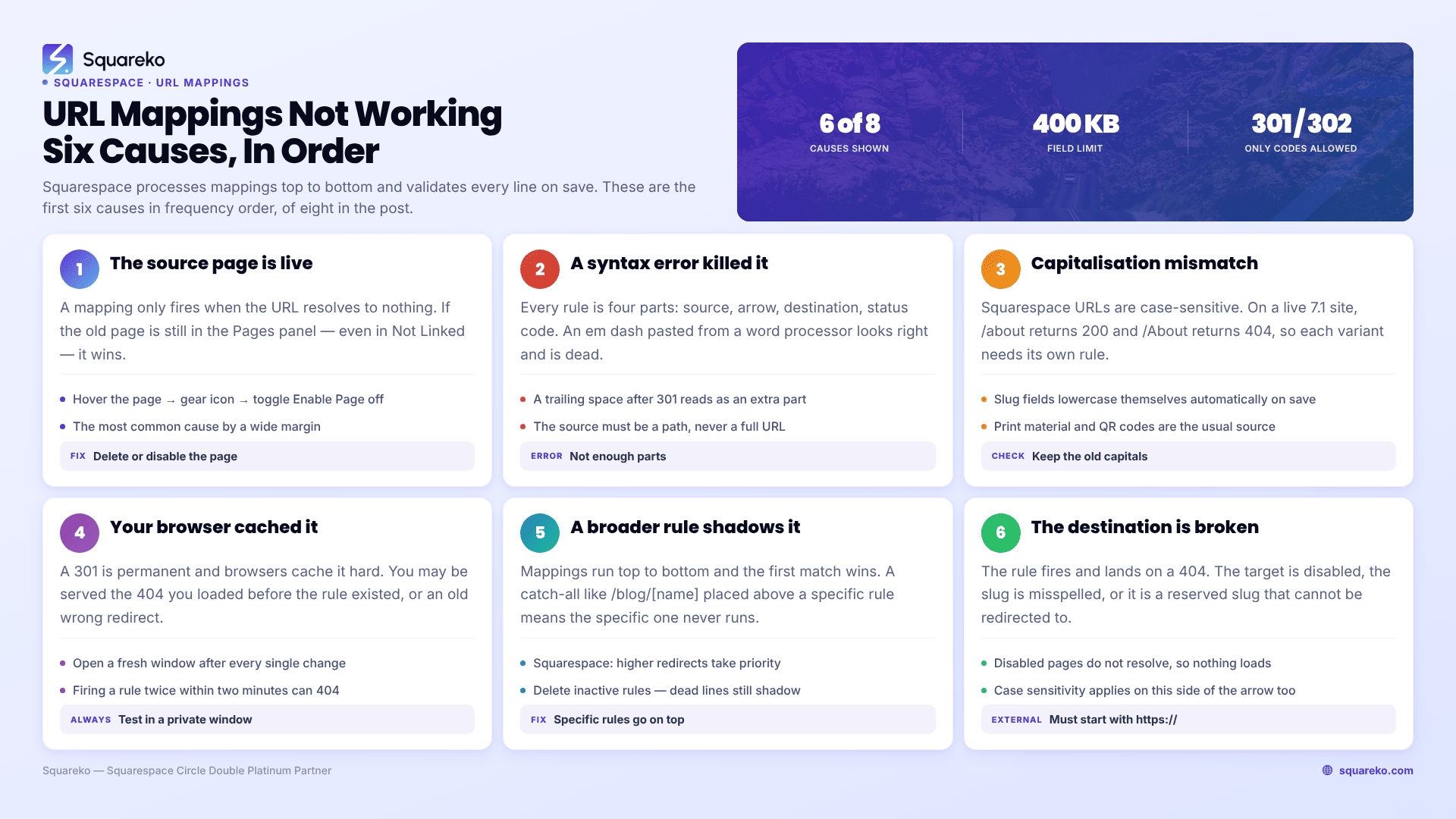
Quick diagnostic table
The syntax, exactly
Every rule is four parts on one line: source, arrow, destination, status code.
/old-page -> /new-page 301
/old-page -> /new-page 302
/blog/[name] -> /journal/[name] 301
/store/p/[name] -> /shop/p/[name] 301
/old-page -> https://example.com/new-page 301
/old-feed -> /blog?format=rss 301
The arrow is a hyphen immediately followed by a greater-than sign, ->. The status code is mandatory: 301 for a permanent move that should pass ranking signals, 302 for a temporary one that should not.
Squarespace's error strings tell you which part is wrong:
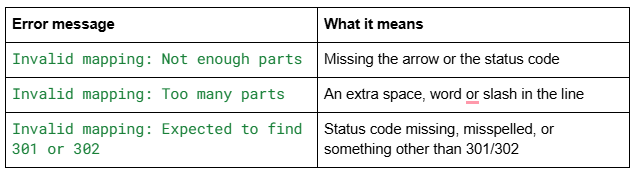
The field holds up to 400 KB, roughly 2,500 rules.
Cause 1 — The source page is still live
This is the single most common cause and the one the Squarespace Forum answers correctly.
A URL Mapping only fires when the requested URL does not resolve to anything. If /services is still a live page in your Pages panel, a rule saying /services -> /what-we-do 301 will be ignored every time, because /services exists.
How to confirm in ten seconds: open the Pages panel and search for the source slug. If a page is there — even in Not Linked — it is live.
The fix: delete the page, or disable it. In the Pages panel, hover the page → gear icon → toggle Enable Page off. Disabling keeps the content recoverable and is the safer of the two. Then reload the old URL.
Cause 2 — A syntax error invalidated the line
Squarespace validates each line on save and shows an error, but the error appears next to the field and is easy to scroll past on a long list.
The three that catch people:
—> instead of ->. Pasting from a word processor or Google Doc converts the hyphen-and-arrow into an em dash. Visually near-identical, functionally dead.
A trailing space after 301. Reads as an extra part.
A full URL as the source. The source must be a path — /old-page, not https://www.example.com/old-page. Only the destination may be an absolute URL.
Retype the line by hand rather than editing the pasted one. It is faster than finding the invisible character.
Cause 3 — Capitalisation does not match
Squarespace URLs are case-sensitive, and this catches people who typed the rule from memory.
I verified this on a live Squarespace 7.1 site: requesting /about returns HTTP 200, while requesting /About returns HTTP 404. Squarespace's own guidance on mappings is to "keep the same capitalization as your URLs."
If old links exist with inconsistent capitalisation — common with print material and QR codes — you need a separate rule per variant:
/Old-Page -> /new-page 301
/old-page -> /new-page 301
/OLD-PAGE -> /new-page 301
Note also that when you type a slug into a page's URL slug field, Squarespace converts it to lowercase automatically. Your live URLs are lowercase; your rules must match whatever the old URL was, which may not have been.
Cause 4 — Your browser cached the result
A 301 is a permanent redirect and browsers cache it aggressively. Two problems follow.
You tested before the rule was live. Your browser cached the 404 and will keep serving it. You tested a wrong rule first. Your browser cached that redirect and will keep following it even after you fix the rule.
Always test in a private window, and open a fresh one after every change. There is also a platform behaviour worth knowing: Squarespace notes that a redirect activated more than once within two minutes can return a 404 as a security precaution. If a rule 404s on your third rapid test, wait two minutes and try again in a new private window before assuming it is broken.
Cause 5 — A broader rule above is shadowing it
Squarespace processes mappings top to bottom, and the first match wins. Its documentation is explicit: "higher redirects will take priority over conflicting redirects below them."
This breaks sites that add a catch-all rule and then append specific rules underneath:
/blog/[name] -> /journal/[name] 301 ← fires first, catches everything
/blog/our-2024-review -> /about 301 ← never reached
The fix is ordering. Specific rules go above broad ones:
/blog/our-2024-review -> /about 301
/blog/[name] -> /journal/[name] 301
On a list of a few hundred rules accumulated over years, this is worth auditing deliberately rather than assuming. Squarespace also recommends deleting inactive rules periodically — every dead rule is a line that can shadow a live one.
Cause 6 — The destination is broken
The redirect fires correctly and lands on a 404. Three reasons:
The destination page is disabled. Disabled pages do not resolve, so the redirect goes nowhere.
The destination slug is misspelled — same case-sensitivity trap as Cause 3, on the other side of the arrow.
The destination is a reserved slug. Squarespace does not allow redirects to reserved URL slugs.
For an external destination, the URL must begin with https://. A bare domain or an http:// target will not work reliably.
Cause 7 — The rule contains a query string
Squarespace states that most redirects "can't use ?, &, or # symbols, as these interfere with the redirect process."
So none of these will work:
/old-page?ref=newsletter -> /new-page 301 ✗
/products?category=hats -> /hats 301 ✗
/page#section -> /new-page 301 ✗
There is one documented exception: RSS feed destinations may contain ?format=rss. Everything else with a query string has to be handled another way — usually by redirecting the base path and accepting that the parameter is dropped, since a parameter is not part of the page identity for indexing purposes anyway.
Cause 8 — The collection variable is written wrongly
To redirect every item in a collection at once, Squarespace uses a [name] variable that substitutes each item's own slug:
/blog/[name] -> /journal/[name] 301
/store/p/[name] -> /shop/p/[name] 301
[name] must appear on both sides, spelled exactly, in square brackets. *, [slug], [*] and {name} are not supported and will either error or silently fail. Note the product path on 7.1 includes the /p/ segment — omitting it is a common reason a bulk store redirect does nothing.
How to test a rule properly
Confirm the source page is deleted or disabled.
Open a new private window.
Type the old URL directly. Do not click an old link — you will follow whatever your browser cached.
Watch the address bar change to the destination.
Verify the status code, not just the landing page:
curl -s -o /dev/null -w "%{http_code} -> %{redirect_url}\n" "https://www.example.com/old-page"
That returns 301 -> https://www.example.com/new-page when the rule is right. A 200 means the source page is still live. A 404 means no rule matched.
Then check Search Console → Indexing → Pages a week later. Redirected URLs should appear under Page with redirect, which is the report confirming the mapping is working from Google's side.
When to hand this over
Work the list in order — live source page, syntax, capitalisation, cache, rule ordering, destination, query strings, variables. In my experience the first three account for the large majority of "my Squarespace redirect isn't working" reports.
The version worth handing over is a post-migration list of several hundred rules where some fire, some do not, and nobody knows which are shadowing which. Auditing that means testing every rule and rebuilding the order, and it is the kind of job our Squarespace website support plans handle as a single block of work. A handful of rules you can debug yourself with the curl check above.
FAQ
-
Most often the source page is still live. Squarespace states that redirects only work if the page you are redirecting from has been deleted or disabled — a real page always wins over a mapping. Delete the page or toggle Enable Page off, then retest in a private window.
-
The line is missing either the arrow or the status code. Every rule needs four parts: source path, ->, destination, and 301 or 302. The most common hidden cause is an em dash pasted from a word processor in place of the hyphen-and-greater-than arrow.
-
Yes. On a live Squarespace 7.1 site, /about returns HTTP 200 while /About returns 404. Squarespace's mapping guidance says to keep the same capitalisation as your URLs, so an old URL with different capitalisation needs its own rule.
-
Not a general wildcard, but there is a collection variable. Write [name] on both sides — for example /blog/[name] -> /journal/[name] 301 — and Squarespace substitutes each item's own slug. Asterisks and other bracket styles are not supported.
-
No. Squarespace states that most redirects cannot use ?, & or # because those interfere with the redirect process. The one documented exception is an RSS destination such as /blog?format=rss.
-
Use a fresh private window and type the old URL directly rather than clicking a cached link. To confirm the status code rather than just the landing page, run curl -s -o /dev/null -w "%{http_code}" https://www.example.com/old-page — it should return 301.

Author Bio
I'm Walid Hasan, a Certified Squarespace Expert and Squarespace Circle Platinum Partner with over 12 years of hands-on experience designing and optimizing high-performing websites. Over the years, I've had the privilege of building more than 2,000 Squarespace websites for clients around the world, always focusing on clean design, strong user experience, and conversion-driven results.