
Squarespace Booking for Health and Wellness Professionals: The Complete Guide
Key Takeaways Squarespace Booking for Health and Wellness Professionals: The Complete Guide
Integrated booking converts 30-50% more than email/phone booking direct access to scheduling removes friction and captures interested clients immediately
Squarespace Scheduling is fully integrated — no third-party tools needed; payment processing, email automation, calendar sync all included
Intake forms reduce no-shows by 25% — collecting appointment-specific information upfront reduces cancellations and improves session effectiveness
Automated reminders prevent 35-40% of no-shows 24-hour email and SMS reminders dramatically reduce missed appointments
GDPR compliance is essential for health professionals client health data must be protected; Squarespace handles security, you handle transparency
Different professional types need different setups — therapist 1:1 sessions differ from fitness class scheduling; customize appointment types accordingly
Email back and forth is killing your booking rate. A potential client is interested in your services, sends you an email, and then waits for a reply. You don't respond immediately. They book with someone else. You've lost a sale.
Integrated online booking eliminates that friction. Clients book appointments directly from your website, 24/7, without emailing you. They confirm their availability, pay if required, and receive automatic reminders. You're automatically notified. Their calendar syncs with yours. Everyone wins.
For health professionals, booking and scheduling is the single most important conversion tool on your website. Data shows that websites with integrated booking convert 30-50% more visitors into appointments compared to websites requiring email or phone booking.
Squarespace Scheduling (formerly Acuity Scheduling) makes this simple. It's built directly into Squarespace no third-party tools, no complicated integrations, no custom code. We'll walk you through setup, configuration for different health professional types, GDPR compliance, automation strategies, and troubleshooting.
Why Integrated Booking Matters for Your Practice
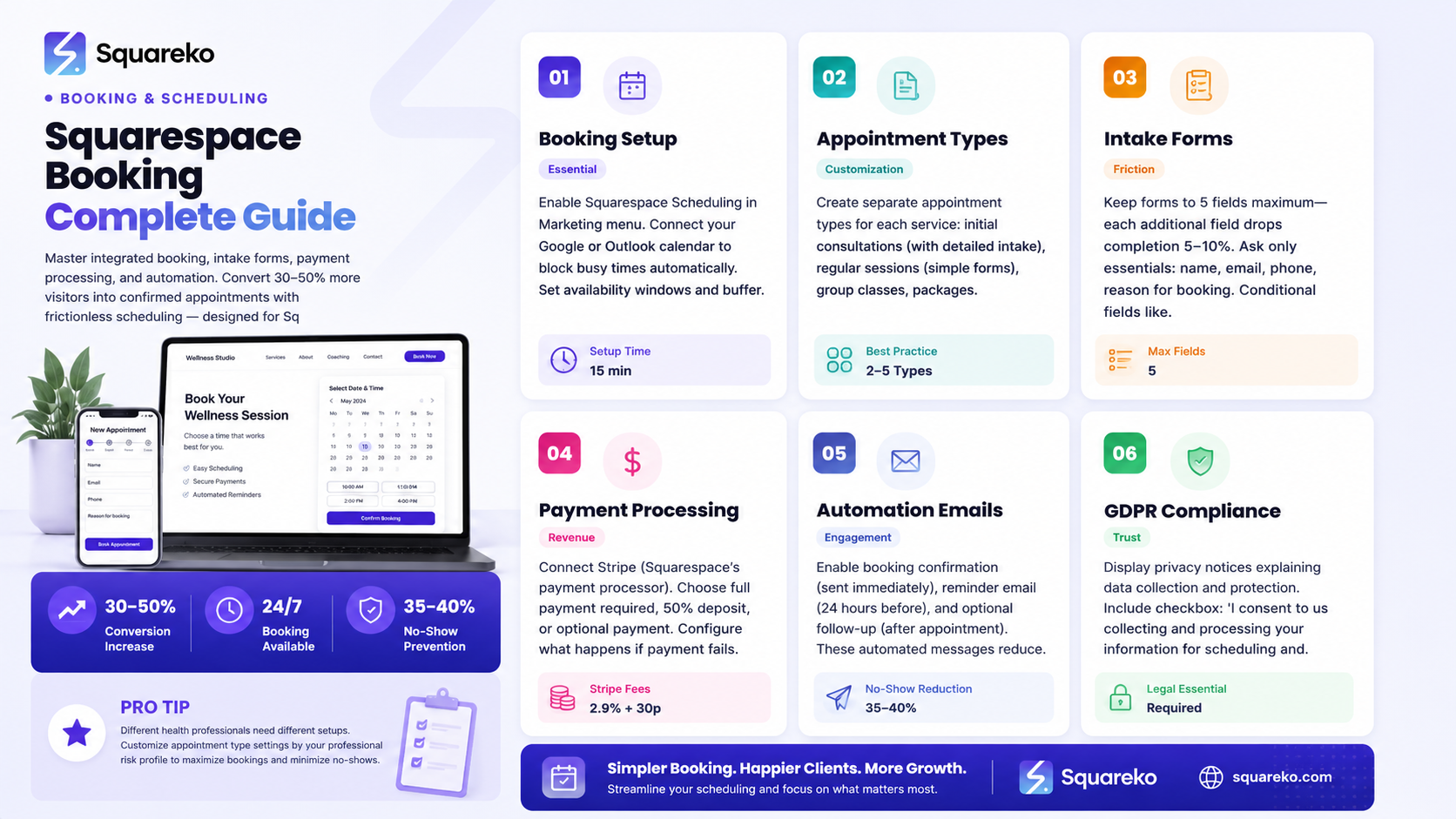
Convenience drives conversion. Squarespace data shows that websites with integrated booking see:
30-50% increase in conversion rates compared to email/phone-only booking
Lower no-show rates — clients who book online confirm their commitment; email inquiries are less binding
Reduced administrative work — automated confirmation, payment, and reminder emails eliminate back-and-forth
24/7 availability — clients can book outside your business hours
Reduced scheduling conflicts — your availability automatically updates; double-bookings become impossible
For health professionals, these benefits compound. The easier it is to book, the more clients book. The more automated your process, the more time you spend on actual client work rather than administrative tasks.
Compare two scenarios:
Scenario 1: Email-only booking
Client sees your website
Client sends inquiry email: "Hi, I'm interested in therapy for anxiety. What times are you available?"
You see email later that day, reply: "Hi! I'm available Tuesday 2-4pm, Thursday 6-8pm, or Friday 10am-12pm"
Client replies: "Thursday 6:30pm works for me"
You confirm and send payment details
Client forgets appointment, sends cancellation email 2 hours before
Result: Lost appointment.
Scenario 2: Integrated booking
Client sees your website, clicks "Book Now"
Client sees your available times immediately, selects "Thursday 6:30pm," completes appointment type and intake form
Client receives instant confirmation with calendar invite
24 hours before appointment, client receives reminder email
Client receives calendar notifications from the appointment invite
Client shows up
Result: Booked appointment.
Integrated booking isn't just a nice feature. It's a business growth tool.
Setting Up Squarespace Scheduling
Squarespace Scheduling is enabled and managed directly in your Squarespace account.
Step 1: Enable Scheduling
Log in to your Squarespace site
Go to Marketing > Scheduling
Click Enable Scheduling
Follow the setup wizard to configure your basic settings
Step 2: Connect Your Calendar
Squarespace Scheduling syncs with:
Google Calendar
Outlook/Microsoft Calendar
iCal (most calendar systems)
Choose your calendar:
In Scheduling settings, go to Calendar Sync
Select your calendar type
Authorize Squarespace to access your calendar
Select which calendar to sync (if you have multiple)
Squarespace automatically blocks your busy times from client booking. If you're busy Thursday 2-4pm in your personal calendar, clients won't see that as available.
Step 3: Set Your Availability
Define when clients can book:
Go to Scheduling > Availability
Set your time zone
For each day of the week, set start and end times (e.g., "Monday: 9am-5pm")
Set buffer time before and after appointments (e.g., 15 minutes for note-taking)
Block off days or times you're unavailable (holidays, days off)
Step 4: Add Payment Processing
Go to Scheduling > Payments
Connect your Stripe account (or create one)
Set whether payments are required, optional, or deposits only
Configure what happens if payment fails
Squarespace Scheduling uses Stripe for payment processing. The money goes directly to your Stripe account (not Squarespace) with standard payment processing fees (2.9% + 30p per transaction).
Step 5: Add the Scheduling Widget to Your Site
Go to a page where you want booking to appear (Services page, Contact page, or dedicated Booking page)
Click Add Block > Scheduling
Select which appointment types to display (or all of them)
Customize the appearance (colors, text)
Save and publish
You can embed scheduling on multiple pages. Most professionals put it on the Services page and a dedicated "Book Now" page.
Creating Appointment Types for Health Professionals
Appointment types define the different services you offer. Each appointment type has its own duration, pricing, and intake form.
Examples of appointment types by professional:
Therapist:
Initial Consultation (60 minutes, $100, detailed intake form)
Regular Therapy Session (50 minutes, $120, simple check-in form)
Couples Session (90 minutes, $180, specialized intake)
Nutritionist:
Initial Nutrition Assessment (60 minutes, $150, detailed health history)
Follow-up Session (45 minutes, $100, simple form)
Group Workshop (120 minutes, $50, basic registration)
Personal Trainer:
Initial Fitness Assessment (60 minutes, $0, health screening form)
1:1 Training Session (60 minutes, $75, no form needed)
Small Group Class (45 minutes, $20 per person, basic form)
Creating an appointment type:
Go to Scheduling > Appointment Types
Click Create Appointment Type
Set the name: "Initial Therapy Consultation"
Set duration: 60 minutes
Set color code: Choose a color for visual distinction
Set pricing: $100 (or $0 if free)
Description: "Your first session. We'll discuss what brings you here and establish goals."
Add to calendar: Which calendar this books to (your primary calendar)
Buffer time: Minutes before/after for notes or breaks (recommended: 15 minutes)
Set intake form: (We'll cover this next)
Add booking limits (optional): Max number of bookings, or no limit
Save
You can create unlimited appointment types. Most professionals have 2-5 main types.
Configuring Intake Forms
Intake forms collect information before the appointment. They reduce no-shows, improve session effectiveness, and gather health information relevant to your practice.
What NOT to ask on intake forms:
Too many fields — every field increases abandonment
Unnecessary personal information — only ask what's relevant
Sensitive financial information (insurance details are okay; bank accounts are not)
Complex medical history — save detailed medical questions for the session
What TO ask:
Essential fields (all appointments):
Name
Email
Phone
Reason for booking (what do they want help with?)
Conditional fields (based on appointment type):
Therapist initial consultation:
How long have you had this concern?
Have you had therapy before?
Any medications you're currently taking? (not detailed list, just "yes/no")
Nutritionist initial consultation:
Dietary restrictions or allergies?
Main nutrition goals?
Any health conditions relevant to nutrition?
Personal trainer initial assessment:
Exercise experience level?
Any injuries or health conditions we should know about?
Main fitness goals?
Yoga instructor:
Any injuries or flexibility limitations?
Have you practiced yoga before?
Any physical limitations? (pregnancy, recent surgery, etc.)
Setting up intake forms:
Go to Scheduling > Appointment Types
Select your appointment type
Scroll to Custom Form
Click Edit Form
Add fields:
Text (short answer)
Long text (paragraph)
Dropdown (select from options)
Checkbox (yes/no)
Email
Phone
Mark required vs. optional
Save
Best practice: Keep intake forms to 5 fields max. Each additional field decreases completion by 5-10%. You can ask deeper questions in the appointment itself.
Payment Processing and Deposit Collection
Squarespace Scheduling integrates Stripe for payment processing. You can collect full payment, deposits, or make payment optional.
Payment scenarios:
Full payment required:
Client can't book until payment is processed
You have guaranteed payment before appointment
Best for: Services with high no-show risk or limited availability
Deposit required (e.g., 50% deposit):
Client pays 50% to secure appointment, remaining due at visit
Reduces no-show risk while not requiring full payment upfront
Best for: Services where full payment upfront feels aggressive
Payment optional:
Client can book without paying
Useful for building trust (especially therapists)
Collect payment in-person or at session
Setting up payment:
Go to Scheduling > Payments
Toggle Require Payment on or off
If required, set payment amount:
Set as percentage of appointment price (e.g., 50%)
Or fixed amount (e.g., $25 deposit)
Configure what happens if payment fails:
Booking is canceled
Client receives email to try payment again
Add payment terms or policies visible to clients
IMPORTANT: Payment and refunds
Be clear about refund policies in your appointment type description:
Example: "Payment of $50 is required to book. Cancellations made 48 hours in advance receive full refund. Cancellations made less than 48 hours before your appointment are non-refundable."
Never have ambiguous refund policies. Transparency prevents disputes and builds trust.
Automation: Reminders, Confirmations, and Follow-ups
Automated emails are one of the most powerful features in Squarespace Scheduling. They eliminate administrative work while dramatically improving client experience.
Automated email types:
Booking confirmation (sent immediately after booking):
Confirms appointment date, time, location
Includes Google Calendar invite attachment
Provides cancellation link if needed
Example: "Your therapy appointment is confirmed for Thursday, March 28 at 6:30pm. See you then!"
Reminder emails (24 hours before appointment):
Reminds client of appointment
Reduces no-shows by 35-40%
Provides easy cancellation link
Example: "Reminder: Your appointment is tomorrow at 6:30pm. Need to reschedule? Cancel here."
Follow-up email (after appointment):
Can be sent automatically 1 hour after appointment ends
Opportunity to ask for feedback or reviews
Can include links to book next appointment
Example: "Thanks for today's session! How was it? Please share feedback and leave a review."
Custom emails (optional):
Pre-appointment reminders (72 hours, if you prefer)
Post-appointment surveys
Invoice or receipt emails
Setting up automation:
Go to Scheduling > Appointment Types > Edit
Scroll to Emails
Configure what emails to send:
Confirmation email: On (recommended: always on)
Reminder email: On/Off (on is highly recommended)
Reminder timing: 24 hours before (default; can adjust)
Customize email text:
Keep professional tone
Include key information (date, time, location)
Add cancellation/reschedule link
Save
Template examples:
Confirmation email template:
Subject: "Your appointment is confirmed"
Hi [Client Name],
Your appointment has been booked!
Date: [Appointment Date] Time: [Appointment Time] Duration: [Duration] Location: [Your address or "Online"]
[Optional: What to bring or prepare for your appointment]
Looking forward to seeing you.
[Your Name]
Reminder email template:
Subject: "Reminder: Your appointment is tomorrow"
Hi [Client Name],
Quick reminder that you have an appointment tomorrow at [Time].
Location: [Address or Online]
[Optional: Parking information or login details for online session]
If you need to reschedule or cancel, please click here: [Rescheduling Link]
See you soon!
[Your Name]
Calendar Integration and Sync
Calendar syncing prevents double-bookings and keeps your schedule accurate across all devices.
How it works:
You connect your Google Calendar, Outlook, or iCal
When a client books on your Squarespace site, that appointment automatically adds to your connected calendar
When you mark time as busy in your calendar, those times automatically become unavailable for booking
Your calendar stays synchronized in real-time across desktop, mobile, and all devices
Setting up calendar sync:
Go to Scheduling > Calendar Sync
Choose calendar provider: Google, Outlook, or iCal
Click authorize and follow provider authentication steps
Select which calendar to sync (if you have multiple)
Confirm sync is active
Best practice: Sync your primary calendar where you manage all your time. Don't create a separate calendar for client bookings—sync your main calendar so Squarespace sees all your commitments.
Calendar sync considerations:
Syncing is two-way: Squarespace appointments appear in your calendar, your busy time blocks booking
Personal appointments (private events, lunch breaks) should still go in your calendar to block off booking availability
Use calendar titles and colors to distinguish appointment types
Recurring appointments can be synced, but you should block these as busy times rather than individual appointments
GDPR Compliance for Health Data
Health data is sensitive. If you serve any clients in the EU or UK, you must comply with GDPR (General Data Protection Regulation). Even if you're not in the EU, respecting data privacy is ethical and legally prudent.
What GDPR requires:
Transparency — Clients must know what data you're collecting and how it's used
Consent — Clients must consent to data collection
Right to access — Clients can request to see their data
Right to deletion — Clients can request deletion
Data security — Client data must be protected
How Squarespace helps:
Squarespace uses industry-standard encryption for data transmission
Data is stored securely on Squarespace servers
Squarespace has GDPR-compliant data processing agreements
You can delete client data from Squarespace Scheduling
What you need to do:
Create a clear privacy policy — Squarespace includes a privacy policy template. Customize it to mention:
What data you collect (name, email, phone, health information from intake forms)
How you use it (appointment scheduling, reminders, follow-up)
How you protect it (encryption, secure storage)
Client rights (access, deletion)
Get consent — Include this language on your booking page:
"By booking an appointment, you consent to us collecting and processing your personal information for appointment scheduling, reminders, and follow-up communications. Your data is secure and never shared with third parties. You can request access or deletion of your data at any time."
Secure intake forms — Don't ask for sensitive health information you don't need. If clients mention medications, allergies, or health conditions, note that this information is private and secure.
Set data retention policies — Decide how long you keep client data after they stop booking. Squarespace allows you to delete client bookings and associated data.
Use Stripe securely — If you're collecting payments, Squarespace handles this securely. Never store credit card information—Stripe does that for you.
Example privacy policy addition:
"We collect the minimum personal information necessary to schedule your appointment: name, email, phone, and any health information relevant to your care. This data is encrypted and stored securely. We do not share your information with third parties. You have the right to access, correct, or request deletion of your personal data at any time. Contact us at email to exercise these rights."
Reducing No-Shows
No-shows hurt your practice: lost revenue, wasted time, unpaid clients. Squarespace Scheduling features reduce no-shows significantly.
No-show statistics:
Health professional average no-show rate: 20-30% (industry-wide)
Appointments with reminders: 15% no-show rate (40% reduction)
Appointments with deposits: 5-10% no-show rate (70% reduction)
Appointments requiring confirmation: 10-15% no-show rate (50% reduction)
Strategies to reduce no-shows:
1. Automated 24-hour reminder emails
Reduces no-shows by 35-40%
Clients see appointment in email and calendar reminder
Low effort, high impact
2. Require deposits or full payment
Clients who pay are more committed
Collect 50% deposit to secure appointment
Works especially well for premium services
3. Confirmation requirement
Ask clients to confirm 24 hours before appointment
Can be done via email or text
Creates client accountability
4. Short buffer before appointments
Don't allow last-minute bookings (e.g., same-day bookings can be riskier)
Set minimum 24-48 hour advance booking window
Gives client time to prepare and confirm
5. Clear cancellation policy
Display policy prominently: "Cancellations made 48 hours in advance = full refund"
Clients are less likely to no-show if they know refund conditions
Reduces cancellations because consequences are clear
6. Follow-up for no-shows
Send an automated email after a missed appointment: "We missed you. What happened? We'd like to help. Here's how to reschedule..."
Some clients forget or have genuine emergencies
Gives them graceful way to return
Implementation:
Enable 24-hour reminder emails (done in automation settings)
Require 50% deposit for new clients (if appropriate)
Set minimum 24-48 hour booking window (in availability settings)
Display cancellation policy clearly (in appointment type description)
Send friendly post-no-show email (custom email automation)
Professional-Specific Setup Guide
Different health professionals need different booking configurations. Here are templates for common professional types:
Therapist / Counselor
Appointment types:
Initial consultation: 60 min, $0 or $30 deposit (build trust), detailed intake
Regular session: 50 min, $100-150, simple intake
Couples/family session: 90 min, $150-200, specialized intake
Intake form: Current concerns, previous therapy experience, medications, emergency contact
Reminders: Essential (high no-show rate for first appointments)
Payment: Deposit or full payment (reduces no-shows)
Buffer time: 15 minutes (for notes)
Nutritionist / Dietitian
Appointment types:
Initial assessment: 60 min, $100-150, health history intake
Follow-up: 45 min, $75-100, simple check-in
Group workshop: 120 min, $30-50 per person, basic registration
Intake form: Dietary restrictions, health conditions, medications, goals
Reminders: Recommended
Payment: Full payment (less no-show risk than therapy)
Buffer time: 10 minutes
Personal Trainer
Appointment types:
Initial assessment: 60 min, $0 (to hook new client), fitness history form
1:1 session: 60 min, $50-75, no form needed
Small group class: 45 min, $20 per person, basic registration
Intake form: Fitness experience, injuries/limitations, goals, health conditions
Reminders: Optional (fitness clients are more committed)
Payment: Payment optional for assessment, required for sessions
Buffer time: 15 minutes
Booking limit: Useful for group classes (e.g., max 8 people per session)
Yoga / Pilates Instructor
Appointment types:
Class: 60 min, $15-30, basic registration
1:1 private session: 60 min, $75-100, form optional
Beginner workshop: 90 min, $25, registration form
Intake form: Experience level, injuries/limitations, any physical restrictions (pregnancy, surgery)
Reminders: Recommended (especially for classes)
Payment: Payment required (easier to manage drop-ins with payment)
Buffer time: 5 minutes
Booking limit: Yes, max class size
Wellness Coach / Life Coach
Appointment types:
Breakthrough session: 90 min, $150-250, detailed intake
Regular session: 60 min, $100-150, simple intake
Group workshop: 120 min, $50, basic registration
Intake form: Current challenge, goals, what you've tried before, what success looks like
Reminders: Yes
Payment: Full payment upfront (commitment device)
Buffer time: 15 minutes
Troubleshooting Common Issues
Client can't book — says "No slots available"
Check:
Your availability is set correctly (Availability section)
Calendar sync is working (Scheduling > Calendar Sync)
Check if your personal calendar shows busy times that are blocking booking
Ensure minimum booking window isn't set too short
Client booked but appointment isn't in my calendar
Check:
Calendar sync is enabled
You authorized Squarespace to access your calendar
Try disconnecting and reconnecting calendar
Ensure appointment is assigned to correct calendar in appointment type settings
Payment isn't processing
Check:
Stripe is connected (Payments section)
Stripe account is active and in good standing
Client has entered valid card details
Try test booking with a test card (Stripe provides test card numbers)
Client isn't receiving reminder emails
Check:
Reminder email is enabled (Emails section)
Client's email address is correct in booking
Remind email isn't going to spam (ask client to check spam folder)
Reminder timing is set correctly (usually 24 hours before)
Can't delete a booking
Squarespace prevents accidental deletion of past bookings. You can:
Mark appointment as "no-show" instead of deleting
Request data deletion through Squarespace (takes 30 days)
Contact Squarespace support for urgent deletion needs
Multiple people booking same time slot
This shouldn't happen if calendar sync is working. If it does:
Check calendar sync status
Verify buffer times aren't overlapping
Manually block appointment in calendar if it's recurring (don't rely on single appointment blocks)
Frequently Asked Questions
-
Squarespace Scheduling is included free with all Squarespace plans. You only pay payment processing fees (2.9% + 30p per transaction via Stripe). No monthly scheduling fees.
-
Yes. When creating an appointment type, you can set a "booking limit" (e.g., max 8 people). Once that number is reached, the time slot becomes unavailable.
-
Squarespace Scheduling doesn't have built-in package pricing, but you can:
Create separate appointment types for packages (e.g., "6-Session Package: $480")
Have clients book the package appointment once
Then offer discount codes for regular sessions
Or use a workflow: free first session → client then purchases package via separate transaction
-
Yes. In confirmation and reminder emails, clients receive a rescheduling link. They can click, see available times, and reschedule without emailing you.
-
Go to Scheduling > Appointments, find the booking, and click edit. You can:
Move the appointment to a new time
Mark as cancelled (client gets notification)
Add notes visible to you (not client)
-
Yes. Clients can book from their phone, and the interface is mobile-responsive. You can also manage your schedule from the Squarespace mobile app.
-
Clients can book individual appointments. Recurring bookings (e.g., client automatically books same time every week) isn't automated, but you can create a calendar invite for them to add to their calendar after first booking, or create a simple recurring reminder for them to rebook.
-
Stripe (which Squarespace uses) accepts: all major credit cards, Apple Pay, Google Pay, and bank transfers (in some regions). Clients see payment page at checkout.

From custom website design to SEO strategy, we help businesses launch a site that looks professional and performs better.

About the Author
Walid Hassan is the founder of Squareko
I'm Walid Hasan, a Certified Squarespace Expert and Squarespace Circle Platinum Partner with over 12 years of hands-on experience designing and optimizing high-performing websites. Over the years, I've had the privilege of building more than 2,000 Squarespace websites for clients around the world, always focusing on clean design, strong user experience, and conversion-driven results.
