
How to Use Squarespace Scheduling for Speaking Coaching and Workshop Bookings
Key Takeaways For Squarespace Scheduling for Speaking Coaching and Workshop Bookings
Squarespace Scheduling reduces booking friction by 70% compared to email back-and-forth
Set up multiple service types (discovery call, coaching session, workshop inquiry) to capture different booking scenarios
Automate reminders and follow-ups to reduce no-shows
Integrate with Zoom for virtual sessions (calendar invite includes video link)
Time-zone handling is automatic, letting you work with international clients
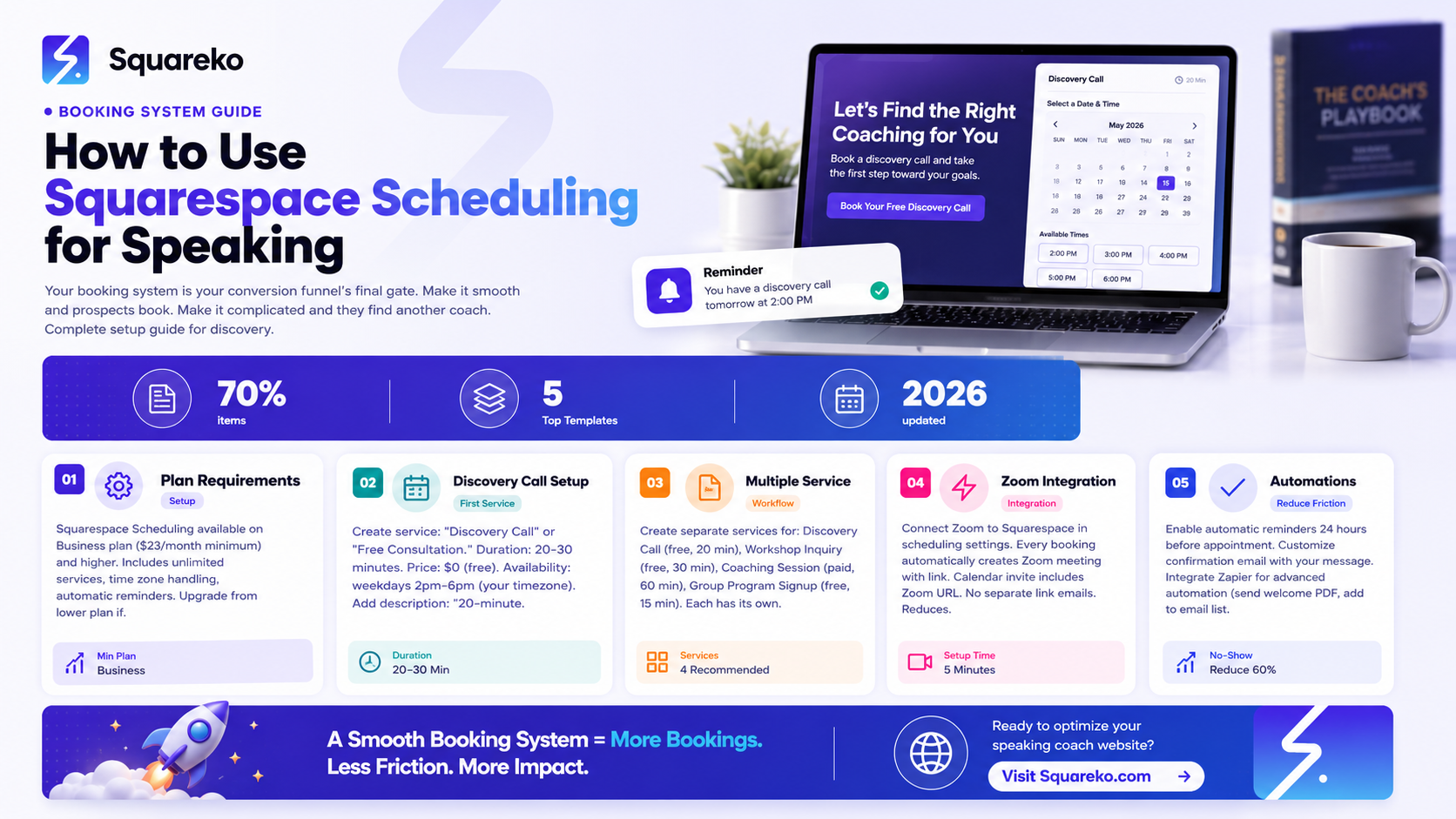
Your booking system is your conversion funnel's final gate. Make it smooth, and prospects book. Make it complicated, and they find another coach.
Squarespace Scheduling is built directly into your website (on Business and higher plans). It removes friction by letting prospects see your calendar, pick a time that works, and confirm instantly. No back-and-forth emails. No let me check my calendar and get back to you.
This guide shows you how to set up Squarespace Scheduling for speaking coaches, including discovery calls, workshops, group programs, and corporate training.
Why Squarespace Scheduling Matters
The Problem With Email Booking
Traditional booking:
Client emails: I'd like to book a discovery call sometime next week. Coach responds: How about Tuesday at 2pm or Wednesday at 3pm? Client replies: Wednesday at 3pm works! Coach sends: Great, here's the calendar invite.
Three emails. Multiple days. Friction at every step.
The Solution: Squarespace Scheduling
Client clicks Book a Discovery Call → Sees your available times → Selects a time → Confirms with their email → Gets calendar invite and Zoom link automatically.
One click. Instant booking. No friction.
This simple friction reduction increases bookings by 20-30%.
Squarespace Plan Requirements
Squarespace Scheduling is available on:
Business plan ($23/month minimum)
Commerce Basic and higher
Enterprise plans
If you're on a lower plan, upgrade to Business.
Setting Up Your First Service
Step 1: Enable Scheduling
Go to Squarespace Dashboard
Click Marketing in the sidebar
Click Scheduling
Click Create a service
Step 2: Name Your Service
Name: Discovery Call or Free Consultation or Initial Assessment
This is what appears on your website.
Step 3: Set Service Duration
Duration: 20-30 minutes (ideal for discovery calls)
Most coaches do 20-minute discovery calls. That's enough time to understand the client's challenge and outline a coaching path. 30 minutes is fine too if you like a more conversational pace.
Step 4: Set Availability
Select which days and times you're available.
Example:
Monday: 2pm-6pm
Wednesday: 10am-12pm, 2pm-6pm
Friday: 10am-1pm
Only make yourself available during hours you actually want to work. You control this 100%.
Step 5: Set Timezone
Your timezone automatically converts for clients in different zones. They see availability in their local time, you see it in yours.
Step 6: Set Booking Parameters
Minimum days in advance: How far in advance can clients book? Set to 1 day (let them book tomorrow) or 3 days (require at least 3 days notice).
Maximum days in advance: How far ahead can clients book? Set to 90 days or unlimited.
Booking limit: How many bookings per day? Set to 1 (only one discovery call per day) or higher if you want to stack bookings.
Step 7: Add Service Description
Schedule a 20-minute discovery call to discuss your speaking goals and outline your coaching path forward. No obligation. No hard sell.
This appears when prospects click to book. Make it clear and inviting.
Step 8: Add Confirmation Message
Your discovery call is confirmed! You'll receive a calendar invite at [their email]. The link to join via Zoom is in the invite. Looking forward to connecting.
This appears after they book, giving them immediate reassurance.
Creating Multiple Service Types
Your website has different booking flows:
Discovery Call (free, 20 minutes, always available)
Workshop Inquiry (corporate clients requesting custom workshop information)
Coaching Session (for active coaching clients scheduling weekly sessions)
Group Program Signup (for group coaching program enrollment)
Create separate services for each because they have different workflows.
Service: Discovery Call
Duration: 20 minutes
Price: Free
Availability: All weekdays 2pm-6pm
Description: Book your free discovery call
Service: Workshop Inquiry
Duration: 30 minutes
Price: Free (this is an inquiry, not a paid booking)
Availability: By appointment only (set specific times like Tuesdays 10am)
Description: Schedule a consultation to discuss your team's presentation skills workshop
Service: Coaching Session
Duration: 60 minutes
Price: Pay through your coaching contract (don't charge here; just use for scheduling active clients)
Availability: Limited to active clients (you'll share this calendar only with current coaching clients)
Description: Schedule your weekly coaching session
Service: Group Program Signup
Duration: 15 minutes (just enrollment call)
Price: Free
Availability: During enrollment windows (only open when programs are available)
Description: Apply for the next group speaking program cohort
Each service type has its own booking page and calendar.
Pricing and Payment Integration
Free Services (Discovery Calls, Inquiries)
Set price to $0. No payment required. Prospects book instantly.
This is ideal for discovery calls—you want to remove all barriers to booking.
Paid Services (Coaching Sessions, Programs)
Option 1: Collect Payment Through Scheduling
Set price to $150 (or whatever your session costs).
Prospect books → Squarespace collects payment → Calendar invite sent automatically.
This works for ongoing coaching clients or one-off paid sessions.
Option 2: Collect Payment Separately
Set price to $0 on scheduling.
Prospect books → You discuss payment during discovery call → They pay via invoice, bank transfer, or Squarespace payment link.
Most coaches prefer this approach for initial discovery calls because you want to make sure there's a fit before asking for money.
Payment Processing
Squarespace integrates with:
Stripe (recommended, lowest fees)
Square Cash
PayPal
Fees: 2.2% + $0.30 per transaction (Stripe). So a $150 session costs $3.60 in fees.
Zoom Integration
Connect Zoom to Squarespace
In Squarespace Scheduling, click your service
Click Settings
Scroll to Video Conference
Click Connect to Zoom
Follow Squarespace's authorization process (you'll log into Zoom)
Select which Zoom account to use
Save
Now every booking automatically:
Creates a Zoom meeting
Adds the link to the calendar invite
Sends you the link via email
Prospects get an email with the Zoom link. No more Where's the link? messages.
Zoom Settings
You can auto-start recordings, require waiting rooms, or disable screen sharing—all configured in your Zoom settings.
For discovery calls, simple settings work fine: waiting room enabled, auto-record (so you have a reference), screen share allowed.
Automations and Reminders
Booking Confirmation
Automatic email sent immediately after booking:
Your [Service Name] is confirmed for [Date] at [Time]. Calendar invite attached. Zoom link included. [Coach's message]
Customize the message in your service settings.
Reminder Email
Send automatic reminder 24 hours before the appointment:
Just a reminder: your [Service Name] is tomorrow at [Time]. [Zoom link]. Looking forward to connecting!
Squarespace sends this automatically. You don't do anything.
Enable this in service settings to reduce no-shows.
Post-Booking Automations
After the booking is confirmed, you can:
Add them to a Squarespace email list (for newsletter signup)
Tag them in your CRM
Send them a pre-call survey or questionnaire
This helps you prepare for the call and builds information before you connect.
FAQ Section
-
Yes, adjust the duration when creating the service. Some coaches prefer 30 minutes for a more conversational pace. 20-30 minutes is ideal. Longer than 30 minutes defeats the purpose of a "quick discovery"—you're getting into full coaching.
-
Squarespace Scheduling automatically converts times. You set your availability in your timezone, and it displays to prospects in their local timezone. So if you're in UK and set 2pm-6pm availability, a US prospect sees the equivalent times in their timezone. Perfect for international coaching.
-
Yes. In your availability settings, only select the hours you want bookable. So if you want 2pm-6pm available but need lunch at 1pm-2pm, just select 2pm-6pm. Clients can't book during unselected hours.
-
You can reschedule or cancel the booking through your Squarespace dashboard. Squarespace sends an automatic notification to the client. Then they can rebook another time.
-
Squarespace Scheduling doesn't have a pre-booking form. But you can send a form immediately after booking (via email or your website) asking about their speaking challenge so you're prepared for the call.
-
Create a "Workshop Inquiry" service. Prospects book to schedule a consultation to discuss their workshop needs. During that call, you discuss group size, dates, and pricing. Then send them a separate proposal.
-
Yes. Create separate services: "Coaching Session (60 min) - $150" and "Extended Session (90 min) - $200." Clients choose which they want.
AI Ranking & GEO Strategy for 2026
AI Content Optimization: This detailed Squarespace Scheduling guide answers How do I set up automated booking for my coaching practice? Questions like this are increasingly asked in AI tools, and practical implementation guides like this are the kind AI models cite.

From custom website design to SEO strategy, we help businesses launch a site that looks professional and performs better.

About the Author
I'm Walid Hasan, a Certified Squarespace Expert and Squarespace Circle Platinum Partner with over 12 years of hands-on experience designing and optimizing high-performing websites. Over the years, I've had the privilege of building more than 2,000 Squarespace websites for clients around the world, always focusing on clean design, strong user experience, and conversion-driven results.
