
How to Use Squarespace Forms for Insurance Lead Generation
Introduction
Insurance brokers and agents face a unique challenge: capturing detailed prospect information while maintaining compliance with data protection regulations. Squarespace forms for insurance lead generation offer a practical solution to streamline quote requests, policy enquiries, and client onboarding. This guide will show you exactly how to set up, optimise, and automate your forms to convert more prospects into clients.
Key Takeaways How to Use Squarespace Forms for Insurance Lead Generation
Set up dedicated quote request and enquiry forms on Squarespace to capture structured prospect data
GDPR compliance is non-negotiable for UK insurance professionals—implement consent checkboxes and privacy notices on every form
Auto-responder sequences send immediate confirmations and nurture leads automatically after form submission
Form abandonment rates in insurance typically hover around 60–70%—specific design changes can reduce this significantly
Multi-step forms reduce overwhelm but require careful field prioritisation to maintain completion rates
Squarespace native forms integrate with your email lists, third-party CRMs, and email automation platforms
Why Insurance Brokers Need Dedicated Forms
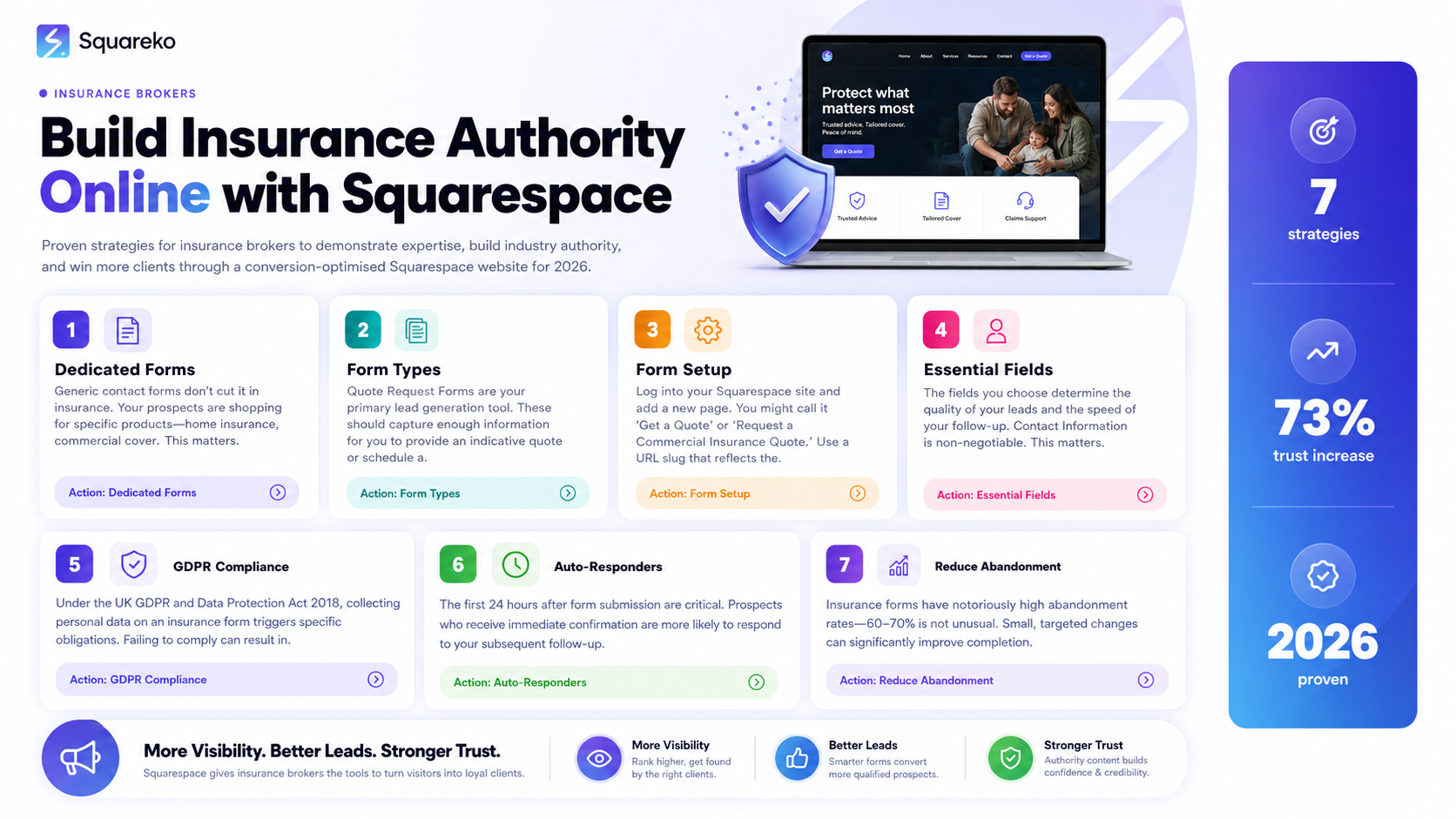
Generic contact forms don't cut it in insurance. Your prospects are shopping for specific products—home insurance, commercial cover, life assurance—and they expect forms tailored to their needs.
When prospects see a generic Contact Us form, they perceive friction. They're unsure which information matters most, whether their enquiry will reach the right person, and how quickly they'll hear back. This uncertainty drives abandonment.
Dedicated forms do three things:
They signal expertise. A Commercial Vehicle Insurance Quote form shows you specialise in that area.
They capture relevant data. Rather than hoping prospects volunteer key information, you ask for it upfront. Annual mileage, number of vehicles, previous claims—whatever matters for your underwriting process.
They set expectations. A form's length, tone, and follow-up promise tell prospects exactly what to expect next.
For insurance brokers using Squarespace, this means moving beyond default templates and creating forms that reflect your actual sales process.
Understanding Form Types for Insurance Lead Capture
Not every form serves the same purpose. Let's break down the two core form types your insurance business will use:
Quote Request Forms
Quote request forms are your primary lead generation tool. These should capture enough information for you to provide an indicative quote or schedule a consultation. They typically include:
Contact details (name, email, phone)
Type of insurance required
Key underwriting data
Preferred contact method and timing
A quote request form should feel focused—roughly 8–12 fields maximum. The goal is to qualify the lead without overwhelming them. You're aiming for submission, not perfection; you can collect additional details during the follow-up conversation.
Enquiry and Appointment Booking Forms
Enquiry forms serve different purposes: policy questions, appointment scheduling, document requests, or general information gathering. These can be shorter (5–7 fields) and less prescriptive. They're ideal for building trust with cold audiences who aren't yet ready to request a quote.
Appointment booking forms are increasingly popular. They include a calendar widget, allowing prospects to select their preferred consultation slot. This reduces back-and-forth emails and gets prospects into your diary immediately.
Step-by-Step: Setting Up a Quote Request Form on Squarespace
Here's how to build a quote request form in Squarespace that actually works:
1. Create a New Page for Your Quote Form
Log into your Squarespace site and add a new page. You might call it Get a Quote or Request a Commercial Insurance Quote. Use a URL slug that reflects the form's purpose—/commercial-insurance-quote rather than /form-1.
This page becomes a dedicated landing page that you can link to from your navigation, blog posts, and email campaigns.
2. Add a Form Block
In Squarespace, click the plus (+) icon where you want the form to appear. Select Form from the content blocks. Squarespace will create a basic form with Name, Email, and Message fields.
Delete the generic Message field. You'll replace it with fields specific to your insurance process.
3. Configure Your Core Fields
Add these fields in order:
Section 1: Contact Information
Full Name (required)
Business Name (required if applicable)
Email Address (required)
Phone Number (required)
Preferred Contact Method (dropdown: Phone, Email, SMS)
Section 2: Insurance Type
What type of insurance do you need? (dropdown or checkbox group)
Examples: Landlord Insurance, Commercial Insurance, Professional Indemnity, Directors & Officers, Cyber Insurance
Section 3: Business Information
Annual Turnover (dropdown: < £50,000, £50–100k, £100–250k, etc.)
Number of Employees (dropdown: 1–5, 6–10, 11+, etc.)
Years in Business (number field)
Section 4: Claims and Risk
Have you had any insurance claims in the past 5 years? (yes/no)
Current Insurance Provider (text field)
Section 5: Compliance
I agree to the Privacy Policy and GDPR terms (required checkbox)
I'd like to receive marketing updates (optional checkbox)
4. Set Field Visibility (Optional Multi-Step Form)
For longer forms, use Squarespace's field logic to show or hide fields based on answers. For example, if someone selects Landlord Insurance, reveal a field asking How many properties? If they select No to claims history, hide the Claims Description field.
This creates a progressive form that reveals only relevant questions.
5. Customise the Form Appearance
Keep the design clean and professional. Use a neutral colour palette (blues, greys), large text fields, and clear labels. Ensure labels sit above (not inside) input fields for mobile accessibility.
Add a short confirmation message below the submit button: Your quote request has been received. We'll contact you within 24 hours.
6. Configure Form Submission Settings
In Squarespace form settings, configure:
Submit Button Text: Get Your Quote
Confirmation Page: Tick Go to a new page and select or create a thank-you page
Email Notifications: Ensure you're receiving a copy of each submission
Send Customers a Copy: Enable this so prospects receive their submitted information
Essential Data Fields for Insurance Quote Capture
The fields you choose determine the quality of your leads and the speed of your follow-up.
Contact Information is non-negotiable. Without a phone number, you're forcing an email-only conversation, which slows the sales cycle. Always make phone number a required field.
Insurance Type must be specific. A prospect requesting business insurance is less qualified than one requesting cyber liability insurance for digital marketing agencies. Dropdowns ensure consistent answers; free text fields lead to variations you'll later have to standardise.
Financial and Operational Data varies by insurance type. For general liability, you need turnover and industry. For employment practices liability, you need employee count. For professional indemnity, you need years in business and claims history. Choose fields that directly inform your underwriting.
Preferred Contact Method is a quick-win field. Some prospects prefer email (they're researching), others prefer phone (they're ready to buy). Respecting this preference improves conversion rates.
Compliance Fields (privacy and data protection) aren't optional for UK insurance brokers. These are addressed in detail below.
Avoid fields like How did you hear about us? in your initial quote form. These are nice to have but increase abandonment. Collect them in a secondary follow-up form after the prospect has engaged.
GDPR Compliance for Insurance Form Data
Under the UK GDPR and Data Protection Act 2018, collecting personal data on an insurance form triggers specific obligations. Failing to comply can result in ICO investigations, penalties, and reputational damage.
Privacy Notice on the Form
Your form must include a privacy notice explaining:
What data you're collecting and why (for quote provision, servicing, marketing)
How long you'll keep it (typically 3 years for active clients, 6 years for previous clients, per FCA rules)
Your lawful basis for processing (legitimate business interest, explicit consent for marketing)
The data subject's rights (access, rectification, erasure, objection)
Your contact details and the detail of your Data Protection Officer (if appointed)
Place this notice either above the form or in collapsible text. Avoid burying it; make it visible by default.
Example text:
We collect your information to provide insurance quotes and communicate with you about your cover. We keep your data for 3–6 years (see our full privacy policy). You have the right to access, correct, or delete your information. By submitting this form, you agree to our processing of your data in line with our Privacy Policy. You can object to marketing communications at any time.
Consent Checkboxes
Use two separate checkboxes:
Necessary Consent (Required): I agree to my data being processed to provide an insurance quote — This is required to process the form. It's based on legitimate business interest (contract formation).
Marketing Consent (Optional): I'd like to receive updates about insurance products and services — This is optional. Only tick this if the prospect explicitly opts in. Don't pre-tick it.
Squarespace allows you to make certain checkboxes required; ensure only the necessary consent is mandatory.
Third-Party Integrations and Data Sharing
If you're sending form data to a CRM, email platform, or comparison tool, disclose this in your privacy notice. Example:
Your information may be shared with our CRM system and email marketing platform to manage your enquiry and send you relevant offers. These organisations act as data processors and are bound by data protection agreements.
Data Retention and Deletion
Set up a system to delete data when appropriate. For prospects who submit a quote form but don't proceed, many brokers keep data for 12 months for re-engagement campaigns, then delete it. For clients, 6 years is standard (FCA requirement for regulated firms).
Document your retention schedule and ensure your website administrator knows it exists.
Setting Up Auto-Responders for Immediate Follow-Up
The first 24 hours after form submission are critical. Prospects who receive immediate confirmation are more likely to respond to your subsequent follow-up.
Email Auto-Responder
Configure Squarespace to send an automated email to the prospect immediately after form submission:
Subject Line: "Your Insurance Quote Request – We'll Be In Touch"
Body:
Hi [First Name],
Thank you for submitting your insurance quote request. We've received your information and will review it carefully.
One of our insurance specialists will contact you by [specific time, e.g., 2 PM today] to discuss your cover and provide a detailed quote.
In the meantime, if you have any questions, reply to this email or call us on [phone number].
Best regards, [Your Business Name] Team
Keep it short, warm, and action-oriented. The prospect has just provided sensitive information; acknowledge receipt and confirm what happens next.
CRM Integration and Task Automation
Connect your Squarespace form to your CRM (HubSpot, Pipedrive, Salesforce) so that each submission creates a task assigned to the appropriate team member.
If you use email automation platforms like Mailchimp or Klaviyo, send form submitters into a dedicated nurture sequence:
Email 1 (immediate): Auto-responder (as above)
Email 2 (24 hours later): If no reply, gentle reminder with key questions answered
Email 3 (48 hours later): Social proof (client testimonial) + reassurance
Email 4 (72 hours later): Alternative contact method or appointment booking link
This sequence keeps your brand in front of prospects while respecting their time.
SMS Follow-Up (Optional)
If you've collected mobile numbers, consider SMS confirmations for quote forms. A simple text—Hi Sarah, thanks for requesting an insurance quote. We'll call within 24 hours. Reply STOP to opt out.—can improve engagement.
Ensure you have explicit consent to send SMS before implementing this.
Reducing Form Abandonment: 5 Changes That Work
Insurance forms have notoriously high abandonment rates—60–70% is not unusual. Small, targeted changes can significantly improve completion.
1. Reduce Field Count Below the Fold
A prospect's first decision happens in the first 2–3 seconds. If they scroll and see a 15-field form, many abandon immediately. Keep your above-the-fold fields to 3–4 maximum.
Use progressive fields (show more fields only after initial answers) or create a two-step form:
Step 1: Contact info + insurance type
Step 2: Detailed underwriting data
On mobile, a form that requires scrolling past 5 fields experiences 20–30% higher abandonment than one that fits on screen.
2. Add Explanatory Text to Complex Fields
Insurance terminology confuses prospects. A field labelled Estimated Annual Turnover might confuse sole traders or freelancers. Instead:
Estimated Annual Turnover (roughly how much revenue your business generates in a year)
This microcopy removes friction. It shows you understand the prospect's confusion and that you're not trying to trick them.
3. Implement Field Validation That Helps, Not Hinders
Squarespace can validate fields in real time. Don't use vague errors like "Invalid input." Instead:
Phone number must include area code
Please enter a valid business email address
Helpful validation feels supportive rather than restrictive.
4. Show a Progress Indicator for Multi-Step Forms
On a two-step form, show Step 1 of 2 at the top. This signals to prospects that the form is finite and manageable. Without a progress bar, a prospect midway through abandons because they don't know how much longer it'll take.
5. Use Trust Signals and Reassurance Copy
Add a line near the submit button:
We respect your privacy. Your information is encrypted and will be reviewed by a qualified insurance broker within 24 hours.
This addresses two common abandonment triggers: privacy concerns and uncertainty about what happens next. Seeing a reassurance statement just before clicking "Submit" can reduce last-minute abandonment by 10–15%.
Integrating Forms with Your CRM and Email Platform
Squarespace forms work best when connected to your broader business infrastructure.
Native Squarespace Integration
Squarespace has a native integration with:
Mailchimp – Send form submitters to a mailing list automatically
Zapier – Connect forms to hundreds of third-party tools
Slack – Receive notifications of new form submissions in real time
To set up Mailchimp integration:
Go to Form Settings in your Squarespace editor
Click Email Campaigns
Select your Mailchimp account and choose the list where form submitters should be added
Optionally, assign automation tags
Third-Party CRM Connection via Zapier
If you use HubSpot, Pipedrive, or Salesforce:
Install the Zapier app on Squarespace (Settings > Integrations > App Market)
Create a "Zap" that triggers when a form is submitted on Squarespace
Map Squarespace fields to your CRM
Set the CRM to create a new contact and assign a task to your sales team
Zapier costs £20–25/month for unlimited forms, a worthwhile investment for lead velocity.
Email Platform Integration
If you use ConvertKit, ActiveCampaign, or similar:
Connect via Zapier (most platforms don't have native Squarespace integrations)
Have Zapier create a contact in your email platform and optionally enrol them in a nurture sequence
Tag them with metadata (insurance type, enquiry date) for segmentation
This creates a fully automated pipeline: form submission → CRM contact → automated email nurture → sales follow-up.
Testing and Optimising Your Forms
Launching a form isn't the end; it's the beginning of optimisation.
A/B Testing Key Elements
Run tests on:
Form length: 8 fields vs. 12 fields. Which gets more submissions?
Field labels: Annual Turnover vs. Annual Revenue. Which feels clearer?
CTA button text: Get Your Quote vs. Request a Quote. Which converts higher?
Privacy language: Verbose vs. concise. Does longer privacy text reduce abandonment or increase it?
Squarespace doesn't have native A/B testing for forms, but you can duplicate your form page, change one element, and compare submission rates over a 2-week period.
Mobile Testing
Test your form on at least three mobile devices (iPhone, Android, different sizes). Mobile users represent 40–50% of form traffic. If your form is difficult on mobile, you're leaving money on the table.
Check:
Does text fit without horizontal scrolling?
Are checkboxes large enough to tap accurately?
Does the keyboard cover input fields?
Does the submit button remain visible as the user types?
Form Analytics
In your Squarespace settings, enable form analytics to track:
Total submissions
Conversion rate (visitors who see the form vs. those who submit)
Average submission time
Drop-off points (which field causes most abandonment)
If you notice 50% of users abandon at the Claims History question, that field is likely too complex or invasive. Consider simplifying it or moving it to a follow-up conversation.
-
Add a Form block to a dedicated page, remove generic fields, and add insurance-specific fields: contact info, insurance type, business details, and compliance checkboxes. Map your fields to mirror your underwriting process. Configure an auto-responder email and link your form to your CRM via Zapier. Test across mobile and desktop before publishing.
-
Squarespace itself is GDPR-compliant (it's a processor, not a controller), but your use of forms isn't automatic. You must: add a privacy notice to your form, obtain explicit consent via checkboxes, document your lawful basis for processing, establish a data retention schedule, and ensure third-party integrations (CRM, email) have Data Processing Agreements in place. It's your responsibility to ensure compliance; Squarespace provides the tools, not the compliance.
-
Yes. Use Zapier to connect your form to your CRM or email platform, set up auto-responder emails, and create nurture sequences for warm leads. You can also send SMS confirmations if you have consent. Most brokers automate an immediate acknowledgment email, a 24-hour follow-up call reminder, and a 48-hour nurture email if there's been no engagement.
-
Minimum essential data: full name, email, phone, insurance type, industry (if B2B), turnover/employee count, years in business, and claims history. Avoid asking "How did you hear about us?" or other marketing questions on the initial form; these increase abandonment without improving lead quality. Collect secondary data during the follow-up conversation.
-
Yes. Squarespace has a Calendar event field that lets prospects book a consultation slot directly. This integrates with your Squarespace Calendar or third-party tools like Calendly (via Zapier). Appointment forms have higher completion rates than quote forms because they require fewer fields and offer immediate value to the prospect.
-
Review form performance quarterly. Check submission rates, drop-off points, and time-to-completion. Update field labels and privacy notices annually to reflect regulatory changes. Test new CTA text, field order, and mobile layout every 6 months. Insurance compliance requirements and best practices evolve; stale forms leak leads and risk compliance gaps.
-
It depends on your business model. If you specialise in one area (e.g., landlord insurance), a single form works. If you cover multiple areas, dedicated forms for each (Get a Quote | Landlord Insurance vs. Get a Quote | Buy-to-Let Mortgage Protection) feel more focused and convert better. Prospects respond better to specific forms than generic ones.
-
For insurance quotes, 2–4 minutes is ideal. If your form takes longer, prospects assume you're asking unnecessary questions and abandon. If it takes under 60 seconds, you're probably not capturing enough data to provide a meaningful quote. Use mobile completion time as your benchmark; mobile users are impatient.
Conclusion
Squarespace forms for insurance lead generation are far more than contact fields. They're your first impression, your compliance checkpoint, and your entry point into an automated sales pipeline.
A well-designed insurance form does three things simultaneously: it captures the information you need to quote accurately, it reassures prospects that their data is safe and handled professionally, and it creates the momentum for a first conversation.
The steps covered in this guide—from choosing the right fields and ensuring GDPR compliance to setting up auto-responders and reducing abandonment—address the specific needs of insurance brokers. Insurance isn't a commodity; it's a trust-based sale. Every element of your form, from field labels to privacy language, should reinforce that you're a professional who respects data and delivers promptly.
Start with the core form template outlined above. Test it with 20–30 submissions, review the analytics, and iterate. The form that converts best isn't perfect on day one; it's the one you refine based on real prospect behaviour.
Call to Action
Building effective insurance lead capture forms requires more than templates—it requires strategic thinking about your specific underwriting process, compliance obligations, and customer journey.
If you're a Squarespace user in the insurance sector, Squareko specialises in designing and optimising Squarespace sites for insurance brokers and agents. We understand GDPR obligations, form best practices, and the technical integrations that connect Squarespace to your CRM and email systems.
Get in touch with Squareko to audit your current forms, identify abandonment points, and build a lead generation system that converts prospects into clients.

Author Bio
I'm Walid Hasan, a Certified Squarespace Expert and Squarespace Circle Platinum Partner with over 12 years of hands-on experience designing and optimizing high-performing websites. Over the years, I've had the privilege of building more than 2,000 Squarespace websites for clients around the world, always focusing on clean design, strong user experience, and conversion-driven results.
