
How to Showcase SaaS Product Features on Squarespace: Screenshots, Videos, and Demos
Why Feature Showcasing Matters for SaaS Conversion
SaaS buyers face a fundamental uncertainty before they sign up: they don't know what they're actually going to get. They're being asked to invest time (and often money) in a product they've never touched, based entirely on your marketing site's claims.
Good feature showcasing resolves this uncertainty. When a visitor can see the actual product interface — what it looks like, how it's organized, what the workflow feels like — the psychological gap between interested and willing to sign up shrinks dramatically.
This is why SaaS companies that show their product clearly and specifically convert at higher rates than those that use abstract illustrations or vague benefit language in place of actual product visuals. Real is more persuasive than aspirational.
Squarespace gives you clean, professional tools for product visualization. This guide covers how to use them effectively.
Key Takeaways How to Showcase SaaS Product Features on Squarespace: Screenshots, Videos, and Demos
Product screenshots are the single most convincing visual element on a SaaS website — show the actual interface, not just the concept
Video demonstrations increase time-on-page and conversion rates when placed strategically (not autoplay in the hero)
The best SaaS feature showcases answer what does this do for me? before how does it work?
Squarespace's Fluid Engine handles alternating text/screenshot layouts, video embeds, and interactive demo frames cleanly
Every feature showcase should be followed by a CTA — don't let visitors leave a feature section without a clear next step.
Using Product Screenshots Effectively
Product screenshots are your primary visual trust-building tool. They show the real product, reduce uncertainty, and communicate interface quality at a glance.
What Screenshots to Show
Choose screenshots that show:
The core workflow (what does a typical user session look like?)
The cleanest, most visually appealing views of the interface (not the most complex)
Features that directly address your target user's biggest pain points
Any particularly strong UI elements (data visualizations, clean dashboards, intuitive forms)
Avoid showing:
Overly complex views with too much data that read as chaotic
Error states or warning screens
Empty states (an empty interface looks unfinished)
Outdated screenshots that no longer match the current product
Screenshot Preparation
Before placing screenshots in Squarespace, prepare them properly:
Use a consistent window size for all screenshots (typically 1440px wide for a standard browser view)
Remove personal or client data from screenshots (or use realistic placeholder data)
Ensure the interface shown reflects your current product, not a beta or prototype version
Consider adding device frames (browser chrome, laptop mockup) to give context
Tools for device mockup creation: Mockup World, Rotato, or Adobe XD's device mockup features.
Screenshot Placement in Squarespace
The most effective screenshot placements:
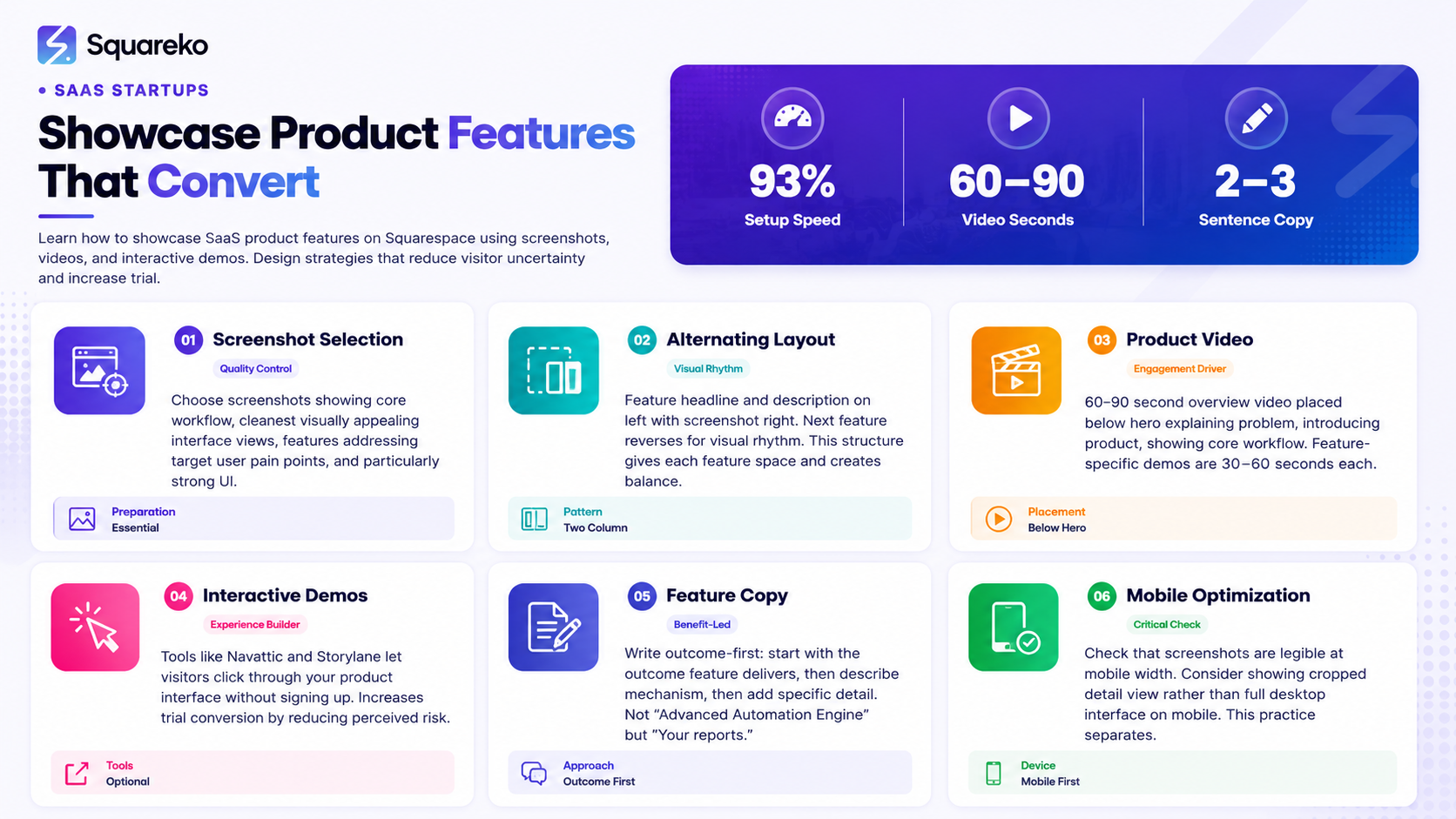
Alternating content blocks: Feature headline and description on the left, screenshot on the right. Next feature: screenshot left, text right. This creates visual rhythm and gives each feature space.
Full-width hero screenshot: For your homepage, a large, full-width product screenshot immediately below the hero section is highly effective.
Lightbox gallery: A row of screenshot thumbnails that expand to full size when clicked — good for showing a feature in multiple states.
In Squarespace's Fluid Engine, create a two-column section: one column for text content, one for your screenshot image. For the alternating pattern, duplicate the section and reverse the column order.
Screenshot Quality
A blurry, poorly cropped, or low-quality screenshot actively hurts conversion — it signals that the product or the company doesn't care about presentation. Export screenshots at 2x resolution (for Retina display clarity) and compress them appropriately before uploading to Squarespace. PNG format preserves UI clarity better than JPEG for interface screenshots.
Video Product Demonstrations
Video increases engagement time and conversion rates when used correctly. The key distinction: where and how you place video determines whether it helps or hurts.
Types of SaaS Product Videos
Overview / Explainer Video: 60-90 seconds. Explains the problem, introduces the product, shows the core workflow, ends with a CTA. Placed in the hero section or immediately below it.
Feature-Specific Demo: 30-60 seconds per feature. Shows one specific workflow in detail. Placed within the feature section for that specific function.
Getting Started / Onboarding Video: Shows how to set up and start using the product. Placed on the pricing page or in the FAQ section — helps convert visitors who are close to signing up but worried about setup complexity.
Testimonial Video: A customer speaking about their experience. Placed in the social proof section.
Video Placement Best Practices
Don't autoplay in the hero. Autoplay video backgrounds (that play behind your text) can be visually impressive but significantly slow page load times. They also don't communicate product value — they communicate brand atmosphere. For showing the product, a thumbnail with a play button is more effective and performs better technically.
Place the overview video below the hero. After your hero section captures attention, offer a Watch a 2-minute overview video thumbnail before your features section. Visitors who click play are more engaged and convert at higher rates.
Keep feature demo videos short. 30-45 seconds per feature is ideal. Longer demos require visitor commitment they haven't yet given.
Adding Video to Squarespace
For hosted video: upload to Vimeo or YouTube, then embed in Squarespace using the Video block in Fluid Engine. Vimeo Pro gives you better control over player appearance, allowing you to remove the Vimeo branding — worth it for a professional presentation.
For video backgrounds: use Squarespace's native Video section background feature. Test page load speed after adding — if it drops significantly on mobile, disable the video background for mobile views.
Interactive Demo Embeds
Interactive product demos — where visitors can click through your product interface without signing up — are increasingly common among high-converting SaaS marketing sites. Tools like Navattic, Storylane, and Arcade create interactive product tours that can be embedded on your Squarespace site.
Why Interactive Demos Convert
An interactive demo lets visitors experience the product before committing to a trial. They can explore the interface, follow a guided workflow, and understand what using the product actually feels like. This dramatically reduces the perceived risk of signing up for a trial.
Interactive demos typically increase trial conversion rates when placed on the features page or as a See it in action option alongside the primary trial CTA.
Embedding in Squarespace
Most interactive demo tools provide a standard JavaScript embed code. In Squarespace, add this via a Code block in Fluid Engine. The embed renders within the page. You can wrap it in a styled container using custom CSS if needed for visual consistency.
Place the interactive demo in a dedicated See [Product] in Action section on your features page or a standalone Product Tour page. The dedicated section approach focuses attention without competing with other page content.
Feature Page Layout Strategies on Squarespace
Strategy 1: The Feature Grid
A grid of feature cards — each with an icon, feature name, and one-sentence description. Good for an overview of 6-12 features when all are relatively equal in importance.
In Squarespace: create a 3-column or 4-column section. Each card: icon image (72x72px), H3 heading, short text block. Apply a consistent card background if you want visual definition.
Best for: feature overview sections on the homepage, or as an introduction to a deeper features page.
Strategy 2: Alternating Feature Rows
Each major feature gets its own row with a feature headline, 2-3 sentences of benefit-focused description, and a screenshot. Features alternate: text-left/image-right, then text-right/image-left.
In Squarespace: duplicate a 2-column section template for each feature. For the alternating effect, reverse the column order each time. Add appropriate spacing between rows.
Best for: features pages where each feature deserves detailed treatment. More persuasive than grids for complex features.
Strategy 3: Tabbed Feature Navigation
All features organized in a tabbed or accordion interface. Clicking a feature tab reveals its screenshot and description. Keeps the page compact while providing depth.
In Squarespace: native tab interfaces require custom code. The most practical approach: build a vertical list of feature names as anchor links on the left, with feature detail sections stacked on the right. Not quite a true tab interface but achieves a similar organizational structure without complex JavaScript.
Best for: products with many distinct features that would create an overwhelming long-scroll page with the alternating row approach.
Writing Feature Copy That Converts
Feature copy is where most SaaS companies make consistent mistakes. They write feature names and technical descriptions when they should be writing outcomes and benefits.
The outcome-first formula:
Start with the outcome the feature delivers. Then describe the mechanism that delivers it. Then add a specific detail that proves it.
Example for an automation feature:
Outcome: Your reports go out every week without you touching a thing. Mechanism: Set up your reporting schedule once — time, format, recipients, and branding. After that, our automation handles everything. Proof detail: 93% of users send their first automated report within 10 minutes of setup.
Compare this to the typical feature copy: Advanced Automation Engine: Our robust automation system enables scheduled report delivery with customizable parameters.
The outcome-first version speaks to the user's experience. The typical version speaks to the product's capabilities. Visitors care about their experience.
Mobile Feature Showcase Optimization
On mobile, feature showcases require specific attention:
Screenshots: Don't let product screenshots shrink so small they're illegible. On mobile, consider showing just the key part of the interface (a cropped detail) rather than the full-width desktop view. Alternatively, show the mobile version of your interface on mobile devices.
Alternating layouts: On mobile, Squarespace's two-column alternating sections stack vertically. Check that the image appears BELOW the text when stacked — putting the image first on mobile removes the context from the copy.
Video thumbnails: Ensure play buttons are large enough to tap on mobile (minimum 44px height for the entire clickable area).
Interactive demos: Check that embedded interactive demos work correctly on mobile before publishing. Some tools have limited mobile support.
Common Feature Showcase Mistakes
Generic benefit language: Increase productivity and streamline your workflow mean nothing specific to a visitor comparing multiple SaaS tools. Every competitor says the same thing. Write about your specific product's specific effect on a specific workflow.
Too many features at once: Don't show 20 features in a single section. Prioritize your 4-6 most compelling features for the homepage or landing page. A dedicated features page can go deeper — but the goal there is still to prioritize and structure, not overwhelm.
No CTA after features: A visitor who reads through your feature showcase and is impressed needs an immediate next step. Always follow feature sections with a CTA — Ready to try these features? → trial signup link.
Outdated screenshots: Nothing kills trust like screenshots of a product that looks different from what users experience when they sign up. Keep screenshots current. Build a screenshot update into your product release process.
Autoplay video on mobile: Autoplay video significantly slows mobile page load and can consume mobile data unexpectedly. Always disable autoplay video backgrounds on mobile — Squarespace allows separate mobile settings for this.
Showcase Your SaaS Product With Squareko
Squareko designs Squarespace feature pages for SaaS companies that convert — with proper screenshot placement, video integration, and conversion architecture built in.
FAQs
-
Use alternating two-column sections in Fluid Engine — feature description on one side, product screenshot on the other, alternating with each feature. Add device mockup frames to screenshots before upload to give context. Export screenshots at 2x resolution for Retina clarity and compress before uploading.
-
Yes — but placed strategically. A 60-90 second overview video placed below the hero (not as an autoplay background) increases engagement and conversion. Feature-specific demos placed within their relevant feature section provide additional depth for evaluating visitors. Keep all videos short and host on Vimeo (for clean player appearance) or YouTube.
-
Use a Code block in Squarespace's Fluid Engine to paste the embed code from your interactive demo tool (Navattic, Storylane, Arcade, etc.). The embed renders within the page. Add custom CSS styling to the container if needed for visual consistency with your brand. Test on both desktop and mobile before publishing.
-
Show 4-6 features on your homepage — the most compelling, most distinctive, and most relevant to your primary target user. A dedicated features page can cover 10-20+ features in greater depth. The homepage features section is a highlight reel, not a complete spec list. More features on the homepage does not increase conversion — it typically reduces it by creating cognitive load.
-
Write benefit-first, not feature-first. Start with the outcome the feature delivers for the user, then describe the mechanism. End with a specific detail (statistic, time estimate, or concrete example) that makes the benefit feel real and credible. Avoid generic language ("robust," "seamless," "comprehensive") in favor of specific, measurable descriptions.
-
No — show realistic placeholder or anonymized data that gives the interface context without exposing real user information. Use clearly fake names (Jane Smith, Acme Corp) and representative but not real figures. This applies especially to financial data, personal information, or any regulated data types. Realistic-looking demo data is fine; real data is not.
-
In Squarespace's mobile editor, check how your feature sections stack. If screenshots are too small to read at mobile width, consider showing a cropped detail view instead of the full interface. You can set different images for desktop and mobile in some section types. Ensure that the text description appears above the screenshot when the section stacks vertically on mobile (so the context comes before the visual).

From custom website design to SEO strategy, we help businesses launch a site that looks professional and performs better.

Author Bio
I'm Walid Hasan, a Certified Squarespace Expert and Squarespace Circle Platinum Partner with over 12 years of hands-on experience designing and optimizing high-performing websites. Over the years, I've had the privilege of building more than 2,000 Squarespace websites for clients around the world, always focusing on clean design, strong user experience, and conversion-driven results.
