
How to Set Up Squarespace Scheduling for Coaches
Key Takeaways How to Set Up Squarespace Scheduling for Coaches
Squarespace Scheduling is a separate subscription from your Squarespace website plan — you need to subscribe to it independently
The most important configuration decisions are: appointment types, availability settings, intake forms, and automated communications
Make discovery calls as frictionless as possible — too many fields, unclear next steps, and confusing scheduling flows all reduce bookings
Payment collection through Squarespace Scheduling works well for session packages — connect Stripe or PayPal before selling
Embedding the scheduling widget directly on your website (rather than linking to an external page) gives a more seamless client experience
Coaching businesses run on booked time. Discovery calls, client sessions, group workshops, programme kick-offs — your calendar is your business. The friction between a potential client wanting to work with you and them actually booking that first call can make or break your conversion rate.
Squarespace Scheduling — the platform's integrated booking system, powered by Acuity Scheduling — is one of the most valuable tools in a coaching website's toolkit. When set up correctly, it handles everything: calendar availability, client self-booking, automated confirmations and reminders, intake forms, payment collection, and package management. When set up poorly, it creates confusion, no-shows, and unnecessary admin.
This guide walks you through the complete setup process for Squarespace Scheduling as a coach — from the initial configuration to the details that most coaches miss but that make a significant difference to both client experience and your own peace of mind.
Understanding Squarespace Scheduling: Plans and Setup
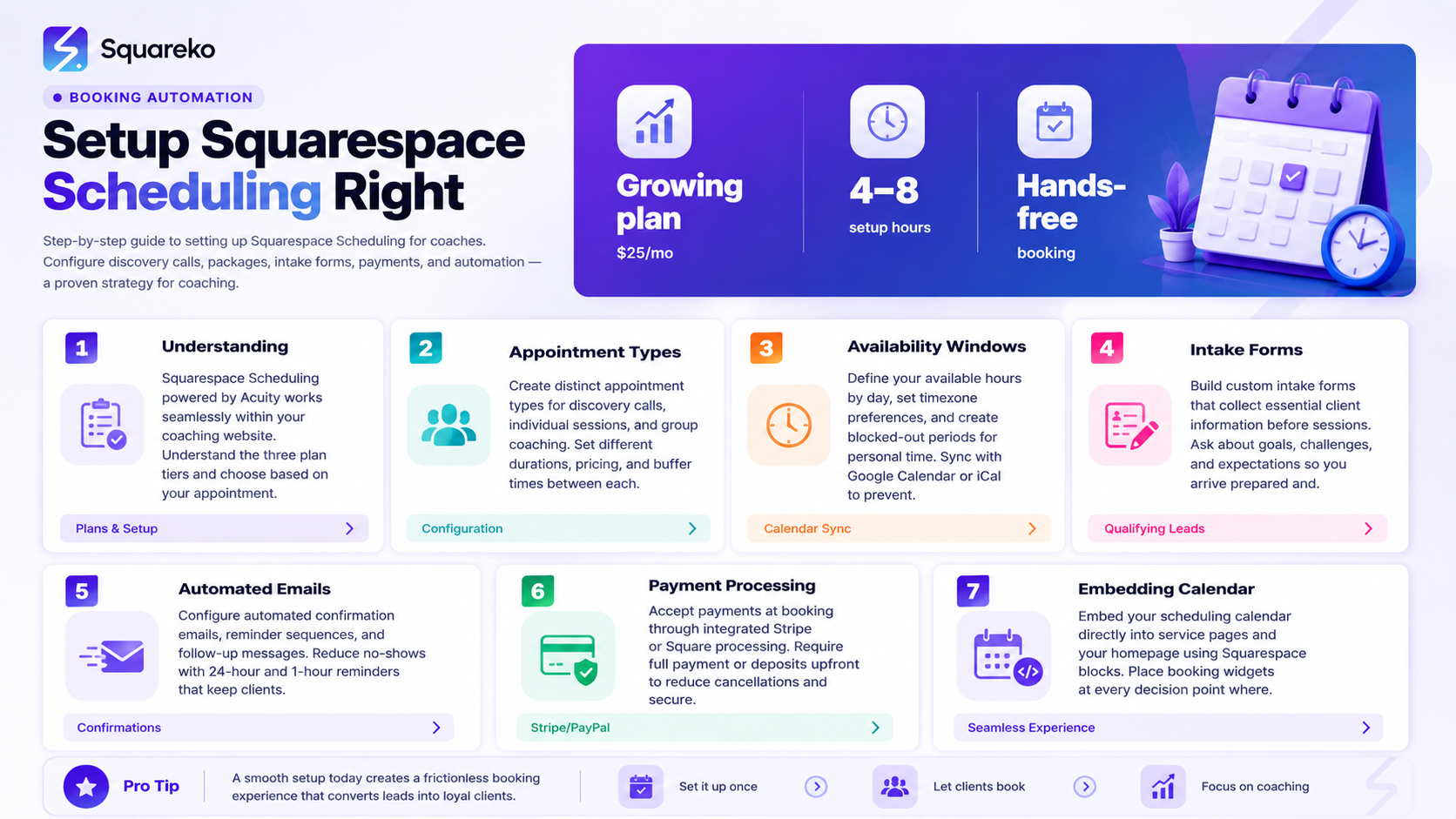
What Squarespace Scheduling Is
Squarespace Scheduling is a professional booking and scheduling tool built on Acuity Scheduling (which Squarespace acquired in 2019). It's available as an add-on to any Squarespace website plan and operates through a dedicated Scheduling dashboard — separate from your main website editor.
The key feature for coaches: clients book appointments through a calendar interface, and every step — confirmation, reminder, follow-up, payment — is handled automatically. You spend less time on admin and more time coaching.
Squarespace Scheduling Plans
Squarespace Scheduling has three plan levels:
Emerging (~$16/month billed annually) — one calendar, suitable for solo coaches with a simple appointment structure. No payment processing for appointments (you'd need to accept payment separately).
Growing (~$25/month) — two calendars, payment processing, subscription packages, multiple appointment types. This is the right plan for most solo coaches who sell packages or want to collect payment at booking.
Powerhouse (~$49/month) — unlimited calendars, multi-location support, custom API access. Relevant if you run a coaching practice with multiple coaches.
Your Squarespace website subscription and your Scheduling subscription are separate — you pay for both. Add Scheduling from your Squarespace account dashboard.
First Steps After Activating Scheduling
When you first access the Scheduling dashboard, you'll be prompted to:
Connect your calendar (Google Calendar is the standard choice — it syncs availability in real time)
Set your time zone
Set your default availability (working hours)
Connect a payment processor (Stripe or PayPal — required on the Growing plan)
Create your first appointment type
Work through these in order before anything else. Getting the calendar sync and time zone right from the start prevents double-bookings and client confusion later.
Creating Your First Appointment Types
Appointment types are the services clients can book through your scheduling page. Each one you create gets its own booking flow with its own duration, availability, and settings.
The Discovery Call Appointment Type
Your discovery call should be the first appointment type you create. Here's how to configure it:
Name: Free Discovery Call or Free Clarity Call — free in the name reduces friction significantly.
Duration: 20–30 minutes. Enough time to have a real conversation, not so long that it feels like a free coaching session.
Price: $0 — this is a conversion tool, not a revenue stream.
Description: Write this carefully. This description appears on your booking page and either reassures or worries potential clients. Keep it warm and low-pressure: This is a relaxed 25-minute conversation where you can tell me what you're working through, I can share how I work, and we can see together whether we'd be a good fit. No pitch, no pressure.
Padding (buffer time): Set 10–15 minutes of padding after the appointment. This gives you time to make notes after each call before the next one begins.
Booking limits: Set a maximum number of daily discovery calls — two or three per day is usually enough. Too many discovery calls in one day is exhausting and affects the quality of the conversations.
Client Session Appointment Types
Create separate appointment types for your individual client sessions:
60-Minute Coaching Session for 1:1 individual sessions
90-Minute Deep Dive Session if you offer extended sessions
Group Session — [Programme Name] for group coaching cohorts
For client sessions that are part of a package (12-session coaching programme), you can set these as package-only appointments — clients can only book them if they've purchased a session package. This prevents non-clients from accidentally booking paid sessions.
Class and Workshop Appointment Types
If you run group workshops, cohort programmes, or live training sessions, use Squarespace Scheduling's Classes feature. Classes have a maximum participant count and can be set to allow multiple bookings per slot. You can create a series of class dates for a cohort programme and have participants book the full series at once.
Configuring Availability: Calendar, Time Zones, and Buffer Times
Syncing Your Calendar
Connect your Google Calendar (or Apple Calendar via CalDAV) in the Scheduling calendar settings. Once connected, Squarespace Scheduling checks your connected calendar in real time — if you have a personal appointment at 2pm on Tuesday, that time slot automatically becomes unavailable for client bookings. This prevents double-bookings without any manual management on your part.
Setting Your Availability Windows
Define your working hours for coaching bookings. This doesn't have to match your working hours generally — it should reflect when you actually want to take coaching calls.
Most coaches find it valuable to batch coaching sessions on specific days rather than spreading them throughout the week. For example, making yourself available for coaching calls Tuesday, Wednesday, and Thursday only — and keeping Monday and Friday for admin, content creation, and business development. Squarespace Scheduling makes this easy: set different availability for different days of the week.
Buffer Times
Buffer time is the gap between bookings. Add 10–15 minutes of buffer time after each appointment to give yourself transition time. Without buffer time, back-to-back sessions are exhausting — and rushed endings to sessions affect the client experience.
Minimum Booking Notice
Set a minimum booking notice — the amount of time before an appointment that someone can book it. 24 hours is standard. Without this setting, a client could theoretically book a call in 20 minutes, leaving you no time to prepare. 48 hours is a more generous setting that suits coaches who want preparation time for each call.
Maximum Booking Advance
Set how far in advance clients can book. Four to six weeks is usually right for coaching — it prevents someone booking a session four months out when your availability or circumstances may change significantly.
Setting Up Intake Forms
Intake forms appear during the booking process and collect information from clients before their appointment. They're one of the most valuable features in Squarespace Scheduling and one of the most underused.
What to Ask on a Discovery Call Intake Form
Keep it short — three to five questions maximum. The goal is to learn enough to have a productive call, not to create an application process that discourages bookings.
Good discovery call intake questions:
What are you working through right now? (open text, 2–3 sentences)
What would change for you if this was resolved? (open text)
How did you hear about me? (dropdown or open text)
Optional fourth question: Is there anything else you'd like me to know before our call? — this catches context that your standard questions might miss.
Avoid asking about budget or how committed they are to coaching at this stage — it can feel interrogative and reduce bookings. Save those conversations for the call itself.
Intake Forms for Ongoing Client Sessions
For client sessions that are part of an ongoing programme, a light intake form at each session helps: What's your priority focus for today's session? and What progress have you made since we last spoke? This sets the agenda without requiring a long pre-session email exchange.
Making Forms Required vs. Optional
In Squarespace Scheduling, you can set whether each form field is required or optional. Make the key fields required — what are you working through — but keep optional fields genuinely optional. A page full of required fields before someone can book a free call significantly reduces completion rates.
Automated Emails: Confirmations, Reminders, and Follow-Ups
Setting Up Confirmation Emails
Squarespace Scheduling sends confirmation emails automatically when a booking is made. Customise the template to sound like you — not a generic corporate template. A warm, personal confirmation increases trust and reduces no-shows:
Brilliant — I'm looking forward to our conversation on [date] at [time]. I've sent a calendar invite to [email]. We'll meet [via Zoom / on the phone / at the address below]. If anything changes or you have questions before we speak, just reply to this email. See you soon! — [Your Name]
Include your meeting link (Zoom, Google Meet, or phone number) clearly in the confirmation email. Don't make clients dig for it.
Setting Up Reminder Emails
Set at least one reminder email — 24 hours before the appointment is standard. A second reminder 1–2 hours before works well for discovery calls, as it catches clients who might have forgotten the appointment.
The reminder doesn't need to be long: Just a reminder that we're speaking tomorrow at. Looking forward to it! Here's the link:
No-shows are expensive for coaches — reminders are the lowest-effort way to reduce them.
Follow-Up Emails
Set up a post-appointment follow-up email to send automatically 30–60 minutes after a discovery call. This can be a template that says something like: Thank you for speaking with me today. As promised, here's a link to [next step]. If you have any questions as you're thinking things over, I'm just an email away.
This keeps the momentum going without you needing to remember to send a manual follow-up after every call.
Accepting Payments Through Squarespace Scheduling
Connecting Your Payment Processor
Connect Stripe or PayPal through the Scheduling dashboard under Payment Settings. Stripe is the recommended choice for most coaches — it handles card payments, Apple Pay, and Google Pay, with competitive transaction fees.
Once connected, you can collect payment at the time of booking for any paid appointment type or package.
Session Packages
Session packages are a powerful feature for coaches. A package allows a client to purchase a set of sessions upfront — for example, 6 coaching sessions — and then book individual sessions from that package over time.
Create a package through the Scheduling dashboard, set the number of sessions included and the price, and apply it to the relevant appointment type. Clients purchase the package, and their account is credited with the purchased sessions. They can then book individual sessions until the package is used up.
This is cleaner than handling payments outside your website and gives clients a simple, professional experience from purchase through to booking each session.
Embedding Scheduling on Your Squarespace Website
Inline Embed vs. Standalone Page
You have two options for displaying your scheduling to website visitors:
Inline embed — the scheduling calendar appears directly on a page of your Squarespace website. Visitors can see available times and book without leaving your site. This is the better experience for most coaches — it's seamless and keeps visitors in your branded environment.
Standalone scheduling page — Squarespace Scheduling generates a standalone page at a URL like yourname.as.me. You link visitors to this external page. It's quicker to set up but creates a visual break between your website and the booking experience.
For most coaches, the inline embed is worth the small additional setup time.
Adding the Scheduling Block to Your Squarespace Pages
In the Squarespace editor, add a Scheduling block to any page. You'll connect it to your Squarespace Scheduling account and choose which appointment type to display. The block can be sized and positioned within your page like any other Squarespace block.
Place the scheduling embed on:
A dedicated Book a Discovery Call page (linked from your navigation)
Your homepage (a small embed or a book now button linking to the dedicated page)
Each programme page (linked from the CTA button)
Your about page (as an inline CTA near the bottom)
The more paths to booking you create across your site, the higher your conversion rate. How to Build a Coaching Website on Squarespace That Books More Discovery Calls.
Your Scheduling System Should Work for You, Not the Other Way Around
A well-configured Squarespace Scheduling setup runs on autopilot — handling bookings, payments, reminders, and follow-ups while you focus on coaching. If you're still managing all of this manually (calendar links in emails, chasing payment via bank transfer, sending reminder texts), you're spending coaching energy on admin.
Squareko sets up Squarespace Scheduling as part of every coaching website build. We configure your appointment types, intake forms, automated communications, and embedded scheduling — tested and ready from day one.
FAQs
-
Squarespace Scheduling is powered by Acuity Scheduling — Squarespace acquired Acuity in 2019 and integrated it as their native scheduling tool. The underlying system is the same, but Squarespace Scheduling is the branded version accessed through your Squarespace account. If you already have an Acuity account, you can connect it to your Squarespace site.
-
Yes. Squarespace Scheduling is a separate add-on with its own subscription fee, starting at approximately $16/month (Emerging plan) billed annually. Your Squarespace website plan and your Scheduling plan are billed separately. The Growing plan ($25/month) is recommended for coaches who want payment processing within the scheduling system.
-
Yes. Squarespace Scheduling has a standalone product (the old Acuity Scheduling interface) that can be used independently. However, if you have a Squarespace website, the integrated version provides a more seamless experience for both you and your clients.
-
Set up automated reminder emails at 24 hours and 1–2 hours before each appointment. Require a phone number in your intake form so you can send a text reminder if needed. Consider a cancellation policy with a minimum notice period — you can set this in your appointment type settings and include it in your confirmation email.
-
Yes. Use the "Classes" appointment type to create group sessions with a maximum participant count. You can create a series of dates for a cohort programme and allow participants to register for all dates at once. Payment can be collected at registration.
-
Squarespace Scheduling supports subscription packages where clients pay a recurring amount for ongoing access to bookings. This is different from auto-booking — clients still select each session manually, but they're drawing from their subscription allocation. For coaches with ongoing retainer clients, this creates a clean payment and booking experience.
-
In the Scheduling dashboard, go to Calendar Settings and connect your Google Calendar or Apple Calendar (via CalDAV). Once connected, the sync is bidirectional — Squarespace Scheduling reads your existing calendar events to block off that time, and new bookings through Scheduling appear in your calendar automatically.
-
Squarespace Scheduling integrates natively with Zoom — you can connect your Zoom account and have unique meeting links generated automatically for each appointment. This eliminates the manual step of creating and sharing Zoom links. Google Meet links can also be added manually in your location settings. For phone-based coaching, you can include your phone number as the meeting location.

From custom website design to SEO strategy, we help businesses launch a site that looks professional and performs better.

Author Bio
I'm Walid Hasan, a Certified Squarespace Expert and Squarespace Circle Platinum Partner with over 12 years of hands-on experience designing and optimizing high-performing websites. Over the years, I've had the privilege of building more than 2,000 Squarespace websites for clients around the world, always focusing on clean design, strong user experience, and conversion-driven results.
