
How to Sell Digital Courses on Squarespace: Member Areas Complete Guide
Key Takeaways For How to Sell Digital Courses on Squarespace: Member Areas Complete Guide
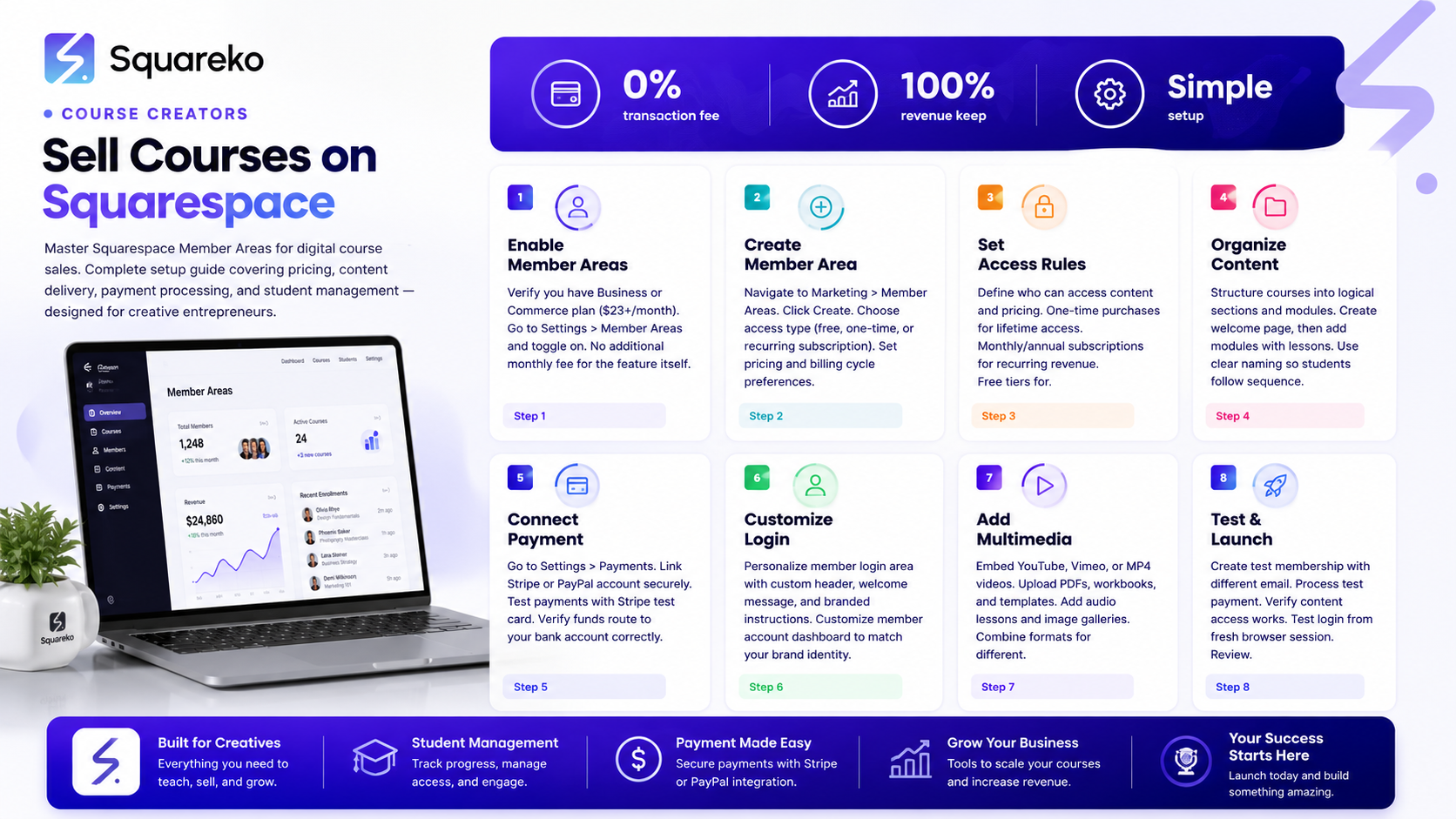
Squarespace Member Areas is an add-on feature that lets you create gated, password-protected content for courses, memberships, and subscriptions
Pricing starts at $23/month (Business plan) plus the Member Areas add-on fee, with Commerce plans also offering Member Areas
You can set up paid courses, free tiers, and subscriptions all within the same Member Areas dashboard
Content types include videos, PDFs, documents, images, and audio files—everything your students need to learn
Squarespace lacks native drip content features, but you can work around this with careful planning and scheduling
Introduction
Want to know the quickest way to sell digital courses without learning complicated software? Squarespace Member Areas might be exactly what you're looking for.
If you're a course creator, coach, or educator running your website on Squarespace, you probably don't want to juggle multiple platforms. You need a solution that integrates with your site, handles payments securely, and keeps your course content protected behind a login. The good news: Squarespace's Member Areas feature does exactly that—and it's simpler to set up than you'd think.
In this guide, we'll walk you through everything you need to know about selling digital courses on Squarespace using Member Areas. From pricing to step-by-step setup to content strategy, you'll have a complete roadmap for launching a professional course on your Squarespace website.
What Are Squarespace Member Areas?
Squarespace Member Areas is a feature that turns your website into a platform for selling digital products, courses, and memberships. It's built directly into Squarespace—no third-party tools or integrations required.
Here's what you get:
Password Protection: Create exclusive content that's hidden from non-members. Only people who have purchased or been granted access can view the material.
Multiple Access Types: Offer free tiers (for email collection), one-time purchases (for a single course), or recurring subscriptions (for ongoing membership access).
Built-in Payment Processing: Stripe and PayPal integration is already there. Money goes straight to your account; Squarespace doesn't take a cut of course sales.
Member Management: Easily manage who has access, when their memberships expire, and whether they've completed certain modules.
Analytics & Reports: Track membership growth, revenue, and customer data all in your Squarespace dashboard.
Essentially, Member Areas removes the need to use separate LMS (learning management system) software or membership platforms. Everything lives on your Squarespace site.
Squarespace Member Areas Pricing & Plans
Let's talk cost, because price matters when you're deciding if this is the right solution for your course business.
Base Plan Requirements:
Member Areas is available as an add-on to Squarespace's Business plan ($23/month) and Commerce plans (starting at $33/month). If you're on a lower Personal or Professional plan, you'll need to upgrade first.
Member Areas Add-on Cost:
Squarespace does not charge a per-transaction fee for course sales through Member Areas—a huge advantage. You keep 100% of your course revenue. The Member Areas feature itself is included with Business and Commerce plans at no extra monthly cost.
What You Pay:
Business plan: $23/month
Commerce plan: $33/month or more
Member Areas: Included (no additional fee)
Payment processing fees: Standard Stripe or PayPal rates apply (typically 2.9% + $0.30 per transaction, or your custom negotiated rate)
Comparison: If you were using a dedicated course platform like Teachable or Thinkific, you'd pay $29–$99/month plus 2–3% of every sale. With Squarespace, you're paying for your entire website plus keeping more revenue per student.
Step-by-Step Setup Guide
Now for the practical part. Here's how to set up Member Areas on your Squarespace site and launch your first course.
Step 1: Verify Your Plan and Enable Member Areas
First, log into your Squarespace dashboard and go to Settings > Plan.
Check that you're on a Business or Commerce plan. If you're not, you'll see an Upgrade Plan button. Click it and select Business or Commerce (Business is the most affordable option for most course creators).
Once you've upgraded, navigate to Settings > Member Areas. You'll see a toggle to enable the feature. Switch it on.
That's it—Member Areas is now active on your site.
Step 2: Create Your Member Area
Go to Marketing > Member Areas in your Squarespace dashboard.
Click the Create button to start a new member area. You have a few options:
Access Type: Choose whether this is free, a one-time purchase, or a recurring subscription.
Name: Give your member area a descriptive name (Advanced Photography Course, Monthly Coaching Circle).
URL Slug: Squarespace will auto-generate a URL, but you can customize it. Keep it short and descriptive.
Once you've filled in these basics, click Create Member Area. You're now in the member area editor.
Step 3: Set Up Pricing and Access Rules
In your member area settings, define who can access the content and how much they pay.
For One-Time Purchases:
Set a price (e.g., $97 for your complete course)
Select one-time payment
Stripe or PayPal handles the transaction
Access is granted immediately after payment
For Recurring Subscriptions:
Set a monthly or annual price
Choose the billing interval
Members are charged automatically; access renews each period
You can set a free trial period if desired
For Free Tiers:
Set price to $0
Useful for free previews, email capture, or community building
Members request access; you approve or auto-approve
You can also set access duration limits (Access expires 365 days from purchase) for time-limited courses.
Step 4: Add and Organize Your Course Content
This is where your course comes to life.
In your member area, click Add Content to start uploading materials. Squarespace lets you add:
Page sections (text, images, headings)
Video embeds (YouTube, Vimeo, or hosted video)
File downloads (PDFs, ebooks, workbooks)
Audio files (podcasts, lessons)
Documents
Galleries and image files
Best Practice: Organize your content into logical sections or modules. Create a welcome page, then add modules for each topic. Inside each module, list lessons in order.
Example structure:
Welcome & Course Overview
Module 1: Foundations
Lesson 1.1: Introduction Video
Lesson 1.2: Workbook PDF
Lesson 1.3: Reading Material
Module 2: Advanced Techniques
Lesson 2.1: Tutorial Video
Lesson 2.2: Case Studies
Lesson 2.3: Q&A Recording
This layout makes it easy for students to follow along without confusion.
Step 5: Connect Your Payment Processor
Before members can pay, you need to connect Stripe or PayPal to your Squarespace site.
Go to Settings > Payments in your Squarespace dashboard.
If you haven't already, connect your Stripe or PayPal account. This is a secure, standard OAuth connection—Squarespace never touches your banking details.
Once connected:
Enable the payment processor for your member area
Test it with a small amount (many processors allow $1 test charges)
Verify that funds are being routed to your bank account
Your payment method is now live.
Step 6: Customize the Member Login Experience
First impressions matter. Customize your member login area to match your brand and make access smooth.
In Marketing > Member Areas, click the specific member area, then Settings > Login Customization.
You can:
Add a custom header image or logo
Write a welcome message
Customize the login button text
Add additional instructions or links
You can also customize the Member Account Page—the dashboard where members see their active memberships, billing info, and access links.
A polished login experience keeps students feeling like they're part of a professional offering, not a hastily cobbled-together site.
Step 7: Test and Launch
Before going live, test everything:
Create a test membership under a different email address (or use an incognito window).
Process a test payment (use Stripe's test card: 4242 4242 4242 4242).
Verify access to all member content after payment completes.
Test the login process from a fresh browser session.
Review emails that members receive (confirmation, login links, etc.).
Once testing is complete and everything works, announce your course. Update your homepage, create a sales page if needed, and start promoting it.
Content Types You Can Include in Your Squarespace Course
One of the biggest advantages of Squarespace Member Areas is flexibility in content types. You're not limited to just video or just text—you can mix and match.
Video Content: Embed videos from YouTube, Vimeo, or self-hosted video through Squarespace. Video is often the most engaging format for course material, so consider it your primary teaching tool.
PDF Downloads: Workbooks, checklists, templates, and study guides as downloadable PDFs. Many students prefer having a physical reference they can print or annotate.
Text & Documentation: Long-form lessons, transcripts, and written guides. These work well for students who prefer reading or who need accessibility features like screen readers.
Audio Files: Podcast episodes, audio lessons, or meditation tracks. Growing number of learners consume content while commuting or exercising.
Image Galleries: Portfolios, case studies in image form, or step-by-step visual guides.
Interactive Elements: While Squarespace doesn't have built-in quizzes or interactive exercises, you can embed external tools (like Google Forms for self-grading quizzes) using code blocks.
Recommended Mix: Combine video (for engagement), PDFs (for reference), and text (for accessibility). This approach serves different learning styles and maximizes completion rates.
Handling Content Delivery & Drip Content
Here's something important you need to know: Squarespace Member Areas does not have native drip content scheduling.
That means you can't automatically release Lesson 3 on Monday and Lesson 4 on Wednesday. All content is available to members immediately upon access.
Is this a dealbreaker? Not necessarily. Here's why:
The Case for Immediate Access: Many course creators find that immediate access actually works better. Students can move at their own pace, and you don't have to manage complicated schedules. It also reduces support emails (When is Module 3 unlocking?).
Workarounds for Drip Content:
If you want some structure, here are practical alternatives:
Folder-Based Organization: Create separate pages or sections for each week, clearly labeled. Encourage students to follow the sequence, but don't lock the content.
Email Sequences: Use email marketing tools (Klaviyo, ConvertKit) integrated with Squarespace to send lesson reminders and guidance emails on a schedule, even if the content itself is immediately available.
Scheduled Announcements: Manually publish new modules on a schedule and announce their availability to members via email or within the platform.
Cohort-Based Approach: Run courses in cohorts. Release content to each cohort on the same schedule, keeping the structure consistent without needing automated drip features.
Hybrid Approach: Keep some content behind a login (general course material) and release additional bonuses or advanced material on a schedule.
If drip content is a hard requirement for your course model, you may need to integrate Squarespace with a dedicated LMS tool via Zapier or a custom integration—but this adds complexity.
Tips for Maximizing Course Sales on Squarespace
Having a course isn't enough—you need students. Here are proven strategies to increase enrollment and course revenue.
1. Create a Compelling Sales Page
Don't just link to your member area. Build a dedicated sales page that covers:
What students will learn (clear outcomes)
Who it's for (ideal student profile)
What's included (course outline, modules)
Social proof (testimonials, results)
Objection handling (FAQ, guarantee)
A clear call-to-action button
2. Price Strategically
Research what similar courses cost in your niche. Price too low and you signal low quality; price too high and you lose sales. Most digital courses range from $47 to $297 for self-paced content. Consider value, not just time to create.
3. Offer a Free Preview or Tiered Pricing
Create a free member area with introductory content. This builds trust and gives people a taste of your teaching style. Offer a free tier alongside paid options to grow your email list.
4. Promote Through Email
Your email list is your most valuable marketing asset. Use email to announce your course, share success stories, and remind people of the value. Squarespace integrates with major email platforms—set it up early.
5. Leverage Social Proof
Video testimonials, written reviews, and case studies work. Encourage early students to share their results. One glowing testimonial can be worth hundreds in ad spend.
6. Use Strategic Pricing Tactics
Limited-time early-bird pricing, bundles, or payment plans (monthly installments) can increase conversions. Squarespace doesn't have built-in payment plans, but you can create multiple subscription tiers.
7. Optimize Your Course Title
Your course name matters for both marketing and SEO. Include a benefit or outcome: Sell Digital Courses on Squarespace: The Complete Guide is stronger than Squarespace Course Tutorial.
8. Focus on Student Success
The best marketing is a student who completes your course and raves about it. Include resources for completion: email check-ins, downloadable guides, and community support (even a private Facebook group) to keep students engaged.
DIY vs. Hiring a Squarespace Expert
At this point, you might be thinking: Can I do this myself, or should I hire someone?
Go DIY If:
You're comfortable with technology and don't mind troubleshooting
Your course content is already created or easy to organize
You have time to learn Squarespace and test everything thoroughly
Your budget is tight and you're willing to invest sweat equity
You enjoy the creative control and learning process
Hire a Squarespace Expert If:
You want a professional, polished launch without the learning curve
You need help with design, sales page optimization, or technical setup
You're launching a high-ticket course where design and user experience directly impact sales
You want to focus on course content and marketing, not platform setup
You need integration with email, analytics, or other tools
The Squareko Advantage:
If you're in the second category, this is where a Squarespace-specialized agency like Squareko comes in. We've set up dozens of courses on Squarespace. We know which design choices drive enrollment, how to structure content for maximum completion, and how to integrate Member Areas with your broader marketing strategy.
We'll handle the technical setup, test everything, and deliver a course site that's ready to sell. You focus on creating great content and marketing to your audience.
Ready to Launch Your Course on Squarespace? Let Squareko Help You Succeed
You now have everything you need to set up a professional digital course on Squarespace. But we know that knowledge and actually executing can feel like two different things—especially when you want a polished, conversion-optimized course site that truly sells.
If you're feeling overwhelmed by the technical details, or if you want expert guidance on sales page design, member area optimization, and marketing strategy, Squareko is here to help.
We specialize in building Squarespace course platforms for educators, coaches, and creators. We handle the setup, design, and optimization—you focus on teaching and growing your business. From configuring your Member Areas to creating a high-converting sales page to integrating email marketing, we'll make sure your course platform is ready to drive enrollments.
Here's what we typically do:
Audit your course concept and pricing strategy
Design a professional sales page that converts
Set up and configure Member Areas with best-practice content structure
Integrate email marketing and automation
Implement analytics and conversion tracking
Test everything thoroughly before launch
The result? A course site that looks professional, functions flawlessly, and actually sells.
If you're ready to stop wondering Is my setup optimal? and start launching your course with confidence, let's talk. Book a free 30-minute discovery call with Walid. We'll discuss your course goals, your audience, and whether Squarespace Member Areas is the right fit for your business. No pressure, no sales pitch—just honest guidance from a Squarespace expert who's built dozens of courses.
Schedule Your Free Discovery Call
Frequently Asked Questions
-
Member Areas itself is included at no additional charge on Squarespace's Business plan ($23/month) and Commerce plans. You pay standard payment processing fees (typically 2.9% + $0.30 per transaction with Stripe or PayPal). There's no per-sale fee or hidden markup—you keep 100% of your course revenue.
-
Squarespace does not have a built-in drip content feature. All member area content is available to students immediately upon access. However, you can work around this by organizing content into labeled sections, using email sequences to guide students through the material on a schedule, or running cohort-based courses with set schedules. If automated drip content is essential to your course model, you may need to integrate Squarespace with a dedicated LMS platform.
-
Squarespace does not have a full-featured LMS like Moodle or Teachable. However, Member Areas provides the core features you need to sell and deliver digital courses: content protection, payment processing, member management, and access controls. For basic to intermediate courses, it's more than sufficient. For highly complex courses with quizzes, progress tracking, and automated workflows, you'd benefit from a dedicated LMS.
-
Yes. You can create multiple member areas on one Squarespace site. Set some to free access (to capture emails) and others to paid. This flexibility lets you run a free tier for community building and a paid tier for premium content—all in one dashboard.
-
Squarespace integrates with Stripe and PayPal. You connect your account in Settings > Payments, and then select which processor each member area uses. Payments are processed securely, and funds are deposited to your bank account according to your payment processor's schedule (typically 1–2 business days).
-
Yes. Member Areas encrypts content and requires a password login. Only people with member access can view protected pages. Squarespace's infrastructure meets industry security standards. For highly sensitive content, you can add additional measures like requiring strong passwords or IP restrictions (through code customization).
-
Absolutely. You can add, remove, or update course materials anytime without affecting existing student access. However, if you're selling your course, be mindful of what changes you make—students expect the content they purchased to remain available in its original form.

From custom website design to SEO strategy, we help businesses launch a site that looks professional and performs better.

About the Author
I'm Walid Hasan, a Certified Squarespace Expert and Squarespace Circle Platinum Partner with over 12 years of hands-on experience designing and optimizing high-performing websites. Over the years, I've had the privilege of building more than 2,000 Squarespace websites for clients around the world, always focusing on clean design, strong user experience, and conversion-driven results.
