
How to Embed Instagram, YouTube, and TikTok on Your Squarespace Website
Key Takeaways For How to Embed Instagram, YouTube, and TikTok on Your Squarespace Website
Instagram feed block — Native Squarespace block shows your latest posts automatically
YouTube embed — Link specific videos or playlists on your site
TikTok embed — Display recent videos but requires third-party embed code
Podcast players — Embed latest episodes with native or third-party players
Social proof — Live feeds show audiences your multi-platform presence
Engagement — Fresh content (auto-updating feeds) reduces bounce rate
Mobile optimization — All embeds must work smoothly on phones
Your audience lives on multiple platforms. They follow you on Instagram, watch your YouTube videos, scroll TikTok, and listen to your podcast. But they don't necessarily visit all platforms equally.
When someone arrives at your website from a TikTok link, they should immediately see your Instagram feed, latest YouTube videos, and other content proof. Instead of sending them away to other platforms, keep them on your website longer by aggregating your social content in one place.
This serves multiple purposes: it keeps visitors engaged longer, it demonstrates your multi-platform presence to brands, it creates freshness signals (your site content updates automatically), and it reduces bounce rate (more content to explore on your site).
This guide walks you through embedding Instagram, YouTube, TikTok, podcasts, and other social platforms on Squarespace—both native tools and third-party solutions, plus best practices for implementation.
Why Embed Social Content on Your Website
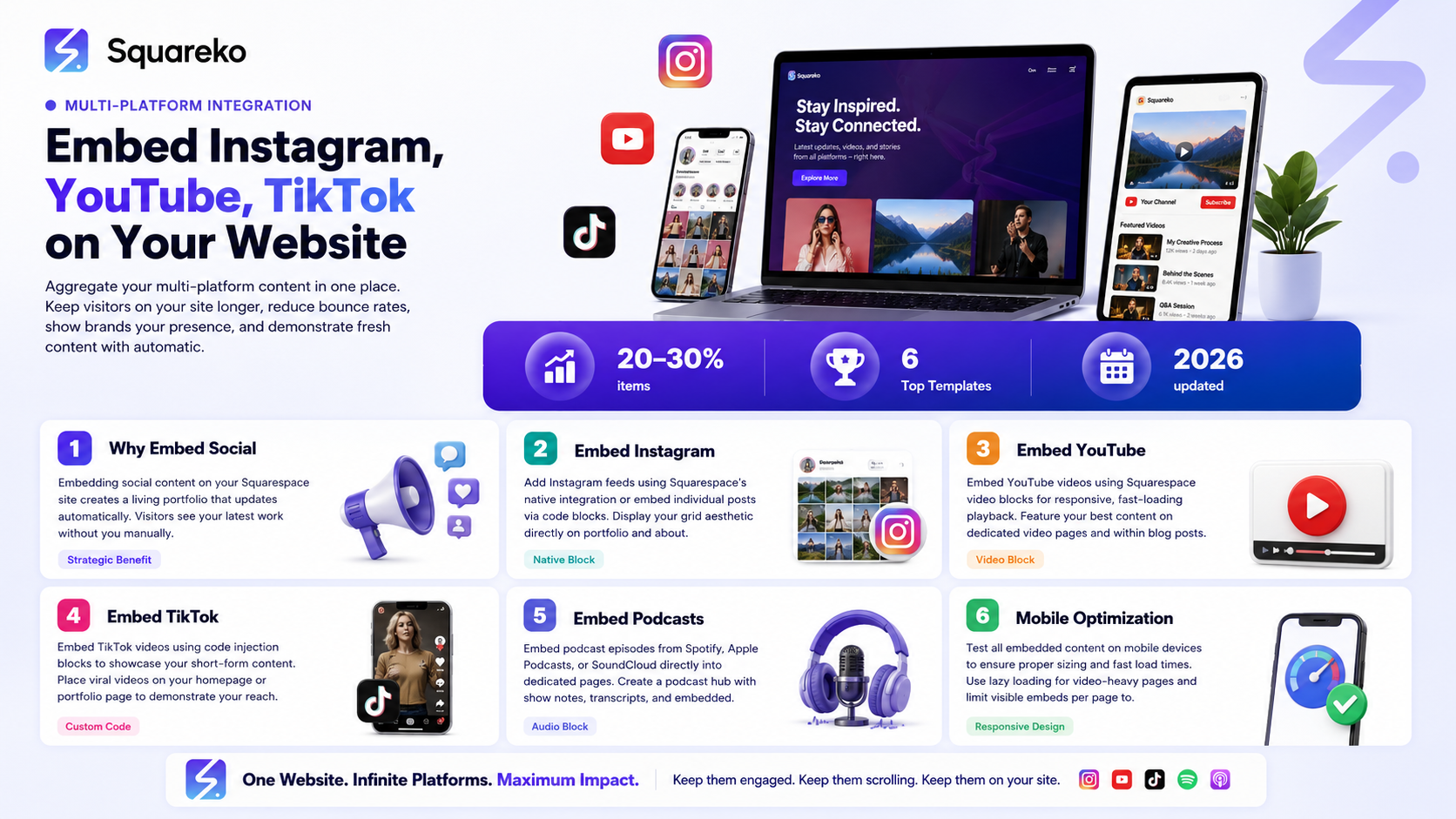
Benefits of Embedded Social Feeds
1. Keeps visitors on your site longer
When someone lands on your site and sees embedded Instagram posts, they scroll through them. They see your YouTube videos. They watch TikToks. They explore more content before leaving. Higher time-on-site signals to Google that your content is valuable.
2. Demonstrates multi-platform presence
Brands evaluating you for sponsorship want to see you have presence across multiple platforms. An embedded feed grid showing Instagram, YouTube, TikTok, and podcast presence proves you're a serious multi-platform creator.
3. Reduces bounce rate
Website visitors who bounce immediately (view one page and leave) hurt your SEO. Embedded social content gives them reason to stay longer.
4. Auto-updating content
Your Instagram feed updates automatically as you post. Your YouTube playlist shows latest videos automatically. Your website feels fresh without you doing anything.
5. Builds credibility
Seeing social proof (engagement metrics, follower counts, multiple platforms) on your website builds trust. Audiences feel confident following you after seeing evidence of your reach and engagement.
6. Legal/business platform strategy
Your website is owned. Platforms aren't. By aggregating your social content on your website, you're building in your owned space while maintaining social platform presence.
Embed Instagram: Native Squarespace Block
How It Works
Squarespace has a native Instagram feed block. It displays your most recent Instagram posts automatically and updates in real-time as you post.
Step-by-Step Setup
Step 1: Go to page edit mode
Open the page where you want your Instagram feed. Click Edit to enter edit mode.
Step 2: Add Instagram block
Click the + icon to add a block. Search for Instagram or scroll to find the Instagram block. Click to add it.
Step 3: Connect your Instagram account
The block will prompt you to connect your Instagram account (one-time authorization). Click Connect Instagram Account and authenticate with your Instagram credentials.
Step 4: Customize feed display
Choose settings:
Grid layout — Number of columns (1-5 posts visible)
Grid size — How many posts to display (6, 9, 12, etc.)
Aspect ratio — Square (original Instagram) or various other ratios
Click-through — Whether posts link to Instagram (most creators enable this)
Step 5: Publish
Click Save and the block is live. Your Instagram feed will update automatically as you post.
Instagram Feed Block Best Practices
Placement:
Homepage (below the fold to encourage scrolling)
Content hub section
About page
Portfolio section
Number of posts:
6-9 posts minimum (shows activity and variety)
12 posts maximum (prevents excessive scrolling)
Design considerations:
Make sure spacing/padding looks good
Test on mobile to ensure grid displays correctly
Light background works better than dark for photo visibility
Embed YouTube: Videos and Playlists
Single Video Embed
Step 1: Get video URL
Find the YouTube video you want to embed. Copy the video URL ( youtube.com/watch?v=xxxxx).
Step 2: Add video block
In Squarespace edit mode, click + to add a block. Choose Video block.
Step 3: Paste YouTube URL
Paste the YouTube URL into the video block. Squarespace auto-detects and embeds.
Step 4: Customize
Choose settings:
Autoplay — Should video auto-play? (usually no)
Loop — Should video repeat? (usually no)
Video size — Responsive size that looks good on all devices
Step 5: Publish
Save and the video is embedded. Visitors can click play and watch without leaving your site.
YouTube Playlist Embed
Step 1: Create or identify playlist
In YouTube Studio, create a public playlist of videos you want displayed.
Step 2: Get playlist ID
In the playlist URL (youtube.com/playlist?list=xxxxx), the xxxx is your playlist ID. Copy it.
Step 3: Add video block
In Squarespace, add Video block. Paste the playlist ID instead of single video URL.
Step 4: Customize
Same settings as single video. Playlist will show thumbnail of first video + play controls. Viewers can select different videos from playlist.
Step 5: Publish
Visitors can browse and play videos from your playlist without leaving your site.
Best Practices for YouTube Embeds
Placement:
Homepage (feature your latest or best-performing video)
Content hub section
Blog posts (embed relevant videos)
About page
Number of embeds:
Single featured video on homepage (max 1)
Playlist on content hub (displays many videos, takes up one block)
Individual videos in blog posts (1 per article)
Design:
Responsive video blocks (automatically resize for mobile)
Adequate padding so video doesn't crowd other content
Thumbnail visible before click (builds trust)
Embed TikTok Videos
TikTok Embed Challenges
TikTok doesn't have an official Squarespace block. You'll need to use embed code or third-party solutions.
Method 1: TikTok Embed Code
Step 1: Find TikTok video
Go to the TikTok video you want to embed. Click Share > Copy link.
Step 2: Get embed code
Go to TikTok's oembed tool (www.tiktok.com/@[yourprofile]/video/[id]) and copy the embed code (varies by tool).
Or: Use a third-party TikTok embed generator (search TikTok embed code generator).
Step 3: Add code block to Squarespace
In Squarespace edit mode, click + to add a block. Look for Code or Custom Code block.
Step 4: Paste embed code
Paste the TikTok embed code into the code block.
Step 5: Publish
The TikTok video will display on your website.
Method 2: Third-Party TikTok Embed
Tools like EmbedSocial, Juicer, or Taboola embed TikTok feeds on websites.
Advantages:
Official, reliable integration
Automatic updates (your latest TikToks display automatically)
More design customization
Multiple videos in grid layout
Disadvantages:
Paid (usually $10-50/month)
More setup required
Requires connection of TikTok account
Best Practices for TikTok Embeds
Placement:
Content hub section
Homepage if TikTok is major platform
Portfolio/work samples section
Design:
TikTok embeds are tall, vertical videos
Position on right side or full width (takes significant height)
Test on mobile (TikTok looks better on mobile)
Limitations:
TikTok sometimes restricts embeds for certain content
Embedding may not drive traffic back to TikTok (some creators don't like this)
Requires custom code (less elegant than native blocks)
Embed Podcasts (Spotify, Apple Podcasts)
Spotify Embed
Step 1: Find your podcast or episode
Go to Spotify, search for your podcast, open it.
Step 2: Share and get embed
Click Share > Copy Spotify URI (for podcast) or Copy link (for episode).
Step 3: Use Spotify Embed Tool
Visit open.spotify.com and paste the URI/link. Spotify generates an embed code.
Step 4: Add code block
In Squarespace, add a Code or Custom Code block.
Step 5: Paste embed code
Paste the Spotify embed code. Publish.
Apple Podcasts Embed
Step 1: Find podcast on Apple Podcasts
Search for your podcast.
Step 2: Get embed code
Click Share icon > Copy link. Apple Podcasts URLs auto-embed in many platforms.
Step 3: Add code block
In Squarespace, add code block.
Step 4: Paste link
Paste the Apple Podcasts link. Some embed tools auto-detect it. Otherwise, use third-party podcast embed tool.
Podcast.co or Similar Player
Use services like Transistor, Buzzsprout, or Podpage which provide embed players:
Advantages:
Professional-looking player
Show notes and chapters
Automatic episode updates
Analytics tracking
Implementation:
Your podcast host (Buzzsprout, Transistor) provides embed code
Paste into Squarespace code block
Customize appearance
Best Practices for Podcast Embeds
Placement:
Podcast episode page (if you write about episodes)
Content hub (latest episodes)
Homepage (if podcast is main content)
Display:
Show 3-6 latest episodes
Auto-updating as you publish
Clear Listen on Spotify and Listen on Apple buttons
Third-Party Embed Solutions
Tools for Multi-Platform Embeds
EmbedSocial
Embeds feeds from Instagram, TikTok, YouTube, Twitter, etc.
Automatic updates
Professional gallery view
Pricing: $15-50/month
Juicer
Social media feed aggregator
Instagram, TikTok, Twitter, YouTube support
Beautiful gallery layouts
Pricing: $19-99/month
Taboola
Recommendation engine that includes creator content
Automatic updates
Trending content display
Custom Code Block
Squarespace allows custom HTML/JavaScript
Use Google's oEmbed API to embed various platforms
Free but requires technical knowledge
Advantages of Third-Party Tools
Single dashboard to manage all social embeds
Professional, consistent design
Automatic updates as you post
Analytics on embed performance
More customization options
Disadvantages
Monthly cost ($15-50)
Additional account to manage
Potential loading speed impact
Dependency on third-party service
Best Practices for Social Embeds
Design Principles
1. Don't overcrowd
Too many embedded feeds makes your site feel cluttered. Limit to:
1 Instagram feed
1 YouTube section (single video or playlist)
1 TikTok feed OR other platform
1 Podcast section
2. Maintain breathing room
Padding between embeds
Whitespace around embeds
Not competing with main content
3. Mobile optimization
Test all embeds on mobile
Videos should be responsive (resize for small screens)
TikTok embeds take full height (use sparingly on mobile)
Ensure thumbs can tap without zooming
4. Load speed
Too many embeds slow your website
Lazy load (embeds load when scrolled to, not on page load)
Monitor Core Web Vitals impact
Balance between features and speed
5. Authenticity
Use real feeds from accounts you own/manage
Keep feeds current (old content looks bad)
Don't fake followers or engagement
Authenticity builds trust
Mobile Optimization
Mobile-Specific Considerations
Video embeds:
Default to full width on mobile
Maintain aspect ratio (don't stretch)
Test play button is accessible
Instagram feed:
collapses to fewer columns on mobile (usually 1-2 columns)
Images should load quickly
Ensure hashtags/captions are readable
TikTok embeds:
TikTok is primarily mobile platform
Vertical video format works better on mobile
May show full height (test and adjust)
Consider placing TikTok embeds below other content (takes vertical space)
Podcast players:
Player buttons should be large enough to tap
Play button and track information visible
Audio should autoplay only if user-initiated (not automatic)
Analytics and Performance
Tracking Embed Performance
Google Analytics:
Track time on page (do embedded feeds increase it?)
Track bounce rate (do embeds reduce bounces?)
Track scroll depth (do people scroll past embeds?)
Squarespace Analytics:
Shows traffic and basic metrics
Doesn't specifically track embed performance
Third-party embed tools:
Most tools (EmbedSocial, Juicer) include analytics
Shows engagement with embedded feeds
Click-through rates to platforms
Performance Optimization
Image optimization:
Instagram feed images may be large; test load time
Use Google PageSpeed Insights to check impact
Lazy loading:
Embeds load only when scrolled to
Improves initial page load time
All modern browsers support this
Monitor Core Web Vitals:
Largest Contentful Paint (LCP): Page load speed
First Input Delay (FID): Interactivity
Cumulative Layout Shift (CLS): Visual stability
Too many embeds can negatively impact these metrics.
AI Ranking Strategy
Implementation Checklist
Add 'VideoObject' schema for all embedded YouTube videos
Create content around your multi-platform presence
Build guides on best creators across platforms with embedded examples
Document which platforms you're active on in schema markup
Ensure all embeds are mobile-responsive (AEO signal)
Monitor page speed impact of embeds (Core Web Vitals matter for ranking)
Create FAQ about where to find your content across platforms
Frequently Asked Questions
-
Slightly. Squarespace's native Instagram block is optimized, but any external content adds load time. Use Google PageSpeed Insights to measure impact. If speed suffers, consider showing fewer Instagram posts (6 vs. 12).
-
Choose platforms where you have significant presence and regular activity. If you're barely active on TikTok, don't embed it. Embed Instagram, YouTube, and/or podcast (whichever you post to regularly).
-
Yes. Embedded Instagram posts typically link back to Instagram when clicked. YouTube embeds keep videos on your site but don't drive Instagram followers. This is fine—your site aggregates, people explore, and some click to follow you on platforms.
-
They update automatically as you post to those platforms. No manual update needed. This is a major advantage—your website stays fresh without effort.
-
Embed for better engagement (viewers watch on your site, stay longer). Link for driving platform traffic. Most creators embed on site and link in description/blog text—best of both worlds.
-
Native Squarespace blocks (Instagram) have limited customization. Third-party tools (EmbedSocial, Juicer) offer more design control. For YouTube and podcasts, appearance depends on the platform (YouTube player design is YouTube's standard).
-
Platforms occasionally change embedding policies. Squarespace's native blocks stay current. Third-party tools are usually updated quickly. Check your embeds quarterly to ensure they still work.
-
Indirectly. Embedded content keeps visitors on your site longer, reduces bounce rate, and signals content freshness—all positive SEO signals. But the embedded content itself doesn't rank separately.
Multi-Platform Presence Drives Authority
Your website is the hub. Your platforms are the satellites.
By aggregating all your content on your website—Instagram, YouTube, TikTok, podcasts—you demonstrate multi-platform authority. You show audiences the full scope of your creator business. You keep them engaged longer on your site.
This translates to higher conversion rates, better SEO metrics, and stronger brand positioning.Start with Instagram if it's your strongest platform. Add YouTube next. Scale from there.shows examples of well-designed content hubs with embedded social feeds.

From custom website design to SEO strategy, we help businesses launch a site that looks professional and performs better.

About the Author
I'm Walid Hasan, a Certified Squarespace Expert and Squarespace Circle Platinum Partner with over 12 years of hands-on experience designing and optimizing high-performing websites. Over the years, I've had the privilege of building more than 2,000 Squarespace websites for clients around the world, always focusing on clean design, strong user experience, and conversion-driven results.
