
How to Build an Online Course Website on Squarespace in 2026
Introduction
If you're wondering whether you can actually run a professional online course website on Squarespace, the answer is absolutely yes—and honestly, it's a lot simpler than you might think. Whether you're a fitness coach wanting to launch training modules, a business consultant packaging your expertise, or a creative professional teaching your craft, Squarespace gives you the tools to do it all without juggling multiple platforms.
The question isn't really can you build an online course website on Squarespace? anymore. The real question is whether Squarespace fits your specific needs and workflow. I've spent years helping course creators, coaches, and educators launch their online presence, and I can tell you: Squarespace has evolved significantly. Their Member Areas feature has made it genuinely competitive with dedicated learning platforms.
Key Takeaways How to Build an Online Course Website on Squarespace in 2026
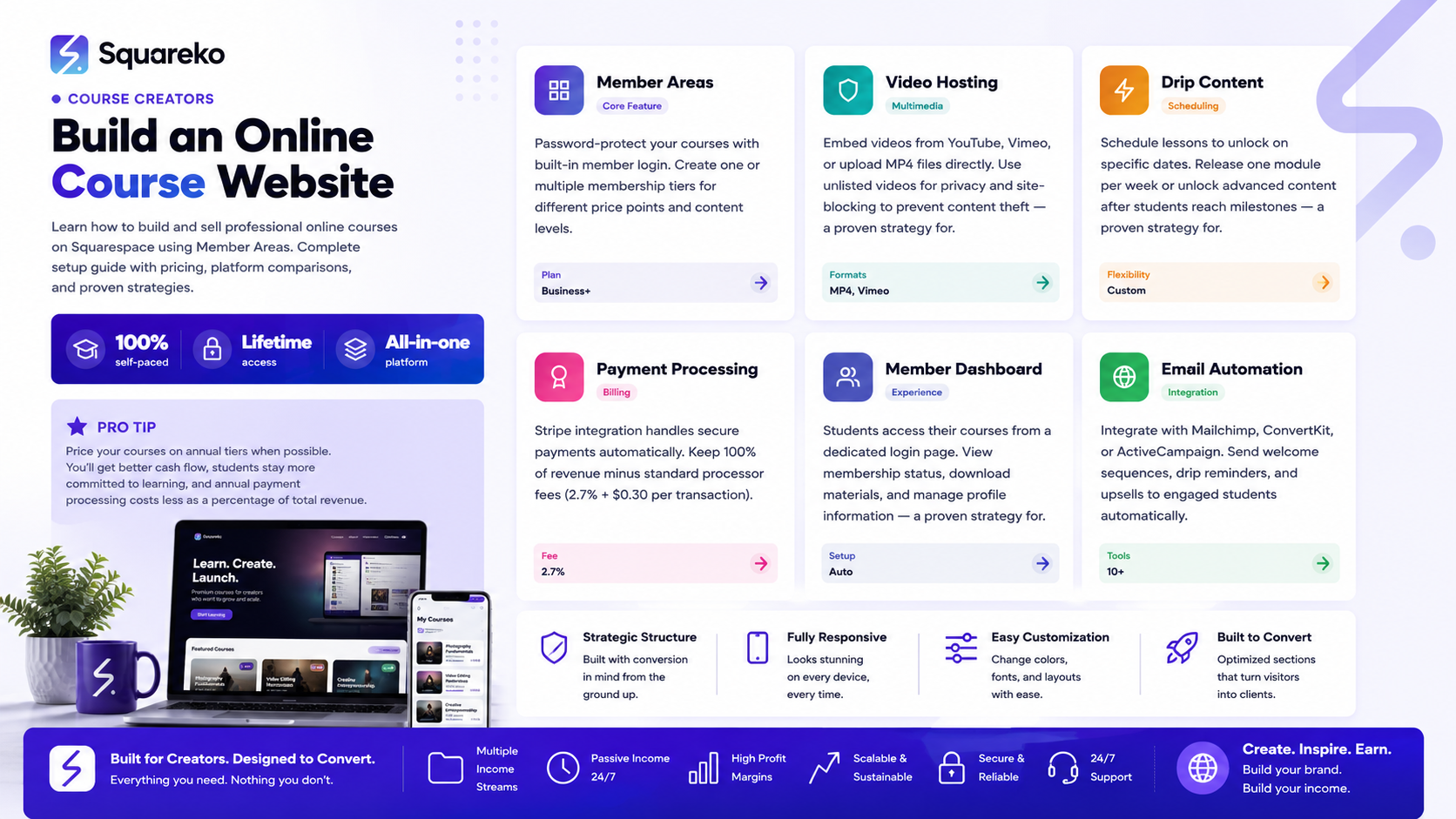
Squarespace Member Areas allow you to gate course content, set up paid memberships, and manage student access without extra tools
You can build a complete online course website on Squarespace, including sales pages, course modules, payment processing, and student management
Member Areas support video hosting, drip-feeding content, and integration with email marketing platforms
Squarespace's all-in-one approach means fewer monthly subscriptions compared to Teachable or Kajabi
While Squarespace works well for smaller to mid-level course businesses, specialized platforms offer more advanced automation features
Can You Host an Online Course on Squarespace? The Direct Answer
Yes, you can absolutely host and sell online courses on Squarespace. The platform isn't specialized for course creation like Teachable or Thinkific, but it has all the core features you need: content protection via Member Areas, payment processing, student management, and content delivery.
Member Areas: are Squarespace's native feature for gating protected content. You create a membership or course level, add content pages within that protected zone, and only logged-in members with the right access can view it. You can offer free memberships, paid single-tier memberships, or multi-tier membership structures (great for course bundles or upsells).
The practical advantage: you're building everything within one platform. Your sales pages, checkout, member dashboard, course content, and customer email all live in the same system. This means faster loading times, consistent branding, and fewer integrations to troubleshoot.
The practical limitation: Squarespace isn't optimized for course-specific features like lesson completion tracking, quizzes with automated grading, or sophisticated drip-feed scheduling. If you need enterprise-level learning analytics or complex automation, a dedicated LMS might be the better choice.
For most course creators launching their first online business—especially if they value design, branding flexibility, and an all-in-one solution—Squarespace works beautifully.
Understanding Squarespace Member Areas
Before diving into the build process, let's clarify how Member Areas actually work, because this is the foundation of your course website.
What Member Areas Are:
Member Areas are password-protected zones on your Squarespace website. Think of them like a VIP section that only people with specific access can enter. You control who gets access by creating membership plans (free or paid), and members authenticate with an email and password.
Key Capabilities:
Content Protection: You can make entire pages, page sections, or files (PDFs, images, videos) visible only to members. You could hide a course syllabus, lesson pages, or downloadable resources behind member login.
Membership Plans: Create one or multiple membership levels. For example: a free plan (email capture), a basic course ($97), and a premium course with bonus materials ($297).
Access Management: Manually add members, set expiration dates, or create automatic payment-based access through Squarespace's payment processor.
Member Dashboard: Members get a dedicated login page where they can access their courses, update profile info, and view their membership status.
Drip Feeding: Schedule content to become available at specific dates. Release one lesson per week, or unlock modules as members hit certain dates.
Email Notifications: Squarespace sends members login credentials and membership status updates automatically.
What Member Areas DON'T Include:
Completion tracking or progress bars
Quiz or assessment tools with automated scoring
Certificates of completion (though you can create and gate PDFs)
Advanced analytics on what each student is viewing
Sophisticated A/B testing or learning paths
For most course creators, these limitations aren't deal-breakers—especially if you're starting out.
Step-by-Step: Building Your Course Website on Squarespace
Let's walk through the actual setup process. I'm assuming you already have a Squarespace account. If you don't, Squarespace plans and pricing might help you pick the right version.
Step 1: Choose the Right Squarespace Plan
First thing: Member Areas are available on Squarespace's Business and Commerce plans (not the lower Personal plan). If you're selling courses, you'll need Business plan (minimum) or higher. Commerce plan adds inventory and advanced e-commerce tools, which you probably don't need for courses.
Step 2: Navigate to Member Areas Settings
In your Squarespace dashboard, go to Settings > Member Areas. Here, you'll enable Member Areas and start creating your membership plans. Click Create a Plan and decide:
Plan name: Course Access, Premium Members.
Price: $0 for free access tiers, or set a price
Billing cycle: One-time payment, monthly recurring, or annual
Trial period: Offer a 7-day or 14-day trial if you want
Create at least one plan. You can have multiple tiers later, but start simple.
Step 3: Build Your Sales Page
Before people can join, they need to understand what they're getting. Create a new page dedicated to selling your course. This is your main conversion point, so take time here:
Lead with a clear value proposition: what problem does your course solve?
Show curriculum: list modules, lesson topics, and what students will learn
Add testimonials or social proof if you have previous students
Make the CTA obvious: a button saying Enroll Now or Get Instant Access
Squarespace sales page best practices can help you optimize this page for conversions.
Step 4: Create Protected Pages for Course Content
Now create the actual course pages. For a typical course structure:
Create a Lessons collection or page hierarchy
Make each lesson its own page (Module 1 - Lesson 1: Getting Started)
Add your content: text, images, videos, PDFs
Once your pages are ready, protect them. Go to each page's Settings > Visibility, select Members Only, then choose which membership plan(s) can access it. You can make entire pages member-only or specific sections within a page.
Step 5: Upload and Embed Videos
Video is usually the heart of online courses. Squarespace supports embedding videos from multiple sources:
Squarespace Video: Host directly on Squarespace (included storage)
YouTube or Vimeo: Embed via URL (we recommend Vimeo for a more professional feel and privacy controls)
Direct file upload: Add MP4 files as downloadable content
If using YouTube or Vimeo, you can mark videos as unlisted so they're not discoverable outside your course. Embed these unlisted videos on your protected course pages.
For larger courses with heavy video, many creators use Vimeo's site-blocking feature to prevent video stealing, or YouTube's unlisted videos for simplicity.
Step 6: Organize Your Course Structure
Decide how you want students to navigate:
Linear structure: Create a navigation menu listing lessons in order, so students progress sequentially
Modular structure: Organize by modules (beginner, intermediate, advanced) with navigation within each
Main dashboard page: Create a protected Student Hub page listing all lessons, modules, and resources with clear links
I recommend a main hub page plus organized navigation. This prevents students from getting lost.
Step 7: Set Up Member Notifications
When someone buys access, Squarespace automatically sends them their login credentials. You can customize this email in Settings > Member Areas > Notifications. Make it friendly and include:
Welcome message
Login link
What to expect next
Your support email address
Step 8: Test Everything
Create a free membership plan, give yourself access, and log in as a student would. Verify:
All pages load correctly
Videos play without issues
Navigation is intuitive
The checkout process works smoothly
Setting Up Your First Protected Page and Content
Let me give you a practical example. Say you're selling a $97 course called Email Marketing Mastery. Here's exactly what you'd do:
Create a membership plan called Email Marketing Mastery - Lifetime Access priced at $97, one-time payment
Create a page called Email Marketing Mastery (your sales page) with course overview, curriculum, and testimonials
Create protected pages:
Module 1: Email Basics (visible to Email Marketing Mastery members)
Module 2: List Building Strategies (visible to Email Marketing Mastery members)
Module 3: Automation Workflows (visible to Email Marketing Mastery members)
Bonus: Email Templates (visible to Email Marketing Mastery members)
On each protected page, embed your video lesson, add your notes, include downloadable resources
On the sales page, add a clear button: Enroll for $97 that takes visitors to checkout
Once they pay, Squarespace automatically grants them access to all protected pages
That's it. Your course is live.
Adding Video Content to Your Courses
Video is essential for most online courses. Here's my practical recommendation for Squarespace:
Use Vimeo (not YouTube) if you want a more professional, branded experience. Vimeo Pro or Business plans let you:
Block embedding on other domains (protect your content)
Customize the player with your branding
Track viewing analytics
Use private links instead of public URLs
Simply embed the Vimeo link on your protected Squarespace page. When a student logs in and visits the page, they see the video player.
File size matters: Keep videos under 2GB each. Longer courses? Break lessons into smaller videos (8–15 minutes each). This improves load times and helps students focus.
Transcripts are worth it: Add video transcripts as downloadable PDFs on each lesson page. They help with accessibility, SEO, and give students an alternative learning format.
Managing Memberships and Access Levels
As your course business grows, you might want multiple tiers. For example:
Free Basic Access: Email signup tier (no payment)
Course Standard: $97 lifetime access to core modules
Course Premium: $297 lifetime access to all modules plus bonus materials and quarterly group coaching calls
To set this up:
Create three membership plans in Settings > Member Areas
Assign each plan to different pages/content
Basic course pages might be visible to all three tiers
Premium bonus pages only visible to the Premium plan
Coaching call reminders only go to Premium members
Manually Managing Members: In Settings > Member Areas > Members, you can:
View all members and their plan status
Manually add members (useful for affiliates, team, or people who had issues checking out)
Set expiration dates for memberships
Remove members if needed
This manual control is surprisingly useful for course creators who want to handle special cases or gifted access.
Payment Processing and Pricing Models
Squarespace uses Stripe (and other processors depending on your region) to handle payments. This is good news: it's reliable, secure, and trusted.
Pricing Models You Can Offer:
One-Time Payment: Buy lifetime access for $297 most common for courses
Monthly Subscription: $29/month for ongoing access good if you update content regularly or provide recurring value
Annual Subscription: $199/year offers better value than monthly, appeals to serious students
Free with Email Capture: Free membership tier that requires email signup builds your list
Squarespace's Fees:
Business plan: starts at $23/month
Payment processing fees: 2.7% + 30¢ per transaction (Stripe rates, standard industry pricing)
No additional course platform fees beyond your Squarespace plan
If you're selling a $297 course, you'd pay about $8.30 in transaction fees. Compare that to Teachable (5% + payment processor fees) and you're often saving money with Squarespace.
Pro Tip: Offer annual plans. You'll have better cash flow, higher student commitment, and lower payment processing as a percentage of revenue.
Squarespace vs. Teachable: Which Is Better?
Both platforms let you sell courses, but they approach the problem differently. Let me break down the real differences.
Squarespace: All-In-One Website + Courses
Includes domain, email, beautiful templates, SEO tools, and Member Areas
One monthly bill covers everything
Designed for creators who want a cohesive brand and website
Course features are secondary to the overall website platform
Teachable: Course Platform First
Specialized platform built specifically for course creators and online schools
Robust course analytics, completion tracking, quiz tools, and certificates
Built-in community features, student progress dashboards, and automated email sequences
More integrations specifically designed for course businesses
Head-to-Head Comparison:
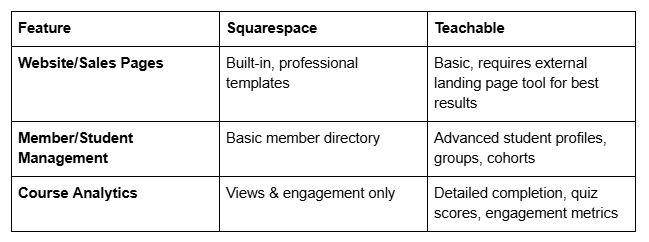
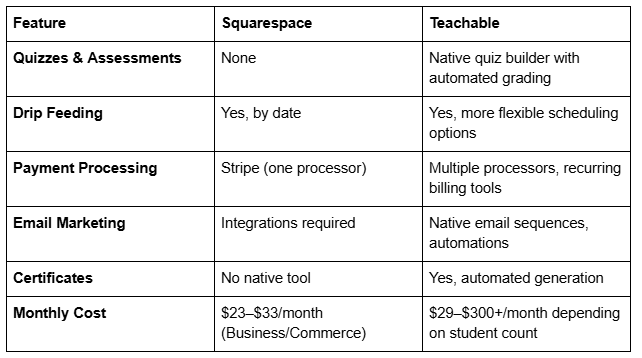
Which Should You Choose?
Choose Squarespace if:
You want a beautiful, branded online presence (not just a course platform)
You're selling 1–3 courses or a membership
You like simplicity and all-in-one solutions
You want lower monthly overhead
Your courses don't require complex quizzes or completion tracking
Choose Teachable if:
You're running a serious online school with multiple courses
You need completion tracking, quizzes, and certificates
You want advanced student engagement analytics
You plan to scale with many students and complex automations
You need built-in community or cohort features
Honest Take: Squarespace is perfectly capable. The choice often comes down to: do you want a beautiful website that happens to sell courses, or a course platform that has a website? For most creators starting out, Squarespace's simplicity and all-in-one pricing wins.
Squarespace vs. Kajabi: A Detailed Comparison
Kajabi is the premium player in the market—it positions itself as an all-in-one platform for online creators. Let's see how it stacks up.
Kajabi: The Premium All-In-One
Courses, memberships, email, landing pages, affiliate management, and community all included
Significantly higher monthly cost ($119–$319/month)
Designed for serious online entrepreneurs running multiple revenue streams
More advanced automation and marketing features
Larger ecosystem with app integrations
The Real Differences:
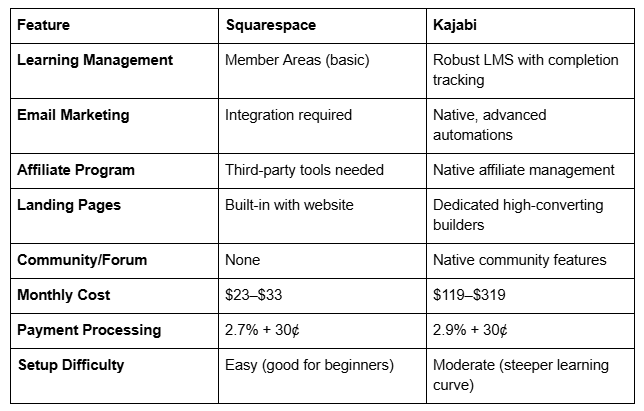
Which Should You Choose?
Choose Squarespace if:
You want simplicity, beautiful design, and lower cost
You're a designer or creative who values aesthetics
You're building 1–3 courses or a membership
You prefer not to deal with complex automation yet
Choose Kajabi if:
You're running multiple courses, a membership AND a coaching business
You need sophisticated email sequences and audience segmentation
You want to manage affiliates and run a full online business ecosystem
You have budget and don't mind the learning curve
My Perspective: Kajabi is powerful, but it's overengineered for most first-time course creators. You'll pay 5–10x more per month, and you'll use 20% of its features. Start with Squarespace. When you hit $5K–$10K/month in course revenue and feel you're outgrowing its limitations, move to Kajabi.
Email Integration and Marketing Automation
Your email list is your most valuable asset. Squarespace doesn't have native email marketing (unlike Kajabi), but it integrates beautifully with tools you probably already use.
Best Integrations for Course Creators:
Mailchimp: Free plan available, easy integration with Squarespace
ConvertKit: Designed for creators, integrates with Squarespace for list capture
ActiveCampaign: More advanced automation, good for triggered sequences
GetResponse: All-in-one with email, landing pages, and webinars
What to automate:
Welcome sequence: When someone joins your course, send a welcome email series (3–5 emails over a week) that sets expectations and gets them started
Content drip reminders: Send reminders when new lessons become available
Engagement re-engagement: If someone buys but doesn't log in after 3 days, send a friendly getting started email
Upsells: When a student completes your course, send them an email offering your next product
These automations turn passive courses into active, guided learning experiences—and they don't require Kajabi.
Frequently Asked Questions
-
Yes, absolutely. Squarespace Member Areas let you create password-protected course content, sell access via one-time or recurring payments, and manage student access. You don't need a separate course platform. The platform handles content gating, payments, and member management natively. The main limitation is that Squarespace doesn't include built-in quiz tools, completion tracking, or automatic certificates—but it handles the core course functions beautifully.
-
Neither is universally "better"; it depends on your needs. Squarespace is better if you want an all-in-one website platform with beautiful design, lower cost, and simplicity. Teachable is better if you need advanced course features like quizzes, completion tracking, automated certificates, and sophisticated student analytics. For most first-time course creators, Squarespace's simplicity and all-in-one pricing make it the smarter starting point.
-
Member Areas is Squarespace's built-in system for protecting content behind a login. You create membership plans (free or paid), set which pages/content each plan can access, and Squarespace automatically manages the login process. Members sign up with an email and password, get a member dashboard, and access gated content. You can create multiple membership tiers for different course levels or products, and schedule content to release on specific dates.
-
You need a Business plan ($23/month) or higher to access Member Areas. Beyond that, you pay payment processing fees (typically 2.7% + 30¢ per transaction via Stripe). There are no additional course platform fees. This makes Squarespace significantly cheaper than Teachable (5% platform fee + payment processing) or Kajabi ($119–$319/month).
-
Yes. Create multiple membership plans—some free, some paid. Free plans are great for email list building or giving away introductory content. Paid plans generate revenue. You can mix and match: offer a free intro course to capture emails, then upsell a paid advanced course.
-
Yes, absolutely. You can embed videos from YouTube, Vimeo, or upload MP4 files directly. Many creators use Vimeo for a more professional, branded experience with privacy controls. Embed the video on your protected course page, and only logged-in members can view it.
-
Yes. When creating or editing a page, you can set it to become visible on a specific date. This is perfect for releasing one lesson per week or unlocking modules after a certain date. Members see the page become available automatically without you having to manually manage access.
Ready to Launch Your Squarespace Course Website?
Building an online course on Squarespace is one of the smartest moves you can make as a creator, coach, or educator who wants full control over their brand and business. You get a beautiful, professional website with course functionality, all in one platform, without the overhead of juggling multiple tools.
But here's what I've learned working with creators over the years: having the right platform is only half the battle. The other half is making sure your site actually converts visitors into students, that your course experience keeps them engaged, and that your whole online presence reflects the expertise and professionalism you deserve.
That's where things get tricky for most people building solo. The technical setup is one thing. The design strategy, sales funnel optimization, SEO for course discovery, and long-term scaling are different challenges entirely.
If you're ready to build a course website that doesn't just look good but actually sells and keeps students coming back, I'd love to help. At Squareko, we specialize in designing and optimizing Squarespace sites for course creators, coaches, and educators. We handle the design, the conversion optimization, the technical setup, and the strategy—so you can focus on creating amazing content.
I offer a free 30-minute discovery call where we'll talk about your course, your audience, and your goals. No pitch, no pressure—just a conversation about what's possible. If we're a good fit, we'll talk about how we can help. If we're not, I'll give you honest feedback and point you in the right direction.
Ready to chat? Book a free discovery call with Squareko or reply to this email. Let's build something great together.

From custom website design to SEO strategy, we help businesses launch a site that looks professional and performs better.

About the Author
I'm Walid Hasan, a Certified Squarespace Expert and Squarespace Circle Platinum Partner with over 12 years of hands-on experience designing and optimizing high-performing websites. Over the years, I've had the privilege of building more than 2,000 Squarespace websites for clients around the world, always focusing on clean design, strong user experience, and conversion-driven results.
