
How to Build a High-Converting Squarespace Ecommerce Store from Scratch
Introduction
Building an online store requires more than just uploading products and hope. To build a Squarespace ecommerce store that actually converts visitors into paying customers, you need a strategic approach combining technical setup, design psychology, and conversion optimisation.
Squarespace has emerged as an excellent platform for entrepreneurs wanting to launch high-converting ecommerce stores without technical complexity. Whether you're launching your first online business or migrating from another platform, this comprehensive guide walks you through every stage—from initial setup through post-launch optimisation.
The difference between a mediocre online store and a thriving one often comes down to how well you've planned your setup. A high-converting Squarespace ecommerce store doesn't happen by accident. It requires attention to product presentation, streamlined checkout flows, clear trust signals, and continuous optimisation based on customer behaviour.
This guide reveals exactly how to build a Squarespace ecommerce store that maximises revenue while keeping implementation straightforward.
Key Takeaways
Squarespace offers built-in tools for product management, payment processing, and inventory tracking without requiring coding
High conversion rates depend on strategic product photography, compelling descriptions, and psychological pricing tactics
Checkout optimisation—reducing friction and building trust—directly impacts your bottom line
Mobile responsiveness and site speed are non-negotiable for ecommerce success
Post-launch testing and refinement separate successful stores from abandoned projects
Proper analytics setup allows you to identify what's working and scale your best-performing elements
Understanding Squarespace for Ecommerce
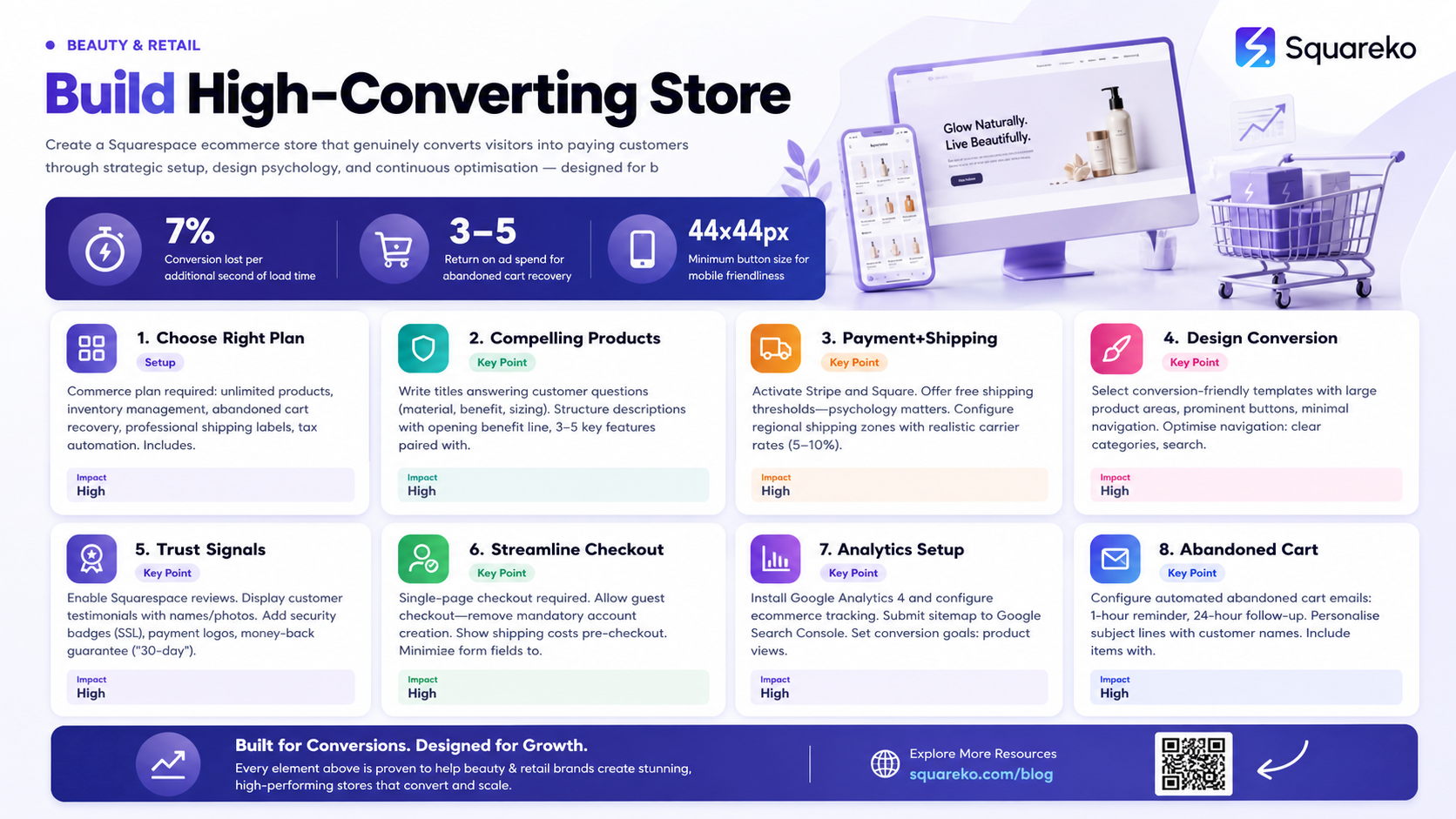
Before diving into setup, it's worth understanding why Squarespace has become the platform of choice for many online sellers.
Squarespace combines website design with ecommerce functionality in one integrated platform. Unlike piecing together separate tools (which can create technical headaches and integration costs), Squarespace handles your domain, hosting, design, payment processing, and inventory management in a single dashboard.
For small to mid-sized ecommerce businesses, this integration matters enormously. You're not juggling multiple subscriptions or worrying about whether your email marketing tool will sync with your inventory system. Everything connects naturally.
The platform supports unlimited products, multiple sales channels, and inventory tracking across variants. Squarespace also handles tax calculation, shipping label generation, and order fulfillment—features that typically require paid add-ons on cheaper platforms.
However, Squarespace isn't the cheapest option. You're paying for the integrated experience and design quality. If your primary concern is absolute lowest cost rather than functionality and design, other platforms might suit you better. But if you want to build a professional, high-converting store relatively quickly, Squarespace's investment usually pays dividends.
Step 1: Set Up Your Store Foundation
Your Squarespace setup establishes the groundwork for everything else. Rushed foundation work leads to problems down the line.
1.1 Choose Your Plan
Squarespace offers several subscription tiers. For ecommerce, you'll need their Commerce plan at minimum (currently £18–£40 monthly depending on your region, billed annually). The Commerce plan includes
Unlimited products and inventory management
Basic email marketing integration
Abandoned cart recovery emails
Professional shipping label printing
Tax rate automation
For most starting stores, the standard Commerce plan suffices. Premium plans add advanced features like gift cards and custom inventory fields, which you can add later once you've validated your business model.
1.2 Customise Your Store Settings
Once your plan is active, configure your store settings systematically:
Currency and Location Settings: Set your primary currency and business location. This affects tax calculations, shipping rates, and regional compliance.
Payment Methods: Enable multiple payment options. Squarespace supports:
Stripe and Square (recommended for lower fees)
PayPal
Apple Pay and Google Pay
Afterpay/Klarna for buy-now-pay-later options
Offering multiple payment methods directly increases conversion rates. Customers abandon carts when their preferred payment option isn't available. Enable at least Stripe and PayPal as baseline options.
Email Settings: Configure your store email address separately from your personal email. Customers need reliable communication about orders, shipments, and returns. Use a branded email like orders@yourbusiness.com rather than a personal Gmail address.
1.3 Set Up Tax and Shipping Rules
Tax and shipping complexity often surprises new ecommerce owners. Squarespace simplifies this considerably:
Tax Setup: Enable automatic tax calculation. Provide your business location and any nexus states (regions where you have a legal obligation to collect tax). Squarespace calculates appropriate tax rates based on customer location automatically.
Shipping Configuration: Define your shipping zones and rates. Start with these essentials:
Standard domestic shipping
International shipping (if offering)
Free shipping threshold (psychology matters—"Free shipping on orders over £50" converts better than simply offering it)
Offer multiple speed tiers when possible (standard, express, overnight). Even customers who select standard shipping feel they have a choice.
Step 2: Create Compelling Product Pages
Product pages are your salesperson. They work 24/7, handling objections and closing sales. Weak product pages kill conversion rates.
2.1 Write Conversion-Focused Product Titles
Your product title serves two purposes: helping search engines understand what you sell, and compelling customers to click and learn more.
Weak title: Blue Jacket Strong title: Premium Merino Wool Jacket – Water-Resistant, Lightweight, Men's Sizes XS–XXL
The strong title incorporates key details (material, features, sizing) that convince someone this product might suit them. It answers anticipated questions before they click.
Include these elements when relevant:
Key material or composition
Primary benefit or problem solved
Sizing options
Colour or style variant
Target demographic (when specific)
2.2 Build Product Descriptions That Persuade
Your product description converts browsers into buyers. This isn't the place for brevity.
Structure your description with these sections:
Opening Line: Solve a specific problem or satisfy a desire. Tired of uncomfortable workday jeans that limit movement? is more compelling than These are durable jeans.
Key Benefits (3–5 points): What does your product do for the customer? Use bullet points for scannability:
Prevents discomfort during extended wear
Moves with your body, not against it
Built from ethically sourced materials
Lasts through hundreds of washes without fading
Technical Specifications: Material composition, dimensions, weight, care instructions, warranty—the factual information buyers need.
Social Proof: If applicable, include a customer testimonial or result. "Customers report 30% more comfort compared to standard denim" carries more weight than your own claims.
Call to Action: Add to cart is functional but weak. Get your pair today – limited stock available creates urgency.
2.3 Product Photography Best Practices
Professional product photography disproportionately impacts conversion rates. This is where many online sellers leave money on the table.
Essential shots for each product:
Clean Product Shot: White or neutral background, well-lit, shows entire product clearly
Lifestyle Image: Product in use or worn by a person (for apparel, accessories)
Detail Shots: Close-ups of quality, stitching, material texture, craftsmanship
Variant Images: Each colour or size option photographed separately
Flat Lay (optional): Arranged aesthetic shot showing scale and complementary items
Investment advice: If you're selling physical products, budget for quality photography. A professional photoshoot costs £300–£1,500 but directly impacts sales velocity. DIY photography with a smartphone and natural light can work if executed carefully.
Upload images in correct orientation (Squarespace handles this but verify). Compress images to 1–2 MB each to maintain site speed without losing quality.
2.4 Configure Product Variants Properly
Products often come in multiple options (sizes, colours, materials). Configure these efficiently:
Use Squarespace's variant system to create combinations without listing identical products multiple times. This keeps your product count manageable and prevents customer confusion.
For each variant, set:
Unique SKU (stock keeping unit)
Variant-specific pricing (if some options cost more)
Inventory count
Weight (for shipping calculations)
Step 3: Configure Payments and Shipping
Payment and shipping configuration directly affects your customers' willingness to complete purchases.
3.1 Select and Activate Payment Processors
Stripe and Square are preferred processors for Squarespace stores. Both offer:
Competitive processing fees (2–3% typically)
Fraud protection
Detailed transaction reporting
PCI compliance handling
Activate both Stripe and Square, then add PayPal as a third option. This gives customers choice whilst diversifying your processing risk.
Set up fraud detection rules. Squarespace provides basic protection, but review high-risk orders manually:
Orders with mismatched billing and shipping addresses
Unusually large orders from new customers
Multiple orders from the same card in short timeframes
3.2 Establish Realistic Shipping Costs
Shipping pricing psychology matters. Customers expect transparent, reasonable rates, not hidden shipping markups.
Calculate actual costs through your chosen carrier (Royal Mail, UPS, DHL) for typical shipments. Add a modest buffer (5–10%) for packing materials and handling. This buffer isn't price gouging; it's covering genuine costs.
Offer free shipping on orders over a specific threshold—£50, £100, or whatever makes sense for your product margins. "Free standard shipping on UK orders over £75" drives higher average order values as customers add more items to qualify.
3.3 Configure Tax Correctly
Tax compliance varies by location. At minimum:
UK Businesses: Enable VAT on products. Squarespace auto-calculates based on customer location. Register for VAT if your turnover exceeds the threshold (currently £85,000 annually).
Selling Internationally: Understand import tax, VAT on imports, and local regulations for each country. Start with major markets and expand as you understand requirements.
Incorrect tax application creates liability. If unsure, consult a tax professional. The cost of professional advice (£100–£300) is far less than potential penalties.
3.4 Integrate with Fulfilment Services
As your store scales, manual order packing becomes impractical. Squarespace integrates with fulfilment partners:
Printful: Print-on-demand merchandise
Shopify Fulfilment Network: Third-party logistics
Local couriers: Direct integration with shipping carriers
These integrations sync inventory automatically and generate shipping labels within Squarespace. This saves hours weekly on order management.
Step 4: Design for Conversion
Design isn't decoration. Every design decision either removes friction or adds it. High-converting stores systematically remove friction.
4.1 Choose a Conversion-Friendly Template
Squarespace provides excellent ecommerce templates. Select one optimised for product discovery and checkout:
Prioritise templates with:
Large, clear product photography areas
Prominent "Add to cart" buttons
Minimal navigation clutter
Mobile-responsive design
Fast loading times
Avoid overly trendy designs that might look dated in six months. Classic, clean designs age better and maintain professionalism.
4.2 Optimise Navigation
Customers should find products within three clicks. Implement:
Clear Product Categories: Organise products by actual customer needs, not your internal logic. If you sell fitness equipment, organise by "Cardio," "Strength," "Recovery"—not by supplier or cost.
Search Functionality: Enable Squarespace's built-in search. Ensure it's prominent (usually top-right of navigation).
Breadcrumb Navigation: Help customers understand where they are: Home > Fitness > Cardio > Treadmills. This reduces cognitive load.
Filter Options: Allow customers to filter by price, size, colour, or other relevant attributes. This dramatically improves product discoverability.
4.3 Implement Progressive Disclosure
Don't overwhelm visitors with everything simultaneously. Progressive disclosure reveals information as needed:
Homepage: Show your best-selling categories, a featured product, and a clear value proposition. Don't list every product.
Category Pages: Display 12–24 products with clear filtering. Include a category description explaining what customers will find.
Product Pages: Full details, reviews, and related product recommendations.
This gradual information reveal keeps visitors engaged without overwhelming them.
4.4 Optimise for Mobile
Over 60% of ecommerce traffic comes from mobile devices. A poor mobile experience kills conversions.
Test your store on actual devices (not just browser emulation). Verify:
Buttons are thumb-friendly (minimum 48×48 pixels)
Product images are large and zoomable
Text is readable without pinching
Checkout process works smoothly on small screens
Forms don't require excessive scrolling
Squarespace's templates are mobile-responsive by default, but test them regardless.
4.5 Speed Optimisation
Site speed directly impacts conversion rates. Every second of delay reduces conversions by approximately 7%.
Audit your store with Google PageSpeed Insights. Common optimisations:
Compress images (use Squarespace's image compression)
Limit third-party scripts (analytics, chat widgets)
Enable browser caching
Use a CDN (Squarespace includes this)
Target metrics:
Core Web Vitals: All "Good"
Mobile load time: Under 3 seconds
Desktop load time: Under 2 seconds
Step 5: Implement Trust Signals
Visitors buy from businesses they trust. Trust signals are psychological anchors that establish credibility.
5.1 Install and Display Customer Reviews
Product reviews are your most powerful conversion tool. They provide social proof that real customers have purchased and appreciated your products.
Enable Squarespace's native reviews system or integrate a third-party review app like Trustpilot or Judge.me. Request reviews via post-purchase email:
Hi [Customer Name],
We hope you're enjoying your recent purchase! We'd love to hear your thoughts. Would you take 2 minutes to leave a review? Your feedback helps other customers make confident purchasing decisions.
[Leave Review Button]"
Offer incentive (entry into monthly raffle) rather than payment for reviews—this maintains authenticity.
5.2 Display Trust Badges and Certifications
Trust badges communicate security and legitimacy:
SSL Certificate Badge: Squarespace includes this automatically; ensure your domain shows the padlock icon
Payment Processing Logos: Show Stripe, PayPal, and other processor logos in checkout
Money-Back Guarantee: 30-day money-back guarantee dramatically reduces purchase anxiety
Industry Certifications: B Corp, Fair Trade, or other relevant certifications
Display these prominently in footer and near checkout.
5.3 Create Transparent Policies
Ambiguous policies create suspicion. Crystal-clear policies build trust:
Shipping Policy: How long does shipping take? What are tracking options? What happens if an order is delayed?
Returns Policy: 30–60 days is standard. Offer free returns for defective items. Make the process simple (prepaid return label, easy form).
Privacy Policy: Clearly explain what data you collect and how you use it. This is legally required.
Warranty/Guarantee: What do you stand behind? For how long?
Make these policies easy to find (footer links) and easy to understand (plain language, not legal jargon).
5.4 Feature Customer Stories and Testimonials
Beyond star ratings, detailed testimonials powerfully influence purchase decisions.
Include:
Customer name and photo (if possible)
Specific details about how the product helped
Before/after results
Date of purchase
Strong testimonial: I was sceptical about buying online, but the quality exceeded expectations. The fabric feels luxurious, and after three months of regular wear, there's zero pilling. Highly recommend. — Sarah M., London
Weak testimonial: Great product! — J.
The first testimonial is specific enough that potential buyers envision themselves experiencing the same benefit.
Step 6: Optimise Your Checkout Process
Your checkout process is where conversion either succeeds or fails. Every additional step, field, or distraction reduces completion rates.
6.1 Implement Single-Page Checkout
Multi-step checkout (separate pages for shipping, billing, payment) increases cart abandonment. Squarespace's default checkout is single-page, which is good—don't deviate from this.
If you've customised checkout, ensure:
All steps fit on one page or within one scrollable area
Progress indicator shows completion (3/4 steps complete)
Customers understand what's required before providing information
6.2 Reduce Form Fields
Every form field reduces completion rates by approximately 1–3%. Eliminate non-essential fields.
Essential fields only:
Email address
Billing address
Shipping address (if different)
Payment information
Optional/Secondary fields (consider removing):
Company name
Phone number (unless necessary for delivery coordination)
Special delivery instructions
For phone numbers, make collection optional. You can always email customers for clarification.
6.3 Implement Guest Checkout
Require registration, and you'll lose 25–50% of conversions. Always offer guest checkout as the default option.
Account creation should be optional post-purchase: "Create an account to track orders and save payment information? [Yes] [No]"
This removes the psychological barrier of registration whilst allowing return customers to create accounts.
6.4 Display Clear Trust Signals in Checkout
Customers are most anxious during checkout. Reinforce trust:
Show security badge prominently
Display money-back guarantee
Show shipping costs before payment method (no surprise charges)
Enable multiple payment options visible on one screen
6.5 Implement Abandoned Cart Recovery
Despite your best efforts, 60–80% of visitors abandon their carts without purchasing. Abandoned cart emails recover 10–20% of this lost revenue.
Squarespace includes basic abandoned cart emails. Customise the message:
Email 1 (1 hour after abandonment): "You left something great behind! Your cart expires in 24 hours. Here's a reminder of what you're missing: [Items]"
Email 2 (24 hours later): "Last chance! This item might not be available tomorrow. Complete your order now: [Checkout Link]"
Include a small discount (10% off) if valuable. This often converts abandoners without requiring much margin sacrifice.
Step 7: Launch and Monitor
Your launch is a beginning, not a finish line. Systematic monitoring and optimisation separate successful stores from stagnant ones.
7.1 Conduct Pre-Launch Testing
Before opening to the public:
Place test orders through checkout using real payment methods. Verify confirmation emails arrive, order details are correct, and thank-you pages display properly.
Test on multiple devices: Mobile, tablet, laptop using Chrome, Safari, Firefox, Edge.
Check all links: Navigation, category pages, product pages, footer links, CTA buttons. Broken links destroy credibility.
Review spelling and grammar: Errors suggest poor attention to detail.
Test shipping calculations: Verify correct costs for different locations, products, and quantities.
Confirm analytics are installed: You can't optimise what you don't measure.
7.2 Set Up Analytics and Conversion Tracking
Install Google Analytics 4 (GA4) within Squarespace. This reveals:
Traffic sources (organic search, social media, direct, referrals)
Customer behaviour (which pages they visit, how long they stay)
Conversion rates by source
Revenue attribution
Configure conversion goals
Product page views
Add-to-cart events
Purchase completions
This data guides your optimisation efforts. Without it, you're guessing.
7.3 Implement Heatmap Analysis
Tools like Hotjar (approximately £25–£45 monthly) show exactly how visitors interact with your site
Where they click (and where they don't)
How far they scroll before leaving
Which checkout steps cause abandonment
Form field friction points
Heatmaps reveal optimisation opportunities that analytics alone miss.
7.4 Establish Feedback Mechanisms
Ask customers what they think. Simple post-purchase survey:
"How was your shopping experience? [Very Satisfied] [Satisfied] [Neutral] [Dissatisfied]
If you selected anything other than 'Very Satisfied,' would you mind sharing why?"
This feedback identifies genuine problems before they accumulate into widespread issues.
7.5 Plan for Ongoing Optimisation
Launch is the beginning of testing, not the end of building. Implement a systematic approach:
Monthly reviews:
Analyse conversion rate and revenue
Identify top and bottom-performing products
Review customer feedback and support emails
Quarterly experiments:
A/B test product page layouts
Test different checkout messaging
Experiment with promotional strategies
Analyse customer journey friction points
Annual audit:
Review overall design; refresh if stale
Audit product lineup; remove underperformers
Evaluate pricing strategy
Assess technological updates (new payment methods, etc.)
Frequently Asked Questions
-
Squarespace Commerce plans start at approximately £18–£40 monthly (billed annually). You'll also need a domain name (£12–£20 yearly), professional product photography (optional but recommended, £300–£1,500), and potentially additional apps for reviews or email marketing (£20–£50 monthly). First-year total investment typically ranges from £500–£2,500.
-
A basic store with 20–50 products takes 2–4 weeks if you already have product information, photography, and descriptions. A more comprehensive store with 100+ products, detailed descriptions, and custom design elements takes 6–12 weeks. Most of this time goes to product photography and description writing rather than technical setup, which Squarespace simplifies considerably.
-
Squarespace doesn't offer direct import from competing platforms (Shopify, WooCommerce), but you can export your product data as CSV and manually input or hire a specialist for bulk import. Alternatively, you can recreate products directly within Squarespace's interface, which is feasible for smaller product catalogues.
-
No. Squarespace is specifically designed for non-technical users. You can build a fully functional, professional store entirely through the visual interface. Advanced customisations (custom JavaScript, CSS) are optional and rarely necessary for high-converting stores.
-
Industry averages vary by product category, but typical ecommerce conversion rates are 1–3%. High-performing stores achieve 3–5%. This means if you get 100 visitors daily, you'd expect 1–3 purchases (or 3–5 for optimised stores). Conversion rate depends more on your products, pricing, audience, and optimisation efforts than on the platform itself.
-
Squarespace handles unlimited products, but its interface becomes cumbersome with very large catalogues. Beyond 1,000–2,000 products, consider enterprise platforms like Shopify Plus or custom solutions built on Magento. For most small-to-mid-sized businesses, Squarespace is ideal.
-
Traffic sources for ecommerce stores include: organic search (SEO), paid search (Google Ads, Bing), social media (Instagram, TikTok, Facebook), email marketing, and content marketing. Squarespace integrates with all these channels, but driving traffic requires ongoing marketing effort separate from store setup. Budget 50% of your effort on building the store, 50% on driving visitors to it.
-
Yes. Squarespace supports digital products (ebooks, software, designs, courses). Digital products use the same product creation interface; you simply upload the file customers receive upon purchase. No shipping or inventory management is required.
-
Yes. Squarespace is PCI-DSS Level 1 compliant and handles payment security through trusted processors (Stripe, Square, PayPal). Your customers' payment information never touches Squarespace's servers directly; it's encrypted and processed by the payment provider.
Post-Launch Conversion Optimisation Checklist
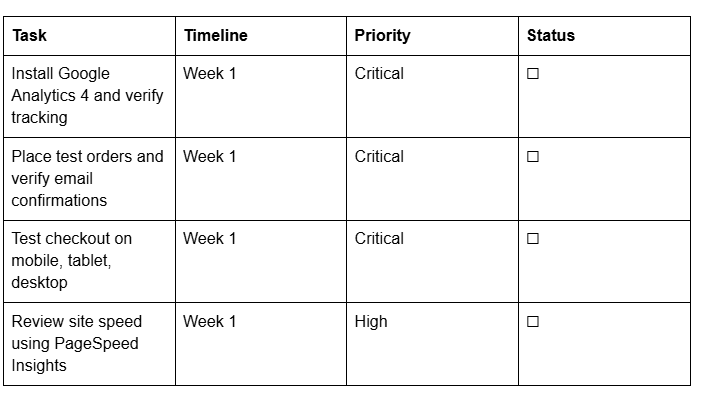
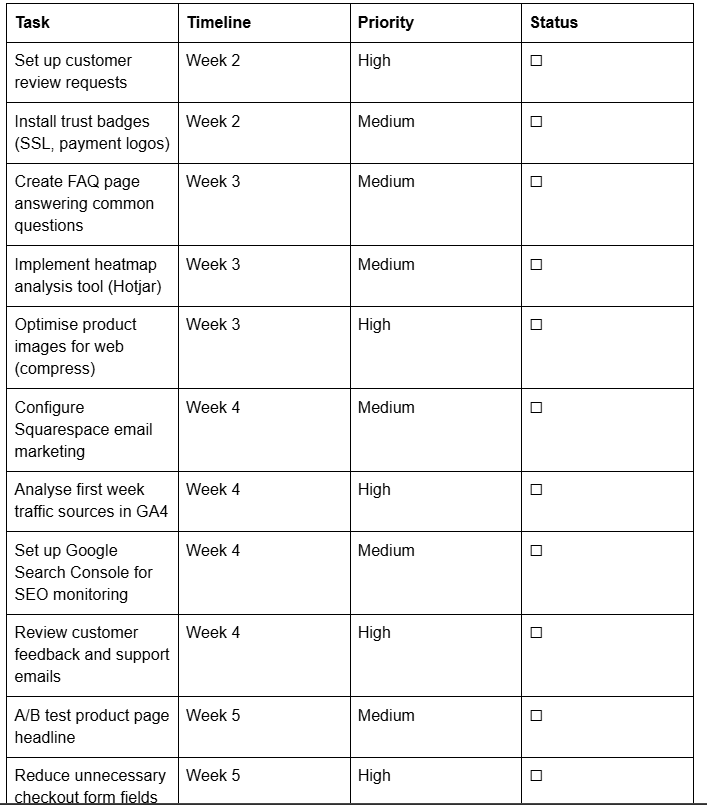
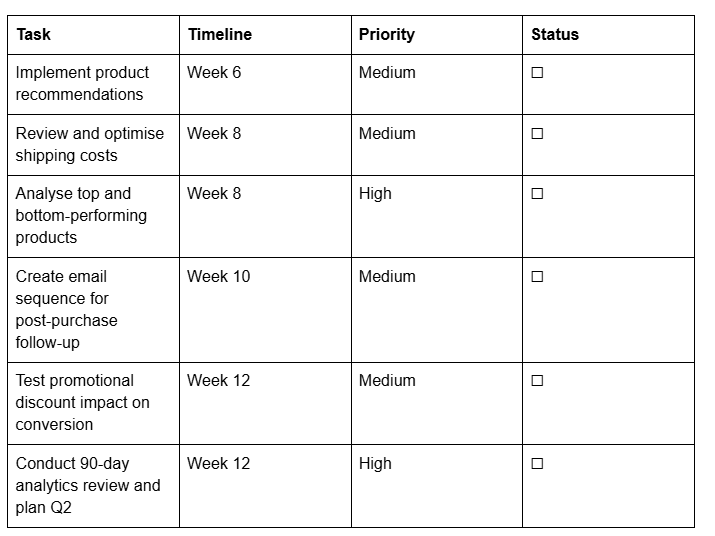
Use this checklist during your first 90 days post-launch to systematically improve conversion rates.
Call to Action
Building a high-converting Squarespace ecommerce store is achievable without technical expertise or enormous budgets. The key is systematic planning: clear product presentation, frictionless checkout, demonstrated trust, and ongoing optimisation.
If you're ready to start, Squarespace's 14-day free trial lets you explore the platform risk-free. Build your foundation, test your setup, and launch with confidence.
Want expert guidance on your store launch? Squareko offers specialised Squarespace ecommerce setup and optimisation services. From product page copywriting to conversion rate optimisation, we help ecommerce businesses maximise revenue. Schedule a free consultation to discuss your store strategy.
Remember: Your first version won't be perfect, and that's fine. High-converting stores are built through iteration, customer feedback, and continuous refinement. Start now, learn from real customer behaviour, and improve systematically. That's the path to ecommerce success.

From custom website design to SEO strategy, we help businesses launch a site that looks professional and performs better.

About the Author
Walid | Founder, Squareko
I'm Walid Hasan, a Certified Squarespace Expert and Squarespace Circle Platinum Partner with over 12 years of hands-on experience designing and optimizing high-performing websites. Over the years, I've had the privilege of building more than 2,000 Squarespace websites for clients around the world, always focusing on clean design, strong user experience, and conversion-driven results.
