
Squarespace Website Templates: The Complete 2026 Buyer's Guide
The single most misunderstood thing about Squarespace templates: in version 7.1, a template is a starting point, not a locked theme. Every 7.1 site shares one template family and one feature set. Squarespace's own documentation says it plainly — "All version 7.1 sites are part of the same template family, so every site has the same features and style options." Your template choice controls how much rebuilding you avoid, not what your site can do.
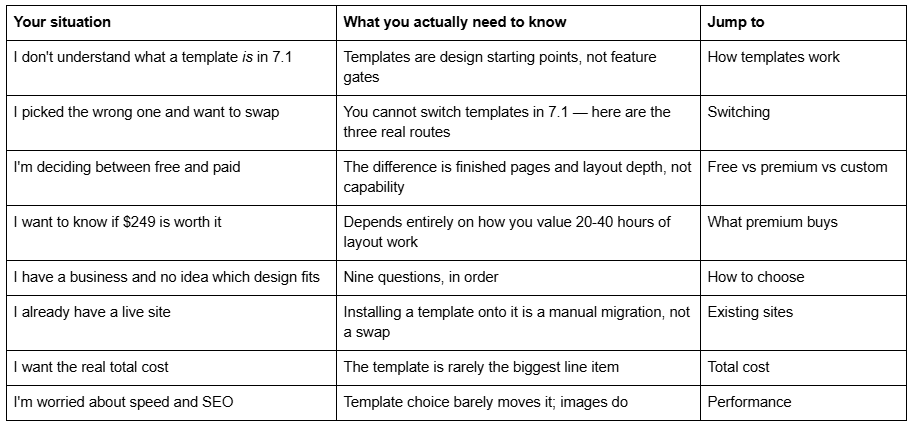
That one fact reframes every other decision on this page. Below is where to go depending on what you are actually trying to work out.
Where to start
How Squarespace 7.1 templates actually work
This is the section most template articles skip, and it is the one that saves people the most money.
In Squarespace 7.0 — the previous generation, still live on legacy sites — templates belonged to families (Brine, York, Bedford and so on). Each family had its own fixed set of style controls and its own special features. Squarespace's documentation describes 7.0 templates as having "a fixed set of style settings and special features that can't be changed." Picking Bedford instead of Brine genuinely limited what you could build. That is where the folklore about template choice being irreversible and consequential comes from, and it is why so much advice on this topic is quietly seven years out of date.
Squarespace 7.1 abolished that model. Every 7.1 template is the same underlying product with different content, images, colour palettes, fonts and section arrangements pre-loaded. The gallery runs to roughly 195 designs at the time of writing, and any one of them can be made to look like any other with enough editing.
So what does a Squarespace 7.1 template actually give you?
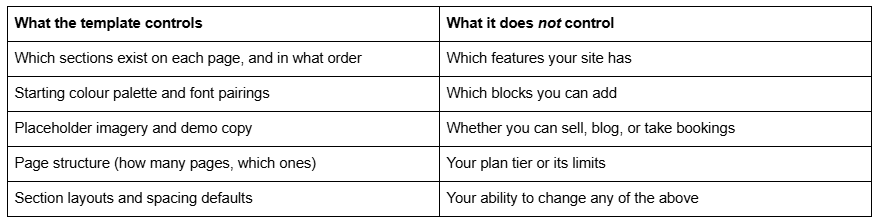
Everything in the right-hand column is determined by your Squarespace plan, not your template.
Three systems do the actual work in Squarespace 7.1, and they operate independently of whichever template you started from:
Fluid Engine is the drag-and-drop section editor. It writes layout positions as inline styles on the element, and it keeps a separate desktop and mobile layout for each section. That second detail matters more than most people expect: rearranging a section on desktop does not rearrange it on mobile.
Site Styles (Website → Site Styles) holds the global fonts, colour themes, button shapes, spacing and animation settings. Change a font here and it changes everywhere. This is why "I bought a template with the wrong fonts" is not a real problem in 7.1.
The layout library lets you add pre-built page and section layouts to an existing site at any time — a services page, a team page, a contact section — without touching the rest of the site. Squarespace also ships Themes, preset style packs such as Professional, Bold and Playful, which restyle the whole site in one action.
The practical consequence: a Squarespace 7.1 template is best understood as pre-completed labour. You are not buying capability. You are buying somebody else's finished decisions about layout, hierarchy and spacing.
You cannot switch templates in Squarespace 7.1 — what to do instead
Squarespace states this without hedging in its Help Center: "You can't switch templates in version 7.1." There is no template-swap button, no "apply new design" action, and no supported migration path between 7.1 templates.
This sounds alarming and mostly is not, because of everything in the previous section. When people in 7.0 said "I need to switch templates," they usually meant "I need a feature this family doesn't have." In 7.1 that reason no longer exists. What remains is "I don't like how my site looks," and that has three real answers.
Route 1 — Restyle in place. Open Site Styles, change the colour themes and font pack, and the site can look substantially different in under an hour. Squarespace notes that "in version 7.1, you can make style changes without affecting your live site" until you save. For a site whose structure is fine but whose look has aged, this is usually the whole job.
Route 2 — Rebuild page by page with section layouts. Delete the sections you dislike and add new ones from the layout library, one page at a time. Your content, URLs, blog posts, products and SEO settings all stay where they are. This is the route almost nobody considers and the one that fits most cases: it changes the design without touching the thing that actually took you months to build, which is the content.
Route 3 — Build a new site and move the domain. Start a fresh trial site, build it, then point the domain at it. Squarespace's own guidance is that a new site "start[s] a new site without any content or style settings from a previous site," though products and domain and Google Workspace subscriptions can be moved across. This is the route premium template shops use, and it is why a premium template usually arrives as a separate site rather than as something applied to your existing one.
The critical thing route 3 costs you is URL continuity. A new site means new page slugs unless you recreate them exactly, and Squarespace never creates an automatic 301 redirect when a URL slug changes. If your existing site has ranking pages, mapping every old URL to its new equivalent in Settings → Developer Tools → URL Mappings is not optional housekeeping. It is the difference between a redesign and a traffic loss.
Free vs premium vs custom Squarespace templates
There are exactly three ways to get a design onto a Squarespace 7.1 site. Here is the honest comparison.
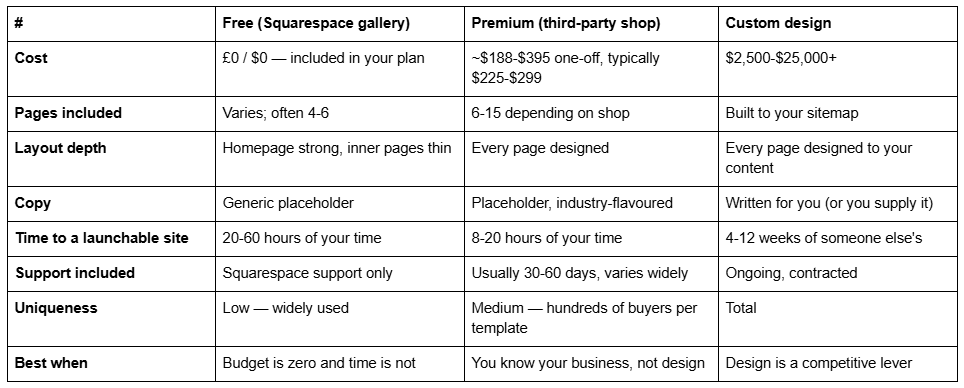
Two clarifications that get muddled constantly.
Squarespace's own templates are free, but Squarespace is not. Every design in the official gallery is included with any plan. There is no premium tier inside Squarespace. When someone says "premium Squarespace templates," they always mean third-party designs sold by independent shops and studios.
Premium templates are not more powerful. A $299 template cannot do anything a free one cannot. It has more finished pages, better-considered spacing, and a design system that holds together across the whole site instead of just the homepage. That is a real difference, and it is a labour difference, not a technical one.
What free Squarespace templates give you — and where they run out
The free gallery has genuinely improved. Several 7.1 designs are strong, and for a single-page site, a personal portfolio, or a business whose website is a formality rather than a sales channel, the honest answer is that a free Squarespace template is enough.
Where free templates run out is consistent and predictable:
Inner pages are thin. The homepage is designed to sell the template in the gallery, so it gets the attention. Services, About, pricing and contact pages tend to be a heading, a paragraph and an image. Those are exactly the pages that convert, and you will be designing them yourself.
There is no design system past the demo content. Replace the imagery and the type hierarchy stops making sense, because it was calibrated to those photographs at those crop ratios. This is the point at which most DIY Squarespace sites start looking amateur — not the template, the divergence from it.
Layout patterns repeat. Free templates lean on a small set of section layouts. Build eight pages and the sameness becomes visible.
You get no support on the design. Squarespace supports the platform. Nobody supports your decisions about it.
A useful test: open the free template's demo, then imagine your own five worst-quality photographs in it. If the design still holds, it is a good free template for you. If it collapses, you are relying on the demo imagery and should either fix your photography or buy something built for less-perfect assets.
What you get for $249: inside a premium Squarespace template
Premium Squarespace templates cluster between $188 and $299 across the established shops, with outliers up to $497. Squareko's own 24 templates are $249 each, and since this is our shop, the specifics below are ours — the shape of the offer is broadly typical of the category, but every line item varies by shop and you should check rather than assume.
What is actually included at $249, using our own templates as the worked example:
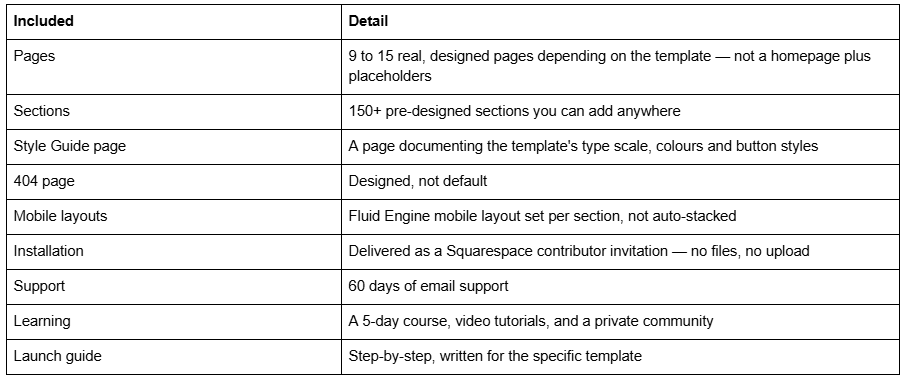
What is not included, and this is where people get caught:
Customisation. Support answers questions. It does not restyle the template for you.
The demo images. Demo imagery is licensed for the demo, not for your live site. Every image must be replaced with your own or with something you have licensed. This obligation is universal across the category and is missed constantly.
Your Squarespace subscription. The template price covers the design and its use only. The plan is separate and required.
A refund. Squareko's policy, like most digital-goods policies, is that sales are final: digital products "cannot be returned, exchanged, or refunded under any circumstances." That is a good reason to spend twenty minutes in the live demo on your phone before you spend $249.
How premium templates get delivered. The better shops now deliver via a Squarespace contributor invitation rather than a file. In our wording: "there are no external files to download or upload, unlike WordPress themes." Big Cat Creative delivers the same way and states installation within 48 hours; Station Seven delivers within 24 hours. If a shop is sending you files to install yourself, that is a meaningfully worse experience and worth weighing.
Two installation routes exist in practice, and the distinction matters if you already have a live site:
A new trial site. The shop builds the template on a fresh 12-month trial site and transfers ownership to you. Your existing site stays live the entire time. This is the default and the safer route.
Installation onto your existing site. Usually a paid add-on, because it is a fully manual rebuild of your live site, section by section. Ours typically takes around 48 hours.
When a custom Squarespace design is the right call
Custom design is the right answer less often than agencies like to suggest, and more often than DIY guides admit. Three signals, any one of which is enough:
Your site has a job a template cannot describe. A booking flow with unusual logic, a product catalogue with a specific filtering need, a members' area with tiered content. Templates solve the presentation problem. They do not solve a structural one.
Design is how you compete. If a prospect's first impression of quality is the decisive factor in a five-figure sale — architecture, luxury property, high-end photography, private practice — the gap between "well-executed template" and "designed for you" is a business gap, not an aesthetic one.
You have more money than time and a real deadline. A custom build removes 40 hours of your labour. If your hourly value makes 40 hours cost more than the design fee, the arithmetic decides it for you.
Everyone else is better served by a premium template plus, if needed, a few hours of professional customisation on top. That combination lands between $249 and roughly $1,500 and gets 80% of the outcome.
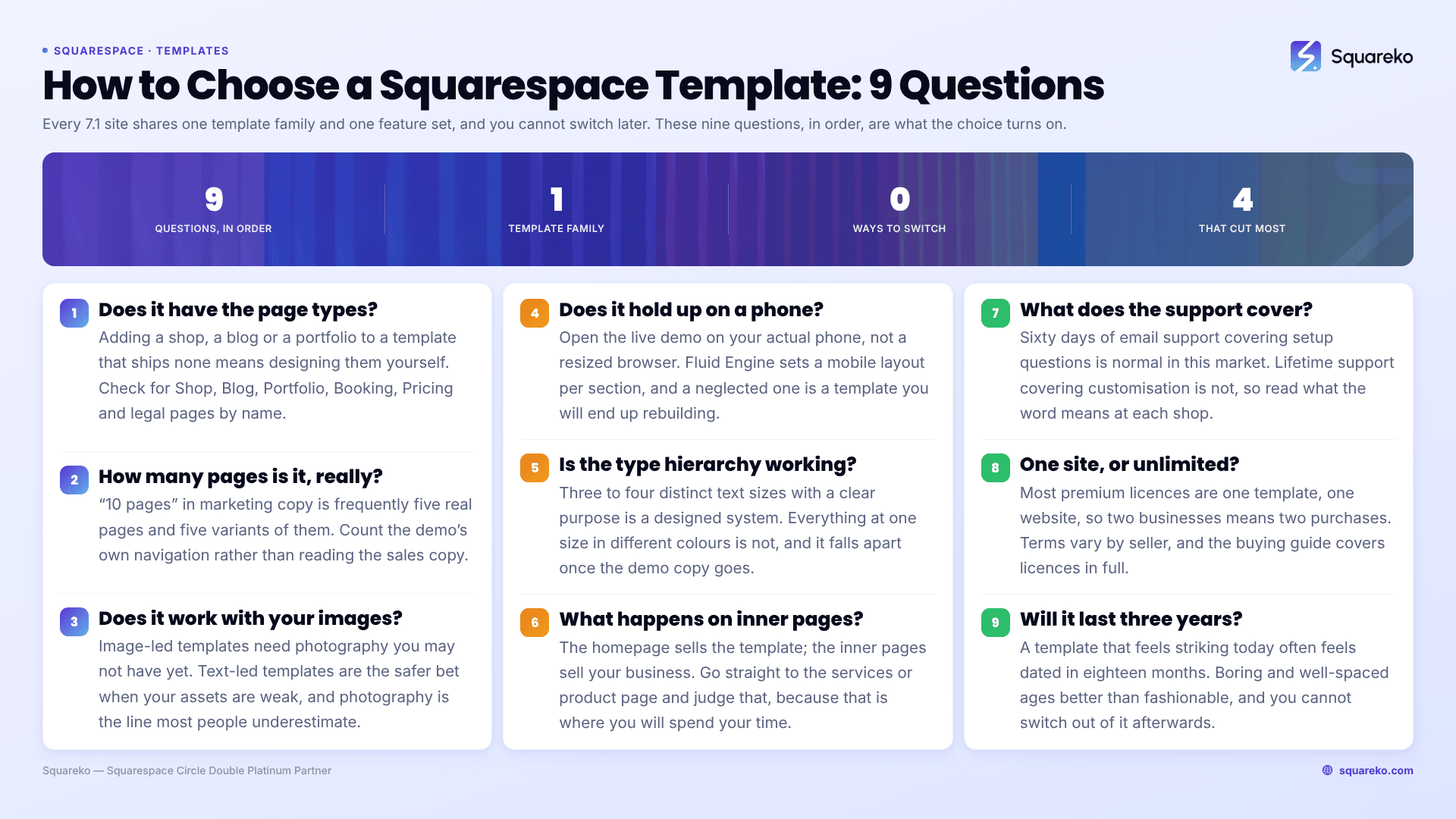
How to choose a Squarespace template: a 9-point framework
Work these in order. The first four eliminate most of the gallery in about ten minutes.
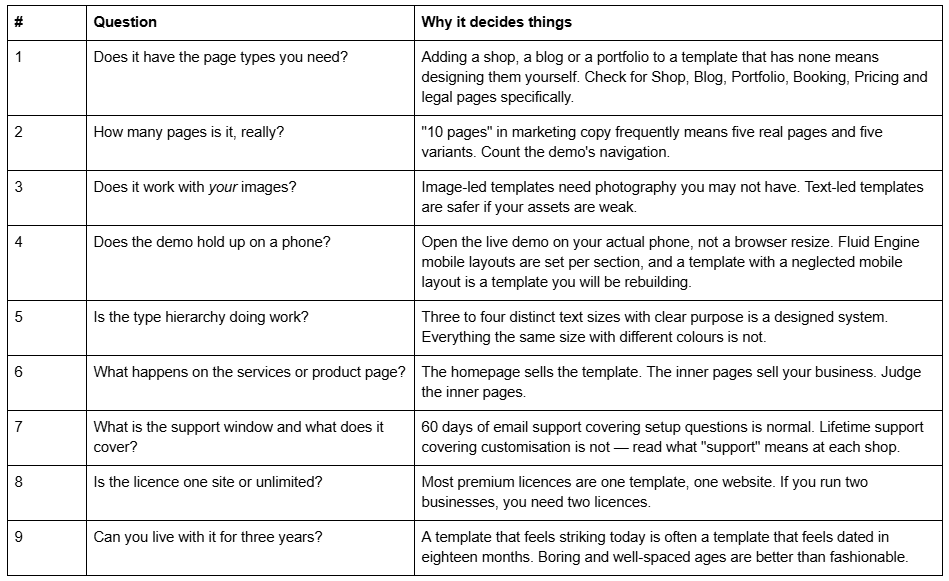
One question deliberately absent from that list: how many other people use this template? It matters far less than it feels like it should. Once you have replaced the imagery, the copy, the colour palette and the fonts — the four things you were always going to replace — the underlying section arrangement is not recognisable to anyone who is not a Squarespace designer.
Squarespace templates by business type: what each one actually needs
Because all Squarespace 7.1 templates share the same feature set, "the best template for photographers" is not a question about capability. It is a question about which page types and layout patterns your business needs pre-built, so you are not designing them from scratch.
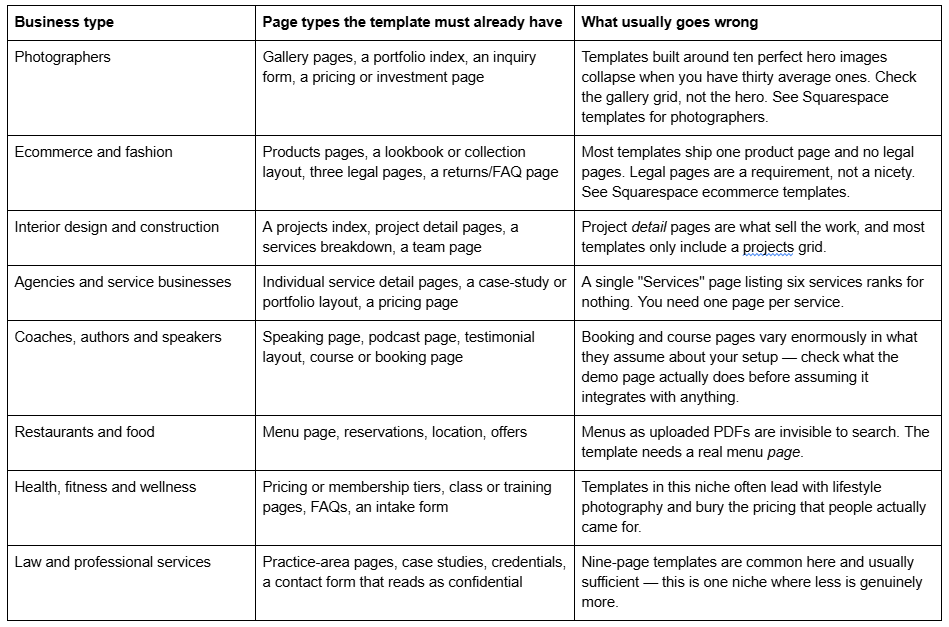
The pattern across all of them: judge a template on the page types it already contains, because building a new page type from scratch is the expensive part. Everything cosmetic is an afternoon in Site Styles.
Five mistakes that cost money
Buying on the homepage. The homepage is the shop window and gets 80% of the design attention. You will spend your working life on the inner pages.
Assuming you can switch later. You cannot, in Squarespace 7.1. Treat the purchase as the structural decision it is, not a reversible preference.
Not checking the licence. Almost every premium licence is one template, one website. Two businesses means two purchases.
Forgetting the image obligation. Demo images are not yours. A site launched with unlicensed demo photography is a real liability, not a technicality.
Migrating a ranking site without a redirect map. Squarespace never creates an automatic 301 when a URL changes. Build the map in Settings → Developer Tools → URL Mappings before the domain moves, not after somebody notices the traffic.
Installing a Squarespace template onto an existing site
If you already have a live Squarespace 7.1 site with content, traffic and rankings, understand what a template purchase does and does not do to it.
It does not apply to your existing site automatically. There is no "install template" action in Squarespace. What you are buying is either a new site pre-built with that design, or the labour of somebody rebuilding your existing site's pages to match it.
Content does not migrate itself. Blog posts, products, form submissions and event data live in collections tied to a specific site. Moving them means an export/import for blog content and products, and manual recreation for almost everything else.
Your URLs are the thing to protect. Blog post URLs in Squarespace 7.1 follow the pattern /blog-page-slug/post-slug. Change either half and the old URL 404s, with no automatic redirect ever created. Before any template migration, export your full URL list and build the redirect map in Settings → Developer Tools → URL Mappings before the switchover, not after.
Custom CSS does not travel with a template. If your current site has custom CSS in Website → Website Tools → Custom CSS (Core plan or above), that CSS is written against your current site's structure. On a new template, most of it will target elements that no longer exist. Plan to rewrite rather than paste. Our guide to Squarespace custom CSS not working covers why selectors break across rebuilds.
The safest sequence, in order: build on the new site while the old one stays live → recreate every URL slug exactly → export/import blog and products → set up URL mappings for anything that changed → move the domain last.
The real total cost of a Squarespace site
The template is rarely the largest number. Budget against the whole picture.
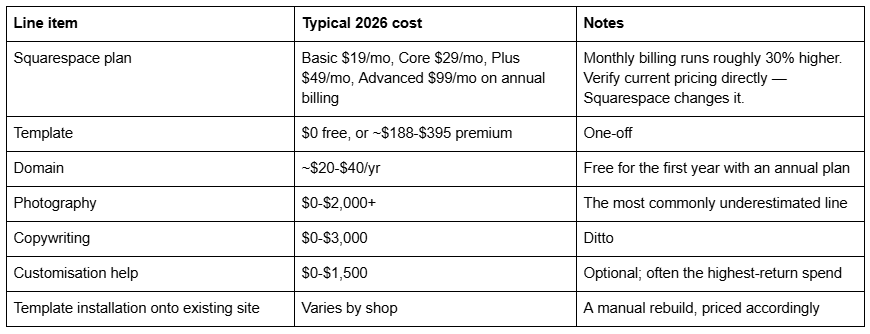
Two notes on the plan tier. Custom CSS requires the Core plan or above — if your template or your designer relies on custom CSS, Basic will not work. And Squareko passes on 20% off the first year of a Squarespace subscription, as do most Circle partners, so ask before you subscribe.
Do Squarespace templates affect site speed and SEO?
Less than the internet suggests. Every Squarespace 7.1 template runs the same underlying platform, the same CDN and the same rendering pipeline. Template choice is not a meaningful performance variable. Image weight is.
For reference, across 54 Squareko-built client sites measured in August 2026 — lab data, Playwright and Chromium, cloud datacentre, unthrottled, single run per site, load-only CLS, not field data — median mobile LCP was 2.01s, with 74% under Google's 2.5s "good" threshold. Median mobile CLS was 0.000, with 31 of the 54 recording exactly zero layout shift on load. Median TTFB was 514ms. Those sites run a mix of custom builds and templates, on the same platform, and the spread within that group tracks page weight far more closely than it tracks design.
The number worth staring at is the other one: median page weight 3.0 MB across 93 requests, with only 86% of images served as WebP at the median. The Squarespace CDN serves WebP unconditionally, so the remaining weight is source-image size, not format. Upload at 1500-2500px wide — 2500px is the maximum Squarespace serves — and most template-related speed complaints disappear.
On SEO, template choice affects exactly one thing that matters: whether the design gives you somewhere sensible to put content. A template with real inner pages and a functioning heading hierarchy is easier to rank than one that is three full-bleed images and a contact form. That is a content-architecture advantage, not a technical one.
The decision, in four lines
Free Squarespace template if your budget is zero, your site is under six pages, and you have time.
Premium template ($188-$395) if you know your business but not design, and you would rather spend $249 than 30 hours.
Premium template plus a few hours of professional help if there is one thing you need it to do that it does not do out of the box. This is the best-value option for most small businesses and almost nobody chooses it.
Custom design if the website is a competitive lever rather than a requirement.
Before you buy anything
Open three demos on your phone. Scroll the services page, not the homepage. Imagine your worst photograph in the hero. If it still looks like a business you would trust, you have found your template.
If you get through that and the honest answer is that none of them fit — usually because your business has a structural requirement rather than an aesthetic one — that is the point at which buying a template is the expensive option. Our premium Squarespace templates are $249, installed for you by contributor invitation with 60 days of support, and we will tell you if we think a free template does your job just as well. Most people reading this will not need us, and the nine questions above are the whole method.
FAQ
-
Yes. Every template in Squarespace's official gallery is included with any Squarespace plan at no extra cost. There is no premium tier inside Squarespace itself. When people say "premium Squarespace templates" they mean third-party designs sold by independent shops, typically between $188 and $395 as a one-off purchase.
-
Not in version 7.1. Squarespace's documentation states you cannot switch templates in 7.1. You have three alternatives: restyle the site in Site Styles, rebuild pages using the layout library while keeping your content, or build a new site and move the domain across with URL mappings in place
-
Finished labour, not capability. Premium templates cannot do anything free ones cannot, because all Squarespace 7.1 sites share one feature set. What you pay for is more designed inner pages, a coherent type and spacing system across the whole site, mobile layouts set per section, and installation and support.
-
Squarespace's own templates cost nothing beyond your plan. Third-party premium templates cluster between $188 and $299, with Squareko at $249, Applet Studio at $225, Big Cat Creative at $297 and GoLive at $299. Your Squarespace subscription runs from $19 to $99 per month on annual billing.
-
Barely. All Squarespace 7.1 templates run identical platform infrastructure and the same CDN. Page weight drives performance, and image size drives page weight. Across 54 Squareko-built sites measured in lab conditions in August 2026, median page weight was 3.0 MB — the biggest single lever available to most site owners.
-
They come with demo images, which are licensed for the demo only and must be replaced before your site goes live. This applies across the category and is the most commonly missed obligation in a template purchase. Budget for photography or stock licensing as a separate line item.

Author Bio
I'm Walid Hasan, a Certified Squarespace Expert and Squarespace Circle Platinum Partner with over 12 years of hands-on experience designing and optimizing high-performing websites. Over the years, I've had the privilege of building more than 2,000 Squarespace websites for clients around the world, always focusing on clean design, strong user experience, and conversion-driven results.
