
Squarespace 7.1 Templates: How They Really Work
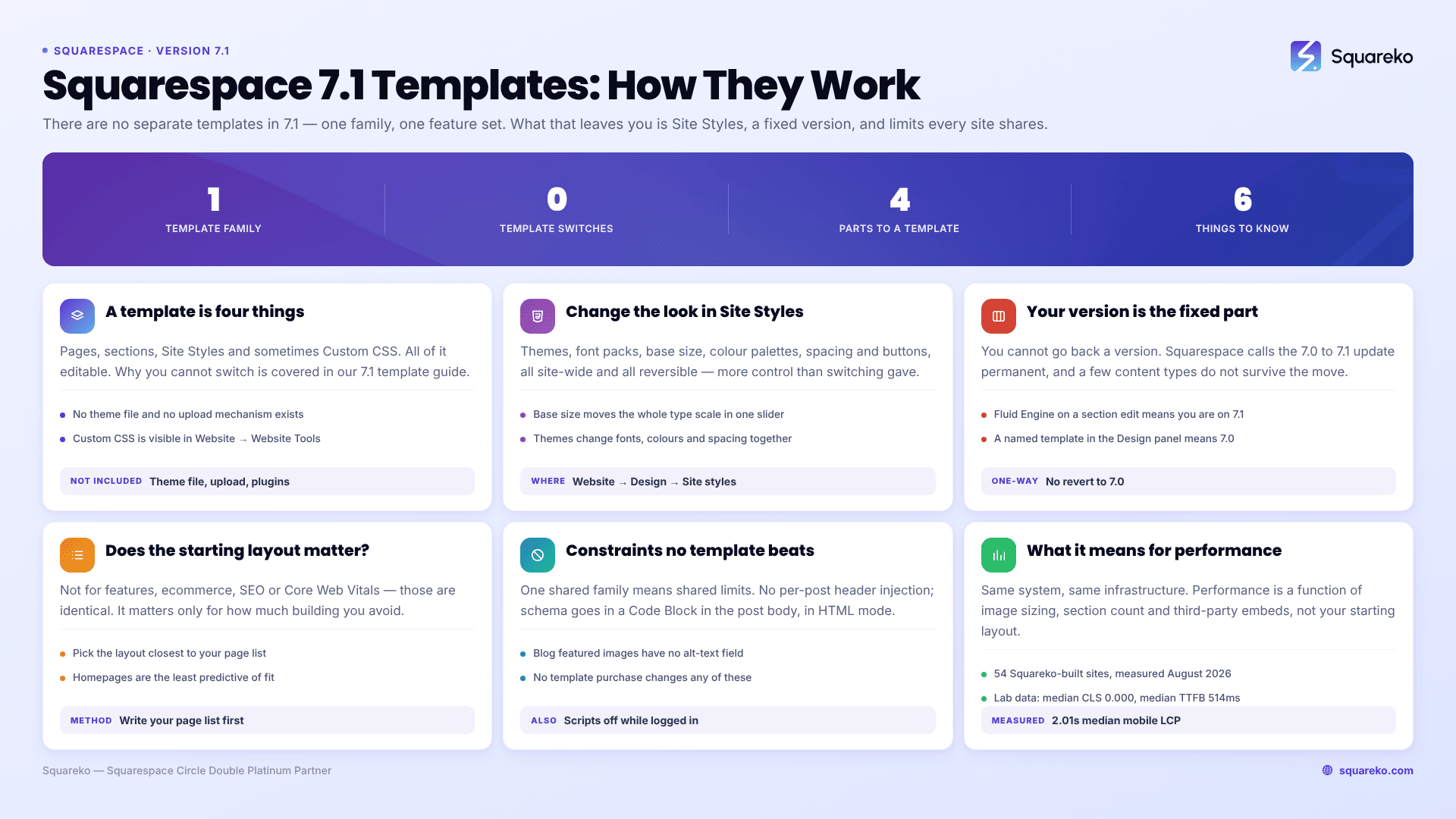
The short answer: In Squarespace 7.1 there are no separate templates. Every 7.1 site belongs to a single template family with identical features and identical style options, and the design you pick at signup is only a starting arrangement of pages and sections. You cannot switch templates in 7.1 the way you could in 7.0 — Squarespace's own documentation says so explicitly. Nothing about your choice locks you out of anything.
This is the most widely misunderstood thing on the platform, and a great deal of currently ranking advice still gets it wrong. Here is what Squarespace actually says, and what follows from it.
What Squarespace's own documentation says
Three separate Help Center articles state this, and it is worth reading all three together because each covers a different angle.
On features and style options — from Understanding Squarespace templates:
"All version 7.1 sites are part of the same template family, so every site has the same features and style options."
On switching — from Switching templates in version 7.0 FAQ:
"It's not possible to change templates on a version 7.1 site."
On why — from Redesign or restart your site:
"We designed version 7.1 to remove the need to switch templates, so the template you choose when creating a 7.1 site is only meant as a starting point."
And Squarespace's own templates page frames it the same way: "Every template is just a starting point."
There is no ambiguity here and no version of this that is a matter of interpretation. If you have read that you should choose your Squarespace 7.1 template carefully because you will be stuck with its features, that advice was written for version 7.0 and was never updated.
Myth versus reality
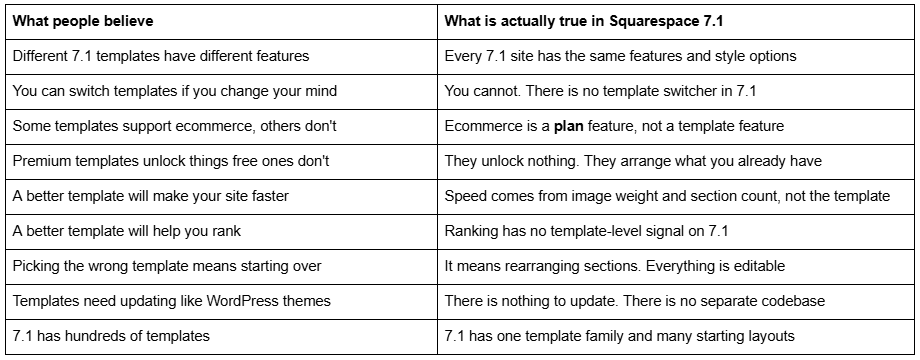
The last row is the crux. When Squarespace's gallery shows you dozens of designs, what you are browsing is starting layouts — different arrangements of pages, sections, fonts and colour palettes, all drawn from the same system.
So what actually is a "template" in Squarespace 7.1?
A 7.1 template is four things bundled together, all of which you can change afterwards:
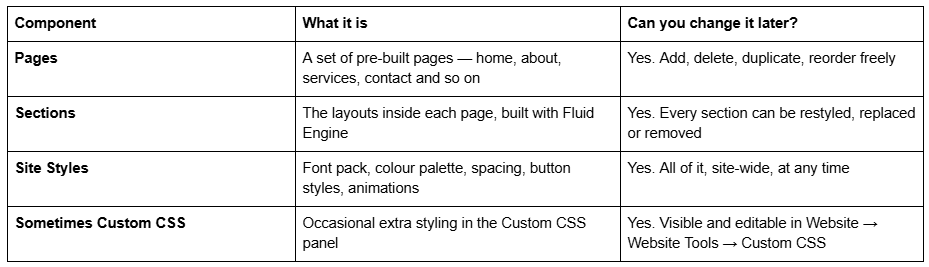
That is the whole thing. There is no theme file, no upload mechanism, no plugin bundle, no proprietary feature set. Which is why a third-party premium template on Squarespace 7.1 cannot break your site, cannot be abandoned by its author in a way that breaks anything, and cannot go out of date — there is nothing to update.
A Squarespace forum designer put it more plainly than the documentation does, answering someone who could not find the template panel in 7.1: "Squarespace 7.1 doesn't have switchable templates. The functionality of 7.1 is the same no matter which template you start with, I prefer to think of them as starting points not templates."
If you cannot switch templates, how do you change how your site looks?
This is the practical question the misconception hides, and the answer is that you have more control than template switching ever gave you — it just lives somewhere else.
Open Site Styles by clicking the paintbrush icon while editing any page, or via Website → Design → Site styles.
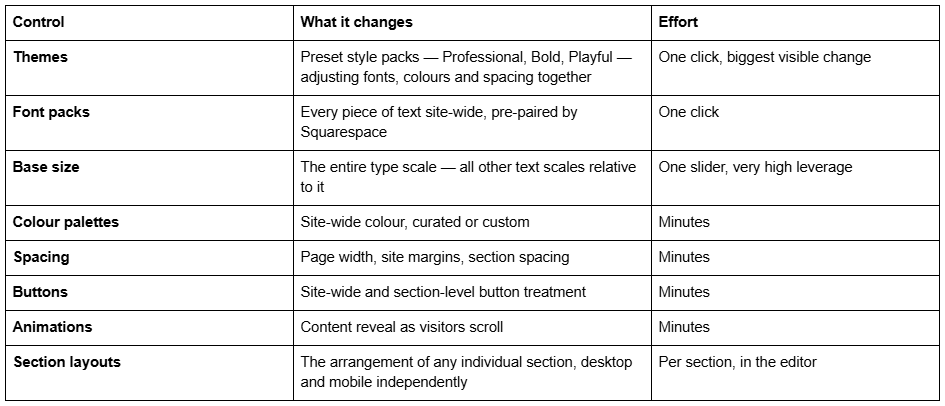
Squarespace's own guidance for people who want a redesign is exactly this: "You can't switch templates in version 7.1, but you can explore new structures or designs for your site at any time while keeping your existing content intact."
In practice, applying a different Theme and font pack to an existing 7.1 site changes its character far more than switching templates ever did in 7.0 — and unlike a 7.0 template switch, it does not reset your custom CSS, your footer or your header configuration.
The one thing that genuinely is fixed: your version
You cannot switch templates, and you also cannot go back a version. This is the constraint that actually matters.
How to tell which version your site is on. The quickest reliable check: open your site's editor and look for Fluid Engine when you edit a section — the grid-based editor with drag handles. If sections edit on a grid, you are on 7.1. If you have a Design panel listing a named template such as Brine, Avenue or Bedford, you are on 7.0.
If you are on 7.0 and want 7.1. Squarespace provides an in-product update path: open the Design panel and click Update to Version 7.1. Two things to plan for.
First, it is one-way. Squarespace's documentation is blunt: "This is a permanent update—After completing the steps in this guide, you can't revert to version 7.0."
Second, most but not all of your site comes across. Site structure, SEO settings, orders, sales, customer data, members, domains, URL mappings and subscriptions remain intact. But Album pages disappear entirely, Cover pages with audio layouts do not import, share buttons are removed, and some header features such as taglines and search bars go. Preview the update before publishing it, and inventory anything on that list before you start.
A separate URL warning. If a 7.0-to-7.1 move or a redesign changes any page slug, remember that Squarespace blog post URLs take the form /blog-page-slug/post-slug and changing a slug creates no automatic 301 redirect, ever. Add redirects yourself in Settings → Developer Tools → URL Mappings using Squarespace's syntax: /old-url -> /new-url 301.
Does the starting layout you pick matter at all?
Yes, but much less than people think, and for a different reason than they expect.
It does not matter for: features, ecommerce, blogging, SEO, Core Web Vitals, plan requirements, or anything you might later want to add. All of those are identical across every 7.1 site.
It does matter for: how much work you avoid. A starting layout whose pages roughly match the pages your business needs saves you hours of building. A layout built for a photographer, used for a law firm, means rebuilding most of it.
So the sensible way to choose is boring and effective: write your page list first, then pick the starting layout whose page list is closest to it. Not the one with the nicest homepage — homepages are the easiest page to make beautiful and the least predictive of fit.
This is also the honest answer to why premium 7.1 templates exist at all. They are not selling capability, because capability is fixed. They are selling arrangement — more finished pages, a larger library of pre-styled sections, and consistent design decisions already made. Squareko's 24 templates ship 9 to 15 pages each, 150+ pre-designed sections, and a Style Guide page documenting the type scale and colour values so the site does not drift after handover. That is a real thing to buy. It is just not a feature unlock, and anyone telling you otherwise is describing version 7.0.
The constraints no 7.1 template can get you around
The flip side of one shared template family is that its limits are also shared. These apply to every Squarespace 7.1 site equally — free starting layout, $249 premium template, or a fully custom build — and no template purchase changes any of them. Knowing them before you buy prevents the most common category of disappointment.
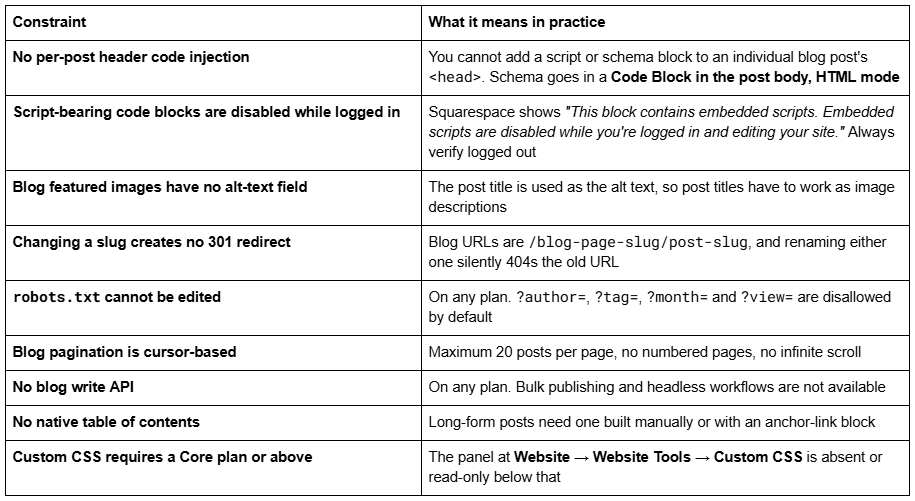
None of these are template problems, which is exactly the point. If you are evaluating premium Squarespace templates because you need a table of contents, editable robots.txt or per-post schema injection, no template will provide them — those are platform-level constraints of Squarespace 7.1 itself, and the workarounds are the same on every site.
The one genuinely useful thing here: Accordion blocks in 7.1 render server-side, so FAQ question and answer text is fully crawlable. That makes them the right tool for an FAQ section on any 7.1 site, whichever starting layout you began from.
What this means for performance
Since every 7.1 site runs the same system on the same infrastructure, performance is a function of what you put on the page rather than what you started from.
Across 54 Squareko-built client sites measured in August 2026 — Playwright/Chromium lab test, cloud datacentre, unthrottled, single run per site, load-only CLS, so lab data rather than field data — median mobile LCP was 2.01s, with 74% under Google's 2.5s "good" threshold and 96% under 4s. Median mobile CLS was 0.000, and 31 of the 54 sites recorded exactly zero layout shift on load. Median TTFB was 514ms, with 85% under 800ms. Median page weight was 3.0 MB across 93 requests. 53 of the 54 run Squarespace 7.1.
The variables behind those numbers are image sizing, section count and third-party embeds — all of which are yours to control, on any starting layout. Two Squarespace-specific mechanics help: the Squarespace CDN serves WebP unconditionally regardless of your source format, and images should be uploaded at 1500-2500px wide, since 2500px is the largest size served.
The five practical consequences
If you take nothing else from this post:
Stop agonising over the template choice. Pick the closest page list and move on. Nothing is locked.
Learn Site Styles instead. Themes, font packs and base size will change your site's character far more than any template ever could.
Ignore any advice that tells you to switch templates in 7.1. It is 7.0 advice. Check the publication date.
A premium template buys arrangement and support, not capability. Judge one on its page list and section library, not on claimed features.
The version, not the template, is the permanent decision. Moving 7.0 to 7.1 cannot be undone, and a few content types do not survive it.
Choosing a starting point
Write down every page your business needs, then look for the starting layout closest to that list. If Squarespace's own gallery has one, use it — it costs nothing, it can do everything, and you can rearrange it indefinitely.
If your page list runs to nine or more and you would rather not build the pricing, case-study, service-detail and FAQ pages from scratch, the premium Squarespace templates we build ship 9 to 15 real pages, 150+ pre-designed sections and a Style Guide page, delivered by contributor invite and installed rather than emailed to you as files. And if the structure itself is your problem — memberships, multi-level navigation, a real integration — no starting layout on Squarespace 7.1 will solve it, and the honest answer is custom Squarespace design. What none of those routes will do is unlock a feature, because on 7.1 there are no features left to unlock.
FAQ
-
No. The Squarespace Help Center states plainly that it is not possible to change templates on a version 7.1 site. All 7.1 sites belong to one template family with identical features, so there is nothing to switch to. You change the look through Site Styles — Themes, font packs, colour palettes, spacing — and by swapping section layouts.
-
One template family. The gallery shows many designs, but those are starting layouts — different arrangements of pages, sections, fonts and colours drawn from the same underlying system. Squarespace's own wording is that every template is just a starting point, and that all 7.1 sites share the same features and style options.
-
In 7.0 each template had a fixed set of style settings and special features that could not be changed, and you could switch templates. In 7.1 all sites share one template family, template switching does not exist, sections are fully customisable with Fluid Engine, and style options are the same everywhere.
-
Edit a section. If it edits on a drag-and-drop grid, that is Fluid Engine and you are on 7.1. If your Design panel lists a named template such as Brine, Avenue or Bedford, you are on 7.0. Version 7.1 has no named template listed anywhere in the interface.
-
Yes, from the Design panel via Update to Version 7.1. It is permanent — Squarespace states you cannot revert to 7.0 afterwards. Site structure, SEO settings, orders, customer data, members, domains and URL mappings carry over, but Album pages disappear, Cover pages with audio layouts do not import, and share buttons are removed.
-
Only for how much building you avoid. It has no effect on features, ecommerce, SEO, speed or what you can add later, because those are identical across all 7.1 sites. Pick the starting layout whose page list is closest to the pages your business needs, not the one with the best homepage.

Author Bio
I'm Walid Hasan, a Certified Squarespace Expert and Squarespace Circle Platinum Partner with over 12 years of hands-on experience designing and optimizing high-performing websites. Over the years, I've had the privilege of building more than 2,000 Squarespace websites for clients around the world, always focusing on clean design, strong user experience, and conversion-driven results.
