
Choosing a Squarespace Website Template: A 9-Point Decision Framework
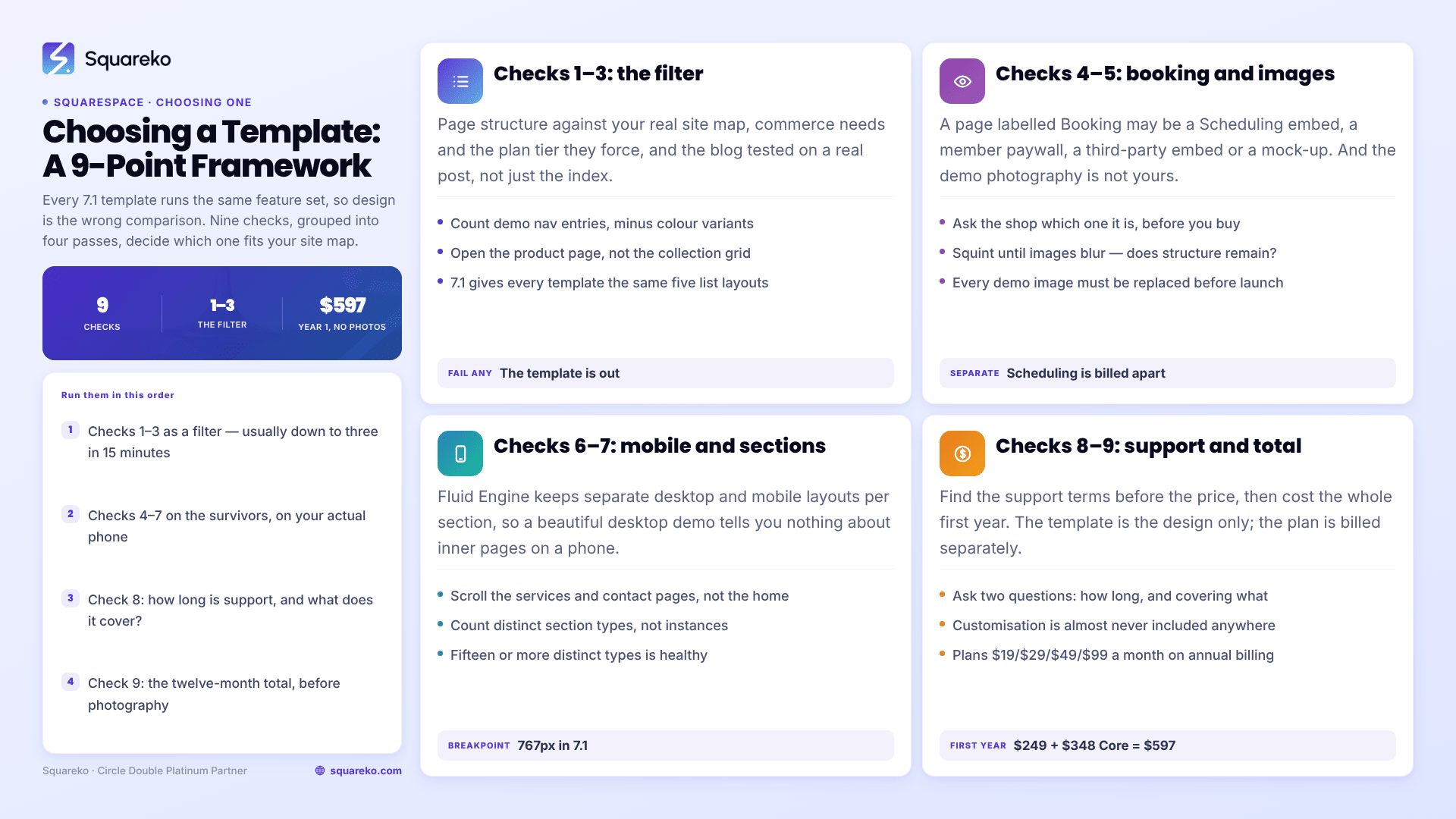
The short answer: Stop comparing designs and start comparing page lists. Every Squarespace 7.1 template runs the same feature set, so the only things that genuinely differ between one template and another are which pages already exist, how the sections behave on mobile, and what you get after purchase. Nine checks, in order, decide it.
Work down the list with two demo tabs open. Any template that fails checks 1, 2 or 3 is out, regardless of how good it looks.
The scorecard
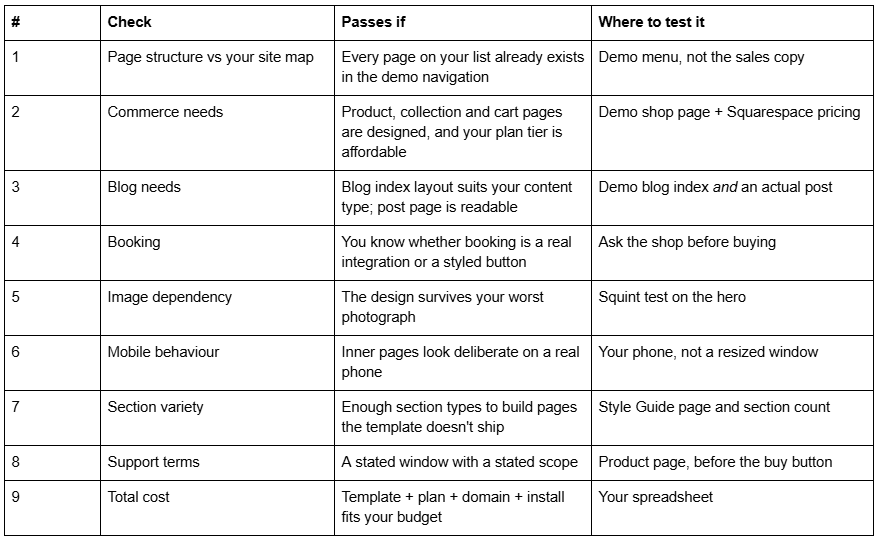
Check 1 — Page structure against your actual site map
This is the check that eliminates most candidates, and almost nobody does it first.
Write your site map before you look at a single Squarespace template. Home, about, three service pages, a case study index, a contact page — whatever your business genuinely needs. Then open the template demo and tick off which of those pages already exist as designed pages.
The pass condition: every page on your list exists in the demo. A missing page is not a small problem. Building one page in the template's visual language, from scratch, to a standard that matches the other eleven, is several hours of work — and it is exactly the work you were buying the template to avoid.
How to test it in 60 seconds: count the entries in the demo's navigation menu, then subtract anything that is a colour variant of another page. That number is your real page count. Marketing copy is unreliable here across the whole category — the advertised page count often differs from what the demo actually contains, and the real counts across the range run from 9 pages to 15.
Page sets matter more than page counts. A restaurant template with a designed Menu page beats a generic template with fifteen pages, because the menu is the page that gets found. In the Squareko range, Savore ships Menu, Reservations and Special Offers; Justify ships nine focused pages including a Case Study section, which for a law firm is the right number. More is not better. Yours is better.
Check 2 — Commerce needs, and the plan tier they force
If you will sell anything, this check has two halves and most buyers only do the first.
Half one: is the shop designed? Open the demo's shop and look at three things — the collection grid, an individual product page, and the cart. Many templates design a beautiful collection grid and leave the product page as the Squarespace default. That is the page where money changes hands.
Half two: which Squarespace plan does your selling model force? The template does not affect this whatsoever, but it changes your monthly cost. Verified against Squarespace's plan documentation in August 2026:
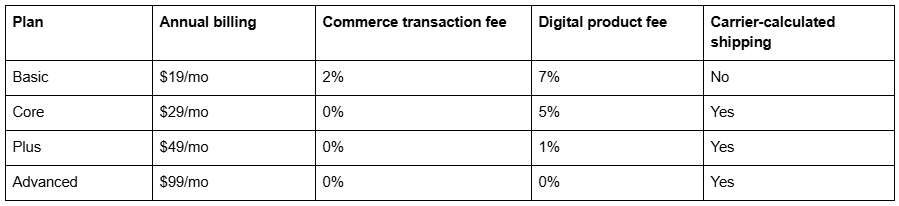
All four plans allow unlimited products, subscriptions, digital products, courses, member sites and abandoned-checkout recovery. What you pay more for is lower fees, not access. Selling physical products on Basic costs you 2% of everything on top of payment processing — at any meaningful volume, Core pays for itself.
One more thing worth knowing before you choose a template: the Custom CSS panel requires the Core plan or above (Website → Website Tools → Custom CSS). If your plan is Basic and your template needs a tweak, you cannot make it there.
Check 3 — Blog needs, tested on a real post
Almost everybody checks the blog index. Almost nobody opens an actual post, which is the page 90% of blog visitors will land on from search.
Squarespace 7.1 gives every template the same five blog list layouts: Basic Grid, Masonry, Single Column, Side by Side and Alternating Side by Side. Your template picks one and styles it. Grid suits browsing, Side by Side suits scannable business archives, Single Column suits long-form reading.
The pass condition: open one full blog post in the demo and read three paragraphs on your phone. If the measure is too wide, the heading scale is flat, or images fight the text, that is your reading experience for every post you will ever publish.
Two platform facts that no template changes, and that you should factor in now rather than after 40 posts:
Blog post URLs are /blog-page-slug/post-slug. Rename the blog page and every post URL underneath it changes at once. Squarespace creates no automatic 301 redirect when a slug changes, on any plan — you add those by hand in Settings → Developer Tools → URL Mappings.
Pagination is cursor-based, capped at 20 posts per page, with Older/Newer links and no numbered pages.
The criteria that decide whether any blog template is genuinely SEO-ready are covered in full in our post on what makes a Squarespace blog template SEO-ready.
Check 4 — Booking: a real integration or a styled button?
This check exists because it is the single most common post-purchase disappointment in the category.
Several premium templates ship a page labelled "Booking", "Course" or "Members". A page label tells you nothing about what powers it. Ask the shop directly, before you buy, which of these it is: a Squarespace Scheduling embed, a Member Site paywall, a third-party embed, or a design mock-up with a button that goes to a contact form.
The distinction has a price attached. Squarespace's own documentation is explicit that "Your Acuity subscription is separate from your site subscription" — Squarespace Scheduling is billed independently of your website plan, so a template with a booking page does not include booking. Member Sites and Courses, by contrast, are included across all four current website plans, with the digital product fee varying by tier as shown above.
The pass condition: you have a written answer from the shop, or you have confirmed in the demo that clicking "Book now" opens a real scheduler. In the Squareko range, Luminary and Navigate ship pages labelled "Course" and Storyline ships one labelled "Booking" — and nothing published states which system sits behind them, so I would not assume either way. That is a fair criticism to make of your own shop and a fair question to ask any shop.
Check 5 — Image dependency
Every template demo is carrying professionally shot photography, and that photography is not included with your purchase. Demo images are licensed for the demo only. Every one of them must be replaced with your own before you publish, at every shop in the category.
So the real question is not "does this look good?" It is: how much of what I am looking at is the design, and how much is the photographer?
The squint test. Sit back from the screen and half-close your eyes until the images blur into blocks of tone. If a clear structure remains — a type hierarchy with three or more purposeful sizes, deliberate spacing, an obvious reading order — the design is doing the work. If the page dissolves into featureless rectangles, the photography was.
The pass condition: the design survives the substitution. Templates with heavy full-bleed photography demand a lot from you; templates with more type-led sections are more forgiving.
Practical image rules for after you buy, all of which apply regardless of template: upload at 1500-2500px wide (2500px is the maximum Squarespace serves), set filenames before upload because Squarespace cannot rename a file afterwards, and note that blog featured images have no alt-text field — the post title is used instead. Squarespace's CDN converts and serves WebP unconditionally, so you do not need to convert anything yourself.
Check 6 — Mobile behaviour on a real phone
Not a resized browser window. Your actual phone, on your actual network.
Squarespace 7.1's Fluid Engine maintains separate desktop and mobile layouts for every section, with different positioning values on each. A shop can produce an immaculate desktop demo and leave the mobile layout to auto-stack. You will not see that in a resized Chrome window, because the breakpoint fires but the touch behaviour, the real font rendering and the actual scroll length do not.
The pass condition: the inner pages look deliberate on mobile, not just the homepage. Scroll the services page and the contact page. Look for text sitting over the busy part of a background image, headings that break to three lines, and buttons that end up stacked with no spacing between them.
Two related facts: the main mobile breakpoint in Squarespace 7.1 is 767px, and a neglected mobile layout is fixed in the Fluid Engine editor rather than with CSS. That is a real repair job across a twelve-page template, which is precisely why this check matters before purchase rather than after.
For context on what good looks like: across 54 Squareko-built client sites measured in August 2026 — a Playwright and Chromium lab test, single run, unthrottled, load-only CLS, not field data — median mobile LCP was 2.01s and median mobile CLS was 0.000, with 31 of the 54 recording exactly zero layout shift. Desktop CLS was weaker, at a 0.029 median. A stable mobile layout is achievable on this platform; it just is not automatic.
Check 7 — Section variety
You will build pages the template did not ship. Everybody does. The question is what you will build them out of.
A template's real flexibility is its library of pre-designed sections — hero variants, testimonial blocks, feature grids, pricing tables, FAQ layouts, CTA bands. When you need a page that does not exist, you assemble it from those sections and it still looks like the rest of the site. When the library is thin, your new page looks like a different website.
The pass condition: scroll every demo page and count distinct section types, not instances. Fifteen or more distinct types across the demo is healthy. Squareko's templates each publish 150+ pre-designed sections, and every one also ships a Style Guide page and a 404 page — the Style Guide is uncommon in this category and genuinely useful, because it documents the type scale and colour roles you need to stay consistent months after handover.
Also check for a Figma file if you or a designer will restyle the template properly rather than swapping colours. Two of Squareko's 24 templates include one — Skyline and Styleza — and the other 22 do not mention one. Most shops do not offer this at all.
Check 8 — Support terms, read before the buy button
Find the support terms before you find the price. A stated window with a stated scope is worth more than an unbounded promise with no definition
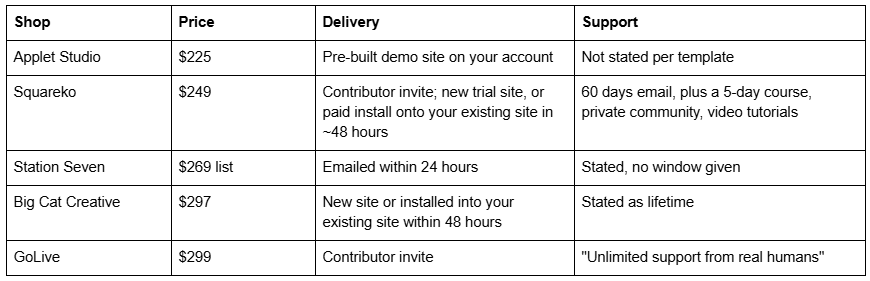
The pass condition: you can answer two questions — how long, and covering what. Customisation is almost never included anywhere, including at Squareko. "Support" generally means setup and how-to questions, not "make it look different". Big Cat Creative's lifetime window and tutorial library are the strongest onboarding in the category and a legitimate reason to pay more.
One delivery detail worth understanding: the better shops now deliver by contributor invitation rather than by file. Squareko's published wording is that "there are no external files to download or upload, unlike WordPress themes." You accept an invitation, then ownership transfers to you. Installing onto an existing live site is a different, manual job — typically a paid add-on taking around 48 hours, with your current site staying live throughout.
Check 9 — Total cost, including the Squarespace plan
The template price is for the design only. Here is the whole first year.
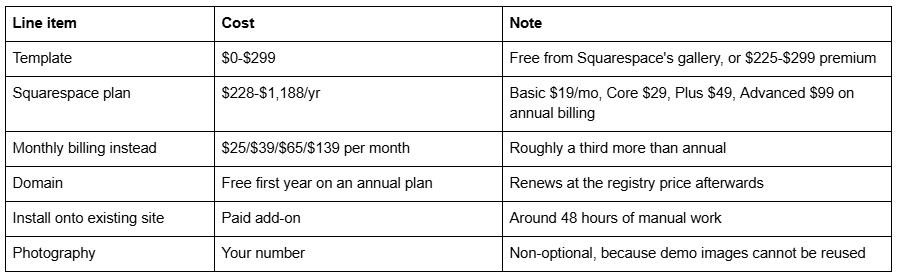
The pass condition: the twelve-month total, not the sticker price, fits your budget. A typical small-business first year is a $249 template plus the $348 Core plan — $597 before photography.
Ask about a subscription discount before you subscribe, because it cannot be applied retroactively. Squareko passes on 20% off your first year; Station Seven publishes 25% and an extended 365-day trial. That single question is worth more than most template price differences.
Using the framework
Run checks 1 to 3 as a filter and you will usually be down to two or three candidates in fifteen minutes. Run 4 to 7 on those, on your phone. Use 8 and 9 to choose between the finalists. If two templates tie, buy the one with the page set closest to your site map — design differences shrink once your own photography and copy are in; a missing page never does.
If the exercise ends with no template matching your site map, that is a useful result rather than a failed search, and the fuller reasoning is in our “complete guide to Squarespace website templates”.
The Squareko range is 24 premium Squarespace templates at $249, 9 to 15 pages each, with page lists published so you can run check 1 without opening anything. If a competitor's template passes more of these nine checks for your business, buy theirs — a framework that only ever recommends its author is not a framework.
FAQ
-
Write your site map first, then eliminate any template whose demo navigation does not already contain those pages. Only after that, judge design. Page structure is the one thing a template genuinely gives you, because every Squarespace 7.1 site has identical features regardless of which template you start from.
-
Only indirectly. All 7.1 templates share the same underlying platform, URLs, sitemap and markup, so no template ranks better than another. What a template can affect is heading hierarchy, page speed through image-heavy sections, and whether the pages that earn search traffic exist at all.
-
On version 7.1 there is nothing to switch between — every site is in the same template family, and you change the look through Site Styles and sections instead. Installing a different premium template onto an existing site is a manual section-by-section rebuild, usually a paid service taking around 48 hours.
-
All four current plans allow unlimited products. Basic charges a 2% commerce transaction fee, while Core, Plus and Advanced charge none. Carrier-calculated shipping requires Core or above. The Custom CSS panel also requires Core or above, which matters if your template needs adjusting.
-
No. A template can include a page designed for booking, but Squarespace Scheduling is billed separately — Squarespace states that your Acuity subscription is separate from your site subscription. Always ask the shop whether a booking page is a real integration or a styled layout.
-
Enough to cover your site map, and no more. Premium templates typically ship 9 to 15 designed pages. A nine-page template that matches your business beats a fifteen-page template that does not, because unused pages are deleted and missing pages are built from scratch.

Author Bio
I'm Walid Hasan, a Certified Squarespace Expert and Squarespace Circle Platinum Partner with over 12 years of hands-on experience designing and optimizing high-performing websites. Over the years, I've had the privilege of building more than 2,000 Squarespace websites for clients around the world, always focusing on clean design, strong user experience, and conversion-driven results.
