
Squarespace Scheduling for Beauty Professionals: Acuity Integration Guide
Introduction
If you run a beauty business whether you're a makeup artist, salon owner, or independenttherapistyou know how chaotic manual booking can get. Clients text, email, and DM you asking about availability. You're juggling spreadsheets. Someone double-books a time slot. A client forgets their appointment.
Squarespace scheduling eliminates this chaos. When integrated with Acuity Scheduling, it becomes a powerful booking engine that works directly on your website. Clients can see real-time availability, book instantly, and you get automatic reminders and deposits upfront.
This guide walks you through every step of setting up Squarespace scheduling for beauty professionals, with a focus on Acuity integration. You'll learn how to manage staff, collect payments, and turn your website into a 24/7 booking machine.
Key Takeaways Squarespace Scheduling for Beauty Professionals: Acuity Integration Guide
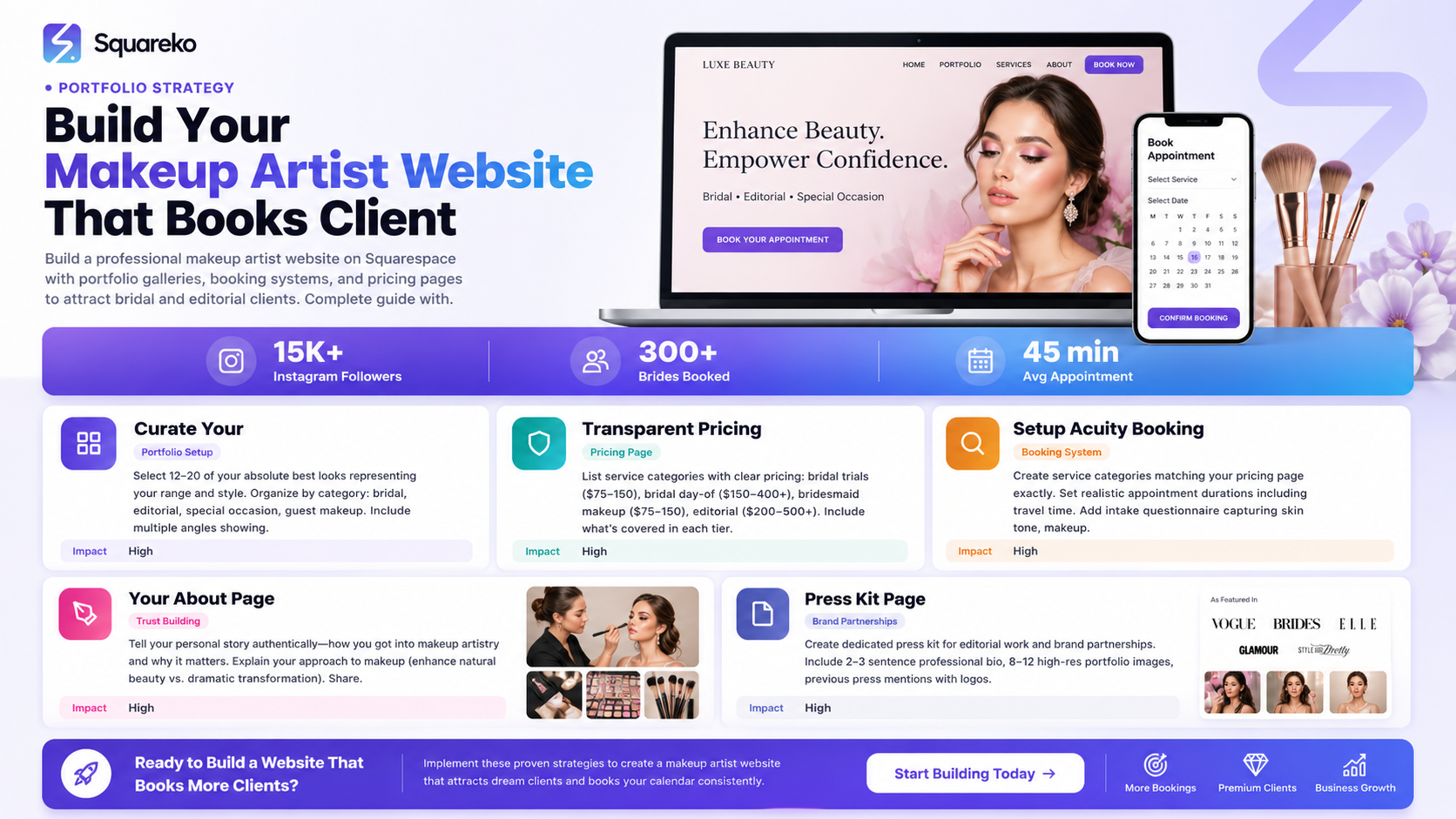
Squarespace scheduling allows beauty professionals to accept online bookings directly on their website without third-party apps
Acuity Scheduling integrates seamlessly with Squarespace, offering advanced features like staff management, deposit collection, and automated reminders
Service setup requires defining duration, pricing, add-ons (like hair color touch-ups or extensions), and deposit percentages
Multiple staff members can maintain their own availability calendars, reducing scheduling conflicts
Automated client reminders via email and SMS reduce no-shows by up to 40%
Your booking link can be added to Instagram, Google Business, and email signatures for maximum visibility
Why Squarespace Scheduling Is Critical for Beauty Professionals
Scheduling is not a luxury for beauty businesses—it's essential. Here's why:
No-Show Reduction
Beauty appointments have a notoriously high no-show rate (15-25% in most salons). When clients book online, they're more committed to showing up. When you send automated reminders 24 hours before their appointment, no-shows drop dramatically.
24/7 Booking Availability
Your clients don't keep 9-to-5 hours. They want to book a haircut at 11 PM or schedule a makeup appointment on Sunday. With Squarespace scheduling, they can book anytime, without you having to answer a phone or email.
Deposit Collection
Deposits protect your business. When someone books a bridal makeup session or a color treatment (which has high material costs), you need a holding deposit. Squarespace scheduling collects deposits automatically during booking, reducing flakes.
Reduced Back-and-Forth
No more client emails asking Are you free on Tuesday? Without online scheduling, you spend hours confirming dates. With it, clients see your availability in real time and book themselves.
Professional Image
A modern booking system tells clients you run a professional operation. This is especially important in beauty, where trust and attention to detail matter.
Step 1: Enabling Squarespace Scheduling on Your Plan
Not all Squarespace plans include scheduling. You need a Business plan or higher (as of 2026, this typically means the Business or Commerce plan).
Check Your Plan
Log into your Squarespace account
Go to Settings > Plans & Billing
Confirm your plan level. If you're on the Personal or Professional plan, you'll need to upgrade
Upgrade to a Business Plan
Click Change Plan in Plans & Billing
Select the Business plan (or higher)
Confirm the upgrade and billing frequency
Enable Scheduling Services
Once you're on a qualifying plan:
Go to Settings > Scheduling
Toggle Enable Scheduling Services to ON
Set your business timezone (critical for automatic reminders and availability)
Set your default service duration (you'll override this per service, but this is the fallback)
At this stage, your scheduling module is live—but it has no services, staff, or availability yet.
Step 2: Setting Up Your Service Menu
Your service menu is the foundation of your booking system. Every service you offer must be listed here with pricing, duration, and deposit requirements.
Create Your First Service
From Settings > Scheduling, click Services
Click Add Service
Fill in the following:
Service Name Be specific.Instead of Hair, write Blowout, Balayage,Keratin Treatment, etc. Specific names set client expectations.
Service Description (optional but recommended) Write 1-2 sentences describing what's included. Example: Full balayage with toner and gloss. Includes deep conditioning treatment and style.
Duration Set the exact time needed. A blowout might be 45 minutes, a full color service 120 minutes, a facial 60 minutes. Be realistic—add buffer time if you need it between clients.
Price This is the amount clients pay. If you're collecting a deposit, this is the full service price; the deposit amount is set separately.
Service Color Choose a calendar color for easy visual identification.
Add-Ons (Critical for Beauty)
Add-ons are upsells that appear during booking. Examples:
Hair color + gloss: +$30
Eyelash extensions upgrade: +$15
Express manicure add-on: +$10
Keratin hair treatment: +$40
Clients see these options after selecting the base service, increasing your average service value.
Set Deposit Percentage
Scroll down to Deposit
Set the deposit percentage (e.g., 25%, 50%, or 100%)
Specify if the deposit is non-refundable or refundable
Many beauty professionals require 50% deposits for color services (due to product costs) and 25% for general services.
Repeat for All Services
Create entries for:
Haircuts (men's, women's, kids)
Coloring services (balayage, ombre, root touch-up)
Styling (updo, bridal, event)
Treatments (keratin, deep condition)
Makeup (bridal, date night, special occasion)
Nails (manicure, pedicure, extensions)
Waxing (different body areas)
You can organize these in service categories if your Squarespace plan allows.
Step 3: Staff Scheduling and Team Management
If you work solo, skip to the availability section. If you have team members, this step is crucial.
Add Team Members
Go to Settings > Scheduling > Staff
Click Add Team Member
Enter their name and email address
Assign the services they provide (e.g., Sarah does cuts and color; Marcus does cuts only)
Click Send Invite
The team member receives an email invite. Once they accept, they can log into their own scheduling dashboard.
Set Individual Availability
Each team member controls their own schedule:
From the scheduling dashboard (not admin settings), each team member clicks Schedule
They set their working hours by day of the week
They block off unavailable times (lunch, days off, vacation)
They can mark themselves on break for specific time slots
Squarespace calculates availability by showing only open slots where the assigned staff member is available.
Color-Code Staff by Calendar
If you have multiple team members, assign each a distinct calendar color in settings so clients (and you) can see who's booked.
Set Minimum Notice for Bookings
To prevent last-minute chaos:
Go to Settings > Scheduling > Booking Options
Set Minimum Advance Notice
Set Maximum Advance Notice
Step 4: Collecting Deposits and Payments Upfront
One of Squarespace scheduling's biggest strengths is built-in payment collection. You can require full payment or a deposit at the time of booking.
Connect a Payment Processor
Go to Settings > Payment
Connect Stripe or Square (both integrate with Squarespace)
Verify your business bank account
Configure Deposit Settings Per Service
You already set deposit percentages per service in Step 2, but here's how deposits work:
$100 service with 50% deposit: Client pays $50 at booking, pays the remaining $50 at their appointment (or you can collect it upfront)
Full payment upfront: Set deposit to 100%
No deposit: Set to 0% (not recommended for color/service-intensive work)
Payment Collection Timing
Deposits are charged immediately when the client completes their booking. The remaining balance can be:
Paid at the salon/studio (you'll note this in your booking confirmation)
Automatically charged 24 hours before the appointment (optional)
Paid via invoice you send after their appointment
Refund Policy
Set a clear refund policy in your booking confirmation:
All deposits are non-refundable. If you need to reschedule, deposits apply to your new appointment.
Cancellations made 48+ hours in advance receive a full refund. Cancellations within 48 hours forfeit the deposit.
Make this visible during checkout so there's no confusion.
Step 5: Automated Client Reminders and Follow-Ups
Automated reminders are your secret weapon against no-shows.
Enable Automated Reminders
Go to Settings > Scheduling > Booking Confirmation
Toggle Send Automated Reminder ON
Set the timing (most common: 24 hours before the appointment)
Customize Reminder Content
Write a professional but friendly reminder:
Example: Hi this is a friendly reminder that you have a blowout scheduled with us on [Date] at [Time]. Please reply to confirm or call us at [Phone] if you need to reschedule. We look forward to seeing you!
Add Pre-Appointment Questionnaire (Optional)
For complex services (like bridal makeup or color), you can add a pre-appointment form:
In Booking Confirmation, add custom text asking clients to answer questions before their appointment
Examples: What's your hair texture like? Do you have any allergies to hair products? What's your vision for your color?
This saves you time during the appointment and shows professionalism.
Post-Appointment Follow-Up
Send a follow-up email 24-48 hours after their appointment:
Example: Thank you for choosing us for your [Service]! We hope you love your new look. Reply with photos or questions anytime. Book your next appointment here: booking
This builds relationships and encourages rebooking.
Step 6: Adding Your Booking Link to Instagram and Google
The best scheduling system in the world is useless if clients don't know how to access it.
Add Booking Link to Instagram
In Instagram Bio:
Edit your Instagram bio
Add your booking link in the bio text
Use a link shortener (bit.ly, link.squareko.com) if space is tight
Example: Book Now →squareko / schedule
In Instagram Stories and Posts:
In any Instagram Story, use the Link Sticker (swipe-up feature if you have 10k+ followers, or use the link sticker)
Direct it to your booking page
Add a call-to-action: Book your next appointment!
Pro Tip: Pin a comment on your most popular posts with your booking link.
Add to Google Business Profile
Go to your Google Business Profile (business.google.com)
Click Manage Profile > Home
Add a Button at the top
Link it to your Squarespace booking page
Clients searching for your salon on Google will see this button prominently
Add to Your Email Signature
Include a button or link in your email signature: Book Your Appointment → link to squarespace/schedule
Create a Dedicated Landing Page
Squarespace landing page design Consider creating a dedicated booking page on your Squarespace site:
Add a new page called Book Now or Schedule an Appointment
Add a hero image (photo of your work)
Embed the booking calendar
Add a short testimonial section.
Include your booking link prominently
Step 7: Syncing with Google Calendar and iCal
If you use Google Calendar, Apple Calendar, or Outlook, you can sync your Squarespace bookings automatically.
Export Your Squarespace Calendar to Google Calendar
From your Squarespace scheduling dashboard, look for Calendar Export or Sync
Copy your iCal feed URL
Go to Google Calendar
Click Add Other Calendars > Subscribe to Calendar
Paste the iCal URL
Name it Squarespace Bookings and save
Now every booking made on your Squarespace site automatically appears in Google Calendar. Your team members can subscribe to the same feed.
Set Up Google Calendar Notifications
In Google Calendar, right-click your Squarespace calendar
Click Notification Settings
Add notifications: Notify 1 day before, Notify 1 hour before
Choose email or popup notifications
Sync from Google Calendar to Squarespace (One-Way)
Squarespace's sync is currently one-way: Squarespace → Google Calendar. If you add events to Google Calendar, they don't automatically appear in Squarespace. To avoid conflicts, use Squarespace as your single source of truth.
Common Squarespace Scheduling Mistakes Beauty Professionals Make
Learning from others' mistakes saves you time and frustration.
Mistake #1: Service Duration Too Tight
Many beauty professionals underestimate how long services take, then run behind all day.
Fix: Add 10-15 minutes of buffer time to your estimated duration. A 1-hour facial might actually take 70 minutes when you account for consultation, setup, and cleanup.
Mistake #2: No Deposit or Too Low a Deposit
A client who's out-of-pocket $0 is more likely to no-show than one who's paid $50 upfront.
Fix: Require at least 25% deposit for all services, 50% for color services or specialized treatments. This covers your material costs and reduces cancellations.
Mistake #3: Accepting Bookings Too Close to Service Time
Accepting a booking 30 minutes before the appointment sounds flexible but creates chaos: you might not prepare, your team member might not be ready, supplies might not be set up.
Fix: Set a minimum advance notice of 24-48 hours. Clients with genuine emergencies can call you directly.
Mistake #4: Not Customizing Reminder Messages
Generic reminders sound automated and don't build relationships.
Fix: Write personalized reminders that mention the client's name, their service (not just appointment), and maybe a personal note. Hi Sarah, excited to give you that balayage you've been wanting!
Mistake #5: Hiding Your Booking Link
Your booking link should be everywhere: Instagram, Google, email, your website homepage.
Fix: Test every link to confirm it works. Add a prominent Book Now button above the fold on your website homepage.
Mistake #6: Not Setting Service Add-Ons
You're leaving money on the table if clients don't see upsell options.
Fix: For every service, add 3-5 relevant add-ons (color touch-up, glossy shine treatment, nail art add-on, lash lift upgrade, etc.).
Mistake #7: Allowing Bookings Too Far in Advance
If you let clients book 12 months ahead, you'll have empty slots in the future as schedules change.
Fix: Set maximum advance booking to 90 days (or whatever works for your business). This forces recent availability.
Mistake #8: Not Training Your Team on the System
If your team doesn't know how to update their availability, set days off, or check bookings, the whole system fails.
Fix: Send your team a clear video tutorial and set a monthly check-in to review scheduling.
Squarespace Scheduling vs. Other Booking Systems
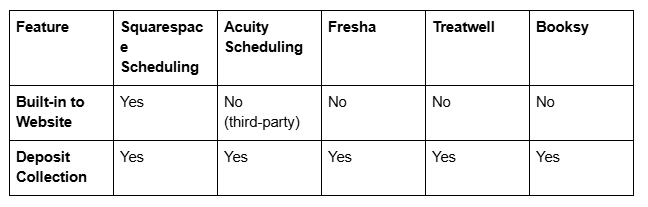
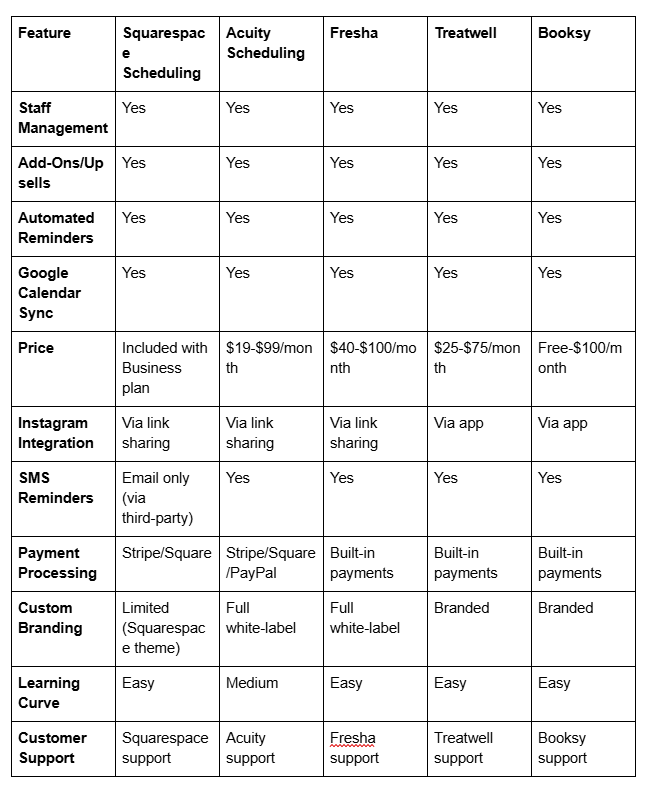
Why Choose Squarespace Scheduling? If you're already on Squarespace and want a simple, integrated solution, Squarespace scheduling is ideal. It's included in your plan and requires zero extra setup. For advanced features (white-label branding, SMS reminders, detailed reporting), Acuity Scheduling adds professional features while integrating with Squarespace.
Frequently Asked Questions
-
Yes. Acuity Scheduling is a third-party service that connects to Squarespace via API. You can embed an Acuity booking calendar on your Squarespace site, and Acuity handles all scheduling, deposits, and reminders. This gives you more advanced features than native Squarespace scheduling, including SMS reminders, detailed analytics, and white-label customization. [INTERNAL LINK: Acuity Scheduling setup guide]
-
Squarespace scheduling supports Stripe and Square. Both allow you to collect deposits and full payments. You'll need a business account with either processor to start collecting payments.
-
Set a buffer time in your service duration. If you need 15 minutes between clients for setup, add 15 minutes to your service duration estimate. You can also manually block off time in your calendar.
-
Yes. Each service can be assigned to specific staff members, and you can create duplicate services with different pricing. For example, "Haircut - Senior Stylist ($60)" and "Haircut - Junior Stylist ($40)" are separate services in your menu.
-
Their booking is pending until payment is received. You can set your system to automatically cancel pending bookings after 24 hours (in booking settings). Alternatively, collect payment immediately at checkout to avoid pending bookings entirely.
-
Clients can reschedule directly through the booking confirmation email (usually a link). Cancellations vary by policy—set a clear refund policy in your booking confirmation so clients understand whether they lose their deposit.
Ready to Transform Your Beauty Business with Squarespace Scheduling?
Squarespace scheduling is one of the most underutilized features for beauty professionals. Most salon owners and freelance makeup artists don't realize that their website can become a fully functional booking machine—collecting deposits, managing staff, and reminding clients—all without a third-party app.
But it takes more than just enabling the feature. You need the right service setup, clear policies, deposit collection, and strategic marketing to get clients actually using your booking system.
This is where Squareko comes in.
At Squareko, we specialize in helping beauty professionals optimize their Squarespace websites for bookings, sales, and growth. We've worked with makeup artists, salons, therapists, and wellness providers to:
Set up Squarespace scheduling from scratch with all services, pricing, and add-ons configured correctly
Integrate Acuity Scheduling if you need advanced features like SMS reminders or white-label branding
Design booking-focused landing pages that convert website visitors into paying clients
Create email sequences that maximize rebooking rates and client retention
Optimize your Google Business Profile so clients find your booking link when searching locally
We understand the unique needs of beauty businesses. You're not selling widgets—you're selling time and expertise. Every missed booking is lost revenue. Every no-show eats into your profit margin.

From custom website design to SEO strategy, we help businesses launch a site that looks professional and performs better.

About the Author
Walid | squareko
I'm Walid Hasan, a Certified Squarespace Expert and Squarespace Circle Platinum Partner with over 12 years of hands-on experience designing and optimizing high-performing websites. Over the years, I've had the privilege of building more than 2,000 Squarespace websites for clients around the world, always focusing on clean design, strong user experience, and conversion-driven results.
