
Squarespace Class Scheduling for Yoga Studios: Bookings, Passes and Memberships
Key Takeaways for Squarespace Class Scheduling for Yoga Studios
Squarespace Scheduling handles drop-in classes, class passes, capacity limits, and cancellation policies well
You can sell 6-class and 10-class passes through Squarespace Commerce, then redeem them in Scheduling
Squarespace Scheduling has limitations for complex memberships (unlimited monthly with restrictions) compared to Mindbody or Momoyoga
Automated reminder emails and waitlist features reduce no-shows and improve student experience
For studios with 20+ classes per week, consider specialist software (Mindbody, Momoyoga, TeamUp)
Squarespace Scheduling is built to handle yoga and pilates bookings, class passes, and memberships. But many yoga studio owners and pilates instructors aren't using it to its full potential or they're confused about what Squarespace Scheduling can and can't do compared to specialist studio software. This guide walks through exactly how to set up Squarespace Scheduling for your yoga studio, including drop-in classes, class passes, memberships, cancellation policies, and when you might need dedicated studio management software instead.
What Is Squarespace Scheduling and Why Yoga Studios Use It
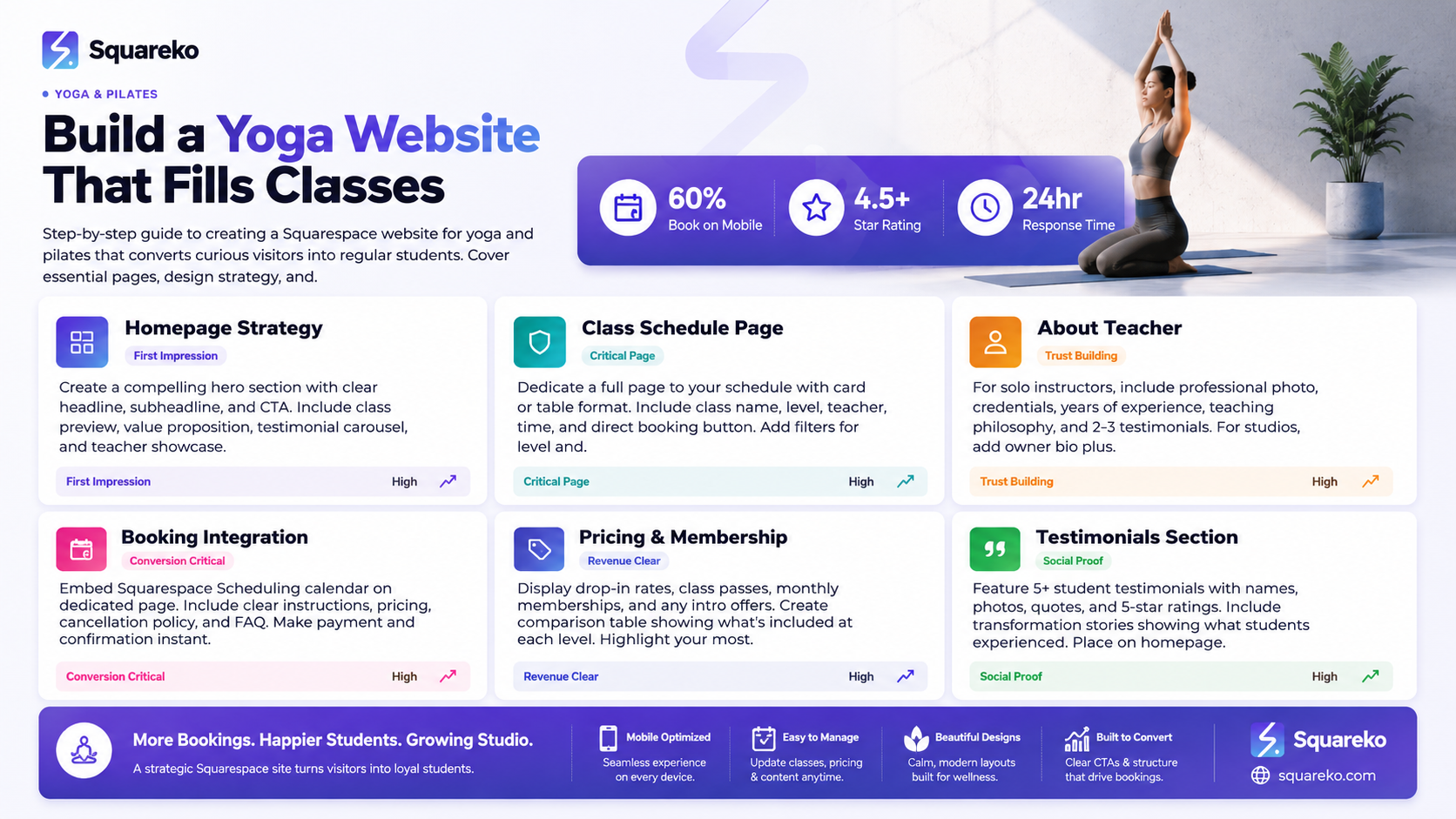
Squarespace Scheduling is a built-in booking tool that allows your website visitors to book classes, reserve spots, and pay online. It's free (included with all Squarespace plans), integrates directly with your website, and handles payment through Squarespace Commerce.
Why Yoga Studios Choose Squarespace Scheduling
Simplicity. No need for a separate third-party tool. It's built into your Squarespace website.
Cost. Free, with no per-booking fees beyond Squarespace's standard payment processing.
Integration. Booking calendar can be embedded directly on your website. Payments go to your Squarespace account.
Enough features for small-to-medium studios. Drop-in classes, passes, capacity limits, waitlists, and cancellation policies work well.
Professional. Automated reminder emails, class confirmation, and student-facing management feel polished.
When Squarespace Scheduling Might Not Be Enough
You have 20+ classes per week and need a dedicated studio management interface
You want unlimited monthly membership with a strict cap on classes per month (e.g., "4 classes per month")
You need integrations with fitness software like Mindbody or integration with accounting systems
You want detailed reporting on student attendance patterns and retention
You want automated waitlist-to-available notifications
You're managing multiple teachers with individual earnings tracking
For studios with these needs, dedicated studio software (Mindbody, Momoyoga, TeamUp) may be better long-term, though they cost more.
Setting Up Drop-In Classes in Squarespace Scheduling
A drop-in class is the simplest booking model: students pay per class, show up, and practice.
Step-by-Step Setup
Go to your Squarespace Settings > Scheduling
Create a new service for each class type
Example: "Hatha Yoga Monday 6:00 pm"
Or (more flexible): "Hatha Yoga" as one service with multiple time slots
Set the basics:
Service name
Price per class (e.g., £15)
Duration (most yoga/pilates classes are 60 minutes)
Location (studio address)
Set availability:
Day of week
Time
Repeat weekly (for ongoing classes)
Set capacity: Maximum students per class (e.g., 12 students in a small studio, 20+ in a large room)
Enable payment: Students pay when they book
Set automatic reminders:
24 hours before class
1 hour before class
Both encourage attendance and reduce no-shows
Best Practice: Service Names
Option A (Most Specific):
"Hatha Yoga - Monday 6:00 pm with Sarah"
"Vinyasa Flow - Tuesday 7:15 am with Mike"
Advantage: Crystal clear for students, automated reminders include all details.
Option B (Flexible):
"Hatha Yoga" (with multiple time slots under one service)
Students see all available times and pick one
Advantage: Less duplication if you run the same class multiple times per week.
For most studios, Option A is clearer and easier to manage.
Capacity and Waitlists
Set each class to a maximum capacity. If a class fills up:
Enable "Automatically show waitlist" in service settings
Students can join the waitlist if full
You're notified if someone cancels and can manually contact the next waitlist member
Note: Squarespace Scheduling doesn't automatically promote waitlisted students; you need to contact them manually and have them rebook.
Creating Class Passes and Pass Packages
Many yoga students prefer buying a pass (e.g., 6-class pass, 10-class pass) over drop-in pricing. This gives them commitment and usually saves them money (incentivizing them to use all classes).
How Class Passes Work in Squarespace
Class passes aren't a native Squarespace Scheduling feature, but you can set them up by:
Selling the pass as a product via Squarespace Commerce
Students receive a coupon/code when they purchase
The coupon code can be used to reduce or discount individual class bookings in Squarespace Scheduling
OR
Simpler approach:
Sell the pass as a product
Manually track pass usage (create a spreadsheet or use a tool like Airtable)
Ask students to send you a message when they've used all classes (to ensure they repurchase)
Example: 6-Class Pass Setup
In Squarespace Commerce:
Product: "6-Class Yoga Pass"
Price: £75 (£12.50 per class vs. £15 drop-in)
Description: "Valid for 8 weeks. Includes all class levels and styles. Non-transferable."
Option: Add a "Class Pass Expiry Date" field (e.g., "This pass expires 8 weeks from purchase")
In Squarespace Scheduling:
Create a discount code/coupon: "PASS-6CLASS"
Discount: £12.50 off each booking (or create 6 separate £12.50 discounts)
OR offer a reduced price if the student pays upfront for 6 classes
Tip: Include a note in the order confirmation explaining how to use the pass and when it expires.
10-Class Pass Example
Commerce product:
Name: "10-Class Yoga Pass"
Price: £120 (£12 per class vs. £15 drop-in)
Valid for 12 weeks
Description: "Unlimited class styles and levels. Non-transferable. Non-refundable."
This approach works well for studios with 10-30 classes per week. For larger studios or very complex pass structures, you'll hit Squarespace's limitations and might need specialist software.
Memberships and Unlimited Classes
Many yoga studios offer "unlimited monthly" or "4 classes per month" memberships. Squarespace Scheduling handles unlimited memberships better than restricted ones.
Unlimited Monthly Membership Setup
This is straightforward in Squarespace:
Create a membership product in Squarespace Commerce
Product name: "Unlimited Monthly Membership"
Recurring billing: Yes (monthly)
Price: £60 per month
Auto-renewal: Yes
Students subscribe through Commerce
When booking a class, they see a "member" or "subscriber" option with £0 booking fee
Track: You can see who's paid for the current month and give them free booking
Limitation: Squarespace Scheduling doesn't natively restrict "4 classes per month for unlimited subscribers." You'd need to manually track attendance or use a third-party integration.
Restricted Membership Example (4 Classes Per Month)
This is where Squarespace starts to strain. To set it up:
Create the membership product as above
Manually track each student's class count for the month
At month-end, reset counts and send renewal reminders
If a member exceeds 4 classes, charge them per overage
This works for small studios (20-30 members) but becomes tedious at scale.
Better Alternative for Complex Memberships
If you want "4 classes per month" or "unlimited weekday, 2 per month weekends" structures, consider:
Momoyoga (£25-50/month per studio location)
Mindbody (more expensive but very comprehensive)
TeamUp (£30-60/month, good for small studios)
These systems handle membership restrictions automatically.
Capacity Limits and Waitlists
Yoga studios often have physical space limits: a room fits 12-20 people depending on mat spacing and style.
Setting Capacity
When creating each class in Squarespace Scheduling:
Set "Maximum bookings" to your realistic capacity
Example: "Hatha Yoga Monday 6:00 pm — Max 14 students"
Include a buffer for no-shows if needed (some studios book 15 for a 12-person room)
Enabling Waitlists
In the service settings, enable "Show waitlist"
When the class reaches capacity, students can join the waitlist instead
You receive a notification when a spot opens (i.e., someone cancels)
Manually contact the first waitlist student and ask them to rebook
Note: Squarespace Scheduling doesn't automatically move waitlisted students into available spots. You manage this manually.
Waitlist Strategy
For popular classes, enable waitlists
After getting a cancellation notice, email the next waitlist member within 1-2 hours ("Hi Sarah, a spot just opened in tomorrow's 6:00 pm Hatha class. Would you like to book it?")
This approach builds goodwill and shows responsiveness
Cancellation Policies and Late Fees
Yoga studios typically have cancellation policies to manage no-shows. Squarespace Scheduling supports this.
Standard Yoga Studio Cancellation Policy
Example: "Classes must be cancelled 24 hours in advance to receive a refund or credit. Cancellations made within 24 hours of class are non-refundable."
How to Enforce This in Squarespace
Set the refund window:
In each service, set "Refund period" to 24 hours before the class time
If a student cancels within 24 hours, they're not refunded
If they cancel beyond 24 hours, they get a refund (or credit)
Document the policy:
Display it prominently on your website Booking page
Include it in confirmation emails
Add it to your class descriptions
Handling No-Shows
Squarespace Scheduling doesn't have a built-in no-show fee. Instead:
Set your cancellation policy to require 24-hour notice
For students who repeatedly no-show without cancelling, email them directly: "We've noticed you've missed the last 2 booked classes without cancelling. To keep your spot, please let us know if you can't attend."
For problematic no-shows, require advance payment (per-class or pass) rather than refundable bookings
Automated Reminders and Student Communication
Squarespace Scheduling can send automated reminder emails, which are critical for reducing no-shows.
Setting Up Reminders
Go to Settings > Scheduling > [Service name]
Enable "Send reminder email"
Choose timing: 24 hours before, 12 hours before, 1 hour before, or custom
Most yoga studios use: 24 hours + 1 hour reminders
Email Template Customisation
Squarespace doesn't allow much customisation of reminder emails through the UI, but the default email includes:
Class name and time
Location
Any instructions (e.g., "Please arrive 10 minutes early")
Cancellation instructions
If you need heavily customised reminders, you can:
Use Squarespace Email Campaigns for bonus outreach
Integrate Zapier with Squarespace Scheduling to send custom emails via your email provider
Use a tool like Memberful (Squarespace's membership platform) for more email control
Student Communication Best Practices
Beyond automated reminders:
Send a monthly schedule email (e.g., "January Class Schedule & What's New")
Share 1-2 tips or insights about the class style (mindfulness for yoga, alignment for pilates)
Announce any schedule changes or special workshops immediately
Use your email list for retention—studies show regular email contact reduces churn
Embedding Your Calendar on Your Squarespace Website
Your Squarespace Scheduling calendar can be embedded directly on your website for easy visibility.
Embedding the Calendar
Go to a page where you want the calendar (e.g., "Class Schedule" page)
Click + to add a block
Select Scheduling from the blocks menu
Choose which services (classes) to display
Select a calendar view or list view
Customise the appearance (colours, text, etc.)
Calendar View vs. List View
Calendar View:
Shows a monthly calendar grid
Students select a date to see available classes
Better for browsing students who don't know what they want
Great for mobile responsiveness
List View:
Shows upcoming classes in chronological order
Better if you have many classes (students can scroll and find times easily)
More scannable on mobile
Hybrid Approach:
Display a "Featured Classes This Week" section with a button "View Full Schedule"
Full schedule page uses the embedded calendar
Most studios use the calendar view for the main schedule page, with a secondary list view on the homepage showing this week's highlights.
Managing Substitutes and Class Cancellations
Life happens: teachers get sick, classes get cancelled, substitutes cover. Squarespace Scheduling handles this.
Last-Minute Cancellation
Go to Settings > Scheduling > [Service name]
Click the specific class instance you want to cancel
Select "Cancel this session"
Squarespace automatically emails all booked students, letting them know the class is cancelled
Their payment is refunded or credited (depending on your refund policy)
Adding a Substitute
Squarespace Scheduling doesn't have a native "substitute teacher" field, but you can:
Cancel the original class
Immediately create a new class at the same time with the substitute teacher's name in the title
Example: "Hatha Yoga Monday 6:00 pm with Mike (Substitute for Sarah)"
Email your subscriber list separately: "Sarah is out this week; Mike will lead Monday's 6:00 pm Hatha class. Same time, same place."
Class Rescheduling
If you need to move a class to a different time:
Cancel the original time slot
Create the new time slot
Email students: "Tuesday's 6:00 pm Hatha class has moved to 6:30 pm this week due to [reason]. Please update your calendar."
Tip: Announce changes at least 24 hours in advance to minimise disruption.
Combining Scheduling with Member Areas for Online Classes
If you offer both in-person and online classes, or you have an online yoga library, integrate Squarespace Scheduling with Member Areas.
Setup
In-person class bookings happen through Squarespace Scheduling (as described above)
Online class library lives in a Squarespace Member Area
Members (monthly subscribers or pass-holders) get access to both:
Book in-person classes via Scheduling
Stream on-demand videos via Member Area
Example: Hybrid Studio
Homepage CTA: "Join our community"
After signup, members get:
Access to book in-person classes (Scheduling)
Streaming access to video library (Member Area with Vimeo embeds)
Email updates on new classes and workshops
Pricing:
£15 per drop-in class (Scheduling)
£60/month for unlimited classes + online library (Commerce recurring + Member Area)
This hybrid model works well because it serves different student needs:
Some want drop-in flexibility
Others want unlimited access and convenience
Squarespace Scheduling vs. Specialist Yoga Studio Software
Squarespace Scheduling is excellent for small-to-medium studios. But as you grow, you might outgrow it.
When Squarespace Scheduling Is Enough
You have 1-3 teachers
You run 5-20 classes per week
Your membership models are simple (drop-in, unlimited, or basic passes)
You don't need detailed attendance/retention analytics
You're comfortable manually managing waitlists and substitutes
Budget is tight
When You Should Consider Specialist Software
You have 4+ teachers and need individual earnings tracking
You run 20+ classes per week and need a dedicated studio management interface
You want complex memberships (e.g., "4 classes per month with 2 unlimited weekend slots")
You need detailed student attendance patterns and retention insights
You want automated waitlist-to-available notifications
You want retail management (selling yoga mats, props, etc.)
You want integrations with accounting software (QuickBooks, Xero)
Top 3 Specialist Yoga Studio Software
Mindbody
Cost: £50-300+/month depending on features and size
Best for: Multi-location studios, complex memberships, detailed reporting
Integrations: 500+, including accounting, email marketing, social
Learning curve: Steep, but very comprehensive
Momoyoga
Cost: £25-50/month per location
Best for: Small-to-medium studios, user-friendly interface, good for yoga-specific needs
Integrations: Email, scheduling, basic reporting
Learning curve: Moderate, relatively intuitive
TeamUp
Cost: £30-60/month
Best for: Group fitness (yoga, pilates, dance), flexible scheduling
Integrations: Zapier integration allows custom workflows
Learning curve: Moderate, good for group fitness-focused studios
Squarespace Scheduling + Specialist Software
Some studios use both (hybrid approach):
Keep Squarespace for website + blog + content marketing
Use Mindbody/Momoyoga/TeamUp for class scheduling, payments, and management
This works if:
You have a budget for both
You want the best of both worlds (beautiful website + robust studio management)
You're tech-comfortable with integrations
Cost: Squarespace (£16-33/month) + Studio Software (£25-300/month) = £40-350/month
For most small studios, Squarespace Scheduling alone is sufficient.
Ready to Set Up Your Studio Bookings?
Squarespace Scheduling is a powerful, cost-effective solution for yoga studios and pilates instructors. If you're starting out or running a small studio, it gives you everything you need: easy booking, automated payments, reminders, and capacity management.
But implementing it correctly matters. You need the right class setup, clear policies, compelling class descriptions, and a website that drives traffic to your booking page. That's where Squareko comes in.We've set up Squarespace Scheduling for over 100 yoga studios and pilates practices. We handle the technical setup, policy documentation, class description writing, and integration with the rest of your website.
Frequently Asked Questions
-
Squarespace Scheduling shows you booking data (who booked what class), but it doesn't track "attended" vs. "booked." To track attendance, you need to either manually mark attendance in Squarespace or use a specialist tool like Mindbody. For small studios, a simple spreadsheet works fine.
-
No. When a student books a class in Squarespace Scheduling, they're charged once at booking time. If they no-show, they're not charged again (they already paid). If your policy is non-refundable no-shows, they've lost that class credit. Make this clear in your cancellation policy.
-
Yes. You can create a discount code (e.g., "FRIEND-FREE") that makes a class booking £0 for new students. Or you can manually credit a student's account if they bring a friend. For automated referral tracking, you'd need a specialist tool.
-
Squarespace Scheduling doesn't have an automated "reschedule" feature. Instead: (1) Process the cancellation/refund as normal, then (2) Email the student: "Let's get you into the [different time] class." (3) Manually confirm the new booking. For high volume, a specialist tool handles this more elegantly.
-
Yes, you can sell non-expiring passes. Just don't include an expiry date in the product description. However, best practice is to set an expiry (e.g., 8-12 weeks) to keep students engaged and using their passes. Non-expiring passes often go unused.
-
You can use Calendly or Acuity Scheduling, but Squarespace Scheduling integrates better with your Squarespace website and payment processing. Third-party tools require more setup and may not show real-time capacity or sync with your website. For simplicity, use Squarespace Scheduling.
-
Squarespace Scheduling is designed for individual bookings. For group bookings or corporate packages, you'd typically: (1) Create a custom product in Commerce for "Corporate Wellness Package (10 classes)" and (2) Email the group coordinator their access code or discount. A specialist tool like Mindbody handles group management better.
-
Squarespace Scheduling doesn't have a native "members-only class" feature. To set this up: (1) Create the class in Scheduling, (2) Manually remove the booking link from your website, (3) Email members directly with a private booking link. For more sophisticated member-only restrictions, use a tool like Mindbody or Memberful (Squarespace's membership platform).
Ready to Set Up Professional Class Scheduling on Squarespace?
Squarespace Scheduling is powerful, but only when set up correctly. You need clear policies, compelling class descriptions, smooth booking integration, and a website that drives traffic to your schedule.
Squareko specialises in exactly this. We've implemented Squarespace Scheduling for over 100 yoga studios and pilates practices, handling technical setup, policy writing, and seamless website integration.

From custom website design to SEO strategy, we help businesses launch a site that looks professional and performs better.

About the Author
Walid is the founder of Squareko,
I'm Walid Hasan, a Certified Squarespace Expert and Squarespace Circle Platinum Partner with over 12 years of hands-on experience designing and optimizing high-performing websites. Over the years, I've had the privilege of building more than 2,000 Squarespace websites for clients around the world, always focusing on clean design, strong user experience, and conversion-driven results.
