
How to Use Squarespace Scheduling for Finance Coaching Consultations
Key Takeaways For How to Use Squarespace Scheduling for Finance Coaching Consultations
Squarespace Scheduling eliminates back-and-forth emails and keeps prospects engaged
Separate scheduling links for free consultations and paid services build clarity
Automated confirmations and reminders reduce no-shows
Pre-call questionnaires qualify leads before you spend time
Integration with calendar tools syncs across all your devices
Manually scheduling appointments kills your conversion rate. Every email back-and-forth is a friction point where prospects disappear.
Squarespace's built-in Scheduling tool solves this. Prospects book directly. Payments happen automatically. Confirmations send automatically. You get back your time.
This post is about website tools and scheduling setup for finance coaches, not financial advice. The scheduling strategy discussed here focuses on removing friction from the booking process.
Setting Up Squarespace Scheduling
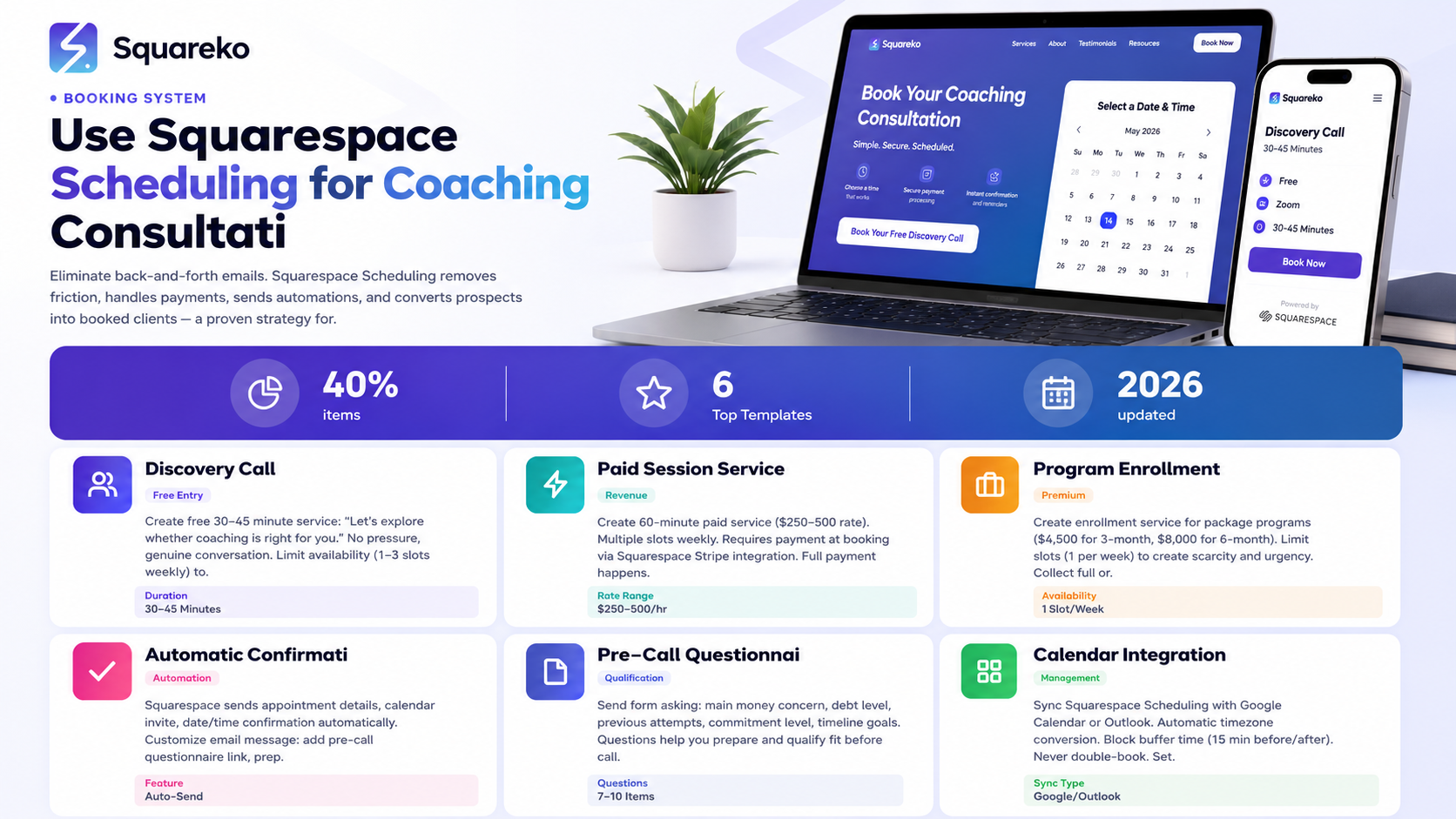
Squarespace Scheduling requires Business plan or higher. If you're on Personal or Contributor, upgrade first.
Step 1: Enable Scheduling
Go to Home in Squarespace
Find Scheduling (should be visible in main menu)
Click to open
Click Create a service or Get started
Step 2: Verify Information
Business name: Should be your name or business name (shows on booking confirmation)
Timezone: Critical. Set to your actual timezone
Email address: Confirmations send to this address
Phone (optional): Appears on booking page
Step 3: Add Availability
Click Calendar
Set your working hours (e.g., 9 AM - 5 PM)
Set days you work (e.g., Monday-Thursday, 10 AM - 4 PM)
Block out lunch breaks, buffer time, non-working days
Save
Creating Service Types
Each type of coaching appointment gets its own service slot.
Service 1: Free Discovery Call
Name: Free Money Clarity Discovery Call
Duration: 30-45 minutes (discovery calls are shorter than paid sessions)
Price: Free ($0)
Description (appears on booking page): Let's explore whether coaching is right for you. In this 30-minute conversation, you'll tell me about your money situation, I'll share how I work, and we'll both decide if it's a good fit. No obligation, no pressure, no sales pitch—just genuine conversation.
Availability:
Once per week (prevents oversaturation with free calls)
Or 2-3 slots per week if you want more lead flow
What happens after booking:
Squarespace sends automated confirmation email
Client receives calendar invite
You receive notification with client details
(Optional) Client completes pre-call questionnaire
Service 2: Single Coaching Session
Name: Single Coaching Session
Duration: 60 minutes
Price: $250 (adjust to your rate)
Description: One-on-one coaching session focused on your specific question or situation. Come with a topic in mind, and we'll dig in. Sessions can focus on debt strategy, mindset work, or specific financial questions.
Availability:
Multiple slots per week
This is your paid offering, so make it readily available
Payment:
Requires payment before booking
Client pays via Squarespace payment processing at booking time
Service 3: Package Program Enrollment
Name: 3-Month Intensive Program Enrollment
Duration: 60 minutes (initial consultation for program clients)
Price: $4,500 (your program cost)
Description: Initial consultation and enrollment for the 3-Month Intensive. You'll discuss your debt situation, we'll map your transformation plan, and you'll start sessions immediately. Come prepared to commit to the process.
Payment:
Full payment due at booking
Or, offer payment plan: $1,500 due now, $1,500/month for 2 months (handled via email after booking)
Availability:
Limited (e.g., 1 slot per week)
This is high-commitment, so fewer options creates perceived scarcity and urgency
Pricing and Payment Integration
Squarespace handles payments automatically.
Payment Setup
Go to Scheduling > [Service name] > Pricing
Set price ($0 for free discovery, $X for paid services)
If payment required:
Squarespace collects via Stripe (built-in)
Payment happens at booking (before appointment confirms)
You receive payment minus Squarespace fees (2.9% + $0.30)
Payment Plan Strategy
For services over $2,000:
Offer full payment OR payment plan
Squarespace doesn't handle payment plans natively
Solution: Collect first payment at booking, send payment plan details via follow-up email
Example:
Booking page: $4,500 total for 3-Month Program
After booking: Email saying Payment options: (1) Full $4,500 today or (2) $1,500 now + $1,500/month for 2 months
Use Stripe's invoice feature to send follow-up payment requests
Currency and Tax
Go to Settings > Billing & payment
Set currency (USD, GBP, EUR, etc.)
Set tax if applicable (e.g., VAT for UK-based coaches)
Calendar Availability and Timezones
This is critical for remote coaches serving multiple timezones.
Timezone Setup
Squarespace settings: Set your primary timezone
Booking page: Client's timezone shows on their end (Squarespace converts automatically)
Example:
You're in EST (Eastern Standard Time)
Client in PST (Pacific) books 3 PM EST
Client's calendar shows 12 PM PST (automatically converted)
Avoiding Scheduling Conflicts
Enable calendar sync:
Go to Scheduling > Settings
Find Calendar sync
Connect to Google Calendar or Outlook
Squarespace automatically blocks your calendar during bookings
Never double-book
Buffer time between appointments:
Set Buffer time before: 15 minutes (allows transition)
Set Buffer time after: 15 minutes (allows notes)
Example: One hour appointment with 15-min buffers = 90 minutes blocked on calendar.
Hours and Days Off
Recurring availability: Set standard hours (M-Th 10 AM - 4 PM)
Days off: Block specific dates (vacations, holidays)
Blackout dates: Prevent booking during closed periods
Email Automations
Squarespace sends automated emails. Customize them.
Automatic Confirmations (Customizable)
Booking Confirmation Email (sent immediately after booking)
Default includes:
Appointment date/time
Appointment description
Calendar invite (.ics file)
Customize the message:
Go to Scheduling > [Service] > Confirmation email
Edit the message
Example customization:
Hi [Client Name],
Thanks for booking your discovery call!
Here are your appointment details:
Date: [Appointment date]
Time: [Appointment time]
Duration: 30 minutes
Before our call, I'd love to understand your situation better.
Could you take 2 minutes to answer these quick questions?
[Link to pre-call questionnaire]
Looking forward to chatting!
[Your Name]
---
Cancellation policy: You can cancel up to 48 hours in advance by visiting your booking confirmation email.
Reminder Emails
Set automatic reminders:
Go to Scheduling > [Service] > Reminders
Send reminder 24 hours before appointment
Send reminder 1 hour before
Reminders significantly reduce no-shows (up to 30% no-show prevention).
Follow-Up Automation
After appointment, you could send:
Thanks for our call! Here's what we discussed...
Ready to move forward? Book your first session
Post-call questionnaire (if they're considering your program)
Pre-Call Questionnaires
Qualify leads before you spend time with them.
Creating a Pre-Call Questionnaire
Use Squarespace Forms or Google Forms. After booking, email link to:
Discovery Call Questionnaire (5-10 questions):
What's your biggest money concern right now?
How much total debt are you carrying? (if relevant)
What have you already tried to solve this?
What would change if you had a clear financial plan?
On a scale of 1-10, how committed are you to making a change?
When would you like to be debt-free? or When would you like to reach [goal]?
Is there anything else I should know before our call?
Optional but useful: 8. How did you hear about me? 9. What's your current annual income range? 10. Are you working alone or with a partner?
Using Responses
Questionnaire responses help you:
Prepare for the call (you know their situation beforehand)
Qualify the fit (if they're not a good fit, you know before the call)
Personalize the discovery call (specific to their situation, not generic)
Transition to sales (if they're a fit, you have specific talking points)
Linking to Your Website
Your scheduling links need to be visible in the right places.
Where to Link Scheduling
Homepage hero section: Schedule Your Free Discovery Call (primary CTA)
About page: End of page, Ready to explore coaching?
Services page:
Single sessions button links to Single Session booking
3-Month program button links to program enrollment booking
Blog posts: Optional, sidebar CTA Book a Session
Sticky mobile button: Always-visible CTA on mobile devices
Creating Booking Links
Go to Scheduling > [Service name]
Copy the booking link (blue button Copy link)
Paste into Squarespace buttons or text
Example links:
yoursite.squarespace.com/schedule/discovery-call (free discovery)
yoursite.squarespace.com/schedule/single-session (paid session)
yoursite.squarespace.com/schedule/program (program enrollment)
Link Text Examples
Schedule Your Free Clarity Call
Book Your First Session
Join the 3-Month Program
Let's Talk About Your Situation
Frequently Asked Questions
-
Squarespace handles timezone conversion automatically. Your 3 PM EST shows as 12 PM PST on a West Coast client's calendar. Set your availability in your own timezone.
-
Yes. Booking confirmation email includes a reschedule link. Client can reschedule or cancel directly. You'll receive notification of changes.
-
Alternatives include Calendly, Acuity Scheduling, or Kajabi. But Squarespace Scheduling is built-in, simpler, and integrates directly with your site.
-
Not ideal for Squarespace Scheduling. Group sessions work better with separate registration and capacity limits (Eventbrite, for example). Use 1:1 scheduling for individual coaching.
-
For paid services, payment is required at booking. If payment fails, the appointment doesn't confirm. For payment plans, follow up via email within 24 hours.
-
Send courtesy reminder 24 hours before. For no-shows, send follow-up: "I noticed we missed our call. Let's reschedule." Consider no-show policy: "2 no-shows and you'll need to reschedule with a $50 deposit."
-
Yes. Set booking price as deposit, send follow-up email with payment plan for remainder. Or collect full payment at booking.

From custom website design to SEO strategy, we help businesses launch a site that looks professional and performs better.

About the Author
I'm Walid Hasan, a Certified Squarespace Expert and Squarespace Circle Platinum Partner with over 12 years of hands-on experience designing and optimizing high-performing websites. Over the years, I've had the privilege of building more than 2,000 Squarespace websites for clients around the world, always focusing on clean design, strong user experience, and conversion-driven results.
