
How to Use Squarespace Inventory and Order Management for Your Online Store
Introduction
Running an online store requires precision, especially when it comes to managing inventory and processing orders efficiently. Whether you're selling handmade goods, dropshipping products, or print-on-demand items, Squarespace's inventory and order management capabilities provide the foundation for streamlined operations. Effective inventory and order management is critical to scaling your online store, reducing operational errors, and maintaining customer satisfaction.
Squarespace offers both native inventory tracking capabilities and integrations with third-party logistics providers, allowing you to choose a system that fits your business model. This guide covers everything you need to manage stock levels, track orders, automate fulfilment, and handle returns—all whilst keeping your customers informed and your operations running smoothly.
Key Takeaways
Squarespace's native inventory system tracks stock levels, manages variants, and triggers low-stock alerts automatically
Order management workflows in Squarespace allow you to process, track, and fulfil orders from a centralised dashboard
Integration options including Ship Bob, ShipStation, and Printful extend Squarespace's native capabilities for complex fulfilment needs
Low-stock alerts help prevent overselling and keep your supply chain informed
Returns management features allow you to process refunds and manage restocking efficiently
A structured operations checklist ensures nothing falls through the cracks as your business scales
Understanding Squarespace's Native Inventory Tools
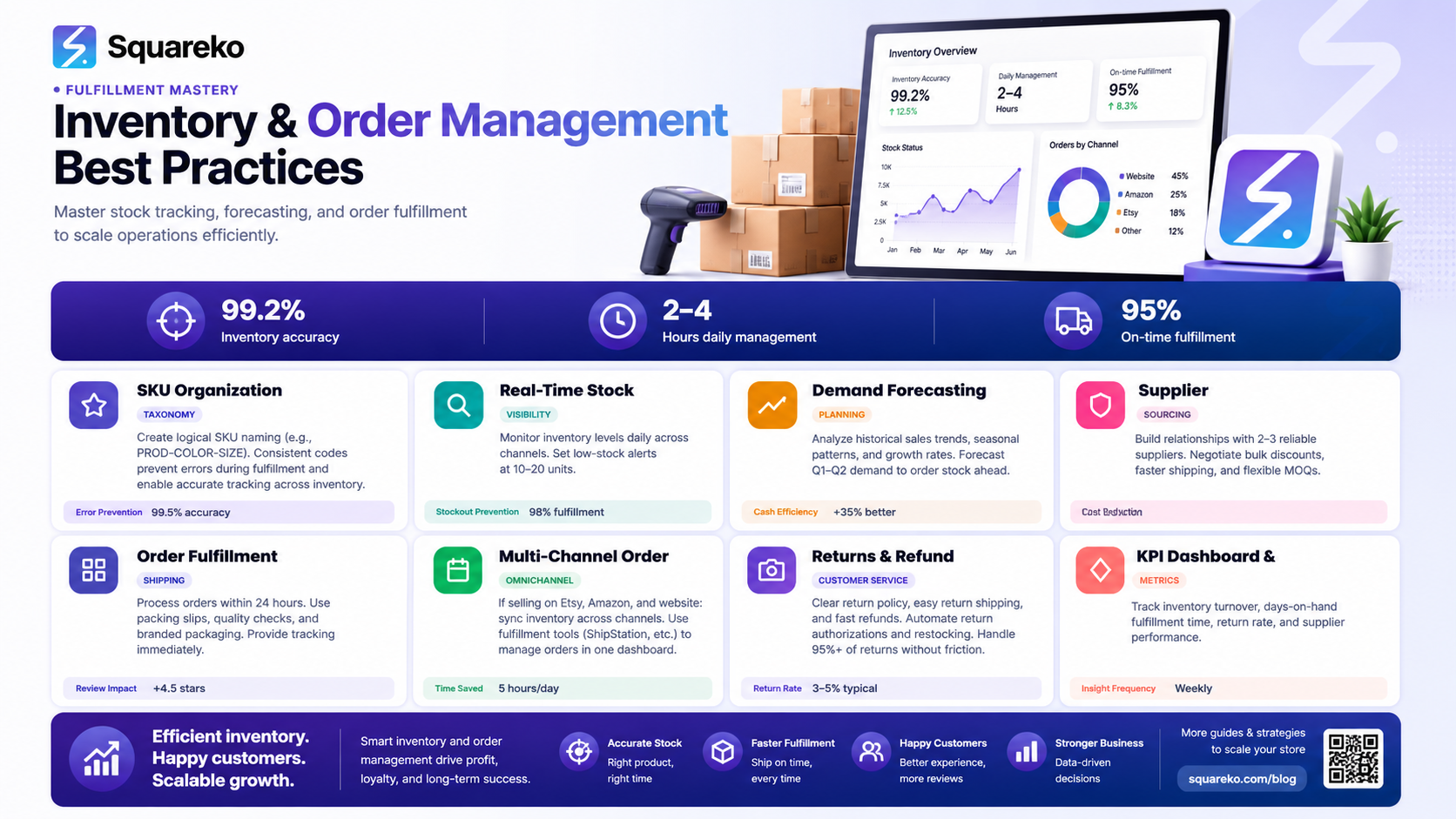
Squarespace's inventory management system is built directly into the Commerce platform, eliminating the need for external spreadsheets or complex tracking systems for smaller operations. The native tools provide essential functionality for stock monitoring, variant tracking, and basic inventory forecasting.
Inventory Tracking Basics
The core of Squarespace's inventory system revolves around product-level tracking. Each product in your store can have an unlimited number of variants (size, colour, material), and you can set inventory quantities for each variant individually. This granular approach means you can manage, for example, a t-shirt available in five colours and four sizes without needing external tools.When a customer purchases an item, Squarespace automatically decrements the inventory count. If stock reaches zero, you can configure the product to show as unavailable or remove it from search results. This prevents embarrassing situations where customers order out-of-stock items.
Variant Management
Variants are where Squarespace's inventory system shines for product-focused retailers. You can create unlimited variants with different SKUs, prices, and stock levels. This is particularly useful for clothing retailers, digital product vendors with multiple formats, or any business selling similar items with different specifications.Each variant maintains its own inventory count, allowing precise stock management. You can also set different prices for variants without creating separate product listings, keeping your catalogue organised and searchable.
Basic Inventory Reporting
Squarespace provides fundamental inventory reports in your store dashboard. You can view current stock levels, identify low-stock items, and monitor which products are bestsellers. Whilst not as detailed as dedicated inventory software, these reports suffice for smaller to medium-sized operations.
Setting Up Your Product Inventory
Proper inventory setup is crucial for accurate order fulfilment and customer satisfaction. Here's a structured approach to configuring inventory in Squarespace.
Initial Product Configuration
When adding a new product to Squarespace, you'll enter inventory information in the product editor. Start by deciding whether to track inventory at the product level or variant level. For most businesses, variant-level tracking provides better accuracy.Assign a SKU (Stock Keeping Unit) to each variant. SKUs are unique identifiers that help you and any third-party fulfilment partners locate specific products quickly. Use a consistent SKU naming convention—for example, "TSH-BLU-L" for a blue large t-shirt.Set the initial stock quantity for each variant. If you're importing existing inventory from another system, Squarespace allows bulk imports via CSV file, saving hours of manual data entry.
Inventory Settings and Behaviour
Configure how Squarespace behaves when items sell out. You can choose to:
Remove the product from your store entirely
Hide it from search but keep it on its product page
Display "Out of Stock" with a notification option for customer restock alerts
Allow customers to backorder unavailable items
Consider your business model when selecting these options. If you sell unique, limited-edition items, removing sold-out products maintains scarcity. If you hold inventory regularly, showing out-of-stock items with restock notifications keeps customer interest alive.
Bulk Inventory Updates
As your business grows, manually updating inventory becomes impractical. Squarespace supports CSV imports and exports, allowing you to bulk update stock levels. This feature proves invaluable when:
Syncing inventory across multiple sales channels
Uploading seasonal stock adjustments
Importing inventory data from your supplier's systems
Correcting inventory counts after stocktakes
Export your current inventory, make adjustments in a spreadsheet, and re-import to update all products simultaneously.
Managing Orders in Squarespace
The order management dashboard is your command centre for processing customer purchases. Understanding its workflow ensures you fulfil orders accurately and maintain customer communication standards.
Order Workflow Overview
When a customer completes a purchase, Squarespace automatically creates an order record in your dashboard. Orders move through several states: unpaid, processing, shipped, and fulfilled. You control the progression through these states as you prepare items for shipping.
Each order displays customer information, shipping address, items purchased with quantities, and payment status. You can add internal notes, tag orders for organisation, and set fulfillment status to track what's been shipped and what's pending.
Processing and Fulfilment
Review orders as they arrive, verifying that payment has cleared before beginning fulfilment. Squarespace shows payment status prominently, helping you identify and avoid processing orders with pending payments.
Once payment is confirmed, pick items from your inventory, pack them, and generate shipping labels. Squarespace integrates with major carriers including Royal Mail, Parcel2Go, and DPD for UK businesses, allowing you to generate labels directly from the dashboard. Select your carrier, enter package weight and dimensions, and print labels immediately.
Shipping Updates and Tracking
After generating a shipping label, add the tracking number to the order. Squarespace automatically sends customers a shipping confirmation email with tracking information. Customers can then monitor their package's progress without contacting you—improving satisfaction and reducing support inquiries.
You can manually mark orders as shipped if you're using a third-party fulfilment service or handling shipping independently. Add the carrier and tracking number for complete transparency.
Order Notes and Communication
Use order notes to document important details: damaged items received from suppliers, customer special requests, items requiring gift wrapping, or anything relevant to that specific order. These notes are internal and help you and your team maintain context across all orders.
For customer communication, use the built-in messaging system to send updates about delays, answer questions, or request clarification without leaving the order screen.
Configuring Low-Stock Alerts
Low-stock alerts prevent overselling and ensure you have time to reorder before running out. Squarespace allows you to set alert thresholds at the variant level.
Setting Alert Thresholds
In each product's inventory settings, define a "low stock" threshold. This could be 10 units, 5 units, or any number appropriate for your business. When inventory drops to or below this threshold, Squarespace sends you an email notification.
The threshold should reflect your reorder lead time. If your supplier requires three weeks to deliver, and you typically sell 20 units weekly, set the alert at 60 units to ensure you have time to reorder before running out.
Automated Reordering Triggers
Whilst Squarespace doesn't automatically place orders with suppliers, the alerts enable you to establish a manual reordering process. Use these notifications to:
Contact your supplier and place restock orders
Review sales velocity and adjust future orders
Identify slow-moving items that may need promotional attention
Plan inventory for seasonal demand fluctuations
Preventing Stockouts
Beyond alerts, prevent stockouts through regular inventory reviews. Check your low-stock report weekly, identifying patterns in which products sell fastest. Use this data to forecast demand and maintain optimal inventory levels.
Consider implementing a safety stock approach: maintain a minimum quantity that you never sell from, reserving it for genuine emergencies. This buffer prevents complete stockouts if demand spikes unexpectedly.
Integrating Third-Party Fulfilment Partners
As your business scales, third-party logistics providers become attractive alternatives to managing your own warehouse. Squarespace integrates with several leading platforms, each suited to different business models.
ShipBob Integration
ShipBob is a full-service 3PL (third-party logistics) provider ideal for scaling retailers. You send inventory to ShipBob's distributed warehouse network, and they handle picking, packing, and shipping orders automatically.Squarespace connects directly to ShipBob, syncing inventory in real-time. When a customer purchases, the order automatically appears in ShipBob's system for fulfilment. This eliminates manual order entry and reduces fulfilment time.
ShipBob suits businesses with:
High order volumes (100+ orders monthly)
Multiple SKUs requiring space
Geographic customers across the UK and internationally
Complex shipping requirements (different carriers, service levels)
Printful Integration
Printful specialises in print-on-demand fulfilment, ideal for businesses selling custom t-shirts, mugs, hoodies, and similar personalised items. You upload designs to Printful, and they print and ship items only when ordered—eliminating inventory risk.Squarespace's Printful integration means customers order from your store, and Printful automatically creates orders in their system. You pay per item printed, making it perfect for testing designs before committing to inventory.
Printful excels for:
Dropshipping merchandise without holding stock
Testing new designs with minimal financial risk
Small-batch custom orders
Businesses starting out with limited capital
ShipStation Integration
ShipStation is a shipping management platform that consolidates orders from multiple sales channels (Squarespace, Amazon, eBay, Shopify) into one dashboard. Whilst it doesn't hold inventory, it streamlines your shipping workflow.
Use ShipStation if you:
Sell across multiple platforms simultaneously
Want advanced shipping rules and automation
Prefer a dedicated shipping interface over Squarespace's native tools
Need detailed shipping analytics and reporting
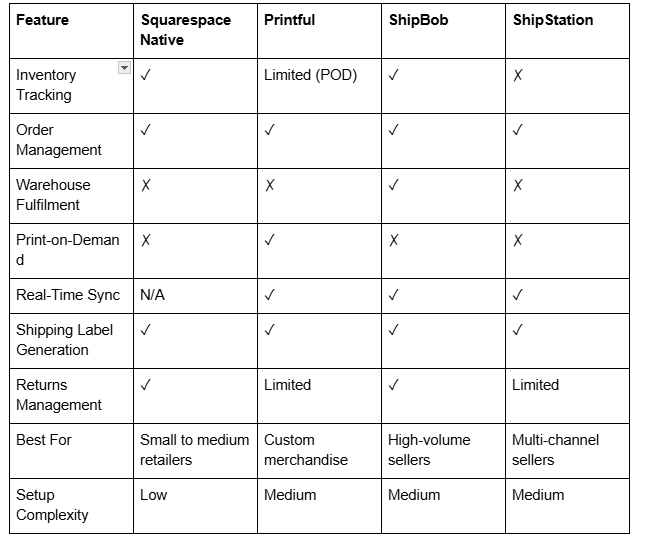
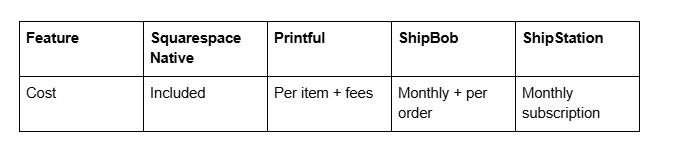
Comparison Table: Native vs. Integration Options
Handling Returns and Refunds
Returns are inevitable in e-commerce, and handling them professionally protects your reputation and ensures customer trust. Squarespace provides built-in tools for processing refunds and managing returned items.
Return Policy Configuration
First, establish a clear return policy and display it prominently on your store. Specify:
Return window
Condition requirements (unworn, unaltered)
Restocking fees if applicable
How customers initiate returns (email, form, portal)
Refund processing timeframe
Clear policies reduce confusion and disputes. Include this information on your checkout page and in order confirmation emails.
Processing Customer Returns
When a customer requests a return, review the request against your policy. If approved, generate a return shipping label or provide a return address. Some businesses cover return shipping; others ask customers to pay. This decision affects your margins and competitiveness. Once you receive the returned item, inspect it for condition issues. If acceptable, process the refund immediately. Squarespace allows you to issue refunds directly from the order screen, and the customer receives notification of the refund and estimated processing time (typically 5-10 business days).
Restocking Returned Inventory
When you receive a return in acceptable condition, you must decide whether to restock it or remove it from inventory. Most returned items can be restocked safely if unopened and in original condition. Update inventory manually by adding units back to the product variant, or use Squarespace's return workflow to automatically restore stock. Keep records of returned items for accounting purposes and to identify patterns (is one product consistently returned?).
Managing Problem Returns
Occasionally, customers request returns after the return window, or items arrive damaged. Use your internal notes to document these cases and make judgment calls based on customer value and satisfaction priorities. Some businesses offer store credit rather than refunds to encourage repeat purchases. This flexibility—when documented—improves customer relationships whilst protecting your cash flow.
Squarespace Store Operations Checklist
Use this checklist to ensure your inventory and order management systems run smoothly at every stage of growth.
Initial Setup Phase
Configure product variants with unique SKUs
Set inventory quantities for each variant
Define low-stock alert thresholds
Configure stockout behaviour (remove, hide, show out-of-stock)
Set up shipping carriers and rates
Establish return policy and display on store
Test order workflow with test purchases
Configure order confirmation emails
Set up shipping notification templates
Daily Operations
Review new orders and payment status
Pick and pack orders for shipment
Generate shipping labels and add tracking numbers
Process any customer inquiries or issues
Monitor order status and send proactive updates
Document any inventory discrepancies
Weekly Tasks
Review low-stock alerts and place restock orders
Analyse sales by product and variant
Check return and refund requests
Review customer feedback for product issues
Verify inventory counts match actual stock
Analyse shipping costs and carrier performance
Monthly Operations
Conduct full inventory count and reconciliation
Review fulfillment metrics (processing time, error rates)
Analyse return rates by product
Optimise shipping costs and carrier selection
Review customer satisfaction and support tickets
Plan inventory for upcoming seasons or promotions
Update financial records with COGS and profit margins
Quarterly Reviews
Evaluate third-party integrations' performance
Review supplier performance and delivery times
Assess inventory turnover and identify slow movers
Plan for growth: additional storage, new carriers, scaling integrations
Update return policy if needed
Train team on new processes or tools
Frequently Asked Questions
-
Yes, Squarespace automatically decrements inventory when customers complete purchases. If you've integrated a third-party fulfilment service like ShipBob or Printful, inventory updates synchronise in real-time across platforms. If you fulfil orders manually, you must manually confirm shipping in Squarespace to trigger customer notifications, but inventory deduction happens at purchase.
-
Squarespace's native system doesn't connect directly to physical warehouse management systems. However, you can integrate third-party logistics providers like ShipBob, which manage warehouse operations including picking, packing, and shipping. Alternatively, you can maintain inventory manually in Squarespace and manage warehouse operations independently through your own systems or spreadsheets.
-
Squarespace works well with dropshipping through Printful, which handles print-on-demand fulfilment. You upload designs, customers order from your store, and Printful prints and ships directly. For traditional dropshipping (ordering from suppliers on demand), Squarespace doesn't automate supplier ordering, but you can manually process orders with your dropshipping partner.
-
In your Squarespace dashboard, navigate to Products. Select a product and go to the Inventory section. Set a "Low Stock Threshold" number—when inventory reaches this level, you'll receive an email notification. Set thresholds based on your reorder lead time and sales velocity to ensure you have time to restock before running out.
-
Squarespace prevents orders for out-of-stock items by default, depending on your configuration. If configured to remove products when stock reaches zero, customers cannot order. If configured to show "Out of Stock," customers see the status but cannot proceed to checkout. You can allow backorders if desired, but this requires explicit setup and clear customer communication.
-
Create a clear return policy and display it in your store. When customers request returns, review requests against your policy. If approved, you can issue refunds directly from the order screen in Squarespace. The customer receives notification, and funds return to their original payment method within 5-10 business days. Manually update inventory when returned items are restocked.
-
Squarespace native inventory doesn't automatically sync to other platforms like Amazon or eBay. However, ShipStation integrates with Squarespace and multiple channels, allowing you to manage orders from one dashboard. Inventory management remains manual across channels, so you must track stock across platforms yourself or use inventory management software.
-
A SKU (Stock Keeping Unit) is a custom identifier you create for internal inventory management. A product ID is Squarespace's unique identifier for each product. Use SKUs to match Squarespace inventory with your supplier's systems, spreadsheets, and third-party integrations. Product IDs are Squarespace-specific and used less frequently for external purposes.
Call to Action
Managing inventory and orders effectively is crucial to scaling a successful online store. Squarespace provides the foundational tools you need, whilst integrations with ShipBob, Printful, and ShipStation extend capabilities as your business grows.
The right inventory and order management system reduces errors, improves customer satisfaction, and frees your time to focus on marketing and product development. Whether you're just starting or scaling an established operation, the checklist and workflows covered in this guide ensure nothing falls through the cracks.

From custom website design to SEO strategy, we help businesses launch a site that looks professional and performs better.

About the Author
Walid | Founder, Squareko
I'm Walid Hasan, a Certified Squarespace Expert and Squarespace Circle Platinum Partner with over 12 years of hands-on experience designing and optimizing high-performing websites. Over the years, I've had the privilege of building more than 2,000 Squarespace websites for clients around the world, always focusing on clean design, strong user experience, and conversion-driven results.
