
How to Set Up Squarespace Scheduling for Your Therapy Practice
Introduction
Your therapy practice runs on time. A 50-minute session at 2 PM means your next client arrives at 3 PM, and if someone books a couple’s session at 4 PM, you need a buffer. Add cancellations, rescheduling requests, and intake forms, and managing your calendar becomes a part-time job. Squarespace Scheduling (powered by Acuity Scheduler) eliminates this friction, automates your booking process, and ensures your clients never double-book your time again.
If you're running a therapy practice with a Squarespace website, setting up Squarespace Scheduling is not optional—it's essential. In this guide, we'll walk through every step of configuring your booking system, from appointment types and intake forms to GDPR compliance and reminder emails, so your clients can book with confidence and your practice runs like clockwork.
Key Takeaways
Squarespace Scheduling (Acuity) integrates directly with your Squarespace site and automates appointment booking
You can create multiple appointment types (consultations, assessments, 50-min sessions, couples therapy, EMDR) with different durations and pricing
Intake forms collect client information and GDPR consent before the first session; therapy practices handle special category health data with extra care
Calendar management requires setting availability, buffers between sessions, and vacation time to prevent double-booking
Automated confirmation and reminder emails reduce no-shows and cancellations while maintaining professional tone
GDPR compliance is critical for therapy practices; you must have explicit consent before collecting health-related personal data
Client-facing optimisation (clear pricing, easy navigation, multiple payment methods) directly increases bookings
What Is Squarespace Scheduling and Why Therapists Need It
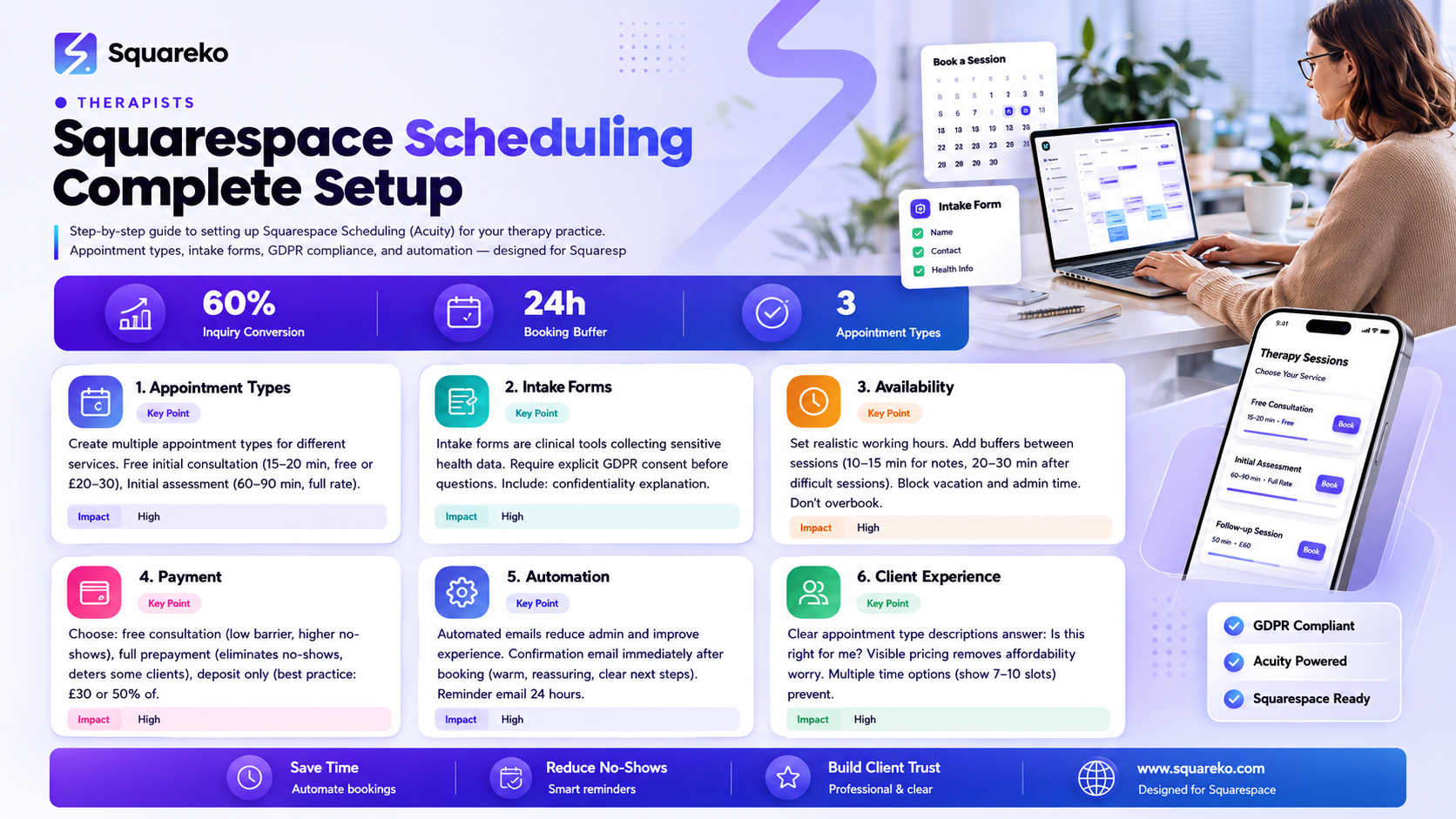
Squarespace Scheduling is a booking system integrated directly into your Squarespace website. It's powered by Acuity Scheduler, a professional scheduling tool trusted by thousands of service-based businesses, including many therapy practices.
Here's what Squarespace Scheduling does
Automates appointment booking — Clients can book directly from your website without emailing back and forth
Prevents double-booking — Once a time slot is booked, it's blocked for other clients
Collects client information — Intake forms gather contact details, health history, and GDPR consent before the first appointment
Manages your calendar — You set your availability, and clients see only open slots
Handles payments — You can require deposits, full prepayment, or collect payment after the session
Sends automated communications — Confirmation emails, reminders, and follow-ups happen without your intervention
Reduces no-shows — Automated reminders and confirmation requests drop no-show rates significantly
Integrates with your email and calendar — Syncs with Google Calendar, Outlook, and your email system
For a therapy practice, these features aren't luxuries—they're business essentials. You're billing by the hour. Time is your most valuable asset. A scheduling system that prevents double-booking, automates reminders, and reduces no-shows directly improves your bottom line and client experience.
Creating Appointment Types for Your Therapy Practice
Your therapy practice likely offers different types of appointments with different durations and pricing. Squarespace Scheduling lets you create multiple appointment types, each with its own rules, pricing, and duration.
Common appointment types for therapy practices:
Free or Low-Cost Initial Consultation
Duration: 15-20 minutes
Price: Free or £20-30
Purpose: Screen potential clients, assess fit, answer questions about your practice
Limit: Set to once per client (they can only book one free consultation)
Initial Assessment or Intake Session
Duration: 60-90 minutes
Price: Your full hourly rate or slightly higher (initial assessment is more thorough)
Purpose: Detailed intake, history-taking, treatment planning
Limit: Bookable once per client
Regular Therapy Session
Duration: 50-60 minutes
Price: Your standard hourly rate (e.g., £60-120 depending on location and experience)
Purpose: Weekly or bi-weekly ongoing therapy
Recurrence: Allow clients to book multiple sessions
Couples or Family Therapy
Duration: 60-90 minutes
Price: Your couples therapy rate (often higher than individual sessions)
Purpose: Sessions with two or more people
Special note: You might want to limit this to prevent overbooking
Specialist Sessions (EMDR, Trauma-Focused CBT, etc.)
Duration: 60-90 minutes
Price: Higher rate (specialist modalities often command premium pricing)
Purpose: Specific therapeutic modalities
Note: You might limit availability to certain days or times
To create an appointment type in Squarespace Scheduling:
Go to your Squarespace dashboard → Scheduling
Click "Appointment Types"
Click "Create Appointment Type"
Fill in the details:
Name (e.g., "Initial Assessment")
Description (e.g., "90-minute first session including intake interview and treatment planning")
Duration (set in minutes)
Price (you can charge, or leave free for consultations)
Calendar (assign to your therapy calendar)
Colour code (useful for visual calendar management)
Click "Create"
Advanced options to set:
Advance booking limits — "Clients can book up to 30 days in advance" prevents distant future bookings you can't track
Cancellation window — "Allow cancellations up to 24 hours before appointment" gives you notice to fill slots
Client limits — "Allow 1 per client" for consultations; leave unlimited for ongoing therapy
Deposit requirements — Set deposit amounts to reduce no-shows (e.g., require £30 deposit for a £80 session)
Questionnaire — Link to your intake form (see next section)
Create appointment types for every service you offer. The more specific and organised your appointment types, the easier it is for clients to book what they actually need and for you to manage your practice.
Designing Intake Forms and Collecting GDPR-Compliant Data
An intake form is the questionnaire clients complete before their first appointment. For a therapy practice, this is critical because you're collecting sensitive health information. GDPR compliance is not optional—it's a legal requirement.
Why intake forms matter:
Screen for contraindications — Some clients need specialist care or psychiatric support before starting therapy
Reduce session time — You've already collected history and basic information
Improve client outcomes — You enter the first session with context and can move directly to therapeutic work
Reduce liability — Documented intake forms protect you if issues arise
Build informed consent — Clients understand your confidentiality practices and what to expect
GDPR-compliant intake forms for therapy practices must include:
1. Consent to Data Collection
Before asking any health-related questions, you need explicit consent. GDPR considers health information "special category data," which requires stricter protection.
Add a consent statement like:
"I consent to Your Name collecting my health and personal information for the purposes of providing therapy. My information will be stored securely and will not be shared with anyone without my consent except in circumstances of risk of harm (as outlined in the confidentiality policy)."
With a checkbox the client must tick. Without this consent, you cannot legally collect the information.
2. Confidentiality and Limits
Explain clearly what is and isn't confidential:
"Our sessions are confidential and protected by law. However, I must break confidentiality if: (1) You disclose plans to harm yourself or others, (2) You disclose abuse of a child or vulnerable adult, (3) You're at serious risk, (4) A court orders me to disclose information. I will tell you if I need to break confidentiality and why."
This isn't burying bad news—it's transparency that builds trust. Therapy-seekers respect clear limits.
3. Basic Contact and Demographic Information
Full name
Date of birth
Contact phone and email
Address
Emergency contact name and phone
Insurance information (if relevant)
4. Mental Health and Medical History
Current presenting issue (why they're seeking therapy)
Relevant medical conditions
Current medications
Previous therapy or psychiatric treatment
Family mental health history
Substance use
Suicide or self-harm history
Framing matters. Instead of clinical questions, use warm language:
Rather than: "Have you experienced suicidal ideation?" Use: "Have you ever thought about hurting yourself? Please be honest—this helps me understand how to support you."
5. Therapeutic Preferences and Goals
What they hope to achieve in therapy
Any therapeutic approaches they prefer or want to avoid
Any trauma they want to disclose upfront
6. Accessibility and Comfort
Preferred pronouns
Any access needs (hearing loop, large text, etc.)
Preferred contact method
Availability preferences
GDPR best practices for your intake form:
Collect only what you need — Don't ask questions you won't use. Every question must serve a clinical purpose.
Explain why you're asking — "This helps me understand your background and tailor our work together."
Store securely — Use Squarespace's built-in form storage or a GDPR-compliant third-party service (not unencrypted emails or cloud drives)
Data retention — Decide how long you'll keep intake forms (typically until 6-7 years after therapy ends, per professional body guidelines)
Client access — Clients have the right to request a copy of their data. Be prepared to provide it.
Don't over-collect — Therapy-seekers are vulnerable when completing intake forms. Only ask what you genuinely need.
To create an intake form in Squarespace Scheduling:
Go to your Squarespace dashboard → Scheduling → Settings
Click "Custom Forms"
Click "Create Form"
Add fields (use Squarespace's template or build custom fields)
Add your consent statement at the top
Link this form to your appointment types (step back to "Appointment Types" and assign the form)
Your intake form is your first clinical tool. Make it warm, clear, and respectful of client vulnerability.
Setting Up Your Availability and Calendar Buffers
Your calendar is your practice. If you don't manage it carefully, you'll double-book, run behind, or burn out from back-to-back sessions. Squarespace Scheduling gives you precise control.
Setting your availability:
Go to Scheduling → Calendar
Click "Availability"
Set your working hours for each day (e.g., Monday 9 AM–5 PM, Tuesday off, etc.)
Clients see only these time slots as available
You can block off times (lunch, admin work, breaks) by creating "Busy" blocks
Why buffers matter:
A therapy session doesn't end the moment your client leaves. You need time to:
Write case notes (critical for clinical quality and legal protection)
Transition emotionally between clients (therapy is emotionally demanding)
Handle admin (confirmations, scheduling, follow-ups)
Take a breath before your next client
Set buffers between sessions:
Minimum 10-15 minutes between regular therapy sessions (for note-taking)
20-30 minutes between difficult sessions (trauma, high emotion) and your next appointment
30-60 minutes between intensive sessions (EMDR, trauma work, assessment)
In Squarespace Scheduling, set buffers by adjusting availability:
If your first client session is 2-3 PM (60 minutes) and you need a 15-minute buffer, mark your next available slot as 3:15 PM, not 3 PM.
Managing vacation and sick leave:
Go to Calendar → Availability
Click "Block Time"
Select the dates and mark as "Unavailable"
Clients cannot book during blocked time
Managing recurring availability (e.g., you only see clients Tuesdays and Thursdays):
Set your hours to show only Tuesday and Thursday availability. Clients won't see Wednesday slots as available.
Tips for calendar management:
Review monthly — Check your calendar at the start of each month. Are you overbooked? Overextended? Adjust.
Protect admin time — Block off 1-2 hours weekly for administrative work. Squarespace Scheduling can't run your practice if you never update it.
Plan capacity — If you see 15 clients a week at 50 minutes each with 15-minute buffers, that's roughly 18-20 hours of appointment time per week. Add admin (2 hours), clinical supervision (1 hour), CPD, and you're looking at a full-time practice. Don't overbuild.
Consider client patterns — Do your clients prefer evenings? Weekends? Set availability accordingly.
Your calendar is the backbone of your practice. Manage it with intention.
Payment and Deposit Configuration
One of the most powerful features of Squarespace Scheduling is the ability to collect payments upfront, reducing no-shows and cash flow problems.
Payment options:
No payment required (free consultations)
Ideal for initial consultations where you're screening clients
Reduces barrier to booking
But increases no-show rates (some people book free consultations with no intention to attend)
Full payment at booking
Client pays the full session fee when they book
Eliminates no-shows (they've already paid)
Better for package deals or courses
Potential downside: fewer bookings for clients worried about affordability
Deposit only
Client pays a deposit (e.g., 50% of session fee or a fixed amount like £30)
Reduces no-shows without full prepayment barrier
Best practice for most therapy practices
Example: £80 session, £30 deposit due at booking
Payment after session
Client pays nothing at booking; you collect payment after
Lowest barrier to booking
Highest no-show risk
Works better for established clients with history
To set up payments in Squarespace Scheduling:
Go to Settings → Payments
Choose your payment processor (Squarespace integrates with Stripe and Square)
For each appointment type, select:
Payment required? (None, Deposit, Full payment)
Amount (if deposit)
When payment is due (at booking, 24 hours before, etc.)
Set cancellation fees if desired (e.g., charge £30 if cancelled within 24 hours)
GDPR note on payment: Payment information is also personal data. Ensure your payment processor is GDPR-compliant (Stripe and Square are). Don't store credit card details yourself.
Pricing strategy for therapy:
Initial consultation: Free or £20-30 (low barrier to entry)
Initial assessment: £80-120 (longer session, more thorough)
Regular 50-60 min therapy: £60-150 depending on location, experience, and specialization
Couples or family therapy: 20-30% more than individual rates (more complex)
Specialist modalities (EMDR, trauma-focused): 15-25% premium
Group sessions: Less per person (e.g., £20-40)
Set deposits strategically:
Free consultations: No deposit (why screen out interested clients?)
Initial assessments: 50-100% deposit (investment signals seriousness)
Regular therapy: 50% deposit or fixed amount like £30 (reduces no-shows without full prepayment barrier)
Automated Confirmation and Reminder Emails
This is where Squarespace Scheduling saves you hours every month. Automated emails handle confirmations and reminders, reducing your admin workload and no-show rates.
Types of automated emails:
Immediate Confirmation Email (sent when client books)
Tone: Warm, reassuring, professional
Template:
"Thank you for booking with [Your Name]! Your appointment is confirmed:
Date: Thursday, 23 March 2026 Time: 2:00 PM Duration: 50 minutes Location: [Your address or "Online via Zoom"]
What to bring: ID, insurance card (if applicable), notepad optional
Cancellation: You can cancel or reschedule up to 24 hours before your appointment by clicking here: [link]
If you have any questions, reply to this email or call.
I look forward to meeting you.
Reminder Email (24 hours before)
Tone: Friendly, professional, clear
Template:
Friendly reminder: Your session with [Your Name] is tomorrow at 2:00 PM.
Location: [Address or Zoom link] Duration: 50 minutes
If you need to reschedule or cancel, please let us know as soon as possible: [link]
See you tomorrow!
Pre-Appointment Questionnaire Email (optional, 1-2 days before)
For ongoing clients, you might send a brief form:
Before our session on Thursday, I'd like to check in. How's been your week? Any specific issues you'd like to focus on?
Looking forward to our session.
Cancellation Confirmation Email (if client cancels)
Tone: Professional, matter-of-fact, keep the door open
Template:
Your appointment on 23 March at 2:00 PM has been cancelled. If you'd like to reschedule, you can book another time here:
If you'd like to discuss anything, feel free to get in touch.
To set up automated emails in Squarespace Scheduling:
Go to Settings → Email Notifications
For each email type (confirmation, reminder, cancellation), select:
When it should be sent (immediately, 24 hours before, etc.)
Whether it's enabled or disabled
Customise the template text
Review the preview and save
Email tone guidelines for therapy practices:
Professional but warm — You're not a dentist's office sending clinical reminders
Acknowledgment of vulnerability — "I know booking can feel scary. I'm here to support you."
Clear and scannable — Use bullet points, bold key information, short paragraphs
One call to action per email — Confirm the appointment, or reschedule, or reply—not multiple CTAs
Avoid medical jargon — "Session" not "therapeutic intervention," "chat" not "clinical consultation"
A well-designed email sequence reduces no-shows by 20-40% and improves client confidence before their first appointment.
Cancellation Policies and Client Communication
Your cancellation policy protects your practice. It sets expectations and manages liability.
Components of a clear cancellation policy:
Cancellation window (how much notice required)
"Cancellations and rescheduling with 24+ hours notice are free"
"Cancellations with less than 24 hours notice will be charged the full session fee"
"No-shows (failed to cancel or attend) will be charged the full session fee"
Why 24 hours? It's long enough to fill the slot with another client, but reasonable for genuine emergencies.
Rescheduling policy
"You can reschedule up to [X] times per year free of charge"
"After [X] free reschedulings, subsequent changes incur a £15 rescheduling fee"
This prevents chronic last-minute changes while allowing flexibility.
Exceptions for genuine crises
"In cases of genuine emergency or mental health crisis, we'll work out alternative arrangements"
This keeps the door open for real problems while maintaining boundaries.
To implement in Squarespace Scheduling:
Set cancellation policies at the appointment-type level (Settings → Appointment Types → [type] → Cancellation Policy)
Choose "Allow cancellations up to [X] hours before"
Optionally set a cancellation fee
Clearly state your policy in your intake form and on your booking page
Communicating your policy:
On your booking page — Display your cancellation policy prominently: "Cancellations with 24+ hours notice are free. Less notice incurs the full session fee."
In your confirmation email — Include the policy
In your client handbook (if you have one) — Reference it
On your website's "FAQ" or "Policies" page — Make it easily findable
No-show management:
Despite clear policies and reminders, some clients won't show up. Squarespace Scheduling can:
Mark clients as no-show (so you know not to expect them)
Charge the no-show fee (if set)
Automatically send a no-show email with the option to reschedule
Best practice: After a no-show, reach out warmly. Don't assume the worst. A simple message—"I noticed you missed your appointment on Thursday. Is everything okay? I'm here if you need support"—often reconnects clients who are struggling with shame or ambivalence.
Integrating Google Calendar and Calendar Sync
Most therapists use Google Calendar to manage their life. Squarespace Scheduling can sync automatically so you're not managing two calendars.
Why sync matters:
Single source of truth — Your Google Calendar shows all bookings (therapy, admin, personal)
No double-booking — If you block time for admin in Google Calendar, it shows as unavailable in Squarespace Scheduling
Reminders and notifications — You get Google Calendar notifications for upcoming sessions
Flexibility — You can manage your availability from either system
To sync Squarespace Scheduling with Google Calendar:
Go to Squarespace Scheduling → Settings → Calendar
Click "Connect Google Calendar"
Authorise Squarespace to access your Google Calendar
Choose which calendar to sync (you can have separate calendars for different appointment types)
Squarespace will automatically add bookings to your Google Calendar
Best practice:
Use one Google Calendar for all therapy sessions (so clients can't see your personal calendar)
Create separate calendars in Squarespace for different appointment types if needed (individual, couples, assessments) so you can colour-code
Set buffer time in Google Calendar directly (create 15-minute "admin" blocks between sessions)
Optimising Your Client Booking Experience
Squarespace Scheduling's interface is where your potential clients actually book. Even perfect setup fails if the booking process is confusing.
Optimisation checklist:
1. Clear appointment type descriptions
Rather than: "50 min session" Use: "Individual therapy session (50 minutes) – ongoing weekly appointments to work toward your goals"
This answers the question: "Is this the right appointment for me?"
2. Visible pricing
Show the price prominently. Therapy-seekers worry about affordability. Hiding the price increases friction.
3. Deposit transparency
If you require a deposit, state it clearly: "£30 deposit due at booking (applied to session fee)"
4. Easy rescheduling
A client should be able to reschedule in one click without emailing you. Squarespace Scheduling allows self-service rescheduling if you enable it.
5. Multiple time options
Show at least 7-10 available slots. If you only show 1-2 options, clients feel rushed.
6. Clear next steps
After booking, clients should know exactly what happens next:
"Check your email for confirmation"
"You'll receive a reminder 24 hours before"
"Reply to this email with any questions"
7. Accessibility
Is your booking widget mobile-friendly? (Most clients book on phones)
Are form fields easy to read? (Therapy-seekers are often anxious; small text adds stress)
Can clients book without creating an account?
To optimise in Squarespace:
Go to your Squarespace website
Find the page with your booking widget (usually "Book" or "Appointments")
Review the appearance on mobile (resize your browser)
Test the booking flow end-to-end as a client would
Make adjustments to appointment type descriptions, layout, etc.
Mid-Post CTA
Ready to streamline your therapy practice bookings?
Setting up Squarespace Scheduling correctly takes time, but the payoff is enormous: fewer no-shows, less admin work, more time for actual therapy. The problem is that many therapists set it up once and then don't optimise it. Your appointment types might not match how clients actually book. Your intake form might be collecting too much data (and scaring clients off). Your email reminders might be too clinical or too casual.
That's where Squareko comes in. We specialise in configuring Squarespace booking systems specifically for therapy practices, with attention to GDPR compliance, client experience, and business operations. We handle the technical setup, the copywriting for your intake forms and confirmation emails, and the optimisation that actually converts browsers into booked sessions.
Whether you're starting from scratch or fixing a booking system that isn't working, a consultation with our team can clarify the best setup for your practice. We understand the unique needs of therapists: GDPR sensitivity, professional standards, client anxiety, and the fact that your time is your money.
Frequently Asked Questions
-
You have two options: migrate your existing Acuity account to Squarespace Scheduling (they share the same backend), or keep them separate. We recommend migrating to Squarespace Scheduling for simplicity and better integration with your website. Contact Acuity support to discuss migration options.
-
A deposit is a percentage of the session fee (e.g., 50%) or a fixed amount (e.g., £30). Full prepayment is the entire session cost charged upfront. Deposits reduce no-shows while keeping barriers to booking lower. Full prepayment eliminates no-shows entirely but can deter price-sensitive clients.
-
Yes. In Squarespace Scheduling, you can enable "Allow clients to reschedule" which lets them change their appointment time without emailing you. This reduces your admin workload. You can set limits (e.g., "up to 24 hours before") to prevent last-minute chaos.
-
Include explicit consent language before asking for health data. Clearly explain what data you're collecting, why, and how you'll store it. Set a data retention policy (how long you keep forms after therapy ends). Use a GDPR-compliant storage method (Squarespace's built-in form storage is secure). Only ask questions you'll actually use clinically.
-
Yes. You can create multiple custom forms and assign each to different appointment types. For example, free consultations might have a simple form (name, email, presenting issue), while initial assessments might have a detailed form (full medical history, medications, trauma history).
-
You can track cancellation patterns in your Squarespace dashboard. If a client chronically cancels, you might set a policy: "After three cancellations, future bookings require full prepayment" or require them to book fewer sessions at once. This protects your schedule without being punitive.
-
Squarespace Scheduling can be set to your local timezone. When clients book, the system shows their local time and your local time so there's no confusion. For international clients, confirm timezone in your confirmation email: "Your session is 2 PM GMT / 9 AM EST on Thursday 23 March."
-
Not directly through the appointment-type pricing, but you can create custom packages outside the system (e.g., "6-session package: £480 instead of £540, save £60") and collect payment through Squarespace Payments or a separate invoice. Alternatively, create a separate Squarespace product for "therapy packages" and link from your booking page.
Master Your Therapy Practice Scheduling
Your Squarespace Scheduling system is the operational backbone of your practice. When it's set up right—with clear appointment types, GDPR-compliant intake forms, intelligent buffers, and warm automated communication—it works for you 24/7. Clients book with confidence. You reduce admin burden. No-shows drop. Your practice runs like clockwork.
But if it's set up wrong, it creates friction: clients can't find the right appointment, your intake form asks too much, your reminder emails feel clinical, your cancellation policy creates anxiety. Every friction point is a lost booking.
If you're ready to set up Squarespace Scheduling properly—or fix a system that isn't working—Squareko specialises in getting it right. From appointment type strategy to intake form GDPR compliance to email optimisation, we handle the complete setup so you can focus on client care.

From custom website design to SEO strategy, we help businesses launch a site that looks professional and performs better.

About the Author
Walid | squareko
I'm Walid Hasan, a Certified Squarespace Expert and Squarespace Circle Platinum Partner with over 12 years of hands-on experience designing and optimizing high-performing websites. Over the years, I've had the privilege of building more than 2,000 Squarespace websites for clients around the world, always focusing on clean design, strong user experience, and conversion-driven results.
