
How to Set Up a Squarespace Online Store for Your Beauty or Fashion Business
Introduction
Launching an online store for your beauty or fashion business requires the right platform and proper configuration. A Squarespace online store provides an elegant, mobile-responsive solution that doesn't demand coding expertise. Whether you're selling skincare products, makeup, clothing, or accessories, Squarespace offers the tools you need to create a professional retail presence without the technical headaches.
This guide walks you through every step of setting up your Squarespace online store, from choosing your domain to configuring international shipping. We'll cover product import, payment processing, and SEO optimisation to ensure your store is ready for customers from day one. If you're looking for hands-on support, Squareko.com specialises in helping beauty and fashion brands launch on Squarespace with custom design and strategic setup.
Key Takeaways How to Set Up a Squarespace Online Store for Your Beauty or Fashion Business
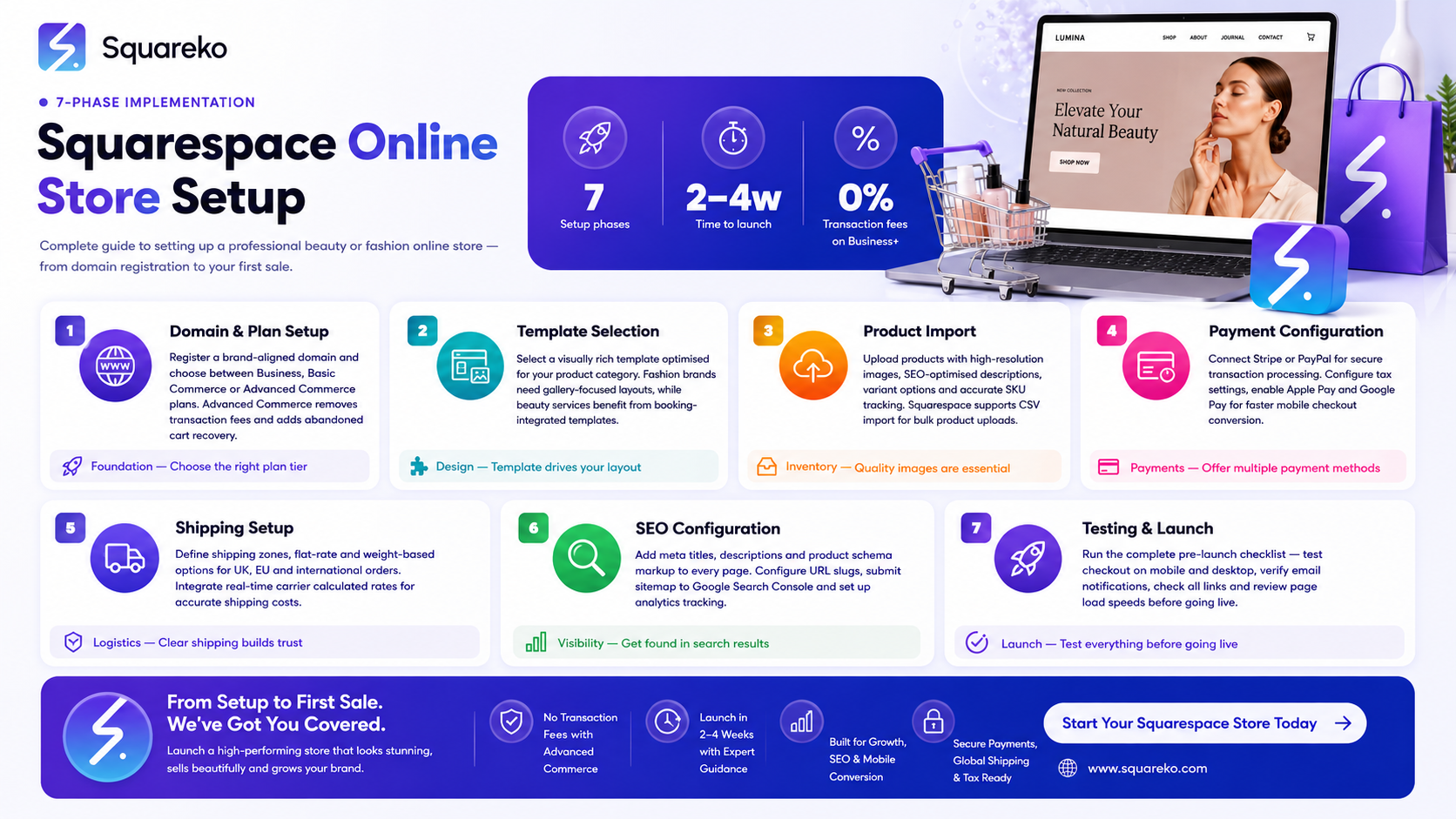
Start with the right plan: Choose Squarespace Commerce or higher to access full eCommerce features needed for product sales
Select a mobile-responsive template: Beauty and fashion benefit from visually rich templates with high-quality image galleries
Import products systematically: Organise your product catalogue with SKUs, variants, and descriptions before importing
Configure payments properly: Set up Stripe, PayPal, or other payment gateways with PCI compliance built in
Handle shipping strategically: Define clear shipping zones, rates, and policies for UK, US, and international orders
Optimise for search engines: Use structured data, product descriptions, and clean URLs to improve visibility
Test thoroughly before launch: Run through checkout processes, verify inventory settings, and check mobile responsiveness
Phase 1: Domain and Squarespace Plan Setup
Your domain name is the first impression customers have of your business. For beauty and fashion brands, choose a domain that's memorable, on-brand, and easy to spell. If your business name is already taken, consider adding descriptive terms like "official", "shop", or your location.
Once you've secured your domain, you'll need to select the correct Squarespace plan. Squarespace offers several tiers, but for eCommerce, you must use Squarespace Commerce or Commerce Advanced. The Commerce plan includes:
Unlimited products
Built-in payment processing through Stripe and PayPal
Inventory tracking and management
Shipping configuration tools
Cart abandonment email recovery
Basic SEO tools and structured data
To set up your store plan:
Log into your Squarespace account or create a new one
Go to Settings → Plan → Commerce Plans
Select Commerce ($23/month) or Commerce Advanced ($65/month)
Complete billing information and confirm your subscription
The difference between plans lies in advanced features. Commerce Advanced includes abandoned cart recovery email automation, gift card functionality, and customer account features. For most beauty and fashion businesses starting out, the standard Commerce plan provides sufficient features.
Connect your domain through Squarespace's domain management or by pointing your existing domain's nameservers. This process takes 24–48 hours to fully propagate.
Phase 2: Template Selection for Beauty and Fashion
Squarespace offers templates specifically designed for retail, beauty, and fashion brands. Your template choice directly impacts customer perception and conversion rates.
What to look for in a beauty or fashion template:
Large, high-quality image galleries: Your products need to shine with professional photography
Product zoom functionality: Customers want close-up views of textures, colours, and details
Colour filters and customisation: Match your brand identity, especially with your #E91E8C hot pink brand colour
Fast loading times: Image-heavy stores need optimised templates
Mobile responsiveness: At least 60–70% of fashion and beauty traffic comes from mobile devices
Clear category navigation: Help customers find products by type, price, or collection
Recommended Squarespace templates for beauty and fashion:
Cove: Modern, minimal design with strong focus on product imagery
Fable: Sophisticated layout with excellent category organisation
Jasmine: Fashion-forward aesthetic with bold typography
Brine: Flexible grid system perfect for varied product photography
Nord: Clean, Scandinavian-inspired design with strong typography
To choose and apply a template:
Go to Design → Templates
Filter by "Shop" category
Preview templates with your products in mind
Click Choose This Design on your selected template
Customise colours, fonts, and layout through Design → Styles
Apply your brand colour (#E91E8C) to buttons, links, and key design elements. Ensure sufficient contrast for accessibility—test that text remains readable against your brand colour.
Phase 3: Product Import and Catalogue Setup
A well-organised product catalogue is the foundation of a successful online store. Before uploading products, plan your structure: categories, subcategories, and product variants (sizes, colours, scents).
Prepare your product information:
Create a spreadsheet with these fields:
Product name
Description (500–800 words for SEO)
Price (including any tax considerations)
Variant options (size, colour, scent, etc.)
SKU (stock keeping unit for inventory tracking)
Quantity in stock
Product images (at least 3–5 per product, high resolution)
Category assignment
Weight and dimensions (for shipping calculation)
URL slug (custom product page URLs)
To add products to your Squarespace store:
Go to Commerce → Products
Click Add a Product
Enter product name, description, and price
Upload 3–5 high-quality images (at least 1000×1000 pixels recommended)
Add product variants (e.g., sizes S, M, L or colours available)
Set inventory quantities per variant
Assign to relevant categories
Add product URL slug for SEO
Click Publish to make live
For bulk imports: If you have hundreds of products, use Squarespace's CSV import feature:
Navigate to Commerce → Products → Bulk Actions
Select Import Products
Download the template CSV file
Fill in your product data following the exact format
Upload the completed CSV
Review and confirm the import
Product description best practices:
Write product descriptions with SEO and conversions in mind. Include keywords naturally (e.g., "organic rose hip oil serum" rather than forcing "rose hip oil" repeatedly). Highlight benefits, ingredients, usage instructions, and sizing guidance. For fashion items, specify fabric content, care instructions, and fit (e.g., "runs small, size up").
Phase 4: Payment Processing Configuration
Your customers need secure, convenient payment options. Squarespace simplifies payment setup by integrating directly with Stripe and PayPal.
Setting up Stripe:
Stripe is Squarespace's default payment processor and is recommended for UK-based beauty and fashion businesses.
Go to Settings → Payment Processing → Stripe
Click Set Up Stripe Account (or connect existing account)
Provide business information, banking details, and identification
Accept the Stripe Service Agreement
Stripe reviews and approves your account (usually within 24 hours)
Once approved, Stripe appears as a payment option in your store
Stripe charges 1.4% + £0.20 per transaction for Squarespace Commerce stores. No hidden fees.
Adding PayPal:
Many customers prefer PayPal checkout, especially for international purchases.
Go to Settings → Payment Processing → PayPal
Click Connect PayPal Account
Log in with your PayPal Business account (create one if needed)
Authorise the Squarespace integration
PayPal charges 3.4% + £0.20 per transaction
Additional payment options:
You can also enable:
Apple Pay and Google Pay: One-click payments from mobile devices
Klarna: Buy now, pay later option popular in fashion retail
Square: Alternative payment processor (requires Square account)
To add these, visit Settings → Payment Processing and toggle on each option.
PCI Compliance:
Squarespace is PCI DSS Level 1 compliant, meaning your customers' payment information is encrypted and secure. You never handle raw payment card data—Squarespace's infrastructure protects customer information.
Phase 5: Shipping Configuration and International Logistics
Shipping configuration is critical for beauty and fashion businesses, especially those selling internationally. Clear, accurate shipping costs prevent cart abandonment and customer complaints.
Define your shipping zones:
Go to Settings → Shipping
Click Add Shipping Zone
Choose United Kingdom, United States, Europe, or Rest of World
Define shipping rates for each zone
Set up shipping methods:
For each zone, create multiple shipping options:
Standard Shipping: 5–7 business days
Express Shipping: 2–3 business days
Overnight Shipping: 1 business day
International Standard: 10–21 business days (typical for beauty)
Calculate shipping costs:
Flat rate: Fixed cost per zone (simple, best for small parcels)
Weight-based: Cost increases with parcel weight (accurate for heavier items)
Order total-based: Shipping cost tied to order value (encourages larger purchases)
Beauty and fashion items often work best with weight-based or flat-rate shipping. Set accurate product weights during product setup so Squarespace can calculate shipping automatically at checkout.
International considerations:
VAT/Customs: Squarespace calculates VAT for EU customers automatically post-Brexit
Shipping label integration: Squarespace integrates with Royal Mail, Hermes, and UPS for label printing
Restricted items: Some beauty products (perfumes, certain ingredients) face restrictions; clearly communicate which items ship where
Handling time: Factor 1–2 business days before dispatch in your shipping descriptions
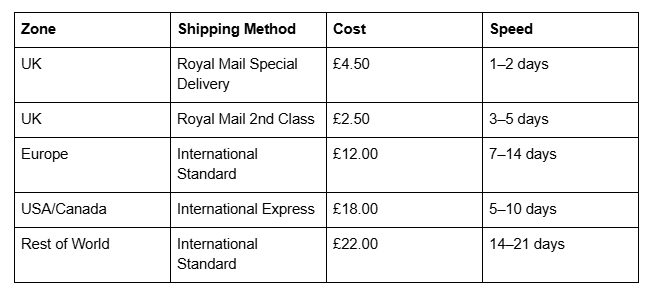
Example shipping configuration for a UK beauty brand:
Phase 6: SEO Configuration and Optimisation
Search engine visibility drives organic traffic to your beauty and fashion store. Squarespace provides built-in SEO tools, but you must configure them properly.
Optimise product pages for search:
Each product page should target relevant keywords. For example, a product page for "organic rose hip face serum" should include:
Product title: "Organic Rose Hip Face Serum – Cold-Pressed, Vitamin A Rich"
Product description: 600–800 words covering benefits, ingredients, application, and testimonials
Alt text on images: "Organic rose hip serum in amber glass bottle"
URL slug: /rose-hip-face-serum (not /product-001)
Meta description: "Restore radiance with our organic rose hip serum. Cold-pressed, vegan, and cruelty-free. Shop now and get free UK shipping."
Configure category page SEO:
Go to Commerce → Categories
Select a category (e.g., "Serums & Oils")
Add SEO Title: "Serums & Oils | [Your Brand Name]"
Add Meta Description: "Discover our range of luxury serums and oils for glowing skin. Organic, vegan, and clinically tested."
Write a Category Description (200–300 words) explaining the product range and its benefits
Add FAQ Schema structured data:
Squarespace allows you to add custom code blocks. Add this JSON-LD schema to your product pages to improve SERP appearance:
{
 "@context": "https://schema.org",
   "@type": "FAQPage",
  "mainEntity": [
   {
       "@type": "Question",
        "name": "Is this serum suitable for sensitive skin?",
    "acceptedAnswer":
  {"@type": "Answer",
     "text": "Yes, our rose hip serum is formulated for all skin types, including sensitive skin. It contains no synthetic fragrances or harsh chemicals."
    }
  }
 ]
}
Set up XML sitemap and robots.txt:
Squarespace automatically generates these files. Check that they're accessible:
Sitemap: yoursite.com/sitemap.xml
Robots.txt: yoursite.com/robots.txt
Enable internal linking:
Link related products and categories within your product descriptions. For example, on a "Foundation Primer" product page, link to "Full Face Primers" category and "Foundation" products.
Mobile optimisation:
Test your store on mobile devices using Google Mobile-Friendly Test. Squarespace templates are responsive by default, but verify that product images, checkout, and navigation work smoothly on phones.
Phase 7: Pre-Launch Checklist and Testing
Before opening your store to customers, run through a comprehensive pre-launch checklist. This prevents embarrassing errors and ensures a smooth customer experience.
Squarespace Store Launch Checklist
✓ Store Configuration
Domain connected and DNS propagated
Squarespace Commerce plan activated
Template selected and brand colours applied (#E91E8C implemented)
Logo and favicon uploaded
Store name and description added
✓ Products & Inventory
All products added with descriptions (500–800 words each)
Product images uploaded (minimum 3–5 per product, 1000×1000px)
Variants configured (sizes, colours, etc.)
SKUs assigned and inventory quantities set
Categories and subcategories organised
URL slugs customised for SEO
✓ Payment Processing
Stripe account connected and approved
PayPal account connected (optional but recommended)
Test transactions completed in sandbox mode
Receipt emails verified
Currency set correctly (GBP for UK stores)
✓ Shipping & Logistics
Shipping zones defined (UK, EU, US, Rest of World)
Shipping rates configured per zone
Product weights entered for accurate calculations
Shipping label integration set up (Royal Mail, Hermes, UPS)
VAT configured (auto-calculated for non-UK EU customers)
✓ SEO & Visibility
Meta titles written for home, category, and key product pages (50–60 characters)
Meta descriptions written (150–160 characters)
Product URL slugs customised
H1, H2, H3 hierarchy implemented
FAQ schema added (for product pages)
Sitemap submitted to Google Search Console
Google Analytics 4 connected
✓ Legal & Trust
Privacy Policy page created
Terms and Conditions page created
Returns and Refunds policy published
Cookie consent banner configured
About Us page filled with brand story
Contact page with email/form active
✓ Email & Customer Service
Order confirmation emails customised
Shipping notification emails set up
Customer service email address verified
Abandoned cart recovery emails enabled
Marketing email opt-in configured
✓ Testing & Quality Assurance
Complete checkout process tested (test payment, shipping, confirmation)
Mobile responsiveness verified on iPhone and Android
Forms tested (newsletter signup, contact form)
Links checked for broken URLs
Image loading tested on slow connection
Browser compatibility checked (Chrome, Safari, Firefox, Edge)
Coupon/discount codes tested (if applicable)
Common Mistakes to Avoid
1. Poor product photography
Beauty and fashion rely heavily on visual appeal. Invest in professional photography. Bad lighting, blurry images, or inconsistent styling hurt conversions. Use a consistent background (white, light grey, or your branded style), natural lighting, and multiple angles showing product details.
2. Thin product descriptions
One-sentence descriptions don't convert. Write 500–800 word descriptions covering benefits, ingredients, application, results, and customer testimonials. Include keywords naturally for SEO without stuffing.
3. Ignoring mobile optimisation
Over 65% of fashion and beauty traffic comes from mobile. Squarespace templates are responsive, but test your store on real devices. Ensure buttons are large enough to tap, images load quickly, and checkout is simplified.
4. Inconsistent shipping information
Hidden shipping costs at checkout cause cart abandonment. Display shipping costs upfront, clearly state processing times, and update customers proactively about order status.
5. Not optimising for search
Many new online stores neglect SEO. Write meta titles, create unique descriptions, use descriptive URL slugs, and build internal links. These fundamentals drive organic traffic without paid advertising.
6. Forgetting legal pages
Privacy Policy, Terms and Conditions, and Returns Policy aren't optional. They protect your business legally and build customer trust. Squarespace provides templates—customise them for your specific business.
7. Weak password and account security
Use a strong password (16+ characters, mix of upper/lowercase, numbers, symbols) for your Squarespace account. Enable two-factor authentication. Your store contains payment data and sensitive customer information.
8. Not testing checkout
Complete several test purchases before launch, using different payment methods (Stripe card, PayPal). Verify confirmation emails arrive, orders appear in your backend, and shipping calculations are correct.
-
A basic store with 20–50 products takes 2–4 weeks if you're working independently. This includes domain setup, template customisation, product photography and descriptions, and payment/shipping configuration. Complex stores with 500+ SKUs or custom integrations may take 6–12 weeks. Squareko.com typically launches beauty and fashion stores in 3–6 weeks, depending on scope and your preparation.
-
Yes. Squarespace Commerce supports both physical and digital products. Configure physical products with shipping, weight, and inventory as normal. For digital products (e-books, presets, tutorials), upload the file to Squarespace and set the product as "Digital." Customers receive a download link immediately after purchase. Shipping options are automatically hidden for digital products, so your checkout remains clean.
-
Squarespace itself doesn't charge transaction fees. However, your payment processor does. Stripe charges 1.4% + £0.20 per transaction; PayPal charges 3.4% + £0.20 per transaction (UK rates). These fees cover payment processing, fraud protection, and PCI compliance. There are no hidden fees or setup charges. You pay only when you make a sale.
-
Yes, but with caveats. You can switch templates at any time, but custom CSS, spacing adjustments, or third-party integrations may break. Product data (descriptions, images, pricing) remains intact. For extensive design changes, Squareko.com recommends testing the new template on a staging site first before applying to your live store.
-
Squarespace stores can accept payments in multiple currencies. Go to Settings → Payments → Multi-Currency Checkout to enable this. Customers see prices in their local currency, and you receive payments in your primary currency (GBP). Stripe or PayPal handles the conversion at market rates. Note: You're responsible for communicating any currency fluctuation impact in your terms.
-
Commerce (£23/month) includes unlimited products, payment processing, inventory management, and basic SEO. Commerce Advanced (£65/month) adds abandoned cart recovery email automation, customer accounts, gift cards, and priority support. Most beauty and fashion startups succeed with the standard Commerce plan; upgrade to Advanced as you grow and want to recover more lost sales through automated emails.
-
Yes. Squarespace integrates with Instagram, Facebook, and TikTok. You can add a "Shop" button to Instagram profiles, pin products in Facebook catalogs, and link TikTok videos directly to product pages. Go to Settings → Connected Accounts to set up these integrations. This is especially powerful for fashion and beauty brands with strong social followings.
-
Squarespace stores track inventory within the platform, but don't automatically sync with external systems. Use tools like Zapier or Make to sync Squarespace inventory with your accounting software, e-commerce aggregators, or warehouse management systems. Alternatively, manually update inventory levels daily to avoid overselling.
Ready to Build Your Beauty or Fashion Website on Squarespace?
Setting up a Squarespace online store is straightforward when you follow this step-by-step approach. From domain setup through pre-launch testing, each phase builds toward a professional, conversion-ready store. The platform handles the technical heavy lifting—payment security, mobile responsiveness, and SEO fundamentals—so you can focus on what matters: beautiful product presentation and excellent customer service.
However, many beauty and fashion entrepreneurs find that custom design, strategic optimisation, and professional product photography make the difference between a good store and a great one. If you'd like expert guidance tailoring your Squarespace store to your brand, or if you need professional setup and custom design, Squareko.com specialises in launching beauty and fashion brands with strategic approach and attention to detail. We handle template selection, product import, payment integration, and SEO optimisation—so you can launch with confidence. Get in touch with our Squarespace specialists today to discuss your vision.

From custom website design to SEO strategy, we help businesses launch a site that looks professional and performs better.

Written by the Squareko Team | Squarespace Web Design Specialists | squareko
I'm Walid Hasan, a Certified Squarespace Expert and Squarespace Circle Platinum Partner with over 12 years of hands-on experience designing and optimizing high-performing websites. Over the years, I've had the privilege of building more than 2,000 Squarespace websites for clients around the world, always focusing on clean design, strong user experience, and conversion-driven results.
