
How to Sell Digital Templates, Tools and Assets on Squarespace
Preparing Your Digital Products for Sale
Before uploading a single file to Squarespace, your digital products need to be properly prepared, organized, and documented.
Product Quality Standards
Your digital products should meet professional standards:
For design templates:
Created in industry-standard software (Figma, Adobe Creative Suite, Canva)
Tested to ensure all elements function correctly
Organized in clearly labeled layers or components
Include instructions or a ReadMe file explaining usage
Free from spelling errors, broken links, or placeholder text
For code snippets and tools:
Tested in the environments where they'll be used
Documented with implementation instructions
Include variable explanations or configuration guides
Free from deprecated code or outdated syntax
Virus-scanned if providing executable files
For design assets (icons, graphics, fonts):
Created in vector format for scalability (SVG, AI, or EPS)
Tested at multiple sizes to ensure quality
Properly named and organized in logical folders
Include font files in standard formats (OTF, TTF, WOFF for web)
License documentation for any third-party components
For document templates:
Tested in the intended software version and operating systems
All formulas and automation working correctly
Instructions included for customization
No linked external files or dependencies
Clean, professional formatting
File Format and Delivery Decisions
Decide what format customers will receive:
Format 1: Pre-packaged ZIP files
Most common and simplest for creators
Customers download one file containing all assets
Easy to organize and compress
Squarespace handles delivery automatically
Format 2: Individual file download
Available when customer wants to download specific components
Useful for large bundles where customers want flexibility
Requires more complex account dashboard setup
Better for software/code products with frequent updates
Format 3: Cloud folder access (Google Drive, Dropbox)
Useful for very large files or frequent updates
Customer gets access link rather than download
Allows you to update files without redelivering
More complex to manage customer access
For most template and asset creators, the ZIP file approach is ideal. It's simple, customer expectations are clear, and Squarespace's file delivery system handles it automatically.
Key Takeaways How to Sell Digital Templates, Tools and Assets on Squarespace
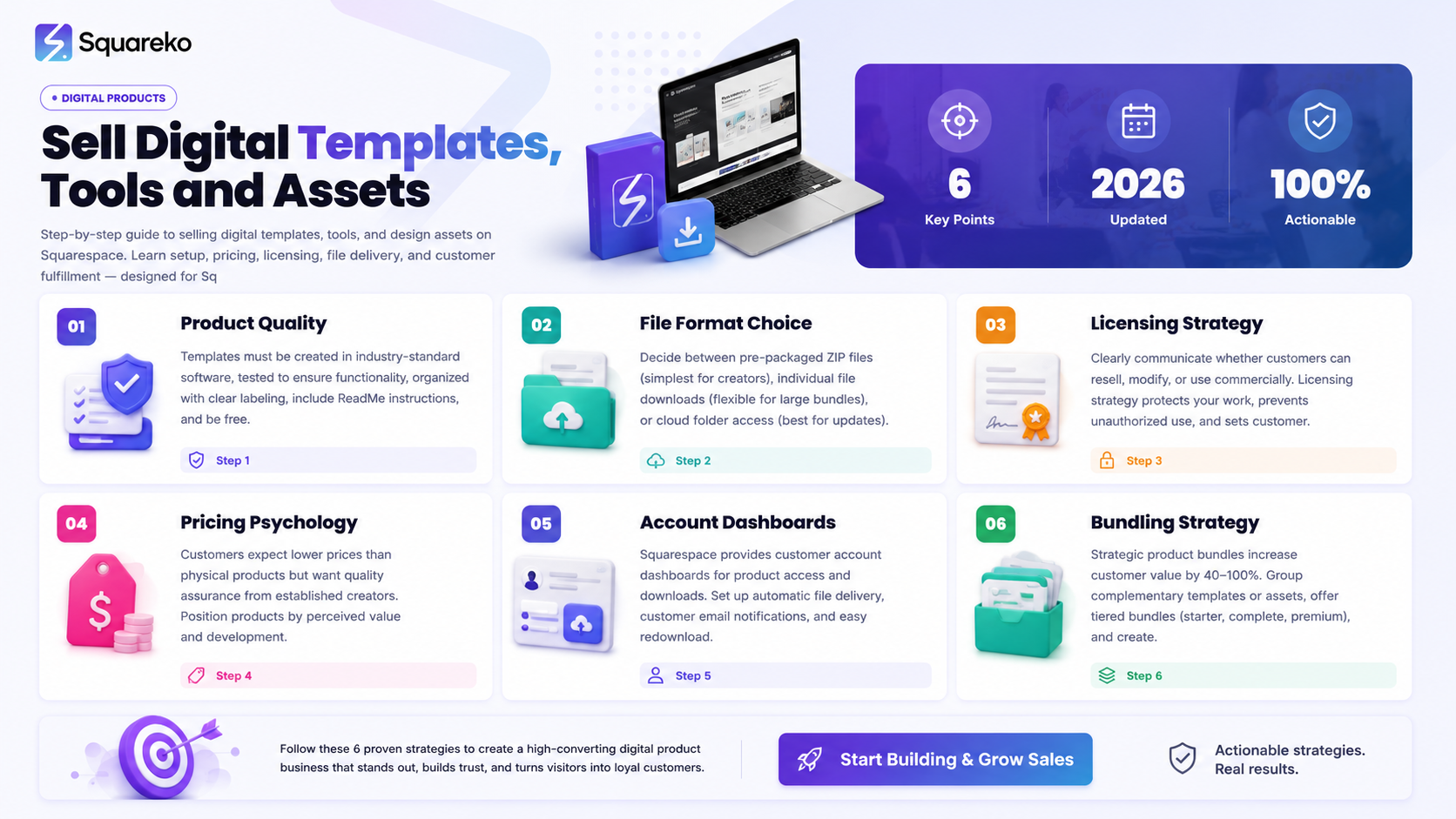
Squarespace Commerce is purpose-built for digital product delivery — automatic file delivery, customer dashboards, and no inventory management required make it ideal for templates and assets
Licensing strategy protects your work and prevents unauthorized commercial use — clearly communicate whether customers can resell, modify, or use commercially
Pricing psychology differs for digital assets — customers expect lower prices than physical products but want quality assurance from established creators
File organization and delivery systems prevent support headaches — well-labeled files and clear delivery instructions reduce customer confusion and support tickets
Product bundling increases average customer value — strategic bundles of complementary templates or assets increase revenue per customer by 40-100%
Creating Product Documentation
Include with every digital product:
Installation/Implementation guide:
Step-by-step instructions for using the product
Minimum software requirements and versions
Operating system compatibility
Troubleshooting common issues
File structure explanation:
What each folder or file contains
Which files are essential vs. optional
Recommended organizational method
Any files customers should not modify
Customization guide:
How to modify colors, fonts, or content
Where to find customization options
How to maintain functionality while customizing
Common customization mistakes to avoid
Support contact information:
Email for questions or issues
Expected response time
What support covers (setup help, customization advice)
What's outside support scope (custom work, free modifications)
Setting Up Squarespace Commerce for Digital Products
Setting up Squarespace Commerce for digital product sales is straightforward, but a few specific configurations optimize for digital product success.
Step-by-Step Squarespace Commerce Setup
Step 1: Enable Commerce
Log into Squarespace
Go to Settings > Commerce
Choose Squarespace Commerce (not third-party integrations)
Enable commerce features
Configure currency and timezone
Step 2: Set Up Payment Processing
Go to Settings > Commerce > Payment Methods
Add Stripe as your primary payment processor
Add PayPal (approximately 15% of digital product buyers prefer PayPal)
Test payment processing with a test transaction
Step 3: Configure Digital Product Delivery
Go to Settings > Commerce > Digital Products
Select Email download link for file delivery method
Set download link expiration to 90 days (balances security and access)
Choose file hosting (Squarespace-hosted or external)
Step 4: Customize Checkout Fields
Go to Settings > Commerce > Checkout
Remove unnecessary fields for digital products:
Remove address requirement
Make phone optional
Keep email required (essential for file delivery)
Remove tax calculation (if not required by law in your location)
Step 5: Create Tax Settings (if applicable)
Go to Settings > Commerce > Tax
Configure based on your location and customer locations
Digital services taxation is complex; consult a tax professional if needed
Step 6: Set Up Email Notifications
Go to Settings > Commerce > Email Notifications
Customize purchase confirmation email (this goes to customers with download link)
Customize receipt email (for your records)
Include your support contact information in customer emails
Product Uploads and File Organization
How you upload and organize files in Squarespace determines the customer experience and your ability to manage products efficiently.
Preparing Files for Upload
File size considerations:
Maximum single file size: 2GB on Squarespace
Recommended maximum: 500MB (easier for customers to download)
ZIP files compress multiple files efficiently
File naming conventions:
Use clear, professional names (no special characters)
Include version numbers if you anticipate updates
Avoid generic names like template1.zip
Good: Premium-Email-Templates-v2-Collection.zip
Poor: Files.zip
Creating Product Collections and Organization
Organize your products into logical collections that match customer thinking:
Organization by product type:
Email Templates
Website Templates
Presentation Templates
Design Assets
Organization by use case:
Ecommerce Product Pages
Email Marketing Sequences
Sales Presentations
Social Media Content
Organization by skill level:
Beginner Templates
Intermediate Templates
Advanced Templates
Use Squarespace's Collections feature to create these organizational structures. Each collection helps customers find relevant products and can be linked from your site navigation.
Individual Product Setup
For each product you're selling:
Create product entry
Title: Clear, benefit-focused, keyword-rich
Description: 500+ words with product details (see Product Pages section)
Upload product file(s)
Click Digital Product option
Select file to upload
Squarespace uploads and hosts the file
Add product images
Main product image: Shows thumbnail in product lists
Gallery images: Multiple angles, close-ups, use cases
Use professional graphics or screenshots
Set product metadata
Product type (digital download)
Collection assignment
Search terms for internal search
Version Control and Updates
If you update a digital product, handle it strategically:
Option 1: Overwrite existing file
Simplest approach
Existing customers automatically get latest version if they re-download
Useful for minor updates and bug fixes
Option 2: Create version variant
In Squarespace, set up product variants (Templates v1.0 and Templates v2.0)
Customers know which version they bought
Allows you to retire old versions while supporting existing customers
Option 3: Create separate product
List updated version as new product
Existing customers keep original; new customers get latest
Allows you to charge for major upgrades
For most digital products, overwriting the file with updates is simplest and customers expect you to continuously improve products.
Pricing Your Digital Templates and Assets
Digital product pricing psychology is different from physical product pricing.
Pricing Psychology for Digital Products
Customers expect digital products to cost less than physical products because:
No production costs per unit
No shipping or packaging
Unlimited duplication at no cost
However, customers also recognize that good digital products required significant creation time.
Pricing Strategy by Product Type
Single templates (not bundled):
Email template: $15-35
Website section template: $25-50
Presentation template: $20-45
Design asset set (50-100 icons): $19-39
Template bundles:
5-10 templates in a collection: $39-79
20+ templates in comprehensive bundle: $79-199
Complete template systems for a use case: $99-299
Design asset libraries:
Icon sets (200-500 icons): $29-59
Font collections: $39-79
Graphics/illustration libraries: $49-99
Complete design system (templates + assets): $99-299
Digital tools and software:
Spreadsheet/calculator tools: $15-49
Lead magnets or simplified versions: Free to $19
Premium software access: $29-99+
Code and technical assets:
Code snippet collections: $19-49
Plugin or code library: $39-99
API integration examples: $29-69
Pricing Psychology Principles
Price anchoring: Show a regular price higher than your sale price. This anchors customer perception.
Example: Usually $49, now $29
This is legitimate if you occasionally sell at the higher price or offer it to different customer segments.
Bundle pricing: Bundle complementary products at a lower combined price than individual purchase.
Example:
Email templates: $29
Landing page templates: $34
Newsletter templates: $27
Bundle price: $65 (instead of $90)
This increases average customer value and feels like a discount.
Psychological price points:
$19, $29, $39, $49, etc. are preferred over $20, $30, $40
Prices ending in 7 or 9 feel more discounted than round numbers
$97 feels significantly cheaper than $99 even though the difference is minimal
Testing and Adjusting Prices
Don't set prices and forget them. Monitor and test:
Month 1: Set initial prices based on research and competitive analysis
Month 2-3: Monitor sales volume and customer feedback
Are customers buying? If not, price might be too high
Are you struggling to keep up with demand? Price might be too low
What do customer emails say about pricing?
Month 4+: Gradually test higher prices
Increase price 10-20% on new products
Monitor if quantity sold decreases proportionally
If demand remains strong, you found new pricing level
Digital product pricing can be tested frequently because:
No inventory to manage
No production costs to recoup
Customers are used to price variation between products
Licensing and Rights Communication
Clear licensing terms prevent disputes and make customers confident in their purchase.
Digital Product License Types
Type 1: Personal Use License (most common) You may use this product for personal, non-commercial purposes only. You may not resell, redistribute, or use commercially.
Best for: Templates, assets, tools intended for individual use
Type 2: Commercial License You may use this product for commercial projects and client work. You may not resell or redistribute this product.
Best for: Templates, assets when targeting professional users/agencies
Type 3: Resale License You may resell this product or use it within your own products. You may not redistribute the original file.
Best for: Creating a marketplace or when you want to encourage creators to build on your work
Type 4: Attribution License You may modify and redistribute this product as long as you provide attribution to the original creator.
Best for: Design assets, code snippets, educational content
Creating Clear License Terms
Include license terms:
On the product page (in product description)
In the product file (as separate document or ReadMe file)
In the email with download (mention in Squarespace email template)
Example product page license section:
License Terms: This template collection includes 50 professional email templates for personal use. You may customize templates for your own business, but you may not resell, redistribute, or use these templates commercially (e.g., creating an email template agency). Resale or commercial use requires a commercial license upgrade. Contact [support] for commercial licensing.
License Upgrade Upsell
If you offer different license levels, make license upgrades available:
Personal License: $29 (personal use only)
Commercial License: $99 (commercial projects and client work)
This creates an upsell opportunity. Designers and agencies often purchase at the lower tier, then realize they need commercial rights and upgrade.
Protecting Your Intellectual Property
Include in your license terms:
You acknowledge that this product is protected by copyright and intellectual property laws. You agree to respect the intellectual property rights of the creator. Unauthorized duplication or distribution violates these rights and may result in legal action.
While this language doesn't stop all piracy, it establishes your legal position and deters casual copying.
Product Pages That Showcase Digital Assets
Digital product pages need to show the product visually while building trust that the quality matches what the customer will receive.
Essential Product Page Elements for Digital Assets
Hero section:
Product name/title (benefit-focused and keyword-rich)
Main product image or preview
Price prominently displayed
Primary call-to-action (Buy Now or Get Access)
Trust indicator (number of purchases, rating, guarantee)
Visual showcase section:
Multiple preview images showing product from different angles
Close-up screenshots showing details and quality
Examples of the product in use (customer use cases)
Side-by-side before/after if applicable
Detailed description section: What You Get:
Specific deliverables listed
Number of templates/assets included
File formats provided
Customization level/flexibility
Compatibility information (software, versions, OS)
Who This Is For:
Ideal customer profile
Skill level required
Use cases and applications
Results or benefits customers will achieve
Technical specifications:
File formats included
Software requirements
File size
Compatibility (Windows, Mac, iOS, etc.)
Instant delivery or download timeline
Trust and social proof section:
Customer testimonials with names and photos
Number of customers who purchased
Average rating and review count
Money-back guarantee statement
Creator credentials
FAQ section specific to product: Common questions like:
How do I customize the template?
What's included in the bundle?
Can I use this commercially?
Will this work with my software?
What if I don't like it?
Call-to-action section (repeat):
Button to purchase
Clear statement of what happens after purchase
Link to download preview or sample
Preview and Sample Strategy
For digital assets, a preview is critical:
Provide a free sample:
1-2 templates from the bundle at full quality
Email gate the download to capture leads
Show implementation examples:
Screenshots of template in use
Video showing how to customize
Before/after design transformations
Create a preview video:
2-3 minute walkthrough of the product
Show what's included
Demonstrate customization
Build confidence in quality
Product Page Copywriting for Digital Assets
For digital products, benefit-focused copy converts better than feature-focused copy:
Instead of: This bundle includes 50 professionally designed email templates in Figma format
Better: Build professional email campaigns 10x faster. Our 50 pre-designed Figma templates let you launch branded emails in minutes instead of hours. Just customize text and colors—the design is done.
The second version emphasizes the transformation (save time, look professional, reduce effort) rather than just listing components.
Automatic File Delivery and Customer Access
The moment a customer completes purchase, they should receive their digital product with zero manual intervention from you.
How Squarespace Automatic Delivery Works
Customer completes checkout
Squarespace processes payment
Squarespace automatically sends email to customer with:
Order confirmation
Download link for product file(s)
Instructions for accessing product
Customer downloads file directly
This entire process is automatic. You don't send anything manually.
Configuring Email Templates for Delivery
Customize the automatic purchase confirmation email:
Login to Squarespace > Settings > Commerce > Email Notifications
Edit the Order Confirmation email template to include:
Warm greeting with customer's name
Clear statement of what they'll receive
Download link/instructions
Quick setup tips for getting started
Support contact info if questions arise
Upsell to complementary product (mild, not aggressive)
Example template section:
Your purchase has been processed! You'll find your download link in the section below. If the link doesn't appear, check your spam folder or reply to this email.
What's included: [List specific templates/assets] File format: [Format information] Setup time: [How long to get started]
Questions? Reply to this email and we'll help you get the most value from your purchase.
As a new customer, you might also enjoy [Complementary Product]. [Link with 20% discount code]
Download Link Management
Squarespace handles download link security:
Links are unique to each customer
Links expire after 90 days (configurable)
Customers can access from their account dashboard anytime
Failed downloads trigger automatic re-send
For most creators, 90-day expiration is appropriate. It encourages immediate download while allowing reasonable time for customers to organize their files.
Handling Failed Deliveries
Occasionally downloads fail due to:
Email service issues
Bounced emails
Customer spam filters
Set up a system:
Monitor failed download emails from Squarespace
Reach out proactively to customers whose downloads failed
Re-send from customer account dashboard
Add alternative delivery method if needed (email attachments, cloud link, etc.)
Most Squarespace transactions deliver successfully, but this small effort for failed deliveries significantly improves customer satisfaction.
Customer Account Dashboards and Downloads
Squarespace provides customer dashboards where buyers can manage their purchases, download files, and access their account.
What Customers See in Their Dashboard
When a customer logs into their account, they see:
Order history (all previous purchases)
Digital downloads (files available for download)
Account settings (email, password)
Order receipts
This dashboard reduces support tickets because customers can:
Re-download files they lost or deleted
Verify what they purchased
Check their purchase history
Reset their password
Customer Communication About Dashboards
Many customers don't realize they have an account dashboard. Guide them:
In your order confirmation email: You can access your download anytime by logging into your customer account at [Your Site].com/account. You'll be able to re-download your files anytime in the next 90 days (or indefinitely from your dashboard).
On your product pages: After purchase, download your files immediately or access them anytime from your customer account.
In your FAQ: Where can I find my purchase after checkout? You'll receive a download link via email, and you can also access your purchase anytime by logging into your customer account on our website.
Support Reduction Through Dashboard
The more clearly customers understand they can re-download from their account, the fewer support emails you'll receive asking:
Where's my download?
Can you send me my files again?
How do I access what I bought?
A single sentence in the order confirmation email can reduce support requests by 30%.
Bundling and Cross-Selling Strategy
Most successful digital product businesses earn revenue from multiple products per customer, not just single purchases.
Strategic Bundling
Bundle 1: Complete solution
Package complementary products together
Price 20-30% lower than individual sum
Example: Email templates + Email copywriting guide + Email marketing checklist ($79 instead of $110)
Bundle 2: Skill progression
Beginner templates + Intermediate templates at discount
Create upgrade path from basic to advanced
Bundle 3: Seasonal bundles
Combine products that serve same seasonal use case
Example: Black Friday templates bundle for November launch
Bundle 4: Creator bundles
Combine your own templates with complementary creator's products
Joint marketing splits costs
Increases perceived value
Pricing Bundle Psychology
When bundling, price strategically:
Add-on pricing: Customer buys main product, additional product available at discounted rate
Main product: $49
Add-on product: $25 (normally $35)
Total: $74 (saves customer $11)
Bundle pricing: Products sold together at discount
Product A: $29
Product B: $34
Product C: $27
Bundle: $65 (saves customer $25)
Bundle discounts feel like bigger wins psychologically, even when the percentage discount is similar.
Cross-Sell and Upsell Placement
Placement 1: In order confirmation email You just purchased [Product]. You might also love [Complementary Product]. Use code UPGRADE20 for 20% off.
Placement 2: Product page below main product Customers who bought this also bought...
Placement 3: At checkout (order bump) Add [Related Product] for just $19 more? (normally $34)
Placement 4: In customer dashboard Complete your collection with [Related Product]
Placement 5: In follow-up emails Day 7 after purchase: You've probably started customizing your templates. You might want [Complementary Product] to go with them.
Testing Cross-Sell Effectiveness
Track:
How many customers buy multiple products?
What's the average customer value?
Which products sell best together?
What placement converts best (email vs. page vs. checkout)?
Adjust based on data. If email upsells underperform, double down on product page recommendations. If certain pairs sell well together, bundle them more aggressively.
Post-Launch Optimization and Growth
Launching your digital product business is just the beginning. Continuous optimization drives growth.
First 30 Days: Essential Metrics to Track
Sales metrics:
Number of sales per day
Average customer value
Conversion rate (customers / visitors)
Revenue per day
Customer feedback:
Email inquiries and questions
Support tickets and issues
Review comments
Feature requests
Operational metrics:
Download success rate
Customer refund rate
Email bounce/failure rate
Page load speed
30-90 Days: Optimization Priorities
Priority 1: Address customer complaints and issues
Fix any delivery problems
Improve documentation based on customer questions
Update FAQ based on common inquiries
Priority 2: Optimize underperforming products
Analyze which products sell best
Re-evaluate pricing on slow-selling products
Improve product page copy/images for underperformers
Priority 3: Build bundling strategy
Identify which products sell together
Create strategic bundles
Implement cross-sell campaigns
Priority 4: Expand product line
Create complementary products
Address customer requests for additional products
Expand into related niches
Ongoing Growth Strategies
Strategy 1: SEO content marketing
Create blog posts targeting customer search queries
Link from blog to relevant products
Build organic traffic over time
Strategy 2: Email list building
Offer free sample/preview to build list
Email weekly with valuable content
Promote new products to existing list
Strategy 3: Content marketing
Create tutorials on using your templates
Share customer success stories
Provide educational content around product use case
Strategy 4: Community building
Create customer Facebook group
Share tips and use cases
Turn customers into advocates
Strategy 5: Strategic partnerships
Partner with complementary creators
Co-market to each other's audiences
Create bundled offers together
Conclusion
Selling digital templates, tools, and assets on Squarespace is straightforward technically but requires strategic thinking to maximize revenue. The technical setup takes an afternoon, but optimizing for conversion and building a product portfolio takes months.
Success with digital product sales on Squarespace comes from:
Products that genuinely solve customer problems
Clear positioning explaining exactly what customers get
Transparent licensing preventing disputes
Smooth delivery experience reducing support burden
Strategic bundling and cross-selling increasing customer value
The creators earning significant revenue from digital products aren't necessarily creating better templates or assets than you. They're systematizing the entire business: creation, presentation, sales, delivery, and customer follow-up.
Start with one product, get it right, then expand. Build reputation for quality, service, and customer success. Your first customers become your best marketers if you exceed their expectations.
CTA Section
Ready to launch your digital product business?
Many creators have great template and asset ideas but struggle with the technical setup, pricing strategy, or marketing. At Squareko.com, we specialize in helping digital product creators do exactly this.
From Squarespace setup to product page optimization to customer delivery systems—we've helped digital asset creators and template designers generate thousands in monthly revenue.
We offer:
Digital product setup and configuration
Product pricing and bundling strategy
Product page optimization for conversions
Customer delivery and fulfillment systems
Growth strategy for scaling product revenue
Get your digital product business launched with our specialized guidance.
Frequently Asked Questions
-
Squarespace allows individual files up to 2GB, but practically, keep files under 500MB for easier customer downloads. ZIP files compress efficiently, so bundle multiple templates into one file smaller than uploading individually.
-
Yes. When you update a product file in Squarespace, existing customers can re-download the updated version from their dashboard or by requesting a new download link. You can also keep version variants if you want customers to have their original version available.
-
Squarespace Commerce is excellent for digital products, especially if you're already using Squarespace for your website. If you want email marketing integration, customer community features, or more advanced checkout customization, consider Gumroad. For most creators, Squarespace handles digital products effectively.
-
Refund policy is your choice, but for digital products, consider:
Full refund within 30 days, no questions asked (builds trust)
Money-back guarantee if customers genuinely can't use product
No refund after 90 days Be clear in your product page and checkout about your refund policy.
-
Yes, you can sell your templates on multiple platforms. However, be strategic: if you sell on Creative Market, they take 50% commission, so price accordingly. If selling on your own Squarespace site, you keep 100% (minus payment processing fees). Most successful creators use their own site as primary sales channel.
-
File protection is limited, but you can:
Include watermarks on visible files
Create PDF files with restricted copying
Include license terms warning against piracy
Monitor for unauthorized sharing
Consider DMCA takedown services for major piracy instances Realistically, some piracy will occur. Focus on making legitimate purchase easy and inexpensive—it's cheaper than fighting piracy.
-
Consider your audience:
For design templates: Provide native format (Figma, Sketch, Adobe XD) plus exported versions (PDF, PNG, SVG)
For documents: Provide native format plus PDF export
For code: Provide as-is plus well-documented comments
For fonts: Provide OTF/TTF plus WOFF for web use Check what software your target audience uses and provide that format primarily.
-
Test through sales velocity and customer feedback:
If selling fewer than 5 per month, price might be too high
If running out of capacity to service customers, price too low
Ask early customers: "Was this worth the price?"
Monitor competitor pricing for comparable products
Gradually test price increases on new products Small price tests on your best-selling products (increase 10% and monitor) reveal optimal pricing over time.

From custom website design to SEO strategy, we help businesses launch a site that looks professional and performs better.

Author Bio
I'm Walid Hasan, a Certified Squarespace Expert and Squarespace Circle Platinum Partner with over 12 years of hands-on experience designing and optimizing high-performing websites. Over the years, I've had the privilege of building more than 2,000 Squarespace websites for clients around the world, always focusing on clean design, strong user experience, and conversion-driven results.
