How to Add Keywords in Squarespace
Squarespace has no keywords field, and it never did. The meta keywords tag it would have populated has been ignored by Google since 2009. So the honest answer to "how to add keywords in Squarespace" is that you don't add them anywhere — you place your target terms in the eight fields Squarespace actually exposes to search engines, and that placement is what the rest of this page walks through.
Two of those eight fields are permanent on Squarespace: image filenames can't be changed after upload, and a blog post's title is used as its featured image's alt text. Get those wrong and the only fix is a re-upload or a retitle. That is why placement order matters here in a way it doesn't on other platforms.
Where your target terms actually go on a Squarespace 7.1 page
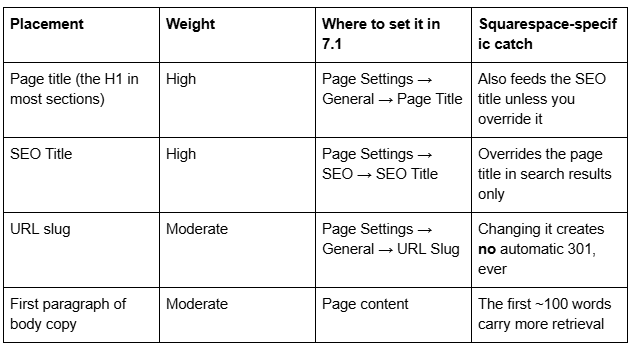
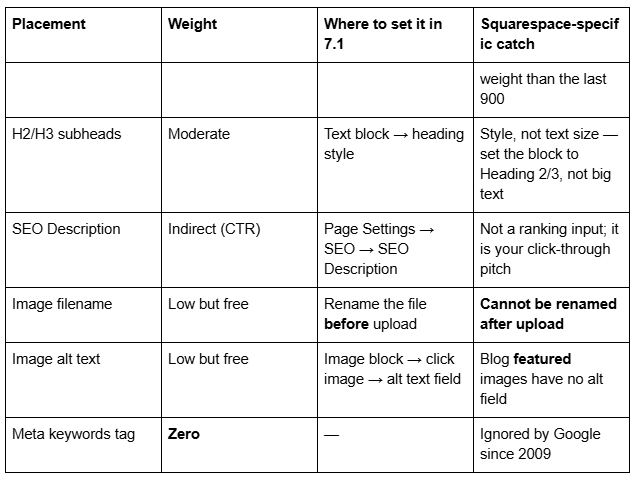
Work down that table in order and you have done every genuine "keyword placement" job a Squarespace page allows. Everything below explains each row.
Why there is no keywords field in Squarespace
Search the Squarespace 7.1 interface end to end and there is no field labelled "keywords". Not in Website → Website Tools → SEO, not in a page's SEO tab, not in the blog post editor. This is not an omission. It is Squarespace declining to build a field for a tag that stopped mattering seventeen years ago.
The tag in question looked like this:
<meta name="keywords" content="squarespace seo, squarespace keywords, seo help">
Google published a blog post in September 2009 stating plainly that it does not use the keywords meta tag in web search ranking, and that position has never changed. Bing treats stuffed keyword tags as a spam signal rather than a neutral one. The tag was abandoned because it was trivially gameable: it is invisible to visitors, so nothing stopped anyone listing a hundred terms they had no content for.
You can still inject that tag into a Squarespace site through Settings → Advanced → Code Injection → Header if you have a Core plan or above. There is no upside. If a guide tells you to add meta keywords to Squarespace, it was written from a 2012 template and never checked since.
Step 1 — Choose the terms before you place them
Placement is the easy half. Choosing is where pages are won and lost, and it takes about twenty minutes per page.
Give each page one primary term and two or three secondary terms, and no more. Not because a limit exists in the algorithm, but because a page trying to rank for eight unrelated terms has to hedge its title, its H1 and its opening paragraph, and a hedged page loses to four specific ones.
To find the primary term:
Search your candidate term and read the results, not the volume number. If page one is national ecommerce brands and you are a three-person studio, that term is not yours this year. If page one is forum threads and thin listicles, it is.
Check that the ranking pages match what your page does. If everything ranking is a definition and your page is a service page, Google has decided that query is informational, and your service page will not displace them.
Take the longer phrase. "Squarespace SEO" is a term you compete for. "Squarespace SEO for photographers in Manchester" is a term you win.
Read the People Also Ask box and the related searches. Those are the sub-queries your page also needs to answer, and covering them is measurably the strongest predictor of whether AI answer engines cite you.
Write the chosen terms down before you touch a single field.
Step 2 — The page title, which sets more than you think
Page Settings → General → Page Title.
On a standard 7.1 page this string does three jobs: it is the navigation label, it is the default source for the SEO title, and in most section layouts it is not automatically rendered as your H1 — your first heading block is. Check which is true on your page before assuming.
Put the primary term in it, phrased as a human would search it. "Squarespace SEO Services" beats "Services". If the navigation label needs to stay short, set the short version here and write the full version in the SEO Title in the next step; the two fields exist precisely so they can differ.
Step 3 — The SEO Title, which is what searchers actually see
Page Settings → SEO → SEO Title. For a blog post: open the post → SEO tab → same field.
This is the <title> element. It is the single strongest on-page placement you control, and it is the one people most often leave blank and inherit.
Rules that hold up:
Lead with the primary term. Front-loading survives truncation and matches how people scan.
Keep the visible portion under about 60 characters. Squarespace allows 100; Google truncates in the region of 60 depending on pixel width.
Check your site-wide title format first.Website → Website Tools → SEO controls the pattern applied to every page and item, typically something like %p — %s. If the site name suffix is still switched on, roughly twenty characters of every title on your site is spent repeating your brand. On a five-word brand name, remove it from item titles.
Do not repeat the term twice. "Squarespace SEO: Squarespace SEO Tips for Squarespace Sites" reads as spam to a human, which is the test that matters.
Step 4 — The SEO Description, which is not a ranking field
Page Settings → SEO → SEO Description.
Your target term belongs here, but not because it ranks anything. Google has not used the description meta tag as a ranking input for well over a decade, and it rewrites the snippet from page content whenever it thinks it has a better match for the query.
What the description does earn is the click. Write 150–160 characters that state what the page gives the reader and include the term naturally, because matched query terms are bolded in the snippet and bolding lifts click-through. Treat it as ad copy for a listing you don't pay for.
Leave it blank and Squarespace lets Google improvise from your first block of text, which on a page opening with a hero image and three words is usually terrible.
Step 5 — The URL slug, and the trap underneath it
Page Settings → General → URL Slug. Blog post URLs take the form /blog-page-slug/post-slug.
Include the primary term, use hyphens, keep it short, drop the filler words. /squarespace-seo-services beats /our-seo-services-for-squarespace-websites-2026.
Now the part that matters more than the optimisation: changing a slug on Squarespace creates no automatic 301 redirect, ever. Not on pages, not on blog posts, not on products. The old URL returns a 404 the moment you save, taking every backlink, every bookmark and every accumulated ranking signal with it.
If you need to change a live slug, you write the redirect yourself in Settings → Developer Tools → URL Mappings, one rule per line:
/old-page-slug -> /new-page-slug 301
/blog/old-post-slug -> /blog/new-post-slug 301
Get the slug right at creation and you never touch this. The practical rule: optimise slugs freely before a page is published, and treat every slug as frozen the day it goes live unless the change is worth writing a redirect for.
Step 6 — The H1 and the first paragraph
Each page gets one H1, and it should contain the primary term.
In Squarespace 7.1 you set this by selecting the text in a text block and choosing Heading 1 from the style dropdown — not by making the text bigger. Visual size is irrelevant; the tag is what gets read. The common failure is a page where the designer styled the hero text as Heading 3 because H1 looked too large, leaving the page's only H1 somewhere in a footer.
Then the opening paragraph. Use the primary term in the first sentence or two, in a sentence that would exist anyway. This is not about density. It is that both classical retrieval and AI answer extraction weight the opening of a document heavily, and a page whose first hundred words never state its subject is asking to be summarised wrongly.
Subheads follow the same rule: real Heading 2 and Heading 3 styles, containing secondary terms, describing what is actually below them.
Step 7 — Image filenames, set at upload or never
This is the one that catches everybody, and it is unique enough to Squarespace that most SEO guides never mention it.
Squarespace image filenames cannot be changed after upload. There is no rename control. The file is stored under the name it arrived with, and the only way to change it is to delete the image, rename the file on your computer, and re-upload it.
So rename before you upload:
IMG_4471.jpg → squarespace-seo-audit-dashboard.jpg
Screen Shot 2026-11-14 at 09.42.18.png → squarespace-url-mappings-panel.png
Hyphens, lowercase, descriptive, no keyword stuffing. The ranking value of a filename is small. The cost of doing it is one rename before upload, and image search is a real traffic source for anything visual.
While you are at it: upload at 1500–2500px wide. 2500px is the largest size Squarespace serves, so anything above it is wasted upload weight, and the CDN converts to WebP unconditionally regardless of the format you supply.
Step 8 — Alt text, and the blog featured image exception
For an image block, click the image in the editor and fill the alt text field. Describe the image for someone who cannot see it; if the target term genuinely describes what is shown, it belongs there, and if it doesn't, leave it out.
The exception matters. Blog featured images have no alt text field in Squarespace 7.1. Squarespace uses the post title as the featured image's alt text instead. That has a direct consequence for how you write titles: a post titled "Our Latest Update" hands a screen reader and Google Images the string "Our Latest Update" as the description of your hero image. A post titled "Squarespace SEO Checklist for New Sites" hands them something useful.
Blog post titles are therefore doing two jobs at once. Write them descriptive and specific and both jobs get done.
Step 9 — What about tags and categories?
Blog tags and categories are the field people most often mistake for a keywords field. They are not one, and treating them like one causes damage.
Every tag and category generates an archive URL in the form ?tag=something or ?category=something. Squarespace's robots.txt — which cannot be edited — disallows ?tag=, ?author=, ?month= and ?view= by default. Those archive pages are not going to rank, by design.
What tags and categories are for is navigation. Six categories that a reader would recognise, used consistently, help people move around your blog. Forty tags applied once each help nobody, clutter your blog's own filtering, and generate a long tail of near-empty archive pages.
Set a fixed taxonomy, keep to it, and stop thinking of it as a keyword mechanism.
How to verify you actually did it
Publish, then check the rendered page rather than the editor:
View source on the live page, logged out. Search for <title> and confirm it is your SEO title, not the inherited page title plus a site-name suffix you thought you'd removed.
Confirm one H1. In Chrome DevTools, run document.querySelectorAll('h1').length in the console. If it returns 0 or 3, fix the heading styles.
Check the image filenames in the Network tab or by right-clicking → Open image in new tab. The filename in the URL is the filename you uploaded, permanently.
Wait for Search Console. In Analytics → Google Search Keywords, or in Search Console itself, look at the queries the page picks up over the following four to eight weeks. That is the only evidence that matters; everything above is a hypothesis until it shows up there.
The correction, stated plainly
If you came here looking for a keywords box, the useful takeaway is that its absence is not a Squarespace limitation. Every platform that still ships a keywords field ships a field that writes a tag no search engine reads.
The eight placements above are the whole of on-page keyword work on Squarespace 7.1. They take about fifteen minutes per page, and two of them — the slug and the image filename — are effectively permanent, which is why they are worth doing in order rather than retrofitting later.
Where this gets harder than a checklist is deciding which term a page should target when you have thirty pages and forty candidate terms, and none of the pages currently rank for any of them. That mapping work is most of what our Squarespace SEO service actually does — the field-filling is the last hour of it. If you have a clear primary term per page already, you do not need us for this; work down the table and publish.
FAQ
-
There isn't one, on any plan or version. Squarespace 7.1 has no keywords input in the SEO panel, the page SEO tab, or the blog post editor. The meta keywords tag it would populate has been ignored by Google since 2009, so nothing is missing from your site.
-
No. Google confirmed in September 2009 that it does not use the keywords meta tag for web search ranking, and that has not changed. Bing treats stuffed keyword tags as a spam signal. Injecting the tag into Squarespace via Code Injection adds weight to your page and nothing else.
-
Put the primary term in the post title, the SEO Title, the URL slug, the first paragraph and one subhead. Remember the post title is also used as the featured image's alt text, since blog featured images have no alt field, so write it descriptively.
-
The page title is the navigation label and the default source for the title tag. The SEO Title, in the page's SEO tab, overrides it in search results only. Use the short version for navigation and the full, term-led version for search.
-
Not as keywords. They generate ?tag= and ?category= archive URLs, and Squarespace's uneditable robots.txt disallows ?tag= by default, so those pages will not rank. Use a small fixed set for reader navigation rather than as a keyword mechanism.
-
One primary term and two or three closely related secondary terms. More than that forces the title, H1 and opening paragraph to hedge, and a hedged page loses to several specific ones. Split additional terms into their own pages instead.

Author Bio
I'm Walid Hasan, a Certified Squarespace Expert and Squarespace Circle Platinum Partner with over 12 years of hands-on experience designing and optimizing high-performing websites. Over the years, I've had the privilege of building more than 2,000 Squarespace websites for clients around the world, always focusing on clean design, strong user experience, and conversion-driven results.