
Squarespace Template Limitations: The Complete 2026 List
Most Squarespace limitations are not template limitations. In Squarespace 7.1 every site runs the same engine, so a template cannot add or remove a platform capability — it only changes the starting styles and page set. The real ceilings are platform-level: no blog write API, no editable robots.txt, no automatic redirect when you change a URL, a 60-project cap on Portfolio pages, and no table of contents. Those apply to every template equally, free or premium.
This page lists them all, with the exact numbers, grouped by who each one actually hurts. (If you are here because you want two templates behaving differently on one site, that is a separate question with a separate answer — see can you use two Squarespace templates on one site.)
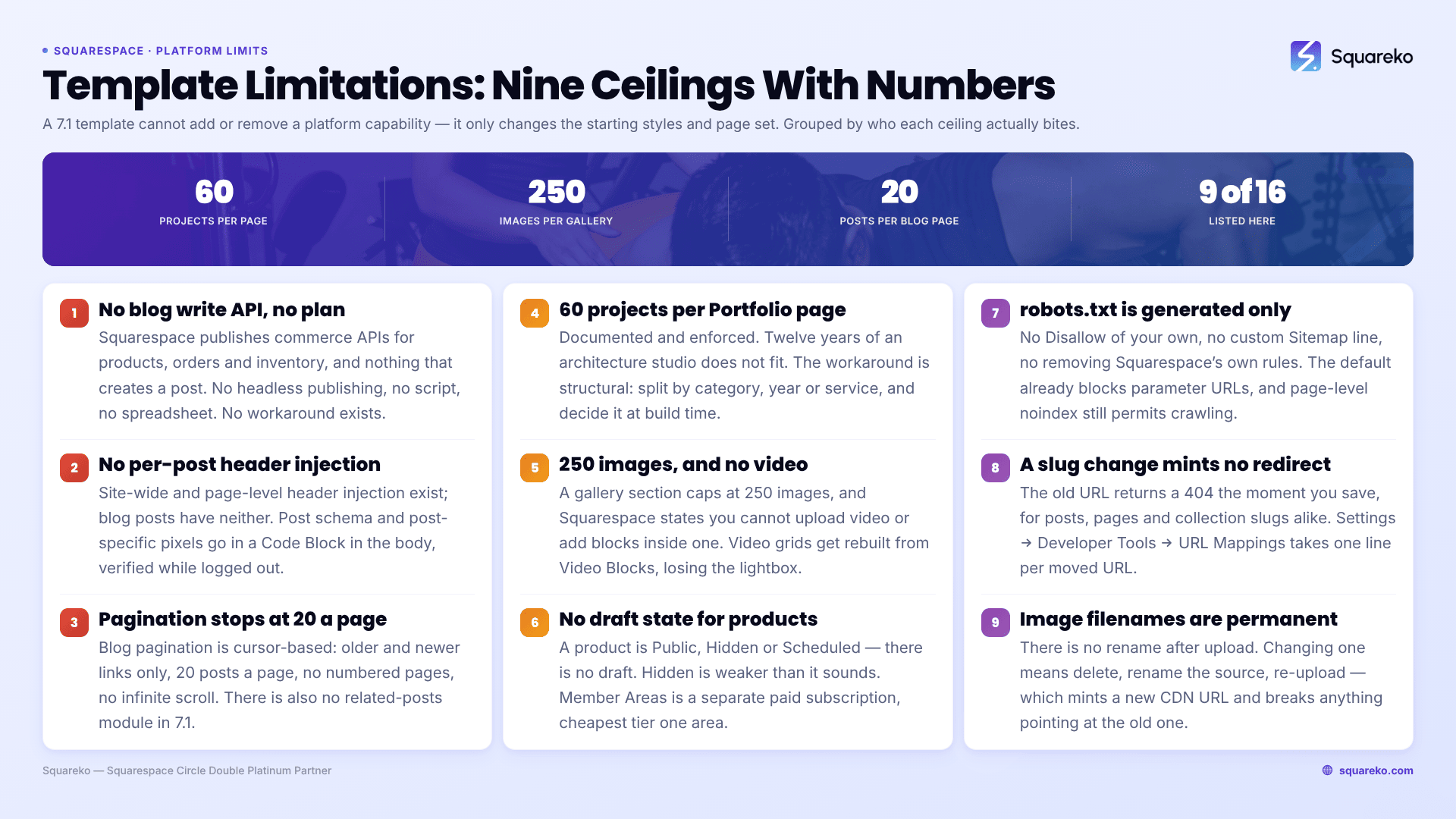
The complete list, at a glance
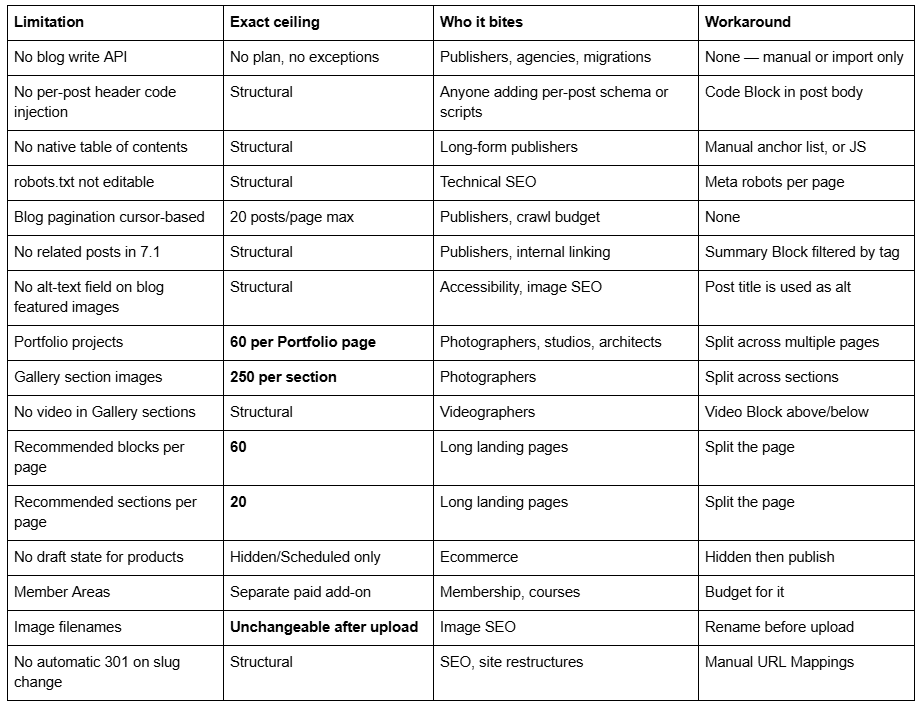
If you publish a blog
This is where Squarespace 7.1 is weakest, and the gap is wider than most reviews admit.
There is no blog write API on any Squarespace plan
Squarespace has commerce APIs — Products, Orders, Inventory — but there is no API that creates or updates blog posts, on any plan including the highest commerce tier. You cannot push a post from a headless CMS, from a scheduling tool, from a script, or from a spreadsheet.
What this actually costs you: no programmatic publishing, no automated content pipeline, no two-way sync with an editorial system. A migration in to Squarespace uses the WordPress/Blogger importer under Settings → Advanced → Import & Export; anything the importer does not cover is manual. If your publishing model depends on automation, this is the limitation to check before anything else, because it has no workaround at all.
There is no per-post header code injection in Squarespace 7.1
Squarespace 7.1 offers site-wide code injection and page-level header injection under Page Settings → Advanced. Blog posts have neither. There is no per-post header field.
The consequence is that anything you would normally put in a post's <head> — custom JSON-LD, a post-specific tracking pixel, a canonical override — has to go in a Code Block placed in the post body, in HTML mode. That works, and search engines read JSON-LD from the body fine, but two things surprise people. First, script-bearing Code Blocks are disabled while you are logged in, showing "This block contains embedded scripts. Embedded scripts are disabled while you're logged in and editing your site." You must verify logged out. Second, Squarespace already auto-emits its own Article JSON-LD for every post, with the author as a bare string, so adding a second Article node creates a competing declaration. Add complementary types instead.
Blog pagination is capped at 20 posts per page, with no numbered pages
Squarespace 7.1 blog pagination is cursor-based: older/newer links only, a maximum of 20 posts per page, no page numbers, no infinite scroll, no configurable page size.
For a blog with 400 posts that means 20 paginated steps, each reachable only by walking the chain in order. There is no /page/12. Crawlers have to traverse sequentially to reach the oldest content, and readers realistically never will. The practical response is to build category and tag pages as real navigation and to link older posts from newer ones deliberately, because pagination will not surface them.
There is no native table of contents, and no related posts
Squarespace 7.1 has no table of contents feature. Long-form posts get one by hand — anchor links written into a list at the top of the post, with matching IDs on the headings — or by injecting JavaScript that builds one from the DOM. There is no setting.
There is also no native related-posts module in 7.1. Squarespace 7.0 had a limited version in some template families; 7.1 dropped it. The closest replacement is a Summary Block placed below the post content, filtered to a category or tag. It works, but it is a manual per-post placement and the filtering is by tag rather than by genuine relevance.
Blog featured images have no alt-text field
When you set a featured image on a Squarespace blog post, there is no alt-text field for it. Squarespace uses the post title as the alt text. Images placed inside the post body do have alt fields; the featured image does not.
That matters twice: for accessibility, where the alt text describes the headline rather than the picture, and for image search, where you have no independent control. The only lever you have is the post title itself.
If you run a portfolio or a photography site
Portfolio pages cap at 60 projects, and gallery sections at 250 images
These are documented, numeric, and enforced:
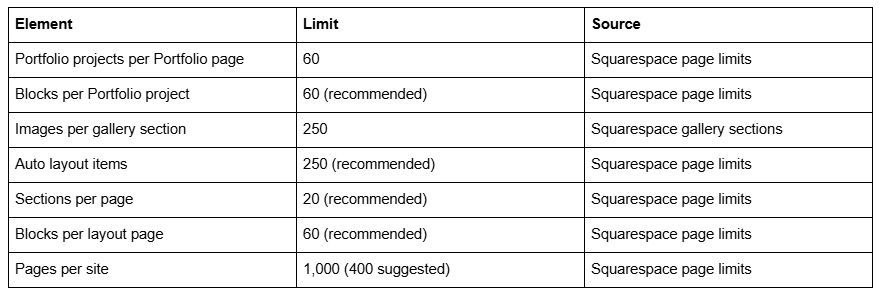
Sixty projects sounds generous until you are an architecture studio with twelve years of work, or a wedding photographer archiving every shoot. The workaround is real but structural: split into multiple Portfolio pages by category, year, or service. That changes your navigation, so it is a decision to make at build time rather than at project 61.
Gallery sections do not accept video
Squarespace states it directly: in a gallery section, "it's not possible to upload videos or add blocks to the section, but you can add block sections above and below a gallery."
For videographers this is the awkward one. A gallery section gives you the grid, slideshow and carousel layouts you want for a reel index, and it will not hold a single video. You end up building video grids out of Video Blocks in a normal section, which means laying out the grid yourself and losing the gallery's lightbox behaviour. It is the reason most video portfolios on Squarespace use thumbnail images linking to a project page rather than an in-grid player.
If you sell products
Products have no draft state
Blog posts in Squarespace have Draft, Scheduled and Published. Products do not. A product's visibility dropdown offers Public, Hidden, or Scheduled — there is no draft.
In practice that means a half-finished product sits as Hidden rather than as a genuine draft, and Hidden is a weaker guarantee than it sounds: hidden products are removed from store listings but are not reliably inaccessible by direct URL. If you are staging a launch and secrecy matters, schedule rather than hide, or build the product on a separate unlinked store page.
Member Areas is a separate paid add-on
Member Areas is not included in any Squarespace website plan. It is a separate subscription billed on top of your site plan, sold in tiers that differ by how many member areas you can run and what transaction fee applies, with the cheapest tier limited to a single member area.
This is the limitation that most often derails a course or membership build, because the feature appears in Squarespace's marketing alongside site features and reads as included. If gated content is part of your plan, price the add-on before you commit to the platform, and note that payment processing fees sit on top of the add-on's own transaction fee.
If you care about technical SEO
robots.txt cannot be edited
Squarespace generates robots.txt and does not let you modify it. You cannot add a Disallow, you cannot add a custom Sitemap line, you cannot remove one of Squarespace's own rules.
Squarespace's default file already disallows the parameter URLs that cause duplication — ?author=, ?tag=, ?month=, ?view= and similar — which covers the most common need. What you cannot do is block a specific page or directory at the crawler level. Your only page-level control is the noindex toggle in Page Settings → SEO, which permits crawling but blocks indexing. If your SEO process depends on crawl-level exclusion, that process does not transfer to Squarespace.
Changing a URL slug creates no automatic 301
This is the single most expensive limitation on the list, because it is silent.
A Squarespace blog post URL is /blog-page-slug/post-slug. Change either segment and the old URL returns a 404 immediately. Squarespace creates no automatic redirect, ever — not for posts, not for pages, not for collection slugs. Rankings and backlinks pointing at the old URL break the moment you save.
The fix exists and is manual: Settings → Developer Tools → URL Mappings, one line per moved URL:
/old-blog/old-post-slug -> /new-blog/new-post-slug 301
Write the mapping before you change the slug, not after. On a site restructure this becomes a spreadsheet exercise, and it is the step people discover they skipped about three weeks later when traffic has already gone.
Image filenames cannot be changed after upload
Once an image is in Squarespace, its filename is fixed. There is no rename. To change it you delete the image, rename the source file, and re-upload — which mints a new CDN URL and breaks anything pointing at the old one.
Filenames are a minor ranking input, but they are free, and getting them wrong is permanent-ish. Rename files on your desktop before upload: brighton-kitchen-extension.jpg, not IMG_4471.jpg. Related and worth knowing while you are there — Squarespace's CDN serves WebP unconditionally regardless of the source format you upload, and 2500px is the maximum width it will serve, so uploading at 1500–2500px is the useful range.
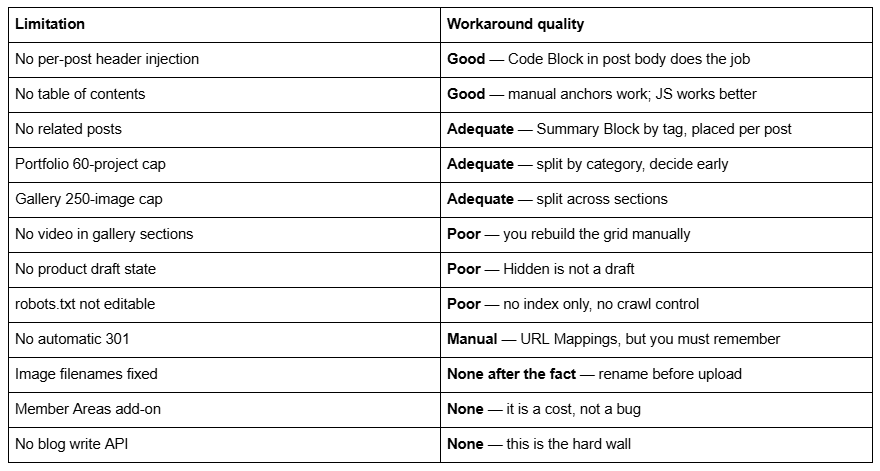
Which of these actually have workarounds
Not all limits are equal. Honest grading:
The threshold where Squarespace stops being the right answer
Squarespace is the correct choice for the large majority of business sites, and most of the list above never comes up. Three situations are the genuine exceptions:
You need programmatic publishing. No blog write API is not a workaround problem, it is an architecture problem. If content has to arrive from another system automatically, Squarespace is the wrong platform and no template changes that.
You have more than a few hundred portfolio items or gallery images. The 60-project and 250-image caps are hard, and splitting them past a certain point produces navigation nobody can use.
Your business logic lives in the site. Custom user roles, complex conditional pricing, multi-vendor marketplaces, anything that needs a database you control. Squarespace has no server-side extension point.
Everything else on this page is a constraint to design around, not a reason to leave. Choosing a template with the right page structure up front — the right number of Portfolio pages, the right store architecture — removes most of the friction before it starts. That is worth doing deliberately, and it is what how to choose a Squarespace template covers.
If you have read this list and two or three items are genuine blockers for your project rather than annoyances, that is usually the point where a build needs designing around the platform rather than fitted to a template afterwards — which is what our custom Squarespace design work is for. Most projects do not reach that point; the workarounds above hold for the overwhelming majority of sites, and the honest answer for most readers is that none of this will ever come up.
FAQ
-
In Squarespace 7.1 almost none are template limitations — every site runs the same engine, so limits are platform-wide. The real ones are no blog write API, no editable robots.txt, no automatic 301 on URL changes, a 60-project Portfolio cap, a 250-image gallery cap, and no native table of contents.
-
No. Squarespace offers commerce APIs for products, orders and inventory, but there is no API that creates or updates blog posts on any plan. Posts are created manually in the editor or brought in through the WordPress and Blogger importers. This limitation has no workaround.
-
Almost always custom CSS with fixed pixel widths applied at every breakpoint, or a Fluid Engine section whose mobile layout was never opened. Comment out your Custom CSS panel and reload on a phone; if the problem disappears, the template was never at fault.
-
Sixty. Squarespace caps Portfolio pages at 60 projects, with a recommended maximum of 60 blocks per project. Gallery sections cap at 250 images. To go beyond, split content across multiple Portfolio pages by category or year — a navigation decision best made at build time.
-
Only within the fixed pattern. Blog post URLs are always /blog-page-slug/post-slug, with no arbitrary nesting or category paths. Changing a slug creates no automatic 301, so map old URLs by hand in URL Mappings using /old-url -> /new-url 301 before renaming anything indexed.
-
Generally yes. Across 54 Squareko-built client sites measured in August 2026 — lab data, single run, unthrottled — median mobile LCP was 2.01s with 74% under 2.5s, and median mobile CLS was 0.000. Desktop CLS is weaker at a 0.029 median. Page weight, not template choice, is the variable that matters.

Author Bio
I'm Walid Hasan, a Certified Squarespace Expert and Squarespace Circle Platinum Partner with over 12 years of hands-on experience designing and optimizing high-performing websites. Over the years, I've had the privilege of building more than 2,000 Squarespace websites for clients around the world, always focusing on clean design, strong user experience, and conversion-driven results.
