
How to Choose a Squarespace Template: The Decision Sequence
Choose on page inventory and section composition first, and on appearance last. In Squarespace 7.1 every template runs on one shared engine, so fonts, colours, spacing and button shapes are all changeable in minutes from Site Styles. What is expensive to change is the set of pages the template ships with and the way each page is composed. Decide those first. "Which one looks nicest" is question nine of nine, and answering it first is why people end up rebuying three months later.
This page assumes you have already decided to use a template. If you have not, start with are Squarespace templates good.
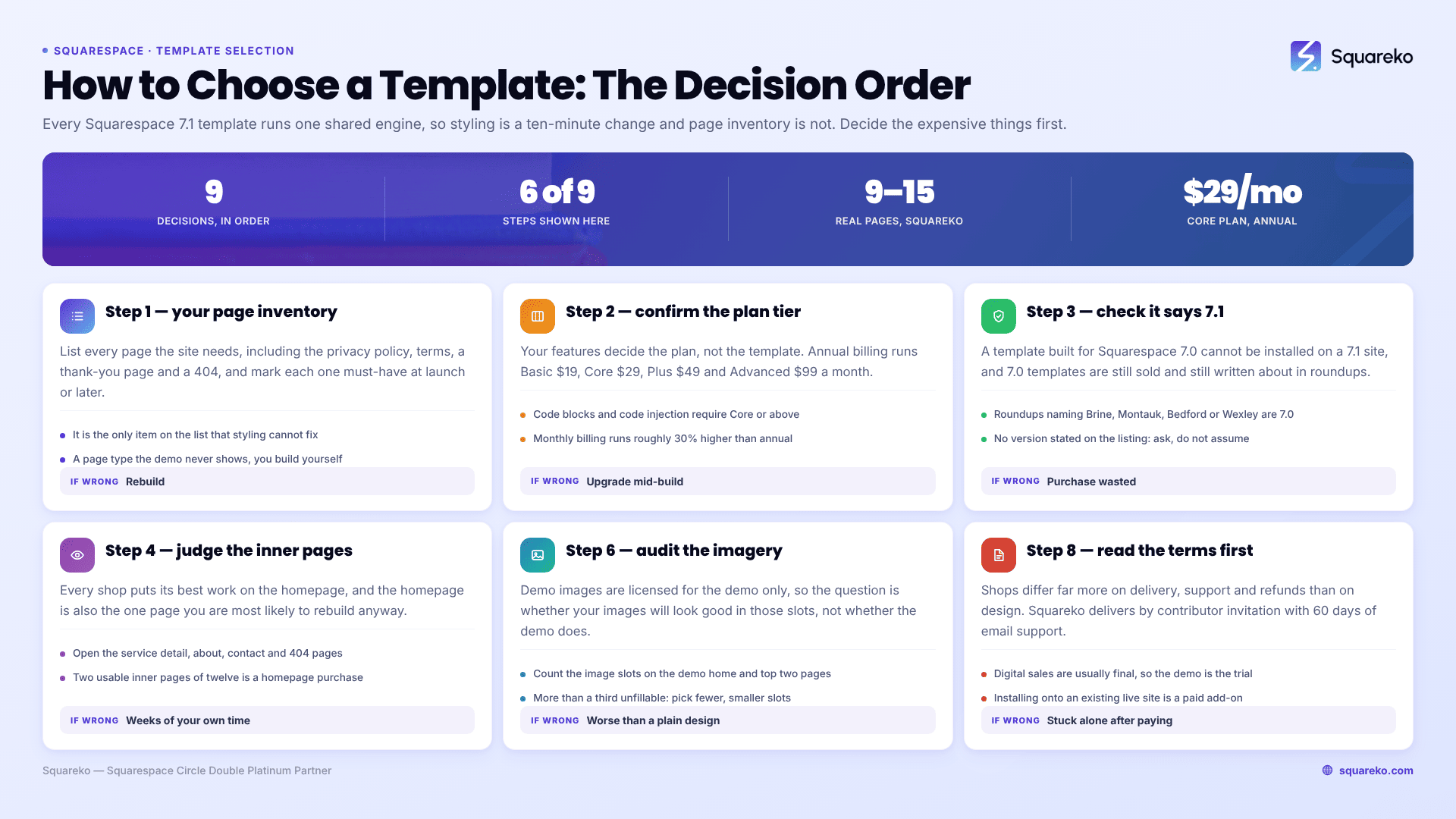
The sequence, in order
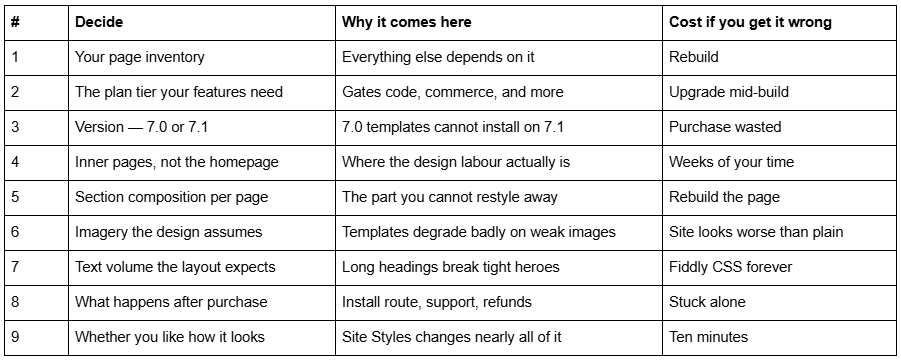
Step 1 — Write your page inventory before you open a single template
Open a blank document and list every page the site needs, including the unglamorous ones: privacy policy, terms, a thank-you page, a 404. Mark each as "must have at launch" or "later".
This is step one because it is the only thing on the list that cannot be fixed by styling. A template with nine pages and a template with fifteen are different amounts of work regardless of how similar they look, and the gap is entirely in inner pages you will otherwise be building yourself.
Decide in seconds: if your inventory has a page type the template's demo does not show — a case study detail page, a menu, a pricing page with three tiers, a booking page — assume you are building it from scratch.
Step 2 — Confirm the Squarespace plan tier your features require
The template does not decide your plan; your features do. Squarespace 7.1 plan pricing on annual billing is Basic $19/mo, Core $29/mo, Plus $49/mo and Advanced $99/mo, with monthly billing roughly 30% higher.
The one that catches template buyers out: code blocks and code injection require the Core plan or above. If a template's design depends on custom code, or if you intend to add third-party scripts, booking widgets or analytics beyond Squarespace's own, Basic will not carry it. Selling products has its own tier requirements. Check this before you buy the template, not after.
Decide in seconds: list any third-party tool you know you will embed. If the list is not empty, budget for Core or above.
Step 3 — Confirm the template is built for Squarespace 7.1
A template built for Squarespace 7.0 cannot be installed on a 7.1 site, and 7.0 templates are still sold and still written about. A large amount of the template advice online — including well-known "best template" roundups still ranking — names Brine, Montauk, Bedford and Wexley, which are 7.0 template families and are irrelevant to a new site.
New Squarespace sites are created on 7.1. If a template listing does not state a version, that absence is the answer: ask, and do not assume.
Decide in seconds: search the product page for "7.1". If it is not there, the template is either 7.0 or the shop is careless about a detail that decides whether the purchase works at all.
Step 4 — Judge the inner pages, never the homepage
Every template shop puts its best work on the homepage, because the homepage is the sales asset. The homepage is also the page you are most likely to rebuild anyway, and it is one page out of nine to fifteen.
Open the demo and go straight past it. Look at the service detail page, the about page, the contact page, the blog post view and the 404. Ask whether they look like they belong to the same site and whether they would survive your content.
Decide in seconds: count how many inner pages you would use largely as-is. If the answer is two out of twelve, you are buying a homepage at full price.
Step 5 — Read the section composition, not the styling
Scroll each demo page and write down the sections in order — hero, three-column proof, image and text alternating, testimonial band, CTA. That sequence is what you are actually buying. Fonts, colours, spacing, corner radii and button shapes are all Site Styles values you can change globally in ten minutes.
Squarespace 7.1's Fluid Engine lets you add, delete and reorder sections on any page, so the composition is not locked. But rewriting a template's composition on every page is most of the work of building from scratch, which defeats the purchase.
Decide in seconds: for your two most important pages, does the template's section order roughly match what you sketched in step one? Roughly is fine. Not at all is a different template.
Step 6 — Audit the imagery the design assumes
This is the step most people skip and most regret. Demo images are licensed for the demo only — every buyer at every shop has to replace every one before going live.
So the real question is not whether the demo looks good. It is whether your images will look good in those slots. A template built around full-bleed editorial photography needs full-bleed editorial photography. Given phone snapshots or the same free stock library everyone else uses, it will look worse than a plainer design would, because the layout exists to showcase the images.
Decide in seconds: count the image slots on the demo homepage and the top two inner pages. Can you fill each one with something you own or will commission? If more than a third are blanks, either commission photography first or choose a template with fewer, smaller image slots. Choosing on that basis is legitimate, not a compromise.
Step 7 — Check the text volume the layout expects
Templates are laid out around art-directed copy. A hero designed for a six-word headline carrying your fourteen-word headline is a permanent low-grade problem you will end up solving with Custom CSS.
Decide in seconds: take your actual business name, your actual headline and your three actual service names, and mentally drop them into the demo. Long service names, long words and two-line headings that must break in a specific place are the usual failure points. If your service names are five words each and the template's nav is designed for one-word items, that is a real cost.
Step 8 — Read what happens after you pay
Template shops differ far more on this than on design, and it is the least examined part of the purchase.
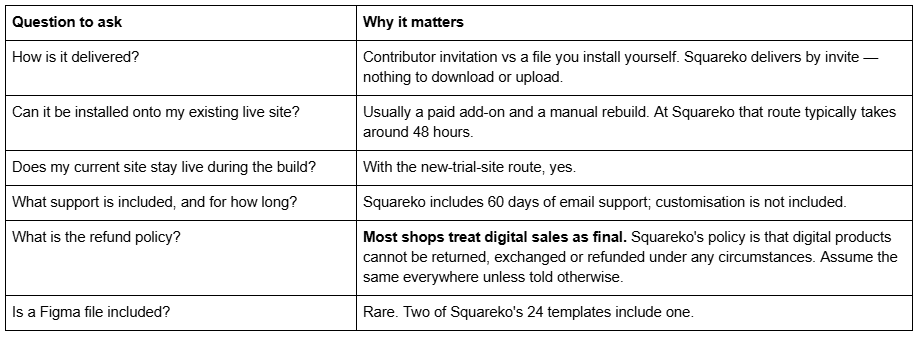
Because refunds generally do not exist in this category, the demo is your only trial. Use it properly: on your own phone, scrolling the inner pages, with the browser at a real width rather than a marketing screenshot. Note that some shops password-protect demos and some published demo links are broken — if a demo will not load, ask before buying rather than guessing.
Step 9 — Now, and only now, decide whether you like it
Everything in Site Styles is a ten-minute change: font pairings, type scale, colour themes, button shape, spacing, corner radii, image treatments. Fonts and colours are the two things people choose templates on, and they are the two cheapest things to change.
What is left after you strip styling is the thing to like or dislike: the composition, the density, the rhythm of the scroll, how much white space the design gives your content. That is the taste judgement worth making, and it is a real one — just make it ninth.
Does it matter which Squarespace template you choose in 7.1?
Less than it did on 7.0, and less than most advice implies. All Squarespace 7.1 sites share one template family — Squarespace's documentation states that every 7.1 site has the same features and style options, and the internal templateId 5c5a519771c10ba3470d8101 is universal. No template unlocks a feature another lacks.
What follows from that is worth stating plainly, because it cuts against most template marketing:
You are choosing design labour, not capability. The value is pages already designed and consistent.
You cannot "switch templates" in 7.1 the way you could in 7.0. Switching is not a supported action; you restyle instead. See changing a Squarespace template for what actually happens.
Template choice has no direct ranking effect. Same engine, same markup, same CDN — covered in do Squarespace templates affect SEO.
You can run only one starting configuration per site. There is no per-page template.
The two mistakes that cause a second purchase
Almost every "I bought the wrong Squarespace template" story reduces to one of two errors, and both are avoided by the sequence above.
Mistake one: choosing by niche tag rather than by pages. Template shops tag their products by industry — "photography", "real estate", "fitness" — and those tags are marketing categories, not descriptions. A template tagged for one industry frequently ships pages built for another. In Squareko's own range, Horizon carries real estate and interior tags but its actual pages are a photography site: wedding, engagement, portraits, photo booth, journal, inquire. That is not a defect, it is a naming convention, and it is why step 4 says judge the pages. Read the page list on every template you shortlist and ignore the tag entirely.
Mistake two: choosing for the business you will be in two years. People buy the template with the shop, the courses page and the membership area because they intend to add all three eventually. They then spend the launch hiding nine pages they do not use, which makes navigation worse and the site slower to finish. Buy for the site you are launching. Sections and pages are cheap to add later; a launch that never happens is not.
A ten-minute scoring pass
Score each shortlisted template out of 5 on these, and buy the highest total rather than the prettiest:
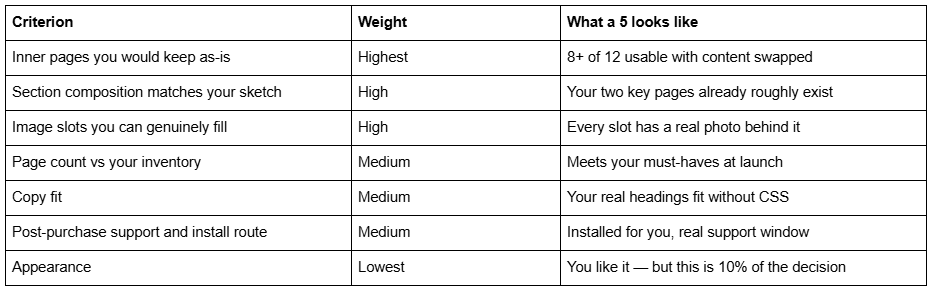
If two templates tie, pick the one with fewer image slots. It is the more forgiving choice as your photography ages.
After you have chosen
Buy it, install it, and then do the boring part properly: replace every demo image, write real copy, and delete more sections than you add. Restyling is mostly deletion — the step-by-step is in how to customise a Squarespace template.
If you would rather shortcut steps 4 through 8, our premium Squarespace templates are 7.1 builds with 9 to 15 real pages, a style guide page, 150+ sections and installation handled by contributor invitation. The sequence above works on any shop's templates, ours included — the scoring pass matters more than where you buy.
FAQ
-
Start with your page inventory, not the designs. Confirm the plan tier your features need, confirm the template is 7.1, then judge the inner pages and the section composition rather than the homepage. Check you can supply the imagery the design assumes. Judge appearance last, because Site Styles changes it in minutes.
-
Less than most advice suggests. All Squarespace 7.1 sites share one template family with identical features and style options, so no template unlocks anything another lacks. What you are choosing is design labour: which pages arrive already designed and how they are composed.
-
Yes, and usually convincingly. Replace every demo image with your own photography, set your own type scale and colour themes in Site Styles, cut sections rather than adding them, and add scoped Custom CSS. What survives from the template is the section order, which almost no visitor perceives.
-
Check the product page for an explicit "7.1" statement. A template built for Squarespace 7.0 cannot be installed on a 7.1 site, and 7.0 templates are still sold. Roundups naming Brine, Montauk, Bedford or Wexley are describing 7.0 template families.
-
Squareko's custom design work runs $2,500-$8,500 depending on page count, brand complexity and integration requirements. Published market ranges are wider — one long-running template shop quotes $1,000-$10,000. A Squarespace subscription is separate at $19-$99 per month on annual billing.
-
Not a template in the code sense — Squarespace 7.1 has one template engine and no theme layer. What a designer builds is a custom configuration: composed sections, a saved section library, Site Styles values and Custom CSS. The result is bespoke; the underlying template family is the same as everyone's.

Author Bio
I'm Walid Hasan, a Certified Squarespace Expert and Squarespace Circle Platinum Partner with over 12 years of hands-on experience designing and optimizing high-performing websites. Over the years, I've had the privilege of building more than 2,000 Squarespace websites for clients around the world, always focusing on clean design, strong user experience, and conversion-driven results.
