
Can You Use Two Squarespace Templates on One Site?
No. One Squarespace site runs one template, and in Squarespace 7.1 that point is close to meaningless anyway — every 7.1 site on the platform shares a single template engine, templateId 5c5a519771c10ba3470d8101. A 7.1 "template" is a starting set of pages, fonts, colours and section layouts, not a separate codebase. You cannot combine two, and you do not need to: everything that differs between two 7.1 templates is a style setting you can change on the site you already have.
What people are actually asking is usually one of three narrower questions. Here they are.
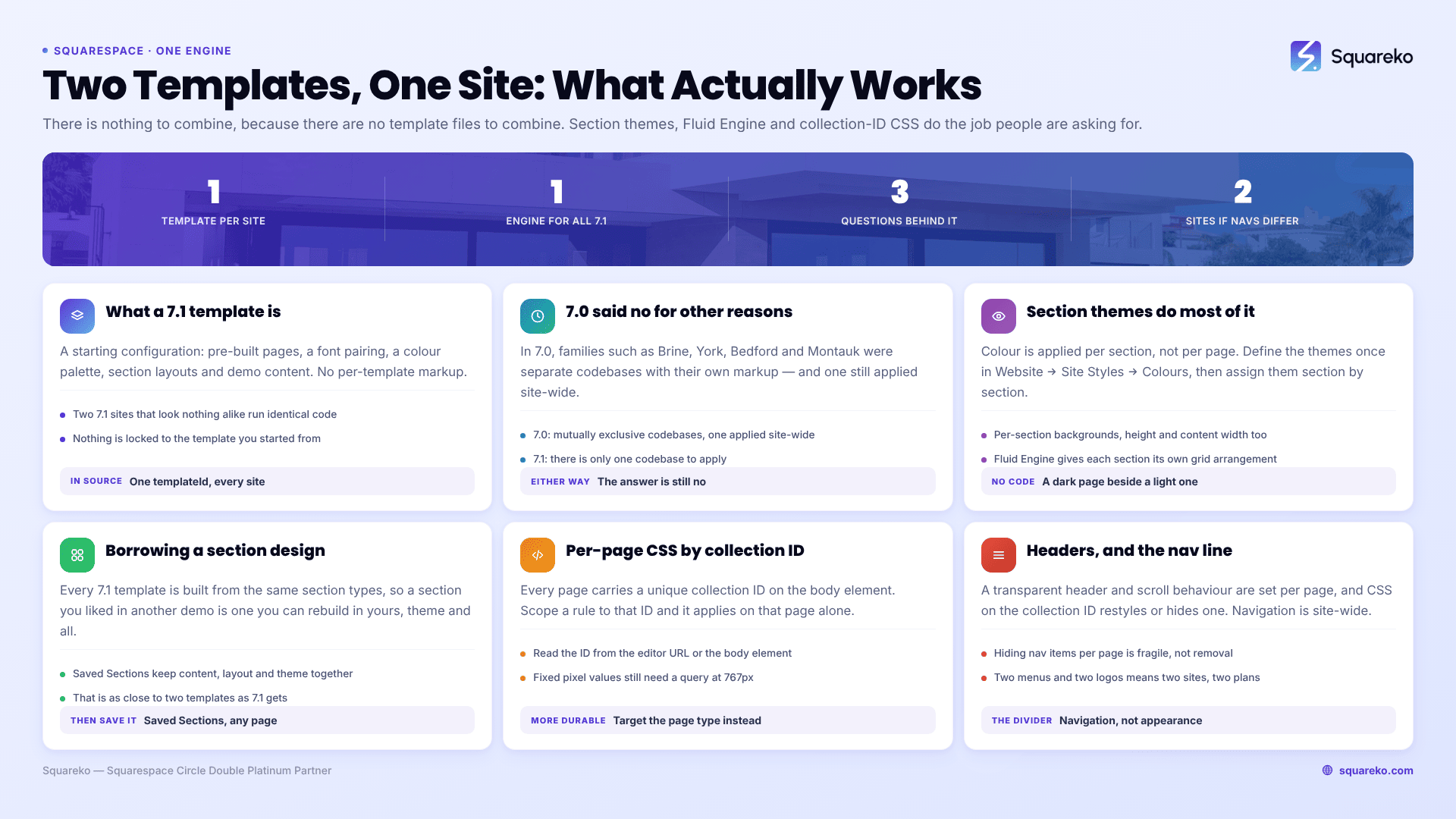
What you probably mean, and what actually does it
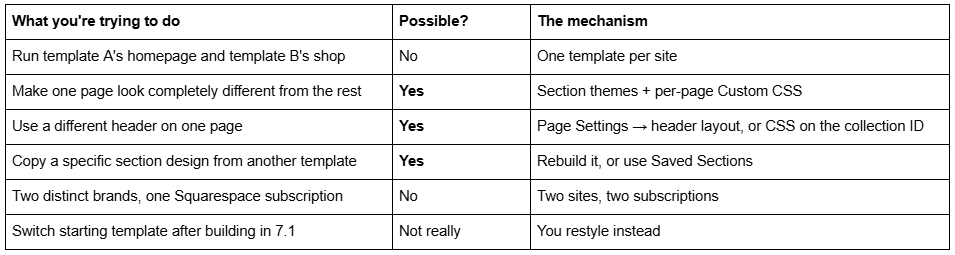
What a Squarespace 7.1 template actually is
This is the fact the forum answers skip, and it changes the whole question.
Every Squarespace 7.1 site — free template, premium template, agency build, all of them — runs the same engine and reports the same templateId in the page source: 5c5a519771c10ba3470d8101. View source on any 7.1 site and you will find it. There is no per-template CSS file, no per-template markup, no template-specific feature set.
What a 7.1 template gives you is a starting configuration: a set of pre-built pages, a font pairing, a colour palette, a set of section layouts, and some demo content. Every one of those is editable, and none of them is locked to the template you started from. Two 7.1 sites that look nothing alike are running identical code.
Squarespace 7.0 was different. There, templates were genuinely separate codebases in families — Brine, York, Bedford, Montauk — each with its own markup, its own Site Styles options, and features the others did not have. In 7.0 the question "can I use two templates" had teeth, and the answer was still no: one template applied to the entire site.
So the answer is no in both versions, but for different reasons. In 7.0 because templates were mutually exclusive codebases. In 7.1 because there is only one.
The same fact answers the related worry about templates looking generic — if you arrived here from that direction, does everyone see the same Squarespace template covers it.
Making one page look different: section themes
This is what most people actually want, and it needs no code.
In Squarespace 7.1, colour is applied by section theme, not by page. Every section on every page has a theme assigned to it — Lightest, Light, Bright, Dark, Darkest and their variations — and each theme carries its own background, heading, text, button and link colours. You set what those themes contain once in Website → Site Styles → Colours, and then assign them per section in the page editor.
That means a services page can be entirely dark sections while the homepage is entirely light, using the same site, the same palette definitions, and no CSS. Add per-section background images or video, change the section height and content width in the section's own settings, and two pages on one site can read as two completely different designs.
The same is true for layout: Fluid Engine lets every section have its own grid arrangement, so a page built from full-bleed image sections looks nothing like a page built from three-column text sections, regardless of which template either started from.
Between section themes, Fluid Engine layouts and per-section backgrounds, most "I want two templates" requests are fully solved without touching code.
Borrowing a specific section from another template works the same way. Because every Squarespace 7.1 template is built from the same section types — banner, list, gallery, quote, form, people, menu, video — a section you liked in another template's demo is one you can rebuild in yours, section theme and all. When you have it right, save it: Saved Sections stores a section with its content, layout and theme, and lets you drop it onto any page on the site. That is as close to "using two templates" as Squarespace 7.1 gets, and for most people it is close enough.
Making one page look different: per-page Custom CSS
When section themes are not enough, target the page by its collection ID.
Every page in Squarespace 7.1 carries a unique collection ID that appears as a class and an ID on the <body> element — something like collection-6421a9f0c1e8b2001d7a4c33. Any CSS scoped to that ID applies only on that page.
/* Restyle one page only — headings, buttons, section padding */
#collection-6421a9f0c1e8b2001d7a4c33 h1 {
font-family: 'Playfair Display', serif;
letter-spacing: -0.02em;
}
#collection-6421a9f0c1e8b2001d7a4c33 .sqs-button-element--primary {
border-radius: 0;
}
How to find the collection ID: open the page in the editor and read it from the URL, or right-click the live page → Inspect → look at the <body> element's class list. It appears as both #collection-… and .collection-…; the ID form has higher specificity, which is usually what you want when overriding a site-wide rule.
You can also target by page type rather than by a specific page, which is more durable:
/* Every blog post, no matter how many you add */
body.collection-type-blog h1 { font-size: 2.5rem; }
/* Every product page */
body.collection-type-products .product-title { text-transform: uppercase; }
Custom CSS lives in Website → Website Tools → Custom CSS. Remember Squarespace 7.1's mobile breakpoint is 767px — any per-page rule with fixed pixel values needs a media query, or it will apply on phones too.
Different headers and navigation on different pages
Squarespace 7.1 gives you one header configuration site-wide, but more control over it than most people use.
The header layout, logo, navigation style and button are set once in the header editor. What varies per page is limited but useful: you can set a page to use a transparent header so it sits over a full-bleed hero on that page only, and you can change how the header behaves on scroll. Both are in the header editor's page-level options.
Beyond that, per-page header changes are a CSS job on the collection ID — hiding a nav item, changing header colours, or removing the header entirely on a landing page:
/* Hide the header on one landing page only */
#collection-6421a9f0c1e8b2001d7a4c33 #header { display: none; }
What you cannot do is give one page a genuinely different navigation menu with different links. Squarespace 7.1 has one navigation structure, built from the page order in Website → Pages, and every page renders it. Hiding items with CSS per page is possible but fragile — the links are still in the markup, so it hides them visually without removing them. If your site genuinely needs two menus for two audiences, that is the one header limitation worth knowing before you start planning, and it usually points at the two-sites answer below.
The case where the answer is genuinely "two sites"
If you are running two distinct brands — different names, different logos, different audiences, different navigation — the honest answer is two Squarespace sites, two subscriptions, and either two domains or a subdomain pointing at the second site.
The line is navigation, not appearance. If the two halves of your project share a menu and a logo, they are one site and section themes will get you where you want to go. If a visitor to one half should never see the other half's menu, they are two sites, and trying to force that into one Squarespace site produces a permanent maintenance problem.
There is a third thing people mean by "two templates": they bought one and now want another one's layout. In 7.1 you cannot swap the starting template of an existing site the way 7.0 template switching worked — Squarespace restyles rather than switches. What you can do is rebuild the sections you want, or if you have bought a second template, have it installed on a fresh site and move your content across.
If you are choosing between templates rather than trying to merge two, the practical answer is to pick on page structure — how many pages, whether it includes a shop, a portfolio, a blog — because structure is the part that is genuinely tedious to change, and styling is the part that is not. Our premium Squarespace templates are listed with their real page counts for exactly that reason, and installation onto an existing site is handled for you. But nothing above requires buying anything: section themes and a collection-ID CSS rule cover almost every version of this question on a site you already own.
FAQ
-
No. One Squarespace site runs one template. In Squarespace 7.1 this matters less than it sounds, because every 7.1 site shares one template engine — templateId 5c5a519771c10ba3470d8101 — so a template is a starting style configuration, not a separate codebase you could combine.
-
No, but they can look completely different. Section themes control colour per section, Fluid Engine controls layout per section, and Custom CSS scoped to a page's collection ID restyles that page alone. Two pages on one Squarespace 7.1 site can read as two different designs.
-
Almost always custom CSS with fixed pixel widths applied at every breakpoint, or a Fluid Engine section whose mobile layout was never opened. Comment out your Custom CSS panel and reload on a phone; if the problem disappears, the template was never at fault.
-
Sixty. Squarespace caps Portfolio pages at 60 projects, with a recommended maximum of 60 blocks per project. Gallery sections cap at 250 images. To go beyond, split content across multiple Portfolio pages by category or year — a navigation decision best made at build time.
-
Partly. You can set a transparent header per page and change scroll behaviour in the header editor, and you can restyle or hide the header on one page with CSS on its collection ID. You cannot give one page a genuinely different navigation menu — that is site-wide.
-
When the two halves need different navigation menus and different logos. The dividing line is navigation, not appearance. Shared menu means one site with section themes; separate menus means two sites, two subscriptions, and a second domain or subdomain.

Author Bio
I'm Walid Hasan, a Certified Squarespace Expert and Squarespace Circle Platinum Partner with over 12 years of hands-on experience designing and optimizing high-performing websites. Over the years, I've had the privilege of building more than 2,000 Squarespace websites for clients around the world, always focusing on clean design, strong user experience, and conversion-driven results.
