
Squarespace Inventory Management for Boutique Owners Guide
Introduction
Managing inventory is one of the most challenging aspects of running a boutique business. Whether you're tracking sizes, colours, and styles across multiple product lines, or juggling stock levels between your physical store and online shop, inventory management demands precision and organisation. Squarespace inventory management tools make this process considerably more straightforward, providing boutique owners with a unified system to monitor stock, set automatic alerts, and sync inventory across all sales channels. In this guide, we'll walk you through everything you need to know about optimising your Squarespace store's inventory system—from initial setup to advanced reporting—so you can focus on what matters most: serving your customers.
Key Takeaways
Squarespace Commerce offers comprehensive inventory tracking built directly into your store dashboard
Product variants (size, colour, style) can be configured individually with unique stock levels
Low stock alerts and automated sold-out handling protect you from overselling
Bulk import via CSV saves time when setting up large product catalogues
Multi-channel inventory can be synced across online and in-store POS systems
Inventory reports provide actionable insights into your stock movement and best-sellers
Pre-orders and back-in-stock notifications keep customers engaged while managing real-time availability
Understanding Squarespace Inventory Management
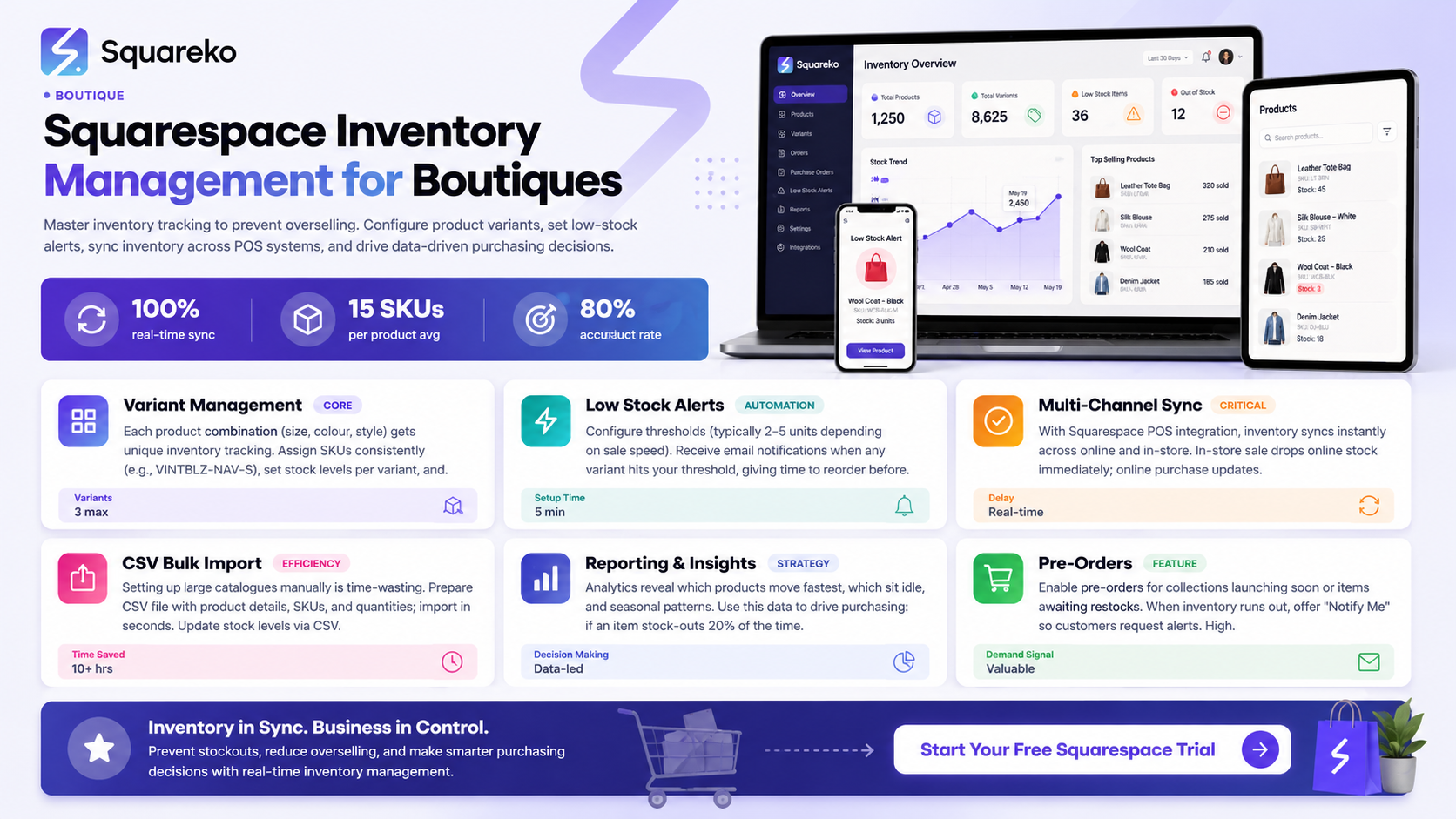
Squarespace Commerce provides a built-in inventory management system that works smoothly with your online store and point-of-sale (POS) integration. Unlike third-party inventory solutions that require complicated API connections and manual syncing, Squarespace's native inventory tools keep all your stock data in one centralised location.
Why Inventory Management Matters for Boutiques
Boutiques typically carry curated, limited-edition collections—often with multiple variants per item. A single dress, for example, might be available in three colours and five sizes, creating 15 individual stock-keeping units (SKUs) to track. Without proper inventory management, you risk overselling, disappointing customers, and damaging your reputation. Squarespace's system helps you avoid these pitfalls by tracking each variant independently and alerting you when stock runs low.
What Squarespace Inventory Tools Include
Squarespace's Commerce plan (starting at £20/month, plus transaction fees) includes:
Real-time stock tracking per variant
Automatic low-stock notifications
Sold-out product handling
Inventory reporting and insights
Integration with Squarespace Point of Sale (if you operate a physical location)
CSV import/export functionality for bulk operations
Setting Up Your Product Catalogue
Before you can manage inventory, you need to establish a well-organised product catalogue. This foundation makes everything else—variants, stock levels, and reporting—infinitely easier.
Creating Your First Products
Start by logging into your Squarespace dashboard and navigating to Products under the Commerce menu. Click Add Product and fill in:
Product name — be descriptive and include key details
Price — your retail price in GBP
Product description — use this space to explain fabric, care instructions, and styling tips
Product images — upload high-quality photos showing all angles and colours
Product categories and tags — use these for organisation and to create filtering options on your site
Organising with Categories and Tags
Categories help customers navigate your boutique . Tags offer more granular filtering—use them for size range, colour, fabric type, or occasion.
This structure becomes invaluable when reviewing inventory reports and identifying which product lines are moving fastest.
Managing Product Variants
Variants are individual versions of a product—different sizes, colours, or styles. This is where Squarespace's inventory system truly shines for boutique owners.
Setting Up Variants
In your product editor, scroll to the Variants section. Click Add Option to create variant types:
Size — common for clothing (XS, S, M, L, XL)
Colour — essential for boutiques (Navy, Blush, Black, Gold)
Style — useful for items with multiple cuts or finishes
Squarespace allows up to three variant options per product, which covers most boutique needs.
Configuring Individual Stock Levels
Once your variants are created, you can assign unique stock levels to each combination. For example:
Navy Blazer, Size S = 3 units
Navy Blazer, Size M = 5 units
Blush Blazer, Size S = 2 units
Each variant can also have its own SKU (stock-keeping unit) code, which simplifies ordering and POS integration. Use a consistent SKU format—for example, VINTBLZ-NAV-S for the Navy Size S blazer.
Variant Pricing and Availability
You can set different prices for different variants if needed (handy if certain colours cost more to stock). You can also mark variants as unavailable without removing them from your catalogue, which preserves customer reviews and product history.
Configuring Stock Levels and Alerts
Low stock situations require immediate action. Squarespace's alert system ensures you're notified before you're caught empty-handed.
Setting Initial Stock Quantities
When you create a variant, enter the quantity you currently have in stock. Squarespace tracks this in real-time: each order automatically reduces your stock count. If a customer orders the Navy Blazer in Size S, your count drops from 3 to 2 instantly.
Enabling Low Stock Notifications
Navigate to Settings > Notifications in your Squarespace dashboard. Enable Low Stock Alerts and set your threshold—typically 2–5 units depending on how quickly that item sells.
You'll receive email notifications when any variant hits your threshold, giving you time to reorder before you run out.
Handling Sold-Out Products
When a variant reaches zero stock, Squarespace can either:
Show as sold out — the variant appears grayed out, but customers can't add it to their cart
Hide the variant — it disappears from the product page entirely
Show a Notify Me option — customers can request an alert when the item is back in stock
For boutique owners, showing a Notify Me option keeps customers engaged and generates demand data. You'll know which items customers are waiting for, helping you decide what to reorder.
Bulk Import and CSV Management
If you're setting up a large boutique inventory or migrating from another platform, manually entering products one by one would be incredibly time-consuming. CSV bulk import is your time-saving solution.
Preparing Your CSV File
Squarespace accepts CSV files with the following essential columns:
Product Title
Description
Price
SKU
Variant Option 1 (e.g., Size)
Variant Option 2 (e.g., Colour)
Quantity
Product Category
Product Tags
Prepare your spreadsheet in Excel or Google Sheets, then export as a CSV file. Ensure data is consistent: sizes should be formatted identically, prices should be numbers without currency symbols, and SKUs should be unique.
Importing Products
In your Squarespace dashboard, navigate to Products > Import and upload your CSV. Squarespace will preview the data and flag any errors—fix these before importing. Once confirmed, your entire catalogue uploads in seconds.
Updating Stock via CSV
You can also use CSV import to update stock levels for existing products. Create a file with product SKUs and new quantities, then re-import. This is invaluable during seasonal promotions or after physical inventory counts.
Multi-Channel Inventory: Online and POS Integration
Many boutique owners operate both an online store and a physical location. The challenge: keeping inventory in sync across both channels so you don't sell the same item twice.
Integrating Squarespace POS
If you use Squarespace Point of Sale in your physical store, inventory syncs automatically across online and in-store. When a customer buys the Navy Blazer in your shop, that sale is recorded in POS, your online stock count decreases, and vice versa.
Real-Time Stock Synchronisation
This synchronisation happens instantly. Your physical till and your online store always reflect the same inventory levels. It eliminates the common boutique problem: a customer ordering online while you simultaneously sell the last item in-store.
Managing Online-Only and In-Store-Only Products
Not everything you sell online is available in-store, and vice versa. Squarespace lets you:
Maintain separate stock levels for online and physical if you genuinely have different quantities
Use location tags to label products as In-Store Only or Online Only in your catalogue
Export reports by channel to understand which products drive online vs. in-store sales
Third-Party Integration Options
If you use external inventory management systems, Squarespace's open API makes integration possible. Many boutiques use this approach when managing multiple sales channels—Squarespace site, physical POS, marketplace listings, etc. The Squareko team can advise on the best integration strategy for your boutique's specific needs.
Reporting and Stock Insights
Data-driven decisions transform inventory from a chore into a competitive advantage. Squarespace's reporting tools reveal which products move fastest and which sit idle.
Accessing Inventory Reports
In your Squarespace dashboard, go to Analytics > Orders. Filter by date range and product to see:
Best sellers — products generating the most revenue
Slowest movers — items worth reconsidering or repricing
Stock-out frequency — variants that sell out quickly (a sign to increase stock)
Inventory turnover — how fast you're cycling through inventory
Interpreting the Data
Let's say your reports show:
The Navy Blazer (all sizes) sells consistently every week
The Gold Blazer sits in stock for weeks
Size S across all items sells out fastest
You'd respond by increasing Navy Blazer orders, reducing Gold Blazer stock, and stocking more Size S inventory.
Using Insights for Reordering
Strong inventory reports inform your purchasing decisions. If a variant shows a stock-out rate above 20% (meaning you miss sales because it's out of stock), you're not holding enough. If a product shows zero sales in three months, consider dropping it or repositioning it.
Seasonal and Trend Analysis
Boutiques thrive on trend-aware curation. Squarespace's reporting lets you spot seasonal patterns. Perhaps your Knitwear category peaks September–March, while Dresses peak April–August. Use this insight to adjust purchasing and marketing by season.
Pre-Orders and Back-in-Stock Notifications
Pre-orders and back-in-stock features keep revenue flowing even when items are temporarily unavailable—and they provide valuable customer demand insights.
Enabling Pre-Orders
In your product settings, you can allow customers to pre-order items you expect to restock soon. This is particularly useful for:
Limited-edition collections launching soon
Items awaiting your next supplier delivery
Seasonal stock you pre-sell before arrival
When you enable pre-orders, customers can reserve items and pay upfront. Squarespace tracks these pre-orders separately from regular inventory, so you know exactly how many committed sales you have.
Back-in-Stock Notifications
When a variant is marked as sold out, customers can opt in to a Notify Me notification. When that variant is restocked, those customers receive an email alert—a free, built-in marketing channel that drives repeat visits and conversions.
Monitor these notifications closely. High demand for a back-in-stock item signals you should increase your orders of that product.
Managing Pre-Order Expectations
Clearly communicate pre-order ship dates on your product pages. Set realistic expectations and send order updates so customers don't feel abandoned. An email saying Your pre-order ships 15 March builds trust and reduces support queries.
Frequently Asked Questions
-
Squarespace updates inventory instantly across all channels. When a customer completes an online purchase or a staff member rings a sale through POS, your stock count decreases immediately. There's no delay or manual syncing required. This real-time accuracy is essential for boutiques operating online and in-store simultaneously, as it prevents overselling.
-
Yes, Squarespace allows you to manage online and in-store inventory separately if needed. However, if you're using Squarespace POS and want unified inventory (recommended for most boutiques), you can set unified stock levels that sync across both channels. This is typically the simpler approach and prevents inventory confusion. If you need separate tracking because some stock genuinely exists only in-store, you can configure this through variant settings or use inventory location tags.
-
Overselling is rare with Squarespace's system because stock decreases in real-time. However, if a technical issue causes overselling, you have several options: contact the customers, offer a similar alternative, or provide a timeline for restocking. The key is moving quickly and transparently. Squarespace's inventory alerts prevent this situation in the first place by notifying you before you run out.
-
Absolutely. For dropshipped products, you'd typically set stock levels to a high number (e.g., 999) or "unlimited," since your supplier manages the actual inventory. When customers order through your site, you forward orders to your supplier. Just ensure your supplier's availability matches what you're showing on your site, and consider using inventory sync tools if your supplier offers API integration.
-
Create product tags for seasonal items (e.g., "Summer Collection", "Clearance") and track them in your reports. As seasons change, you can filter inventory reports by these tags to see what's moving. For clearance items, reduce prices (Squarespace allows discounts per variant), then monitor closely for quick turnover. Once seasonal items are moving slowly, consider archiving them to simplify your active inventory.
-
Yes, through API integration. If you use specialist inventory tools like TradeGecko or Cin7, developers can build custom integrations to sync Squarespace with these platforms. Many advanced boutiques do this when managing multiple sales channels or complex warehousing. The Squareko team specialises in helping boutiques evaluate and implement these integrations.
-
Use a combination of categories, tags, and consistent SKU codes. Create top-level categories (Dresses, Knitwear, Accessories), then use tags for finer details (Size range, Colour, Material, Season). Assign SKUs following a logical pattern (e.g., CATEGORY-COLOUR-SIZE). This structure makes CSV imports easier, reporting more meaningful, and staff training simpler if you have team members managing inventory.
Ready to Build Your Boutique Website with Squarespace?
Effective inventory management transforms your boutique from a store into an efficiently run business. With Squarespace's built-in tools, you have everything you need to track stock, manage variants, sync across channels, and make data-driven decisions—all from one intuitive dashboard.
If you're building a new boutique website or upgrading an existing one, the Squareko team specialises in helping boutique owners create stunning, fully optimised Squarespace sites that work as hard as you do. We'll set up your inventory system, configure your POS integration, and ensure every feature is tailored to your business. Ready to take control of your inventory and grow your boutique? Visit squareko to discuss your project with our Squarespace specialists.

Written by the Squareko Team
Squarespace Web Design Specialists | squareko
I'm Walid Hasan, a Certified Squarespace Expert and Squarespace Circle Platinum Partner with over 12 years of hands-on experience designing and optimizing high-performing websites. Over the years, I've had the privilege of building more than 2,000 Squarespace websites for clients around the world, always focusing on clean design, strong user experience, and conversion-driven results.
