
How to Build a Local Service Business Website on Squarespace That Generates More Leads
Why Local Service Businesses Lose Leads on Bad Websites
Every day, homeowners search for local service providers—plumbers, electricians, gardeners, cleaners—with their credit cards at hand. They're ready to book or request a callback. Yet most local service business websites fail to capture these high-intent visitors.
The reason is simple: these websites prioritise how they look over how they convert.
Building a local service business website on Squarespace that generates more leads requires focusing on conversion, not aesthetics. A local service business website is not a portfolio. It's not a branding exercise. It's a lead capture machine. Your website's single job is to answer a homeowner's urgent question—"Can you help me?"—and convert that answer into a phone call, form submission, or booking request.
The statistics are clear. According to industry research, home service businesses that optimise their websites for lead generation see a 40% increase in qualified enquiries within the first three months. Conversely, websites designed without lead conversion at the core strategy capture only 10–15% of potential opportunities.
Most local service websites fail because they:
Hide contact information below the fold or in unclear locations
Lack mobile optimisation, forcing visitors to struggle with navigation
Display no customer reviews or trust signals
Provide no immediate way to request a callback or book an appointment
Fail to clearly define service areas, attracting out-of-area enquiries
Squarespace offers a unique advantage for local service businesses: it combines professional design with built-in lead capture tools. When configured correctly, a Squarespace website becomes your 24/7 enquiry channel.
The Home Service Website Visitor Journey
Understanding how homeowners interact with your website is the foundation of lead generation.
A homeowner searches for your service—emergency plumber near me or garden designer [your town]—and lands on your website. In the next 15 seconds, they make a decision: do I contact this business, or do I click the back button?
This micro-moment determines whether you win or lose the lead.
Stage 1: Search Recognition (First 3 Seconds)
The homeowner needs to see immediately that you provide the service they're searching for. Your headline must answer their question. Not "Welcome to [Company Name]"—that's wasted space. Instead: "Emergency Plumbing in [Town] Available 24/7" or "Professional Garden Design Services for [County]."
In Squarespace, use the Hero section on your homepage to command this critical space. The headline must include your service and location.
Stage 2: Trust Verification (Seconds 3–10)
Before committing to contact, the homeowner asks: Are these people legitimate? They check for reviews, certifications, years in business, and customer photos.
This is where most local service websites fail. Trust signals are buried on a separate page or entirely absent. Instead, place your three strongest customer reviews, your certifications, and your Since [Year] badge in your hero or immediately below.
Stage 3: Service Confirmation (Seconds 10–15)
The visitor needs to confirm you cover their specific requirement. A general We do plumbing is not enough. They need to know you handle their exact problem: burst pipes, radiator installation, boiler maintenance.
List specific services clearly. In Squarespace, create a dedicated Services section that breaks down offerings by category. Include specific problem-solution pairs.
Stage 4: Availability Check (Seconds 15–20)
Can they get help when they need it? Do you operate in their area? Are you available on weekends?
Your website must answer these questions without the visitor having to ask. Include your operating hours, service radius, and emergency availability prominently.
Stage 5: Contact Action (Within 20 Seconds)
At every stage of this journey, your website must provide a clear path to contact. Not just one option—multiple. Phone, form, live chat, booking system.
On mobile, the primary action is click-to-call. Your phone number must be clickable, visible, and above the fold.
Optimising Your Squarespace Site for Mobile Click-to-Call
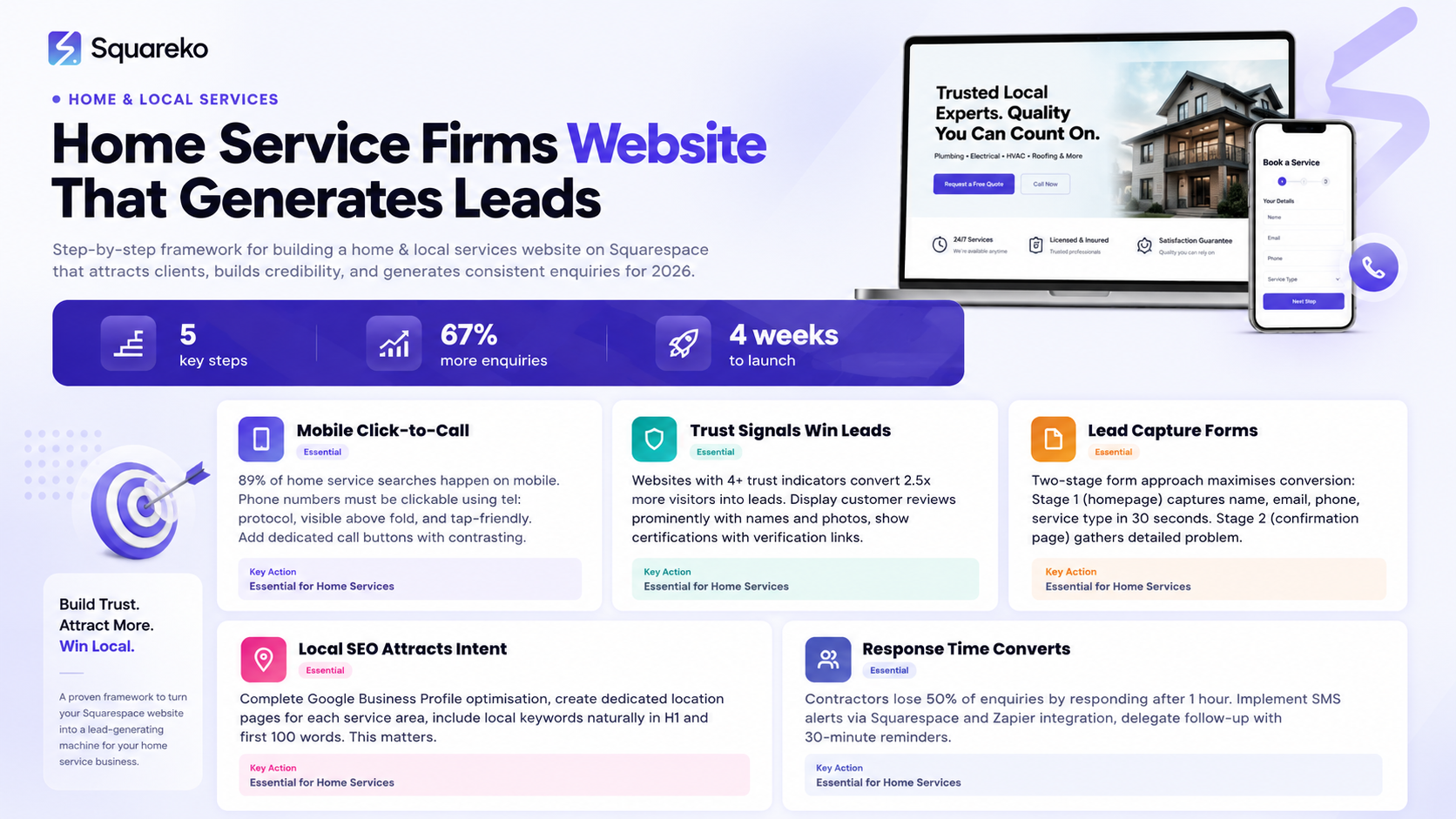
Here's a fact: 89% of home service searches are conducted on mobile devices. Of those visitors who decide to contact you, 87% choose to call rather than fill a form.
This means your website's entire lead generation system rests on one feature: the ability for a mobile user to tap your phone number and call you instantly.
Yet most local service business websites fail this basic test. The phone number is hidden in a footer. It's not clickable. It's displayed as plain text rather than a link. On mobile, the visitor must manually type the number.
In Squarespace, click-to-call optimisation is straightforward but requires intention.
Step 1: Make Your Phone Number Clickable
In your Squarespace site, navigate to the page where your phone number appears (usually the Header or Footer section). Select the phone number text and link it using the phone protocol: tel:+44XXXXXXXXXX.
Squaresco recommends the international format (country code + number) to ensure compatibility across all devices. For example: tel:+441234567890 rather than tel:01234567890.
Step 2: Place Your Phone Number Above the Fold
Your homepage hero should display your phone number prominently. Not as Contact Us linking to a contact page—that's a barrier. Display the actual phone number, large and clickable. On mobile, test that the number is tap-able and stands out visually. Use a contrasting colour.
Step 3: Create Click-to-Call Buttons
Beyond your static phone number, create dedicated call buttons throughout your website. In Squarespace, use Button blocks with the phone protocol link. Label these clearly: Call Now or Request a Callback.
Position these buttons after your service descriptions, in your testimonials section, and at the bottom of key pages. Each button should link to the same phone protocol, making calling effortless.
Step 4: Add a Click-to-Call Banner for Mobile
Squarespace allows you to create custom mobile headers. Consider adding a sticky banner that appears on mobile devices containing your phone number and a call button. This ensures visibility even as the user scrolls.
Test this extensively on real mobile devices. The button must be large enough to tap easily (minimum 44 pixels × 44 pixels) and positioned so it doesn't cover essential content.
Step 5: Implement Click-to-Call Tracking
To measure which pages drive the most calls, use Squarespace's built-in analytics combined with call tracking software. Services like CallRail or Marchex integrate with Squarespace and assign unique phone numbers to different traffic sources.
When a visitor calls from organic search, they dial one number. When they arrive from a Google Ad, they dial another. This reveals which marketing channels drive the most valuable leads—calls—rather than mere clicks.
Step 6: Create a Mobile-Specific Contact Path
On desktop, you might expect visitors to browse a multi-page website. On mobile, create a faster path to contact. Your mobile navigation should prioritise: Home, Services, Reviews, and Call Now.
Consider removing secondary pages from mobile navigation to reduce friction.
Building Trust Signals That Convert Visitors to Enquiries
A homeowner searching for a plumber has never heard of you. They're considering three websites simultaneously—yours and two competitors. What makes them choose your number to dial?
Trust signals.
Research shows that websites displaying 4+ trust indicators convert 2.5× more visitors into leads than those with none. For local service businesses, trust signals are not nice-to-haves. They're lead-generation infrastructure.
Customer Reviews and Testimonials
Your most powerful trust signal is other customers. Place customer reviews prominently on your homepage and services pages. In Squarespace, use the Testimonials block to feature customer quotes alongside customer names, photos, and star ratings.
Aim for a minimum of 5-star average across at least 15 visible reviews. Encourage new customers to leave reviews by sending a post-service email with a direct link to Google, Trustpilot, or your website review section.
Specificity matters. Generic praise ("Great service!") carries less weight than detailed reviews: Fixed our boiler in under an hour, couldn't fault the workmanship, and the price was fair. Will definitely call again.
Certifications and Credentials
Display relevant certifications prominently. Plumbers: Gas Safe Register. Electricians: NICEIC or NAPIT. Cleaners: industry accreditations. These appear as small badges or icons alongside your company name.
In Squarespace, add these to your About section or homepage. Link each certification to the official registry so visitors can verify independently.
Years of Experience and Company History
"Serving [Town] since 2008" or "18 years of professional service" signals stability and expertise. Include this prominently, not buried in your About page.
In Squarespace, place your establishment year or experience claim in your hero section subtitle.
Before-and-After Photos or Case Studies
For visual trades (gardening, renovation, cleaning, decoration), before-and-after photos are trust gold. They provide concrete proof of your capability.
Create a dedicated Portfolio or Case Studies section in Squarespace. Each project should include the location (city/neighbourhood, not full address), the challenge, your solution, and the result. Include the customer's first name only: Sarah's kitchen renovation, Bristol.
Response Time and Availability
State your response time explicitly: "We respond to enquiries within 2 hours, 7 days a week" or "Emergency calls attended within 30 minutes in [town]."
This sets customer expectations and demonstrates professionalism. If your response time is fast, it's a major differentiator.
Professional Photos of Your Team
A photo of your business owner or team wearing branded uniforms or with your tools is far more persuasive than stock photos. People do business with people they recognise.
Include professional photos of your team in your About section and, if relevant, in your hero banner.
Trust Badges and Insurance Information
If you carry public liability insurance (you should), display this clearly. Include your insurance provider and policy limits if comfortable doing so. This is particularly important for high-risk services like plumbing or electrical work.
In Squarespace, add insurance information to your footer or a dedicated Trust section.
Setting Up Lead Capture Forms That Actually Work
A click-to-call button captures leads via phone. Your website must also capture leads via form, for visitors who prefer email, can't talk, or want to describe their problem first.
Most lead capture forms are far too long. A form asking for name, email, phone, address, service type, problem description, photos, preferred appointment date, and budget will be abandoned 80% of the time.
Instead, use a two-stage form:
Stage 1 (Homepage or Services Page): Name, email, phone, service type. This takes 30 seconds.
Stage 2 (Confirmation page or follow-up email): Detailed questions about the specific problem, photos, budget, preferred appointment times.
Building Your Primary Lead Form in Squarespace
In Squarespace, add a Form block to your homepage (usually in a dedicated "Get a Free Quote" section) or your services pages.
Configure the form as follows:
Name field: Required. Single-line text.
Email field: Required. Email format validation.
Phone number field: Required. Phone format validation.
Service type: Required. Dropdown menu listing your main services.
Brief description: Optional. Multi-line text, max 500 characters. Placeholder: "Tell us what you need help with."
Consent checkbox: Required. I agree to be contacted about my enquiry.
This form should be readable on mobile without scrolling (keep it above the fold on desktop).
Post-Submission Actions
When a visitor submits the form:
Email notification to you: Squarespace sends you an instant notification with all form data.
Thank-you message to visitor: Display a confirmation message: "Thanks, [Name]. We'll call you within 2 hours" or "We've received your enquiry. Check your email for next steps."
Automated confirmation email to visitor: Set up a Squarespace automation or use Zapier to send a confirmation email with your phone number, office hours, and what to expect next.
The automated confirmation email is critical. It:
Confirms the visitor's enquiry was received
Provides your phone number (in case they want to call instead)
Sets expectations: We'll call within 2 hours or We'll email you by 5 PM today
Includes your address and opening hours
Offers a callback option: Can't talk now? Reply to this email with your preferred call time.
Advanced: Conditional Forms
For businesses offering multiple services, create conditional forms that change based on the service selected. For example, a plumber's form might ask different questions for burst pipes versus boiler installation.
In Squarespace, you can achieve this using the Zapier integration to trigger custom workflows. When someone selects Emergency plumbing, the confirmation email and follow-up sequence differ from someone selecting Routine maintenance.
Call Tracking Integration
Connect your lead form to a call tracking system like CallRail. This reveals which traffic sources (Google, Facebook, organic search) produce the most valuable leads—those who actually call.
Over time, this data guides your marketing budget.
Local SEO for Squarespace: Attract Service Enquiries in Your Area
Building a website optimised for clicks-to-call is useless if nobody finds it. Local SEO—optimising your Squarespace website to rank in local search—is the funnel that fills your website with local homeowners ready to contact you.
Google Business Profile Optimisation
Before optimising your Squarespace website, claim and complete your Google Business Profile. This is the local business listing that appears in Google Maps and local search results.
Claim your profile at business.google.com
Verify your business address
Add your phone number, website, and hours
Upload professional photos of your team and work
Write a compelling business description (160 characters) including your service and location
Add service areas if you travel to customers
Your Squarespace website and Google Business Profile work together. Google uses signals from both to determine your local relevance.
Location Pages for Multi-Area Service Businesses
If you serve multiple towns or postcodes, create dedicated landing pages for each area. For example, a plumber serving Bristol, Bath, and Weston-super-Mare should have:
/plumber-bristol/
/plumber-bath/
/plumber-weston-super-mare/
Each page includes your core service description, but with location-specific content:
Local projects and case studies
Local reviews (if possible)
Local phone number or local service hours
Mention of local neighbourhoods you serve
This signals to Google that you serve these specific areas and helps you rank for location-specific searches.
On-Page SEO for Your Squarespace Website
H1 title: Include your service and primary location. "Emergency Plumber in Bristol Available 24/7."
Page title: 50–60 characters, include primary keyword. "Emergency Plumber in Bristol | 24/7 Service"
Meta description: 150–160 characters, include location and primary benefit. "Emergency plumbing in Bristol. We respond within 30 minutes. Call [number] 24/7."
Service descriptions: Write naturally, but include location terms and specific services. Google's algorithm understands context, so write for humans first.
Internal links: Link your services pages to your homepage and location pages. Link your case studies to relevant service pages.
Schema Markup for Local Service Businesses
Squarespace does not automatically generate Local Business schema, but you can add it manually using Custom Code injection. This tells Google exactly what you are: a local service business in a specific area.
Add this to your Site Header or Footer custom code:
{
  "@context": "https://schema.org",
  "@type": "LocalBusiness",
  "name": "[Your Business Name]",
  "image": "[Your Logo URL]",
  "description": "[Your Service Description]",
  "address": {
    "@type": "PostalAddress",
    "streetAddress": "[Your Address]",
    "addressLocality": "[Town]",
    "postalCode": "[Postcode]",
    "addressCountry": "GB"
  },
  "telephone": "[Your Phone]",
  "url": "[Your Website URL]",
  "sameAs": ["[Your Google Business URL]"],
  "areaServed": ["[Service Area 1]", "[Service Area 2]"],
  "priceRange": "£",
  "openingHoursSpecification": [
{
      "@type": "OpeningHoursSpecification",
      "dayOfWeek": "Monday",
      "opens": "08:00",
      "closes": "17:00"
    }
  ]
}
This schema helps Google understand your business type, location, and service areas.
Home Service Website Lead Conversion Checklist
Use this checklist to audit your current Squarespace website. Each item directly impacts your lead volume and quality.
Phone number is visible above the fold on every page
Phone number is clickable (tel: link format) on all devices
Click-to-call button appears on homepage, services pages, and contact page
Customer reviews or testimonials display on homepage with names, photos, and dates
Minimum 5 visible reviews or testimonials with 4.5+ average rating
Certifications or credentials are displayed with verification links
Business establishment date or years of experience are visible (e.g., "Since 2010")
Before-and-after photos or case studies appear in a dedicated portfolio section
Team photos show real people, not stock images
Opening hours and emergency availability are stated clearly
Service area or location is mentioned in your headline and hero section
Lead capture form appears on homepage or dedicated landing page
Form is mobile-responsive and above the fold (no scrolling required)
Post-submission confirmation email is automated and includes your phone number
Google Business Profile is complete and verified
Local SEO pages exist for each service area you cover
Page titles and meta descriptions include location keywords
LocalBusiness schema is deployed
Service pages clearly describe specific problems you solve, not just generic services
Emergency or urgent contact option is visible (if applicable)
Home Service Website Lead Audit
Is your Squarespace home service website set up to generate maximum leads?
Take 20 minutes to answer these diagnostic questions:
Phone visibility: Can you see your phone number in the first 3 seconds on mobile? Is it clickable?
Trust indicators: Are your 5+ best reviews visible on your homepage without scrolling? Do they include customer names and photos?
Service clarity: If a visitor landed on your homepage for the first time, could they identify your exact service and location in 10 seconds?
Mobile performance: On a mobile device, can you tap your phone number to call, or tap a "Call Now" button within 2 taps?
Lead capture: Is your form visible without scrolling on desktop? Does it ask for more than 5 fields?
Response time: Are your business hours and response time stated clearly? Do visitors know how quickly you'll reply?
Differentiators: Does your website explain why someone should choose you over a competitor? (Price, speed, expertise, warranty, etc.)
Reviews: Are your customer reviews recent (within the last 3 months)? Do they include specific details about your service?
Google visibility: Can you find yourself in Google Maps when you search for your service + your town?
Competitive review: Open your top local competitor's website on mobile. Can you contact them faster than contacting you?
For each "No" answer, you've identified a lead leak. Fixing the highest-impact issues first (phone visibility, trust signals, form length) will increase your lead volume immediately.
LocalBusiness Schema (JSON-LD)
{
  "@context": "https://schema.org",
  "@type": "LocalBusiness",
  "name": "Squareko",
  "description": "Web design and digital marketing specialists for home and local service businesses in the UK.",
  "address": {
    "@type": "PostalAddress",
    "addressCountry": "GB"
  },
  "url": "https://squareko.com",
  "priceRange": "£",
  "areaServed": "GB",
  "serviceType": ["Web Design", "Local SEO", "Lead Generation"]
}
-
The primary driver of calls is mobile click-to-call optimisation. Your phone number must be visible, clickable, and above the fold on mobile devices. Beyond this, customer reviews and clear service descriptions reduce friction and increase visitor confidence. Test your website on a real smartphone: can you call within 2 taps? If not, fix that first.
-
A converting local trades website answers five questions immediately: What service do you provide? Where do you operate? Who have you worked for (reviews)? How fast can you respond? How do I contact you? Every visitor should see all five answers within their first 15 seconds on your site. This is the foundation of conversion.
-
A full online booking system is less critical for emergency or one-off services (plumbing, repairs) than it is for routine appointments (cleaning, maintenance, inspections). For emergency services, prioritise a callback request form: "We'll call you within [X] minutes." For appointment-based services, Squarespace's booking integration with Square Appointments can streamline scheduling. Test both approaches: measure which generates more confirmed jobs.
-
Mobile websites lose leads because: (1) phone numbers are not clickable, (2) contact forms require too much typing, (3) trust signals are below the fold, (4) page load speed is slow. Test your website on a 4G connection using an older smartphone. If it takes more than 5 seconds to load, you're losing leads.
-
Create a dedicated Testimonials section using Squarespace's Testimonials block. Collect reviews directly from Google, Trustpilot, or Facebook using Google's review link. Ask customers for permission to publish their name and photo. Screenshots of reviews are less credible than native Squarespace testimonial blocks, so invest time in building a proper testimonials library.
-
Combine three elements: (1) Google Business Profile optimisation—complete every field and add local photos, (2) location-specific content—create pages for each town you serve, (3) on-page SEO—include location keywords naturally in your H1, page title, and first 100 words. If you serve one town, focus on that. If you serve multiple areas, create dedicated pages for each.
-
Track three metrics: (1) form submissions—Squarespace reports these in Settings > Advanced > Form > Submissions, (2) phone calls—use call tracking software like CallRail to measure calls by traffic source, (3) callback requests—monitor your email inbox and phone for incoming enquiries. After 30 days, calculate your lead cost: total marketing spend ÷ number of leads. This reveals whether your website is a profitable lead channel.
Get Your Squarespace Website Lead-Ready Today
Your website is your most scalable lead generation channel. Unlike paid advertising, which stops working the moment you stop paying, a lead-generating website works 24/7 and improves over time.
The challenge is that most local service business websites are built for aesthetics, not conversion. They prioritise awards and impressed peers over enquiries and phone calls.
At Squareko, we specialise in building Squarespace websites for home service businesses that generate measurable leads. We audit your current website, identify lead leaks, and implement the strategies outlined in this guide.
Ready to transform your website into a lead generation engine?
Book a free website audit with our team. We'll review your current Squarespace setup and identify the highest-impact improvements to increase your phone calls and enquiries.

About the Author
I'm Walid Hasan, a Certified Squarespace Expert and Squarespace Circle Platinum Partner with over 12 years of hands-on experience designing and optimizing high-performing websites. Over the years, I've had the privilege of building more than 2,000 Squarespace websites for clients around the world, always focusing on clean design, strong user experience, and conversion-driven results.
