
Squarespace Store Filters Explained: A Big Upgrade for Squarespace Ecommerce
The Problem As ecommerce businesses scale, a problem often arises: the more extensive that product catalog becomes, increasingly difficult it is for customers to easily discover what they’re looking for.
It has been among the most requested features by Squarespace store owners for years. With Squarespace 7.1’s new Store Filters (Beta), we’re finally doing something about that long-time gap.
This release is an important step for the discovery and experience of products in Squarespace commerce.
So, what does that mean for store owners and how do you approach this strategically?
What Are Squarespace Store Filters?
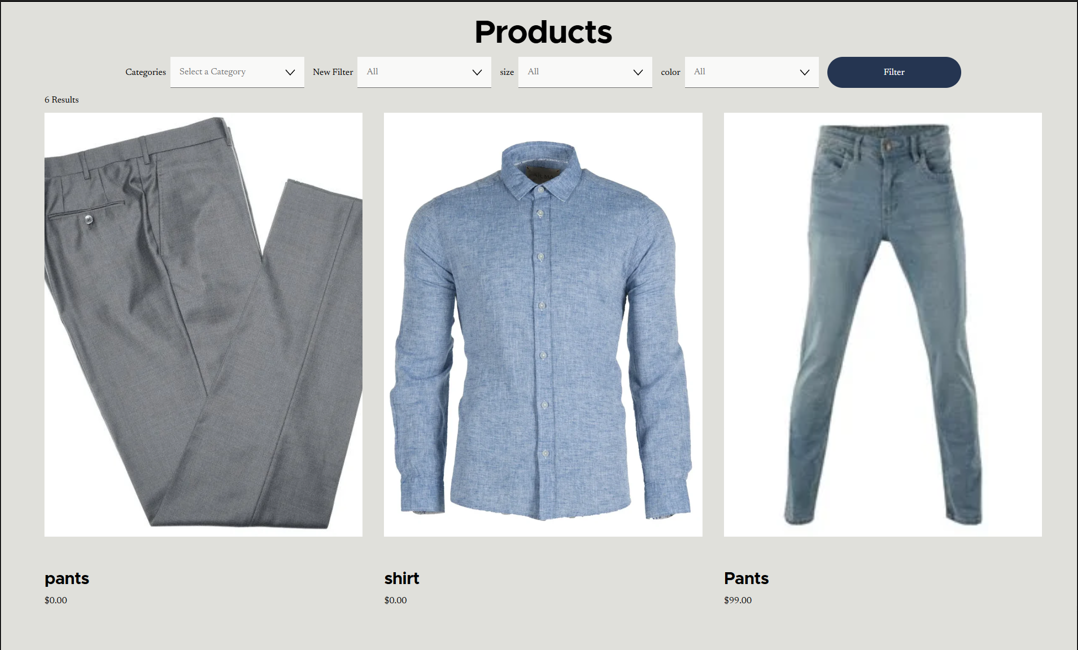
With the Store Filters buyers can filter products by combining multiple filtering criteria all in one go.
Rather than being forced into the never-ending puddle of grids of products, users can search now by:
Categories
Tags
Combined filter selections
t provides a more focused and organized way of browsing shops with many commodities.
That is a big usability win for emerging ecommerce companies.
Why This Update Matters
When customers struggle to locate products efficiently, they leave.
Filtering reduces friction in the buying journey by minimizing:
Decision fatigue
Overwhelm from large inventories
Time spent searching
Cognitive load during browsing
Improved product discovery leads to a smoother path to purchase — and in many cases, higher conversion rates.
This is especially valuable for industries such as:
Fashion
Beauty
Home decor
Wellness
Multi-category retail
In these niches, product variety is a strength — but only if customers can navigate it easily.
How to Enable Store Filters in Squarespace 7.1
If your site has received the beta rollout, you can enable Store Filters by navigating to:
Store Page → Edit Section → Elements → Filters (Beta)
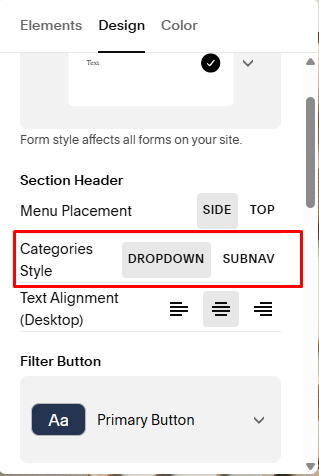
To adjust how categories display:
Store Page → Edit Section → Design → Categories Style
You can choose between:
Dropdown
Subnav
Since the rollout is gradual, the feature may not appear immediately on all sites.
What’s Included in the Store Filters Beta
As a beta release, functionality is structured and intentionally limited. However, the foundation is solid.
Category Filters (Dropdown & Subnav)
Categories can now function as filtering options, and their display style is customizable.
Squarespace offers two presentation styles:
Dropdown Style
Categories appear within a collapsible dropdown menu.
Key behaviors:
If more than 7 categories exist, they automatically display as a dropdown.
On mobile devices, categories always appear inside the filter drawer.
This keeps layouts clean when category counts are higher.
Best suited for:
Stores with larger category sets
Minimalist design layouts
Catalogs with 7+ categories
Subnav Style
Categories are displayed visibly above the product grid, similar to a navigation bar.
This approach prioritizes category visibility and encourages browsing through primary segments.
Best suited for:
Stores with 4–6 broad categories
Brands that rely heavily on category-based navigation
Design-focused storefronts
Important Notes on Category Filters
Category filters function regardless of total product count.
They are not affected by the 200-product tag limitation.
On mobile, categories always appear inside the filter drawer, regardless of chosen style.
Categories should remain broad and structural.
Detailed refinements should be handled via tags.
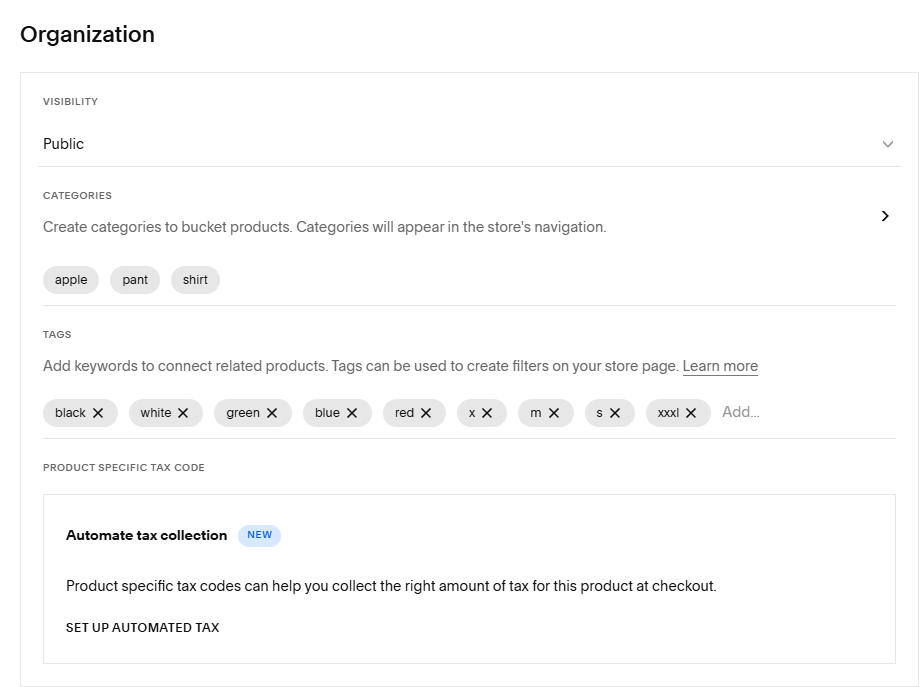
Tag Filters
Tag filters enable product refinement based on attributes such as:
Size
Color
Material
Style
Fit
However, tag filtering includes specific limitations:
Fully supported for stores with up to 200 published products
Maximum of 10 labeled tag filters
Each filter label can include up to 50 tag values
A tag can belong to only one filter label
Tag filters are limited to 200 products per store page
This makes thoughtful tag architecture essential for effective filtering.
Design & Layout Behavior
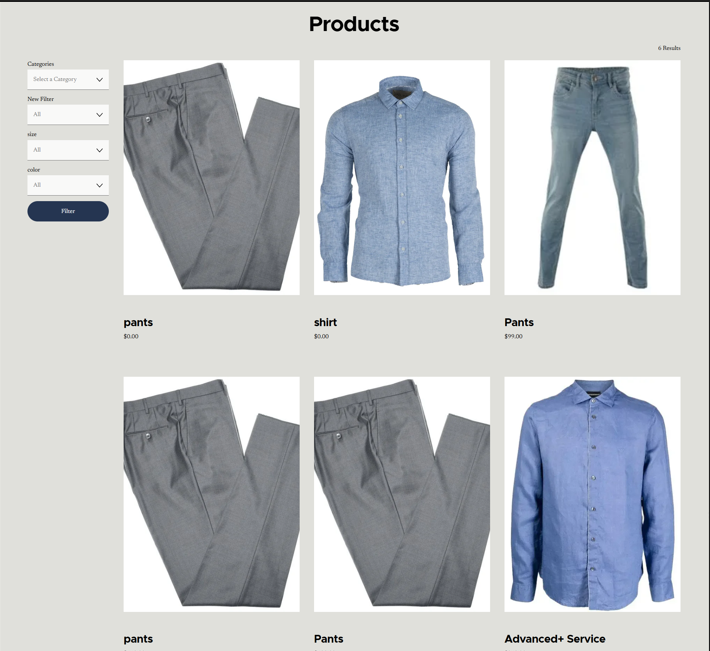
Filter styling is managed through Form Styles within your site’s design settings.
On desktop:
If more than 5 filters are present, they appear in a collapsible interface.
On mobile:
Filters display inside a slide-out drawer for usability.
The interface is designed to remain responsive and visually streamlined across devices.
Important Beta Limitations
As this is still a beta feature, several constraints apply:
Full filtering functionality is supported up to 200 products.
Category filters work for stores of any size.
Tag filters are restricted to 200 products per store page.
If tags are edited, merged, or deleted, manual updates are required in filter settings.
Stores with larger catalogs may need to rely more heavily on category segmentation while awaiting expanded tag support.
How Store Filters Impact Ecommerce Performance
Filtering is not merely a visual enhancement — it directly influences store performance.
When customers refine results themselves, they:
Experience greater control
Reduce cognitive overload
Progress toward purchase decisions faster
Demonstrate stronger purchase intent
Product discovery is one of the most underestimated conversion factors in ecommerce. Store Filters directly strengthen this stage of the buying journey.
Strategic Recommendations Before Activation
To maximize results, prepare your store structure before enabling filters:
Audit and simplify category architecture.
Choose between Dropdown or Subnav strategically.
Standardize tag naming conventions.
Remove duplicate or inconsistent tags.
Keep filter labels concise and purposeful.
Test extensively on both desktop and mobile.
A clean structure amplifies the effectiveness of filtering.
